
1. Introduction
Thank you for purchasing the Amzfast 24-inch 180Hz VA Panel FHD Gaming Monitor. This manual provides essential information for setting up, operating, and maintaining your monitor. Please read it thoroughly before use and retain it for future reference.
Safety Information
- Do not expose the monitor to rain or moisture to prevent fire or shock hazards.
- Do not open the monitor casing. There are no user-serviceable parts inside. Refer all servicing to qualified personnel.
- Place the monitor on a stable, flat surface.
- Ensure proper ventilation around the monitor. Do not block ventilation openings.
- Use only the power adapter supplied with the monitor.
- Unplug the monitor from the power outlet during lightning storms or when unused for long periods.
- Keep the monitor away from direct sunlight, heat sources, and extreme temperatures.
2. Package Contents
Please check the package contents upon opening. If any items are missing or damaged, contact your retailer.
- Amzfast 24-inch 180Hz VA Panel FHD Gaming Monitor
- Monitor Stand (Base and Neck)
- Power Adapter
- Power Cable
- HDMI Cable
- DisplayPort (DP) Cable
- User Manual
3. Setup
3.1 Assembling the Stand
- Carefully remove the monitor from its packaging, keeping the screen protected.
- Attach the stand neck to the monitor panel.
- Attach the stand base to the stand neck and secure it with the provided screws.
- Place the assembled monitor on a stable desk.
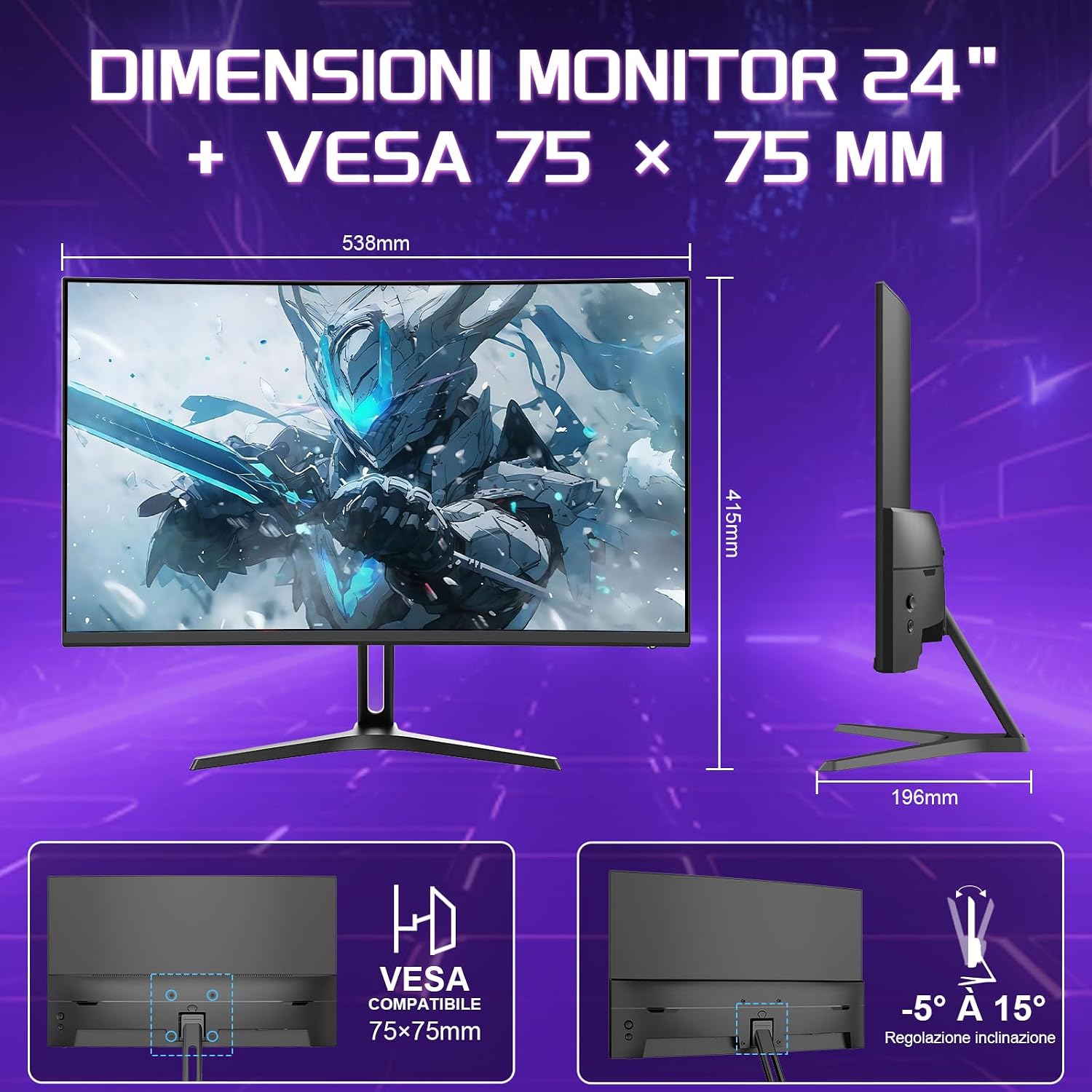
Image: Rear view of the monitor showing dimensions, VESA mount points (75x75mm), and tilt adjustment range (-5° to 15°).
3.2 Connecting Cables
Connect the necessary cables to the monitor and your computer/device.
- Power Connection: Connect the power adapter to the monitor's power input, then plug the power cable into a wall outlet.
- Video Connection:
- HDMI: Connect one end of the HDMI cable to the monitor's HDMI 1.4 port and the other end to your computer's HDMI output.
- DisplayPort (DP): Connect one end of the DP cable to the monitor's DP 1.2 port and the other end to your computer's DisplayPort output.

Image: Close-up of the monitor's rear panel, highlighting the HDMI 1.4 and DisplayPort 1.2 input ports.
Note: For optimal performance, especially for 180Hz refresh rate and 1920x1080 resolution, it is recommended to use the DisplayPort 1.2 connection.
4. Operating the Monitor
4.1 Power On/Off
Press the power button, usually located on the back or bottom of the monitor, to turn it on or off.
4.2 On-Screen Display (OSD) Menu
The OSD menu allows you to adjust various monitor settings. Access it using the control buttons (joystick or individual buttons) typically located on the back or bottom of the monitor.
Common OSD Menu Options:
- Picture Settings: Brightness, Contrast, Sharpness, Color Temperature, HDR.
- Color Settings: Adjust RGB values, Gamma.
- Input Select: Choose between HDMI and DisplayPort inputs.
- Audio: Volume control (if applicable).
- OSD Settings: OSD language, transparency, timeout.
- Gaming Features: Adaptive Sync, MPRT, Game Mode (FPS/RTS), Crosshair.

Image: The monitor screen showing "Esports Mode" with options for an aiming function (crosshair) and optimized settings for FPS/RTS/Racing games.
4.3 Adaptive Sync Technology
This monitor supports Adaptive Sync technology to eliminate screen tearing and stuttering, providing a smoother gaming experience. Ensure Adaptive Sync is enabled in the monitor's OSD menu and in your graphics card settings.
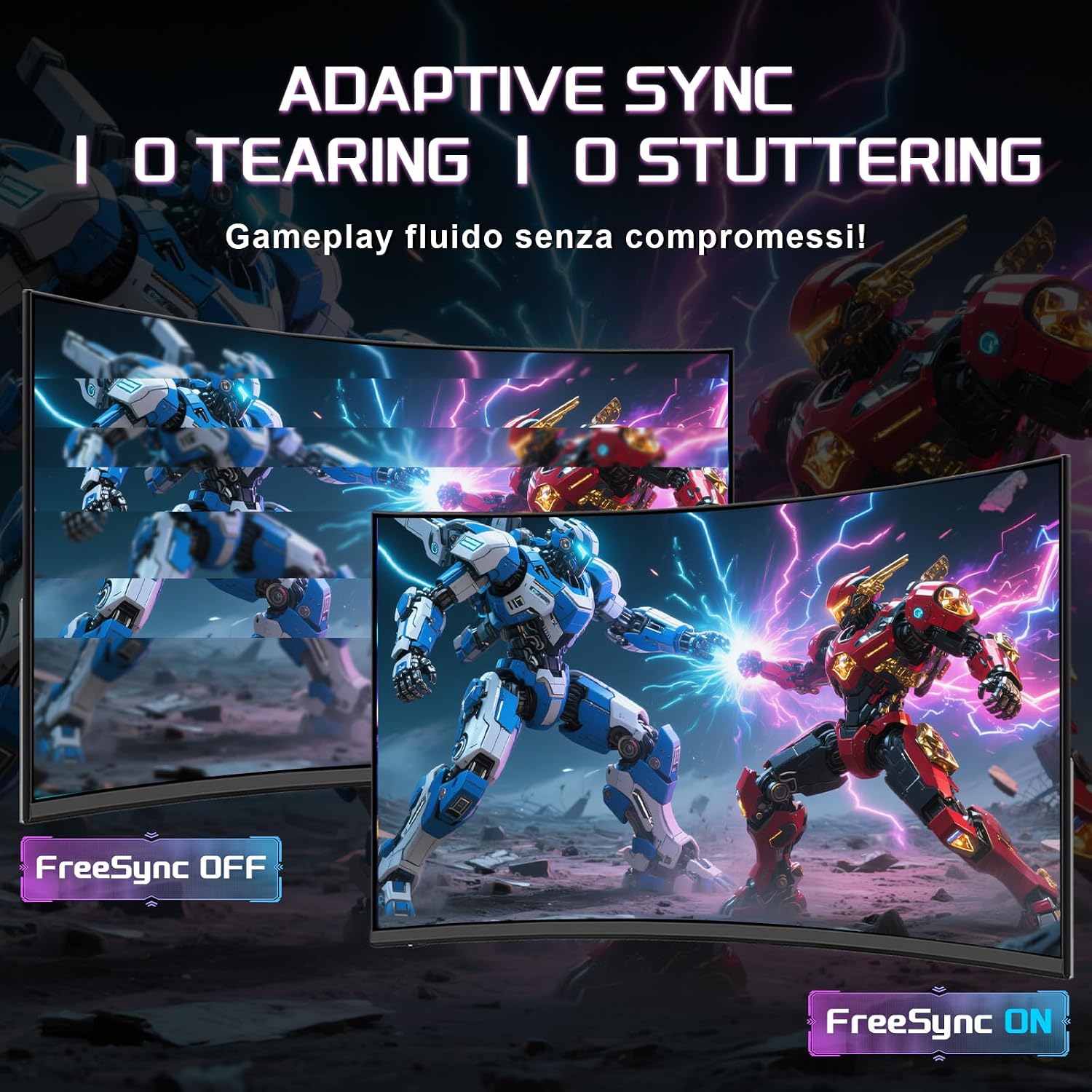
Image: A visual comparison demonstrating the effect of Adaptive Sync. The left side shows screen tearing with "FreeSync OFF," while the right side shows a smooth image with "FreeSync ON."
5. Specifications
| Feature | Specification |
|---|---|
| Model | AM0024EL |
| Screen Size | 24 Inches |
| Panel Type | VA (Vertical Alignment) |
| Curvature | 1500R |
| Resolution | 1920 x 1080 (FHD) |
| Aspect Ratio | 16:9 |
| Refresh Rate | 180Hz |
| Response Time | 1ms MPRT (Moving Picture Response Time) |
| Brightness | 300 cd/m² |
| Contrast Ratio | 3000:1 (Typical) |
| Color Gamut | 130% sRGB |
| HDR Support | HDR10 |
| Adaptive Sync | Yes |
| Video Inputs | 1x HDMI 1.4, 1x DisplayPort 1.2 |
| VESA Mount Compatibility | 75 x 75 mm |
| Tilt Adjustment | -5° to 15° |
| Product Dimensions (W x H x D) | 53.8 x 41.5 x 19.6 cm (with stand) |
| Item Weight | 2.5 Kilograms |

Image: An infographic summarizing key features including 24" VA 1500R, 180Hz, Adaptive Sync, 130% sRGB, HDR, 1ms MPRT, 3000:1 Contrast, Full HD 1080p, and 3-year manufacturer warranty.

Image: Highlights visual features such as 1500R curvature, 300 cd/m² brightness, 3000:1 contrast, and HDR10 support, enhancing visibility in dark scenes.

Image: Illustrates the monitor's 130% sRGB color gamut, indicating vibrant and accurate color reproduction for an immersive visual experience.
6. Maintenance
6.1 Cleaning the Monitor
- Always unplug the monitor before cleaning.
- Use a soft, lint-free cloth slightly dampened with water or a mild, non-abrasive screen cleaner.
- Do not spray cleaner directly onto the screen. Apply it to the cloth first.
- Avoid using benzene, thinner, ammonia-based cleaners, or abrasive materials, as these can damage the screen or casing.
6.2 General Care
- Avoid placing heavy objects on the monitor or its cables.
- Do not expose the monitor to extreme temperatures or humidity.
- If the monitor will not be used for an extended period, unplug it from the power outlet.
7. Troubleshooting
If you encounter issues with your monitor, refer to the following common problems and solutions:
7.1 No Power
- Ensure the power cable is securely connected to the monitor and a working power outlet.
- Verify the power adapter is correctly connected.
- Check if the power button on the monitor is pressed.
7.2 No Image on Screen
- Confirm the video cable (HDMI or DisplayPort) is securely connected to both the monitor and your computer.
- Ensure the correct input source is selected in the monitor's OSD menu.
- Check if your computer is powered on and not in sleep mode.
- Test the monitor with another device or cable if possible.
7.3 Image Flickering or Tearing
- Ensure Adaptive Sync is enabled in both the monitor's OSD menu and your graphics card control panel.
- Check your graphics card drivers are up to date.
- Try a different video cable.
7.4 Incorrect Resolution or Refresh Rate
- Adjust the display settings in your operating system (e.g., Windows Display Settings, NVIDIA Control Panel, AMD Radeon Software) to 1920x1080 resolution and 180Hz refresh rate.
- Ensure you are using a DisplayPort 1.2 or HDMI 1.4 cable capable of supporting these specifications.
8. Warranty and Support
This Amzfast monitor comes with a manufacturer's warranty. Please refer to the warranty card included in your package for specific terms and conditions.
- Product Warranty: 3 years
- Availability of Spare Parts: 7 years
- Availability of Software Updates: 2 years
For technical support or warranty claims, please contact your retailer or visit the official Amzfast support website.
EPREL Registration: 2248957
For detailed product information and energy efficiency data, you can visit the EPREL database:
https://eprel.ec.europa.eu/qr/2248957

Image: A portion of the EPREL (European Product Registry for Energy Labelling) information sheet, detailing product parameters, energy efficiency class, and warranty periods for the Amzfast monitor.