
GMKtec AD-GP1
GMKtec AD-GP1 External GPU Docking Station User Manual
Model: AD-GP1 | Brand: GMKtec
1. Introduction
The GMKtec AD-GP1 is an advanced external GPU docking station designed to significantly enhance the graphics capabilities of compatible devices. Equipped with an AMD Radeon 7600M XT Graphics Card, it provides superior performance for gaming, content creation, and demanding applications. This manual provides essential information for setting up, operating, maintaining, and troubleshooting your AD-GP1 docking station.

Figure 1: GMKtec AD-GP1 External GPU Docking Station
2. What's in the Box
Please verify that all items listed below are included in your package:
- GMKtec AD-GP1 eGPU Dock
- Power Supply Adapter (20V 12A 240W)
- Oculink Cable
- Type-C Cable

Figure 2: Retail Boxed Packaging and Contents
3. Setup Guide
Power Off Devices:
Before connecting the AD-GP1, ensure both the docking station and your host device (Mini PC, laptop, game console, etc.) are completely powered off.
Connect Power Adapter:
Connect the provided 240W power supply adapter to the DC-in port on the AD-GP1 and then plug it into a power outlet.

Figure 3: Power Supply Connection
Connect to Host Device:
Use either the Oculink Cable or the Type-C Cable (for USB4/Thunderbolt connections) to connect the AD-GP1 to your host device. The Oculink port offers higher bandwidth (PCIe x4) compared to Thunderbolt's x3, which can result in better performance.

Figure 4: Port Overview and Connection Points
Connect Displays:
Connect your monitors to the AD-GP1 using the HDMI2.1 or DisplayPort2.0 outputs. The AD-GP1 supports up to four 8K@60Hz displays simultaneously.
Install Drivers (Windows):
For Windows users, it is crucial to install the latest AMD graphics drivers from the official AMD website before plugging in the AD-GP1. Failure to do so may result in display issues. AMD series processors can automatically search for driver downloads, but Intel or other users need to download the drivers themselves to use it normally. Please be sure to check whether the driver has been installed before use.
Linux System Friendly Tips:
Linux users need to download the corresponding driver to run the system normally. Currently, GMKtec does not have any optimized Linux driver.
Mac System Note:
The entire M series does not support graphics card expansion docks. The Intel series needs to download the correct driver to use it (due to the lack of relevant technical personnel, GMKtec cannot provide more support for MAC users at present).

Figure 5: Driver and OS Compatibility Notes
4. Operating Instructions
4.1 Powering On/Off
- After connecting all cables, power on your host device. The AD-GP1 will power on automatically.
- To power off, shut down your host device. The AD-GP1 will power off with it.
4.2 Enhancing Graphics Performance
The AD-GP1 instantly injects powerful graphics processing power into your laptop, Mini PC, or game console. This allows for smoother gameplay, faster rendering in professional graphics software, and an overall enhanced visual experience.
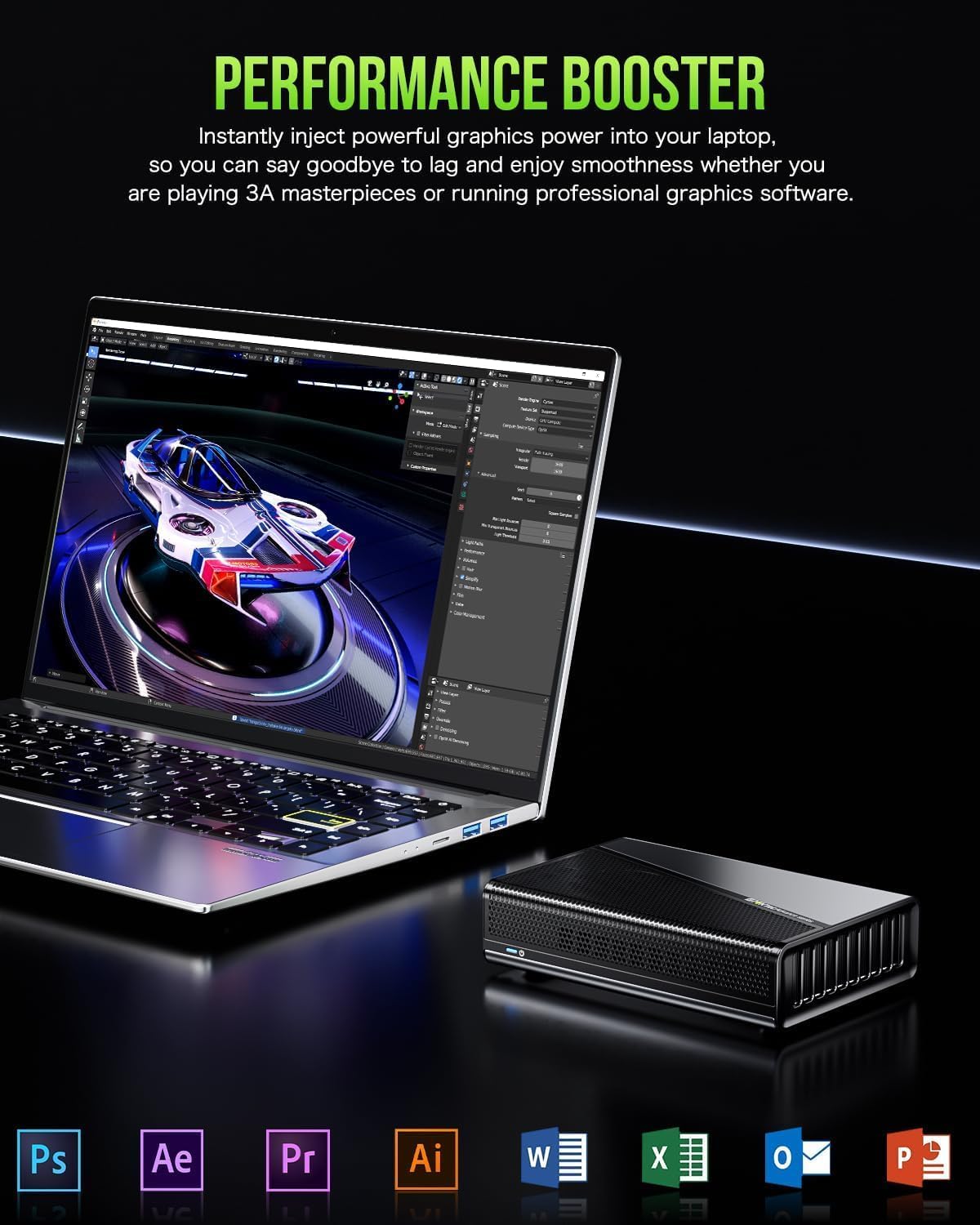
Figure 6: Performance Enhancement with AD-GP1
4.3 Multi-Display Setup
The AD-GP1 supports connecting up to four displays simultaneously, offering a versatile setup for productivity or immersive gaming. Utilize the 2x HDMI2.1 and 2x DisplayPort2.0 outputs for a quad 8K@60Hz display experience.

Figure 7: Quad Display Connectivity
4.4 Compatibility and Usage Scenarios
The versatile Oculink and USB4 ports ensure broad compatibility with various devices. The AD-GP1 is ideal for:
- Mini PCs: Boost graphics performance for compact systems.
- Laptops/Notebooks: Transform your portable device into a powerful gaming or workstation rig.
- Gaming Consoles: Enhance visual fidelity and frame rates.
- Handheld Consoles: Expand their capabilities for a desktop-like experience.

Figure 8: Diverse Compatibility and Applications
5. Specifications
| Feature | Detail |
|---|---|
| Model Number | AD-GP1 |
| Graphics Card | AMD Radeon 7600M XT (GDRR6 8G) |
| GPU Architecture | RDNA 3.0 |
| Base Clock | 1500 MHz |
| Game Clock | 2300 MHz |
| Video Outputs | 2x HDMI2.1 (8K@60Hz), 2x DisplayPort2.0 (8K@60Hz) |
| Connectivity | Oculink (PCIe x4), USB4 (supports Thunderbolt 3 & 4) |
| Power Supply | 240W (20V 12A) |
| USB-C Output | 100W (USB4, External power supply 60W/100W) |
| Product Dimensions | 16.4 × 11.1 × 4.0 cm (6.46 x 1.57 x 0.1 inches) |
| Item Weight | 0.7 kg (4.51 pounds) |
| Color | Black |

Figure 9: Key Features and Specifications Overview
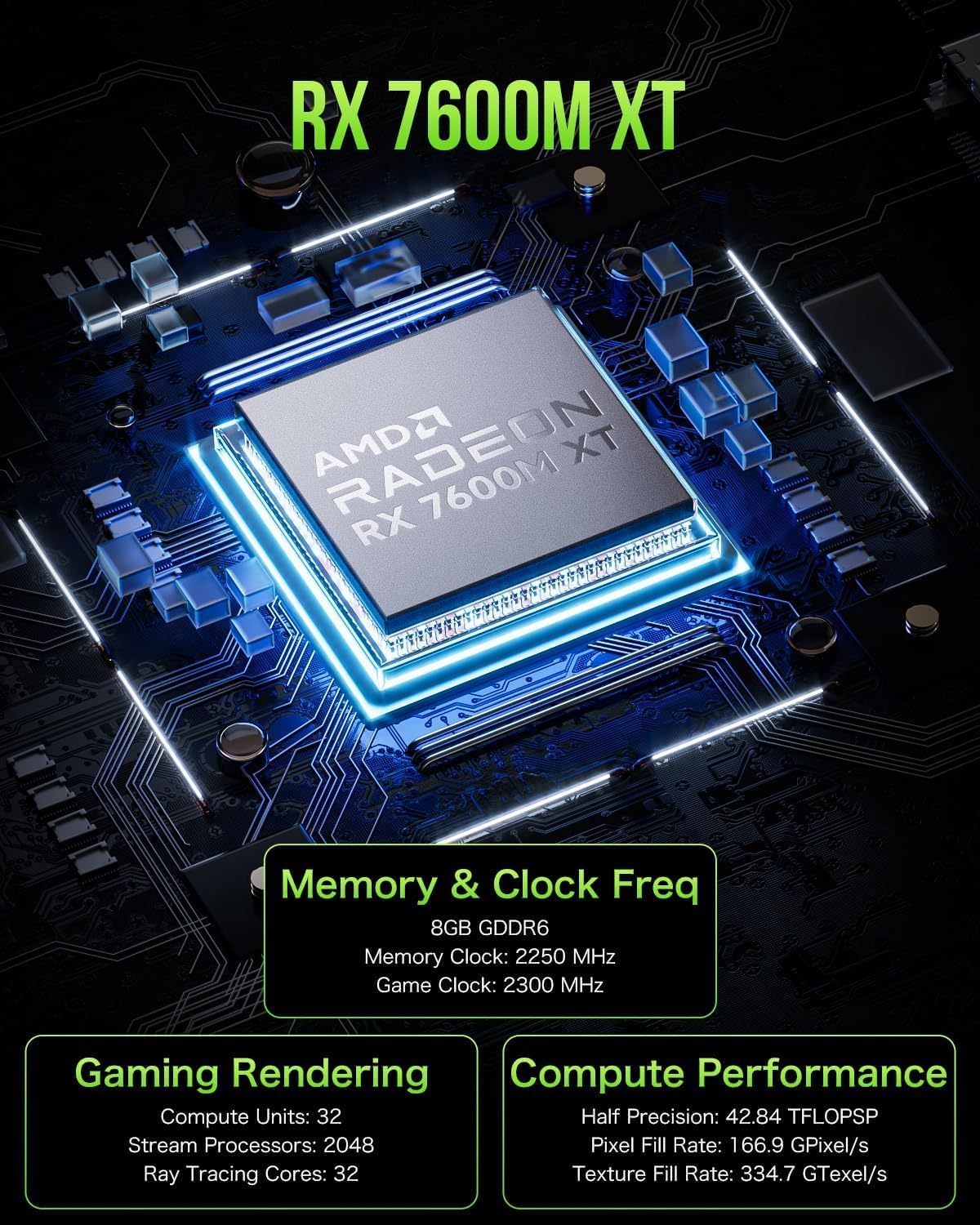
Figure 10: AMD Radeon RX 7600M XT GPU Details
6. Maintenance
To ensure optimal performance and longevity of your GMKtec AD-GP1, follow these maintenance guidelines:
- Cooling: The AD-GP1 features an "Upgraded Super Ice Room 2.0" cooling system with pure copper heat dissipation. Ensure the cooling vents are not blocked. IMPORTANT: Do not stand the unit vertically as it will block the cooling vents.
- Cleaning: Regularly clean the exterior of the unit with a soft, dry cloth. Avoid using liquid cleaners or abrasive materials.
- Storage: When not in use for extended periods, store the device in a cool, dry place away from direct sunlight and extreme temperatures.
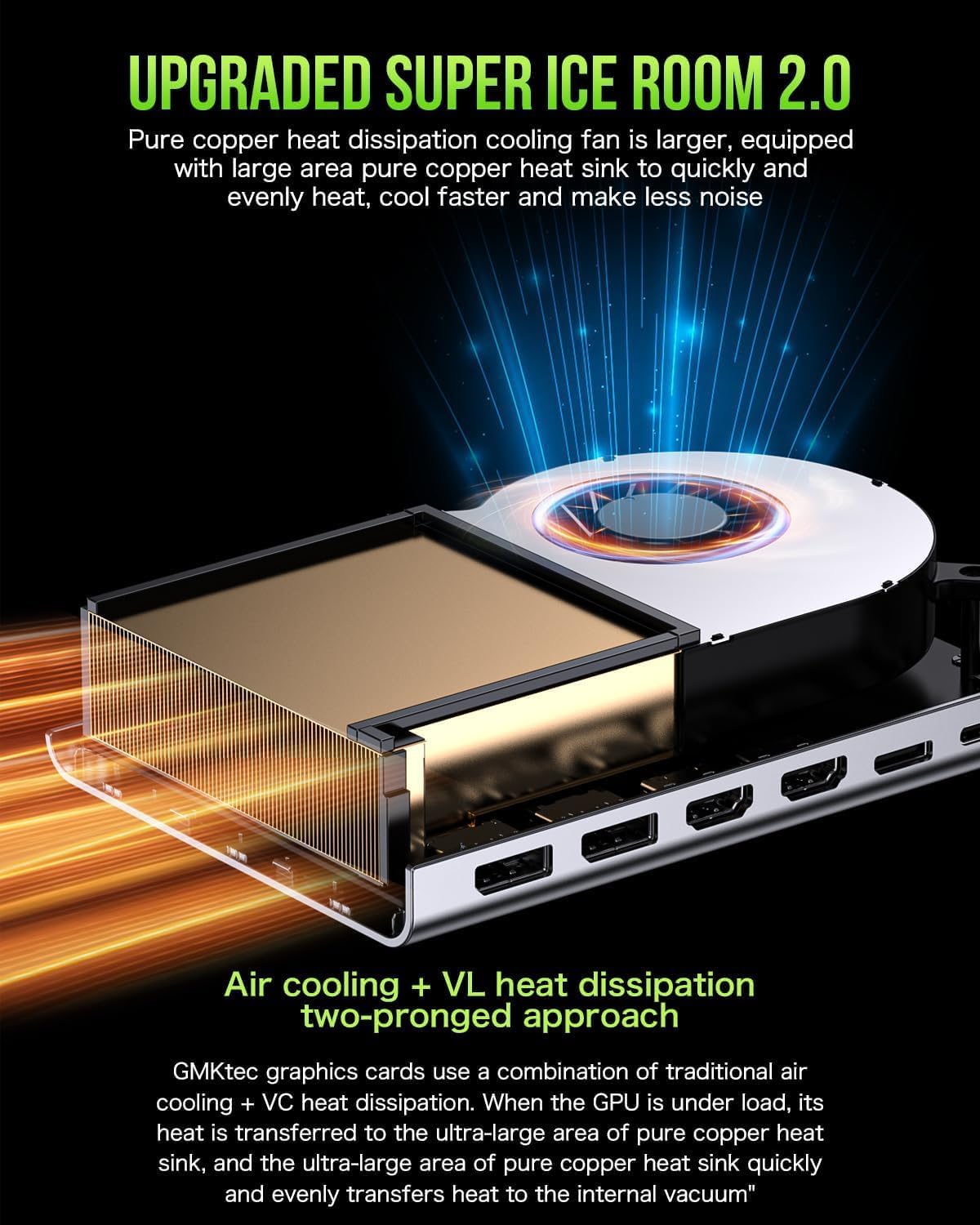
Figure 11: Advanced Cooling System
7. Troubleshooting
If you encounter issues with your AD-GP1, please refer to the following common solutions:
| Problem | Possible Cause / Solution |
|---|---|
| No display output. |
|
| Poor graphics performance. |
|
| Device overheating or loud fan noise. |
|
| Issues with Mac OS. |
|
8. Warranty and Support
GMKtec provides a one-year limited warranty for each device from the date of purchase. All defects caused by design and workmanship are covered by the warranty.
Contact Support:
- Amazon Support: Login to Amazon, go to Your Account -> Your Orders, and select "Ask Product Question" for the AD-GP1.
- After-Sales Support: For direct assistance, you can send an email to the GMKtec After-Sales Team at support@gmktec.com. 24/7 customer support is available.
Ask a question about this manual
Ask about setup, troubleshooting, compatibility, parts, safety, or missing instructions. Manuals+ will review the question and use this page’s manual context to help answer it.