
1. Introduction
This manual provides detailed instructions for the operation and maintenance of your Genérico GN-408 Portable MP3 MP4 Player. Please read this manual thoroughly before using the device to ensure proper functionality and to maximize your user experience.
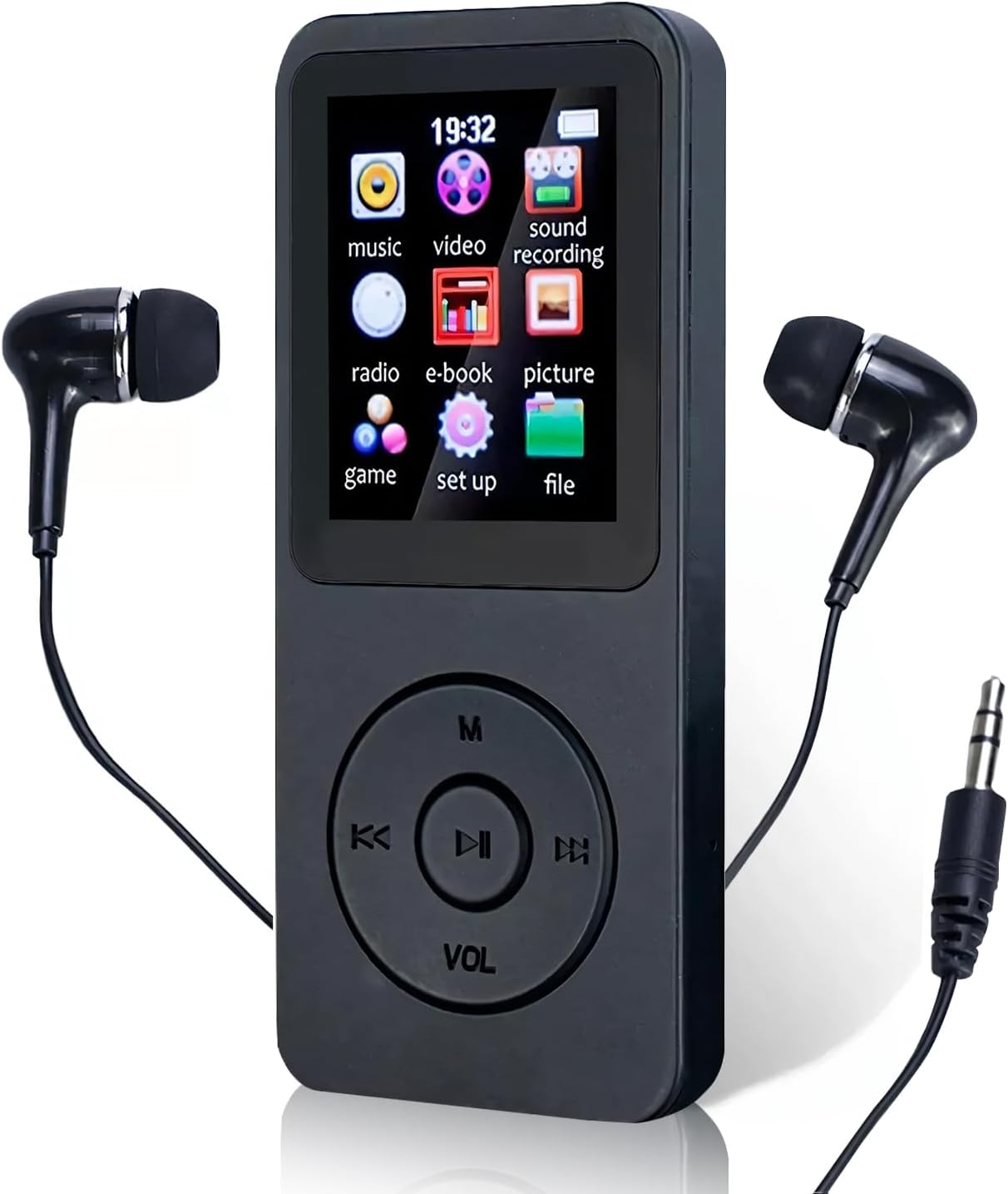
Image 1.1: The Genérico GN-408 Portable MP3 MP4 Player with wired earphones connected. The screen displays icons for music, video, sound recording, radio, e-book, picture, game, setup, and file.
Important Note on Bluetooth Connectivity:
The Bluetooth function on this device is designed for connecting to Bluetooth headphones or external Bluetooth speakers ONLY. It DOES NOT connect to mobile phones, computers, car radios, or other similar devices for data transfer or control.
2. Package Contents
Please verify that all items listed below are included in your package:
- 1 x Genérico GN-408 MP3/MP4 Player
- 1 x USB Charging Cable
- 1 x Wired Earphones (P2 connection)
- 1 x User Manual (this document)

Image 2.1: The complete package contents, including the MP3/MP4 player, wired earphones, USB charging cable, and user manual, alongside the product packaging.
3. Device Overview
3.1. Physical Features

Image 3.1: Detailed view of the player's side, showing the MicroSD card slot, and the bottom, showing the 3.5mm headphone jack and the built-in speaker.
- 1.8-inch TFT Screen: Displays menus, media, and settings.
- Control Buttons: Navigation and playback controls (M, K<, ||>, >K, VOL).
- Micro SD Card Slot: For expandable memory (up to 64GB, card not included).
- 3.5mm Headphone Jack: For wired earphones.
- USB Port: For charging and data transfer.
- Built-in Speaker: For audio playback without headphones.
- Microphone: For voice recording.
3.2. Key Features
- Multi-format Playback: Supports MP3, WMA, APE, WAV, FLAC audio formats and video playback.
- FM Radio: Listen to FM broadcasts (requires wired earphones as antenna).
- Voice Recorder: Built-in microphone for recording audio.
- E-book Reader: Supports TXT format files.
- Image Viewer: Displays JPG/GIF images.
- Bluetooth Connectivity: Connects to Bluetooth headphones and speakers for wireless audio.
- Expandable Storage: Supports Micro SD cards up to 64GB.
- Long Battery Life: Up to 20 hours standby, 3 hours music/video playback.
4. Setup
4.1. Charging the Device
- Connect the small end of the included USB cable to the player's USB port.
- Connect the larger end of the USB cable to a USB power adapter (not included) or a computer's USB port.
- The device will begin charging. A full charge typically takes 2 to 3 hours.
- The battery indicator on the screen will show charging status.
Note: Ensure the device is fully charged before first use for optimal battery performance.
4.2. Installing a Micro SD Card
The Genérico GN-408 does NOT have internal memory. A Micro SD card is REQUIRED for storing and playing media files.
- Locate the Micro SD card slot on the side of the player.
- Gently insert a Micro SD card (up to 64GB, not included) into the slot with the gold contacts facing down, until it clicks into place.
- To remove the card, gently push it in again until it clicks, and it will spring out.
Note: Ensure the device is powered off before inserting or removing the Micro SD card to prevent data corruption.
4.3. Transferring Files
- Connect the player to your computer using the USB cable.
- The player will appear as a removable disk drive on your computer.
- Drag and drop your music, video, image, and e-book files into the appropriate folders on the Micro SD card.
- Once files are transferred, safely eject the removable disk from your computer before disconnecting the USB cable.
5. Operating Instructions
5.1. Power On/Off
- To Power On: Press and hold the Power button (usually located on the side or top) for a few seconds until the screen lights up.
- To Power Off: Press and hold the Power button for a few seconds until the device shuts down.
5.2. Basic Navigation
The player features a central circular control pad with several buttons:
- M (Menu/Back): Press to go back to the previous menu or access context-sensitive options.
- K< (Previous/Rewind): Press to go to the previous track/item or hold to rewind.
- ||> (Play/Pause/Confirm): Press to play/pause media or confirm a selection.
- >K (Next/Fast Forward): Press to go to the next track/item or hold to fast forward.
- VOL (Volume): Press to enter volume adjustment mode, then use K< and >K to adjust volume.
Use the K< and >K buttons to navigate through menu options, and ||> to select.
5.3. Music Playback
- From the main menu, select "Music".
- Browse through your folders and files using K< and >K.
- Press ||> to select a song and start playback.
- During playback, use K< and >K for previous/next track, and ||> to play/pause.
- Press VOL to adjust volume.
- Press M for music options (e.g., repeat mode, shuffle, equalizer).
5.4. Video Playback
- From the main menu, select "Video".
- Navigate to your video files.
- Press ||> to select and play a video.
- Use playback controls as with music.
5.5. FM Radio
Wired earphones must be connected to the 3.5mm jack to act as an antenna for FM radio reception.
- Connect the wired earphones.
- From the main menu, select "Radio".
- Use the navigation buttons to scan for stations or select a preset.
5.6. Voice Recording
- From the main menu, select "Sound Recording".
- Follow the on-screen prompts to start, pause, and save recordings.
5.7. E-book Reader
- From the main menu, select "E-book".
- Navigate to your TXT files.
- Press ||> to open and read an e-book.
5.8. Image Viewer
- From the main menu, select "Picture".
- Navigate to your JPG/GIF image files.
- Press ||> to view an image.
5.9. Bluetooth Connection (for Audio Output)
- From the main menu, select "Setup" or "Bluetooth" (if available as a direct option).
- Turn on Bluetooth.
- Ensure your Bluetooth headphones or speaker are in pairing mode.
- The player will scan for available devices. Select your device from the list.
- Once connected, audio will be routed to the Bluetooth device.
Reminder: Bluetooth is for audio output to headphones/speakers only. It does not connect to phones, computers, or car radios.
6. Maintenance
- Cleaning: Use a soft, dry cloth to clean the device. Do not use liquid cleaners or abrasive materials.
- Storage: Store the player in a cool, dry place away from direct sunlight and extreme temperatures.
- Battery Care: To prolong battery life, avoid fully discharging the battery frequently. Charge the device regularly, even if not in use for extended periods.
- Water Exposure: This device is not waterproof. Avoid exposure to water or high humidity.
7. Troubleshooting
- Device does not power on:
- Ensure the battery is charged. Connect the player to a power source and charge for at least 30 minutes.
- Try pressing and holding the Power button for a longer duration (5-10 seconds).
- No sound from headphones/speaker:
- Check the volume level.
- Ensure headphones are properly plugged into the 3.5mm jack.
- If using Bluetooth, ensure the Bluetooth device is paired and connected, and its volume is also up.
- Test with different headphones or speakers to rule out faulty accessories.
- Cannot read Micro SD card:
- Ensure the Micro SD card is inserted correctly and fully clicked into place.
- Verify the card is not damaged. Try another Micro SD card if available.
- Ensure the card is formatted to a compatible file system (e.g., FAT32).
- Bluetooth does not connect to my phone/computer:
This is expected behavior. The player's Bluetooth is designed ONLY for connecting to Bluetooth headphones or external Bluetooth speakers for audio output. It does not support connection to phones, computers, or car radios for data transfer or control.
- Files are not playing:
- Check if the files are in a supported format (MP3/WMA/APE/WAV/FLAC for audio, JPG/GIF for images, TXT for e-books).
- Ensure the files are not corrupted.
- Verify that the Micro SD card has sufficient free space.
8. Specifications
| Brand: | Genérico |
| Model: | GN-408 |
| Manufacturer: | IIGENAI |
| Storage: | No internal memory; supports Micro SD card up to 64GB (not included) |
| Interface: | USB 2.0 |
| Bluetooth: | Yes (for audio output to headphones/speakers only) |
| Screen: | 1.8-inch TFT LCD, 128 x 160 pixels |
| Touch Screen: | No |
| Audio Formats: | MP3, WMA, APE, WAV, FLAC |
| Image Formats: | JPG, GIF |
| E-book Format: | TXT |
| Battery: | 450mAh Lithium-ion |
| Charging Time: | Approximately 2 hours |
| Playback Time: | Up to 3 hours (music, video, FM radio) |
| Standby Time: | Up to 20 hours |
| Dimensions: | 9.0 cm x 4.0 cm x 0.8 cm |
| Weight: | 31g |
| Material: | ABS |
9. Warranty and Support
9.1. Product Warranty
This Genérico GN-408 MP3 MP4 Player comes with a 3-month warranty from the date of purchase. This warranty covers manufacturing defects. Please retain your proof of purchase for warranty claims.
Note: The warranty does not cover damage caused by misuse, accidents, unauthorized repairs, or normal wear and tear.
9.2. Customer Support
For technical assistance, troubleshooting not covered in this manual, or warranty inquiries, please contact your retailer or the manufacturer, IIGENAI.
Please have your product model (GN-408) and proof of purchase ready when contacting support.