
Introduction
Thank you for choosing the MOTOSPEED CK103 RGB LED Backlit Wired Mechanical Gaming Keyboard. This manual provides essential information for setting up, operating, maintaining, and troubleshooting your new keyboard. Please read it thoroughly to ensure optimal performance and longevity of your device.

Figure 1: MOTOSPEED CK103 RGB LED Backlit Wired Mechanical Gaming Keyboard
Setup Guide
1. Package Contents
- MOTOSPEED CK103 Mechanical Gaming Keyboard
- USB-A to USB-C Cable
- Keycap Puller (may be included)
- User Manual (this document)
2. Connecting the Keyboard
- Locate the USB-A to USB-C cable.
- Connect the USB-C end of the cable to the port on the keyboard.
- Connect the USB-A end of the cable to an available USB-A port on your computer.
- The keyboard will automatically be recognized by your operating system.

Figure 2: USB-A to USB-C cable connection
3. Software Installation
For advanced customization and programming, dedicated software may be available. Please refer to the official MOTOSPEED website for the latest software downloads. Note that programming software does not support MacOS.
Operating Instructions
1. Key Layout and Features
The CK103 features a 103-key layout designed for durability and responsiveness. It includes:
- Full N-Key Rollover: Ensures every key press is registered, even when multiple keys are pressed simultaneously.
- Anti-Ghosting: Prevents unintended key presses from being registered.
- Hot-Swap Mechanical Switches: Allows for easy replacement of switches without soldering. The keyboard is equipped with upgraded sockets and noise-absorbing foams for enhanced performance.

Figure 3: Full key conflict-free design for fast triggering
2. RGB Backlight Control
The keyboard offers 14 distinct RGB backlight effects. You can cycle through these effects and customize them using specific key combinations. Refer to the included quick guide or software for detailed instructions on changing lighting modes and recording custom backlights.

Figure 4: Dual-colour injection-moulded floating backlit keycaps
3. Special Functions
- WIN Key Lock: To prevent accidental interruptions during gameplay, the 'WIN' key function can be locked. Consult the quick guide for the specific key combination.
- Multimedia Control: Access multimedia functions using FN key combinations.

Figure 5: Multimedia control and macro-definable programming
Maintenance
1. Cleaning
To clean your keyboard, disconnect it from your computer. Use a soft, lint-free cloth dampened with a small amount of water or a mild cleaning solution. Avoid spraying liquids directly onto the keyboard. For cleaning between keycaps, use compressed air or a small brush.
2. Keycap and Switch Care
The CK103 features dual-shot injection molded keycaps for durability. If you need to remove keycaps for cleaning or switch replacement, use the provided keycap puller to avoid damage. When replacing switches, ensure proper alignment before pressing them into the hot-swap sockets.
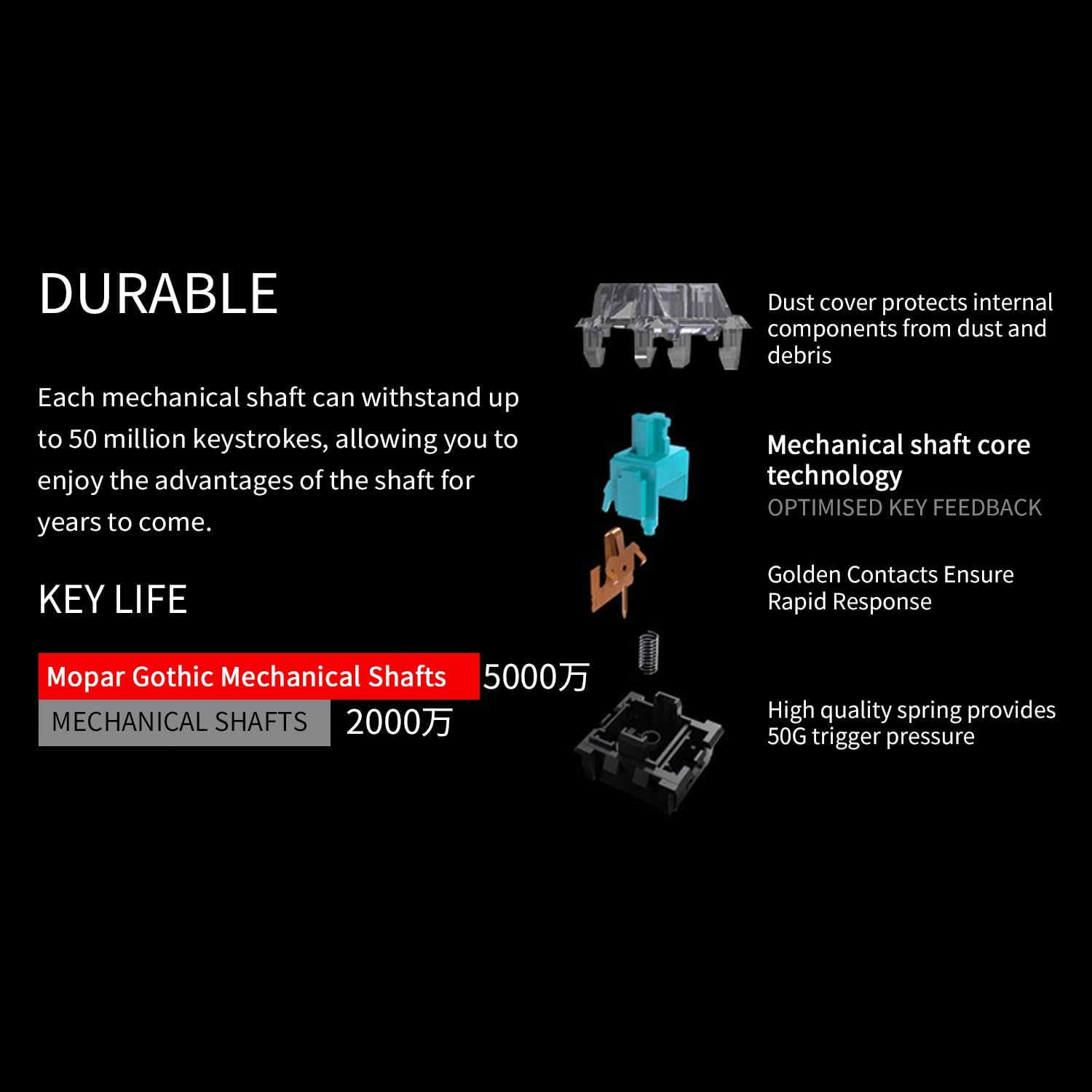
Figure 6: Durable mechanical shaft components
Troubleshooting
1. Keyboard Not Responding
- Ensure the USB cable is securely connected to both the keyboard and the computer.
- Try connecting the keyboard to a different USB port on your computer.
- Test the keyboard on another computer to rule out a computer-specific issue.
2. Backlight Issues
- Check the keyboard's lighting mode settings. You may have accidentally turned off the backlight or selected a static mode.
- If using custom lighting, ensure the settings are correctly applied via the software.
3. Software Compatibility
The programming software for the CK103 is designed for Windows operating systems (WIN2000/XP/VISTA/WIN7/WIN8/WIN10). It does not support MacOS. For MacOS users, basic keyboard functions will work, but advanced programming features will not be available.
Specifications
| Feature | Detail |
|---|---|
| Keyboard Name | CK103 |
| Keyboard Type | Mechanical Keyboard |
| Key Shaft | Mechanical Blue Switch (Soft Tactile) |
| Backlight Type | RGB Backlight (14 effects) |
| Ergonomics | Adjuvant |
| Plug-in | Motospeed Driver |
| Full Key Unshocked | YES (N-Key Rollover) |
| Dimensions | 429 x 141 x 36 mm (18.4 x 7.09 x 2.6 inches) |
| Multimedia Keys | FN Combination F1-F12 |
| Lock Win Key | Yes |
| Key Life | 50 million keystrokes |
| Reporting Rate | 1000Hz |
| Keyboard Memory | 3 sets of setting modes |
| Weight | 840 g (2.35 pounds) |
| Connectivity Technology | USB-A (Wired) |
| Compatible Devices | PC (Windows 2000/XP/VISTA/7/8/10) |
| Material | Aluminum, Plastic |

Figure 7: Detailed product specifications
Warranty and Support
1. Warranty Information
MOTOSPEED products are covered by a manufacturer's warranty. Please retain your proof of purchase for warranty claims. For specific warranty terms and conditions, refer to the warranty card included with your product or visit the official MOTOSPEED website.
2. Customer Support
If you encounter any issues not covered in this manual or require further assistance, please contact MOTOSPEED customer support. Contact details can typically be found on the official website or on the product packaging.