
Headwolf FPad5-JW
Headwolf FPad5 Pro Android 14 Tablet
User Manual
Model: FPad5-JW | Brand: Headwolf
1. Introduction
This user manual provides comprehensive instructions for the Headwolf FPad5 Pro Android 14 Tablet. It covers essential information regarding product features, setup, operation, maintenance, and troubleshooting. Please read this manual carefully before using your device to ensure optimal performance and longevity.

Image: Front and back view of the Headwolf FPad5 Pro Tablet, showcasing its sleek design.
2. Product Overview
Key Features:
- Helio G99 CPU & Android 14: Equipped with an MTK G99 processor for enhanced performance and power efficiency, supporting smooth multitasking and graphic-intensive applications. Runs on Android 14 with improved privacy protection and GMS certification for full Google Play Store access.
- Widevine L1 & FHD IPS Display: Features an 8.4-inch FHD (1920x1200) IPS display with in-cell technology for clear, vibrant visuals from any angle. Widevine L1 certification enables 1080P HD video playback on major streaming platforms like Netflix, Amazon Prime Video, and Disney+.
- 16GB RAM (8+8GB Expansion) + 256GB ROM + UFS: Offers 8GB physical RAM expandable by up to 8GB from storage, boosting execution speed by 30%. Comes with 256GB internal storage, expandable up to 2TB via SD card. UFS 2.1 storage technology provides 40% faster transfer speeds and lower power consumption compared to EMMC.
- 5500mAh Battery + 8MP/16MP Camera + GPS: Long-lasting 5500mAh cobalt acid lithium battery with low self-discharge. Features an 8MP front camera and a 16MP rear camera for capturing moments. Integrated GPS, BDS, and Galileo support for accurate navigation.
- 4G LTE + 2.4G/5G WiFi + Face Recognition: Dual SIM card slots for 4G LTE communication, allowing calls and SMS without Wi-Fi. Supports strong 2.4GHz and high-speed 5GHz Wi-Fi bands. Face recognition feature enhances device security and convenience.

Image: Visual summary of the tablet's main features including CPU, memory, display, battery, and connectivity.
3. Setup
3.1 Package Contents:
Before starting, ensure all items are present in the package:
- Headwolf FPad5 Pro Tablet
- Japanese Instruction Manual
- SIM Card Pin
- Charging Adapter
- Type-C Cable

Image: Illustration of all items included in the Headwolf FPad5 Pro Tablet package.
3.2 Initial Charging:
It is recommended to fully charge the tablet before first use. Connect the provided Type-C cable to the tablet's charging port and the charging adapter, then plug the adapter into a power outlet.

Image: The Headwolf FPad5 Pro Tablet connected to a Type-C charger, illustrating the charging process.
3.3 SIM Card and SD Card Installation:
Locate the card slot on the side of the tablet. Use the provided SIM card pin to eject the tray. Insert your SIM card(s) and/or microSD card into the designated slots. Ensure the cards are correctly oriented before reinserting the tray.
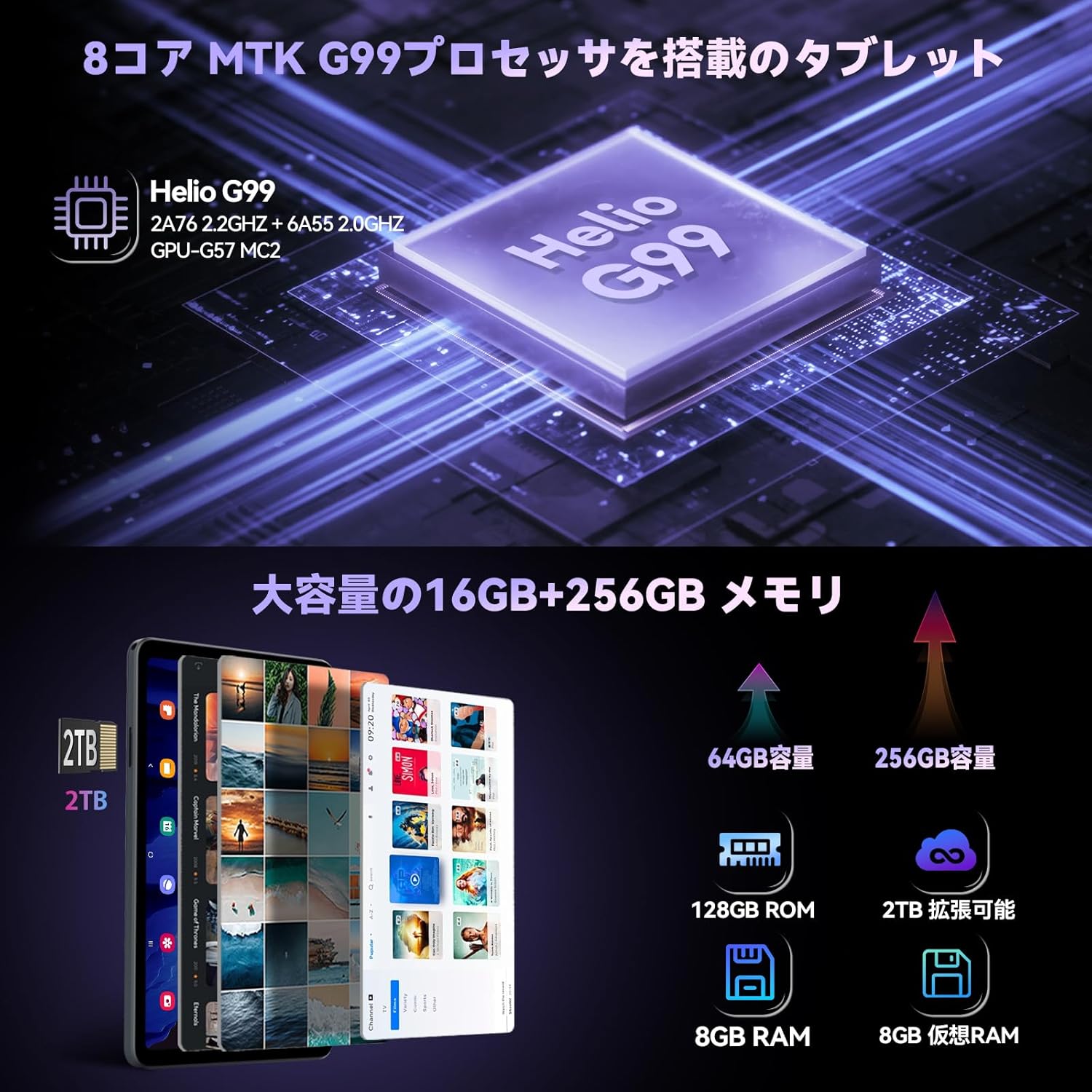
Image: Close-up of the Headwolf FPad5 Pro Tablet's SIM and SD card slot, showing how to insert cards.
3.4 Power On and Initial Setup:
Press and hold the power button until the Headwolf logo appears. Follow the on-screen prompts to select your language, connect to a Wi-Fi network, and complete the initial Android 14 setup process.
4. Operating Instructions
4.1 Basic Navigation:
The tablet features a responsive touch screen. Use gestures such as tap, swipe, pinch-to-zoom, and long-press to navigate the interface and interact with applications.
4.2 Face Recognition:
To set up face recognition, go to Settings > Security & privacy > Face unlock. Follow the instructions to register your face. Once set up, you can unlock your device by simply looking at the front camera.

Image: Depicts the tablet's 4G LTE connectivity, dual-band Wi-Fi, and face recognition capabilities.
4.3 Connectivity (Wi-Fi, Bluetooth, 4G LTE):
- Wi-Fi: Access Wi-Fi settings from the quick settings panel or Settings > Network & internet > Internet. Select your desired network and enter the password.
- Bluetooth: Enable Bluetooth from quick settings or Settings > Connected devices > Connection preferences > Bluetooth. Pair with compatible devices.
- 4G LTE: With a valid SIM card inserted, the tablet will automatically connect to 4G LTE networks for mobile data, calls, and SMS.
4.4 Camera Usage:
The tablet is equipped with an 8MP front camera and a 16MP rear camera. Open the Camera app to capture photos and videos. Various modes and settings are available for different shooting scenarios.

Image: Highlights the tablet's 8MP front and 16MP rear AI cameras, showing examples of photos taken.
4.5 GPS Navigation:
The tablet supports GPS, BDS, and Galileo satellite positioning systems, providing accurate location services. Use navigation apps for directions, route planning, and location tracking.

Image: Demonstrates the tablet's GPS capabilities, showing it mounted in a car for navigation, and its GMS certification.
4.6 Split Screen and Screenshots:
- Split Screen: To use split screen, open a recent app, tap its icon at the top of the preview, and select "Split screen". Choose another app to open in the second pane.
- Screenshots: Take a screenshot by pressing the Power button and Volume Down button simultaneously. Alternatively, use the three-finger swipe gesture if enabled in settings.

Image: Shows the tablet's split-screen multitasking, Android 14 interface, lift-to-wake function, and the three-finger screenshot gesture.
5. Maintenance
5.1 Battery Care:
- Avoid extreme temperatures (hot or cold) as they can degrade battery life.
- Do not let the battery completely drain frequently.
- Use only the provided charger or a certified compatible charger.
5.2 Cleaning:
Use a soft, lint-free cloth to clean the screen and body of the tablet. Avoid using harsh chemicals or abrasive materials that could damage the surface.
5.3 Software Updates:
Regularly check for system updates to ensure your tablet has the latest features, security patches, and performance improvements. Go to Settings > System > System update to check for updates.
6. Troubleshooting
Common Issues and Solutions:
| Issue | Possible Solution |
|---|---|
| Device won't turn on | Ensure the battery is charged. Press and hold the power button for 10-15 seconds to force a restart. |
| Apps are crashing or freezing | Clear the app's cache (Settings > Apps > [App Name] > Storage & cache > Clear cache). Restart the tablet. Ensure apps are updated. |
| Wi-Fi connectivity issues | Restart your Wi-Fi router. Forget the network on your tablet and reconnect. Ensure Wi-Fi is enabled. |
| Slow performance | Close unused apps. Clear cache and temporary files. Consider a factory reset as a last resort (back up your data first). |
| Screen not responding | Restart the device. If the issue persists, contact customer support. |
If you encounter issues not listed here or if the suggested solutions do not resolve the problem, please contact Headwolf customer support.
7. Specifications
| Feature | Detail |
|---|---|
| Brand | Headwolf |
| Model Name | FPad5-JW |
| Product Model Number | F5A |
| Operating System | Android 14 |
| Screen Size | 8.4 inches |
| Display Resolution | 1920x1200 pixels (FHD IPS) |
| CPU Brand | MediaTek |
| CPU Speed | 2.2 GHz |
| Graphics Accelerator | Mali-G57 MC2 |
| RAM | 16GB (8GB + 8GB Expansion) |
| Memory Storage Capacity | 256 GB (Expandable up to 2TB via SD card) |
| Wireless Type | 802.11ac (2.4G/5G WiFi), Bluetooth |
| Front Camera Resolution | 8 MP |
| Rear Camera Resolution | 16 MP |
| Battery Capacity | 5500mAh |
| Item Weight | 600 g |
| Dimensions | 21.5 x 13.9 x 4.6 cm |
8. Warranty and Support
8.1 Product Warranty:
Your Headwolf FPad5 Pro Tablet comes with a 1-year quality warranty from the date of purchase. In case of product defects, free repair or replacement services will be provided. Headwolf is committed to providing comprehensive support to ensure long-term customer satisfaction.
8.2 Dedicated Repair Center:
Headwolf operates a dedicated repair center in Tokyo, Japan, ensuring prompt and high-quality after-sales service. This center handles repairs and exchanges as needed to address customer issues and inquiries efficiently.
8.3 Contacting Support:
For any questions, issues, or support requests, please use one of the following methods:
- Through the Product Page: Go to the product page, click on the store name, then click "Ask a question".
- Through Amazon Account: Go to your Amazon account > Order history > Select the relevant order > Contact seller.
Our support team is ready to assist you with any concerns.
Ask a question about this manual
Ask about setup, troubleshooting, compatibility, parts, safety, or missing instructions. Manuals+ will review the question and use this page’s manual context to help answer it.