
Twotrees T-TS13W
Twotrees TS1 Mini 3W Laser Engraver User Manual
Model: T-TS13W
1. Introduction
The Twotrees TS1 Mini 3W Laser Engraver is a compact and versatile tool designed for precise engraving on a variety of materials. Its manual focus system allows for fine adjustments, ensuring optimal results across different thicknesses. With high-speed engraving capabilities and robust safety features, it is suitable for both home use and small workshop projects.

Figure 1.1: Twotrees TS1 Mini 3W Laser Engraver and example applications.

Figure 1.2: The TS1 Mini Laser Engraver in a typical workspace setup.
2. Safety Information
WARNING: This product contains a laser. Improper use can cause serious injury, including eye damage and burns. Always follow safety guidelines.
- Always wear the provided laser safety goggles when the machine is operating.
- Never look directly into the laser beam, even with safety goggles on.
- Ensure the protective filter plate is properly installed during operation to shield against laser leakage.
- Operate the machine in a well-ventilated area to dissipate fumes and smoke produced during engraving.
- Keep flammable materials away from the engraving area.
- Do not leave the machine unattended during operation.
- Keep out of reach of children and pets.
- Disconnect power before performing any maintenance or cleaning.
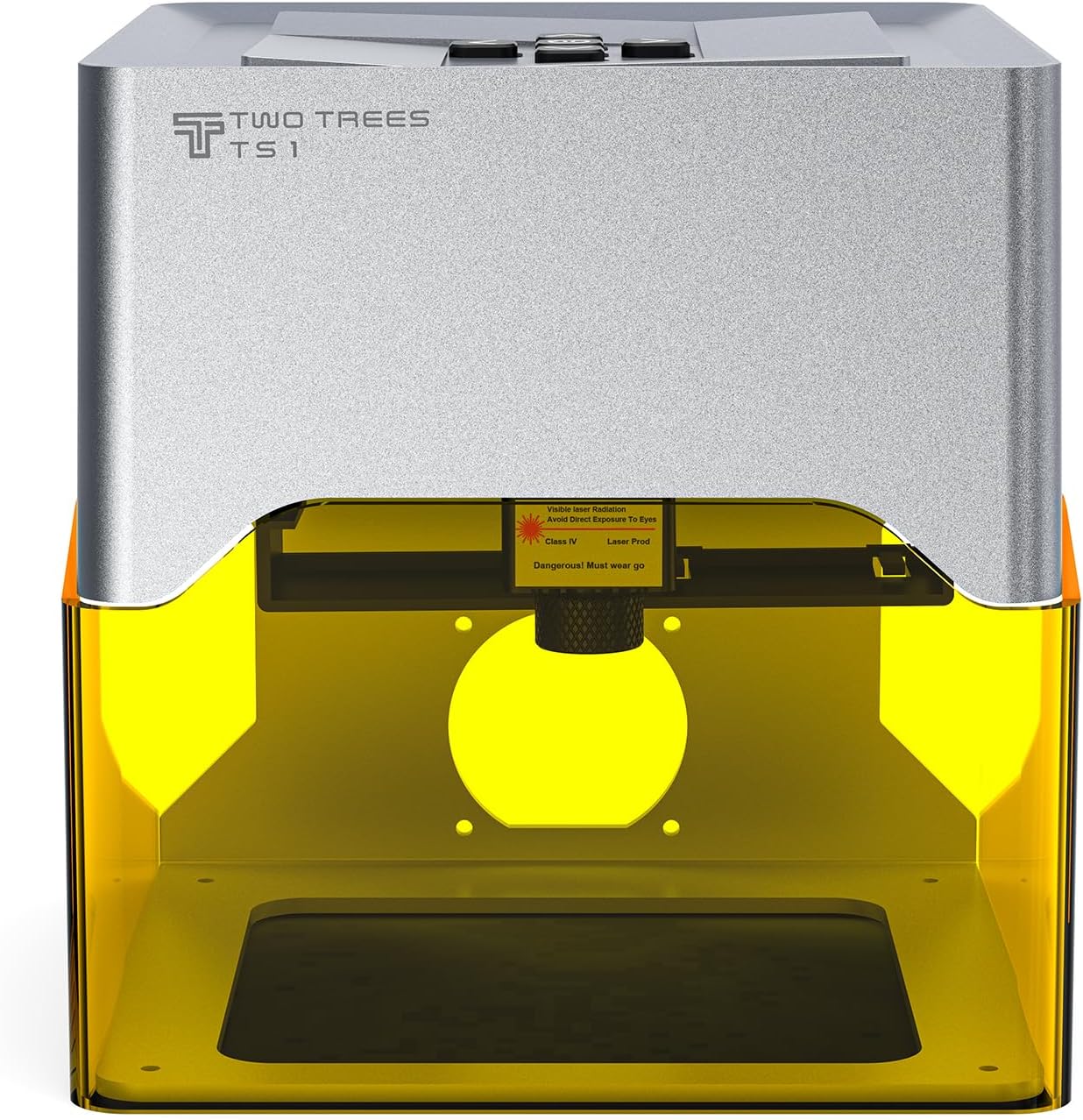
Figure 2.1: Laser warning label on the TS1 Mini.
3. Package Contents
Verify that all items listed below are included in your package:
- Twotrees TS1 Mini 3W Laser Engraving Machine
- Laser Safety Protective Goggles
- USB Extension Cable
- Kraft Paper (for testing)
- Thin Aluminum Sheet (for testing)
- Power Adapter
- Screwdriver
- User Manual (this document)

Figure 3.1: Included accessories with the TS1 Mini.

Figure 3.2: Comprehensive view of all package contents.
4. Setup
- Unpack the Machine: Carefully remove the TS1 Mini from its packaging.
- Place on a Stable Surface: Position the engraver on a flat, stable, and non-flammable surface.
- Connect Power: Plug the power adapter into the machine's power port and then into a suitable electrical outlet.
- Connect to Device: Connect the engraver to your computer or mobile device using the provided USB cable.
- Install Software/App: Download and install the recommended engraving software (e.g., LightBurn) for your computer or the dedicated mobile application for your smartphone. Refer to the quick start guide for QR codes or links.
- Initial Focus Adjustment: The machine features a manual focus system. For initial setup, place a piece of the provided kraft paper on the engraving platform. Adjust the laser head height until the laser spot is at its smallest and most intense point on the material. The focus range is 25-65mm.
5. Operating Instructions
5.1. Software/App Connection
The TS1 Mini can be controlled via a mobile application or desktop software. Ensure your device is connected to the engraver via USB or Bluetooth (if supported by your model).

Figure 5.1: Control interfaces for the TS1 Mini.
5.2. Preparing for Engraving
- Material Placement: Place the material to be engraved flat on the engraving platform.
- Focus Adjustment: Manually adjust the laser head height to achieve optimal focus for your material. The focus range is 25-65mm, and accuracy is up to 0.01mm. A precise focus ensures the best engraving results.

Figure 5.2: Precision focusing mechanism.
5.3. Starting an Engraving Project
- Design Selection/Creation: In the software/app, select an existing design or create a new one.
- Parameter Settings: Adjust engraving parameters such as power, speed (up to 800 mm/min), and passes based on the material type.
- Preview: Use the software's preview function to ensure the design is positioned correctly on your material.
- Start Engraving: Click 'Send' or 'Start' to begin the engraving process. The machine features a 5-second quick start function.
5.4. Supported Materials
The TS1 Mini can engrave a wide range of materials, including but not limited to:
- Wood
- Paper
- Acrylic
- Slate
- Ceramic
- Glass
- Various types of Metal
- Leather

Figure 5.3: Examples of materials and designs that can be engraved.

Figure 5.4: Creative applications of the TS1 Mini.
6. Maintenance
Regular maintenance ensures the longevity and optimal performance of your TS1 Mini Laser Engraver.
- Cleaning the Lens: Periodically clean the laser lens with a soft, lint-free cloth and lens cleaning solution. Ensure the machine is powered off before cleaning.
- Cleaning the Engraving Area: Remove any debris or dust from the engraving platform after each use. A small brush or vacuum can be used.
- General Cleaning: Wipe down the exterior of the machine with a dry or slightly damp cloth. Do not use harsh chemicals.
- Storage: When not in use, store the engraver in a clean, dry environment away from direct sunlight and extreme temperatures.
7. Troubleshooting
If you encounter issues with your Twotrees TS1 Mini, refer to the common problems and solutions below:
| Problem | Possible Cause | Solution |
|---|---|---|
| Machine does not power on | Power cable not connected; Power outlet issue | Check power connections; Try a different outlet. |
| Laser not firing or weak | Incorrect focus; Low laser power setting; Dirty lens | Adjust focus; Increase laser power in software; Clean the laser lens. |
| Engraving is blurry or inconsistent | Improper focus; Material not flat; Machine vibration | Re-adjust focus precisely; Ensure material is flat and secured; Place machine on a stable surface. |
| Software/App cannot connect to machine | USB cable issue; Driver not installed; Bluetooth off | Try a different USB port/cable; Install necessary drivers; Ensure Bluetooth is enabled and paired. |
| Engraving is too light or too deep | Incorrect power/speed settings for material | Adjust laser power and engraving speed in the software based on material type and desired effect. |
8. Specifications
| Feature | Specification |
|---|---|
| Model Number | T-TS13W |
| Laser Power | 3W |
| Focusing System | Manual Focus |
| Focus Range | 25-65mm |
| Engraving Accuracy | Up to 0.01mm |
| Engraving Speed | Up to 800 mm/min |
| Engraving Area | 80mm x 80mm (approximate, based on visual) |
| Product Dimensions | 157mm x 157mm x 167mm (Mini size) |
| Item Weight | 1.32 Kilograms |
| Connectivity | Mobile App / Computer Connection (USB) |
| Safety Features | Eye Protection Design (Goggles & Filter Plate) |
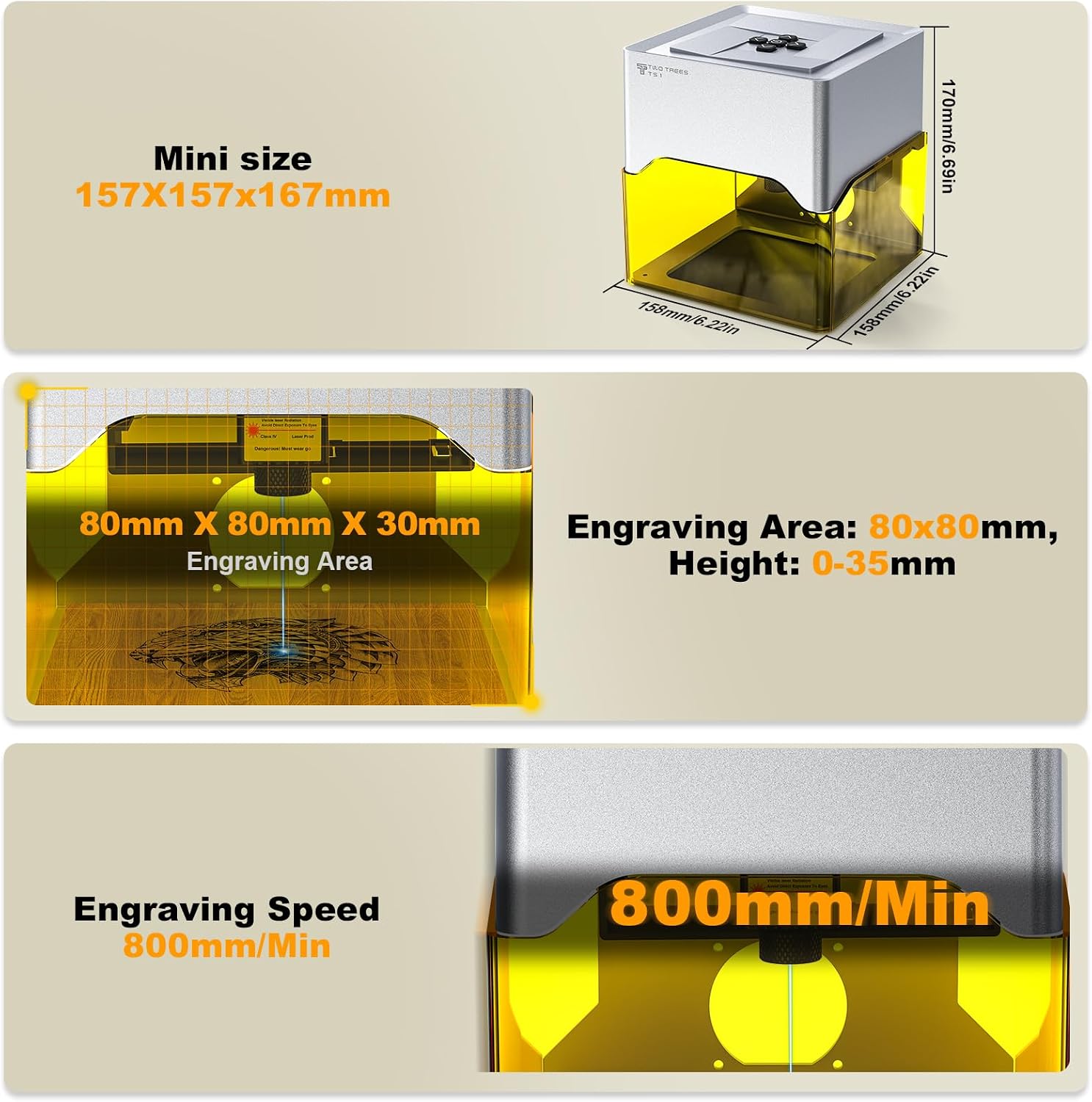
Figure 8.1: Key specifications and dimensions.
9. Warranty and Support
For warranty information and technical support, please refer to the official Twotrees website or contact their customer service directly. Keep your purchase receipt as proof of purchase for any warranty claims.
For further assistance, you may visit the Twotrees Store on Amazon.
Related documentsT-TS13W


Ask a question about this manual
Ask about setup, troubleshooting, compatibility, parts, safety, or missing instructions. Manuals+ will review the question and use this page’s manual context to help answer it.