
TECKNET TK-KB025
TECKNET Gaming Keyboard User Manual
Model: TK-KB025
Introduction
This manual provides comprehensive instructions for the TECKNET Gaming Keyboard (Model: TK-KB025). Please read this manual carefully before using the product to ensure proper operation and to maximize its features. This 75% compact gaming keyboard is designed for both gaming and office use, offering an efficient 82-key layout without a numpad to save desk space while maintaining full functionality.
Setup
Package Contents
- TECKNET Gaming Keyboard (TK-KB025)
- User Manual (this document)
System Requirements
- Operating System: Windows, macOS (PC compatibility confirmed)
- Available USB-A Port
Connecting the Keyboard
- Locate an available USB-A port on your computer.
- Plug the USB-A connector of the TECKNET Gaming Keyboard into the USB-A port.
- The keyboard is plug-and-play and should be automatically recognized by your operating system. No additional drivers are typically required.

Image: The TECKNET Gaming Keyboard connected to a laptop, demonstrating the USB-A cable connection. The cable length is approximately 1.8 meters (70.86 inches).
Operating Instructions
Keyboard Layout and Design
The TECKNET Gaming Keyboard features an 82-key 75% compact layout, designed to save desk space while retaining essential keys for both gaming and productivity. It does not include a dedicated numeric keypad.

Image: An overhead view of the TECKNET Gaming Keyboard on a desk, highlighting its efficient 82-key layout and compact size, which saves approximately 25% desk space compared to full-sized keyboards.
Volume Control Knob
A dedicated volume control knob is located on the top right of the keyboard for convenient audio management.
- Twist Clockwise: Increase volume.
- Twist Counter-clockwise: Decrease volume.
- Press Down: Mute/Unmute audio.

Image: A close-up view of the volume control knob, illustrating its function for adjusting and muting audio.
RGB Backlight Customization
The keyboard features a dynamic rainbow backlight with 6 effects and 8 colors. These can be customized to enhance your gaming or typing experience, especially in dim environments.
- Changing Backlight Effects: Use the dedicated backlight control keys (often indicated by light bulb icons or specific Fn key combinations).
- Adjusting Brightness/Speed: Refer to the key legends for brightness and speed adjustments, typically accessed via Fn key combinations.

Image: The TECKNET Gaming Keyboard displaying its vibrant mixed-color keycaps and rainbow backlight, illuminating the keys.
Ergonomic Design and Typing Angle
The keyboard is designed for comfortable, extended use. It includes dual kickstand feet allowing for adjustable typing angles.
- Foldable Kickstands: Extend the kickstands on the underside of the keyboard to elevate the rear.
- Adjustable Tilt: Choose between approximately 3° or 7° tilt angles to reduce wrist strain and enhance comfort.

Image: A side profile of the keyboard illustrating the foldable kickstands and the two adjustable tilt angles (3° and 7°) for ergonomic comfort.
Anti-Ghosting and Function Keys
The keyboard features 26-key anti-ghosting technology, ensuring accurate input even during rapid key presses. It also includes various function key combinations for enhanced control.
- Fn + Win: Locks the Windows key to prevent accidental presses during gaming.
- Fn + F1-F12: Access multimedia controls and other system functions. Specific functions are indicated by symbols on the F-keys.
- Fn + W: Switches game keys, typically allowing interchangeability between WASD and arrow keys for different gaming preferences.

Image: The keyboard displaying key combinations for Windows Lock (Fn + Win), Multimedia functions (Fn + F1-F12), and switching game keys (Fn + W), alongside an illustration of 26-key anti-ghosting technology.
Maintenance
Cleaning the Keyboard
- General Cleaning: Use a soft, lint-free cloth slightly dampened with water or a mild cleaning solution to wipe the surface of the keyboard.
- Dust Removal: Use compressed air to remove dust and debris from between the keys.
- Stubborn Stains: For more stubborn stains, a small amount of isopropyl alcohol on a cloth can be used, but avoid direct application to the keyboard.
- Do Not Submerge: Never submerge the keyboard in water or any other liquid.
Storage
When not in use for extended periods, store the keyboard in a cool, dry place away from direct sunlight and extreme temperatures.
Troubleshooting
Keyboard Not Responding
- Check Connection: Ensure the USB-A cable is securely plugged into both the keyboard and the computer's USB port. Try a different USB port.
- Restart Computer: Sometimes, a simple computer restart can resolve connectivity issues.
- Test on Another Device: If possible, test the keyboard on another computer to determine if the issue is with the keyboard or the original computer.
Backlight Not Working or Incorrect
- Check Backlight Controls: Ensure you are using the correct Fn key combinations to cycle through backlight effects and adjust brightness.
- Power Cycle: Unplug the keyboard, wait a few seconds, and plug it back in.
Keys Not Registering or Ghosting Issues
- Clean Keys: Ensure no debris is lodged under the affected keys. Refer to the "Maintenance" section for cleaning instructions.
- Anti-Ghosting: The keyboard features 26-key anti-ghosting. If you experience issues beyond this, ensure your operating system and any gaming software are not interfering.
Specifications
| Feature | Detail |
|---|---|
| Model Number | TK-KB025 |
| Brand | TECKNET |
| Connectivity Technology | USB-A (Wired) |
| Keyboard Type | Membrane |
| Number of Keys | 82 |
| Backlighting | RGB (Rainbow Backlight with 6 effects, 8 colors) |
| Anti-Ghosting | 26-Key Anti-Ghosting |
| Special Features | Volume Control Knob, Ergonomic Design, Foldable Kickstands |
| Compatible Devices | PC (Windows, macOS) |
| Product Dimensions (L x W x H) | 33.02 x 12.7 x 4.09 cm (13L x 5W x 1.6H inches) |
| Item Weight | 898 g |
| Cable Length | Approx. 1.8 meters (70.86 inches) |
| Recommended Uses | Business, Everyday Use, Gaming |

Image: The TECKNET Gaming Keyboard highlighting its durability with a claim of 10,000,000 keystroke lifespan, faster response, and crater structure.
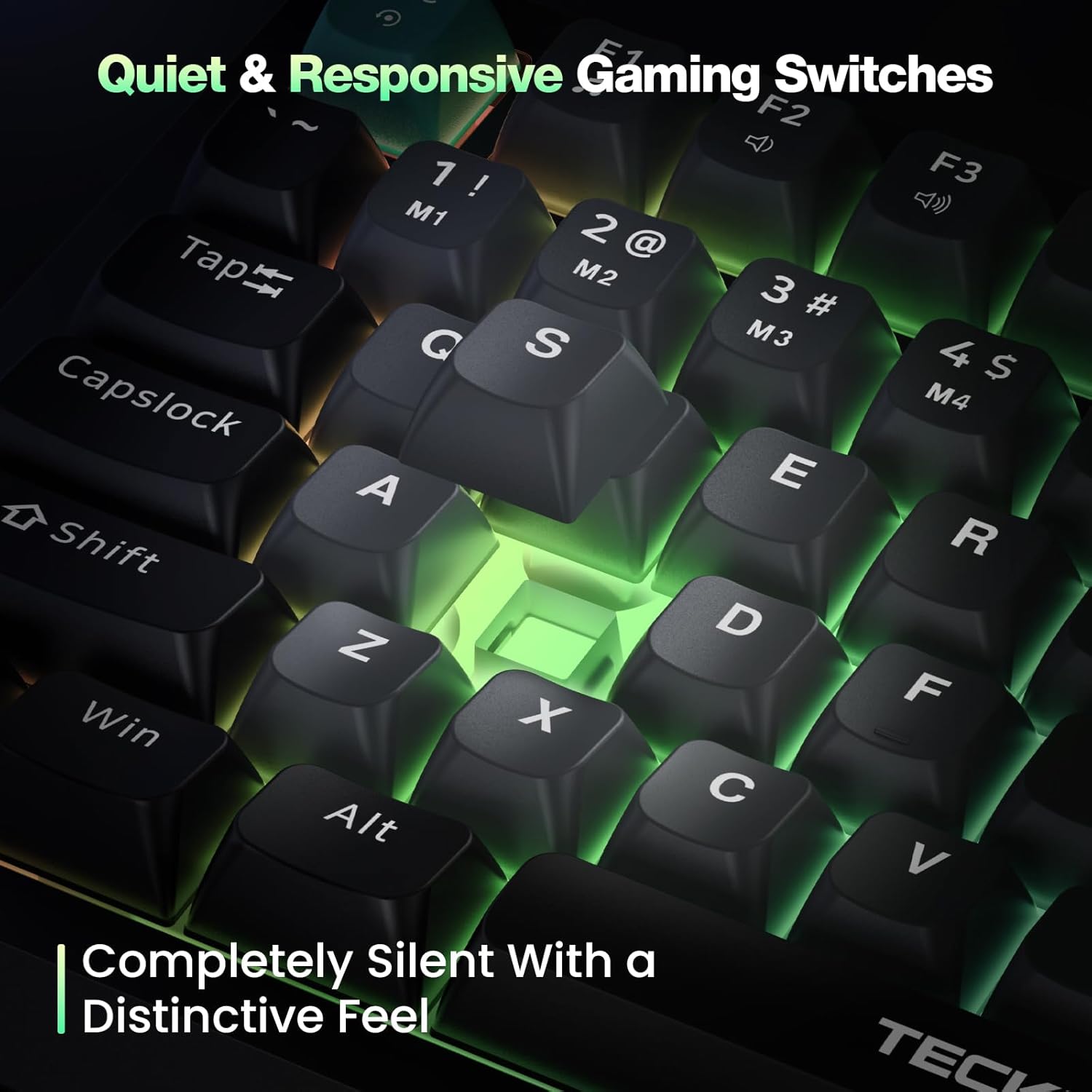
Image: A close-up view of the keyboard keys, emphasizing the quiet and responsive membrane gaming switches, designed for silent operation with a distinctive feel.
Warranty and Support
TECKNET products are designed for reliability and performance. For any inquiries or issues, please contact TECKNET customer support.
Each TECKNET product comes with a lifetime support (registration required). Please refer to the official TECKNET website or product packaging for detailed warranty information and registration procedures.
For after-sales service, if you are not satisfied with our product or service, please feel free to contact us.
Contact Information: Please visit the official TECKNET website for the most up-to-date contact details for customer support.
Related documentsTK-KB025


Ask a question about this manual
Ask about setup, troubleshooting, compatibility, parts, safety, or missing instructions. Manuals+ will review the question and use this page’s manual context to help answer it.