
1. Introduction
This instruction manual provides comprehensive guidance for assembling and operating your TKXEC STEM Electronic DIY Humidifier Soldering Project Kit. This kit is designed to enhance soldering skills and provide insight into the internal mechanisms and circuit design of a functional USB humidifier. Upon completion, the device will feature temperature and humidity display, humidity control, an auto-off timer, and memory function.
This project is suitable for individuals interested in electronics and soldering, offering both educational value and a practical end product.

Image: Two individuals engaged in soldering, highlighting the hands-on learning experience provided by the kit.
2. Safety Information
Please read and understand all safety warnings before beginning assembly. Soldering involves high temperatures and can produce fumes. Always ensure proper ventilation and use appropriate personal protective equipment.
- Eye Protection: Always wear safety glasses to protect your eyes from solder splashes and flying debris.
- Ventilation: Work in a well-ventilated area or use a fume extractor to avoid inhaling solder fumes.
- Burn Hazard: Soldering irons reach high temperatures. Avoid direct contact with the tip and allow components to cool before handling.
- Electrical Safety: Ensure the power supply is disconnected before making any adjustments or repairs. Use only the specified 5V USB power supply.
- Lead-Free Solder: If using leaded solder, wash hands thoroughly after handling.
3. Package Contents
Verify that all components listed below are present in your kit before starting assembly. If any parts are missing or damaged, please contact customer support.

Image: All components of the DIY humidifier kit, including the PCB, OLED screen, various resistors, capacitors, buttons, and acrylic casing parts.
- Printed Circuit Board (PCB)
- OLED Display Module
- Temperature and Humidity Sensor (DHT11 or similar)
- Atomizing Film/Nebulizer
- Control Buttons (KEY1, KEY2, KEY3, KEY4)
- Power Switch
- Resistors, Capacitors, Diodes
- Integrated Circuits (ICs)
- USB Power Cable
- Acrylic Casing Parts and Fasteners
- Cotton Swab (for water absorption)
- Instruction Manual (English)
4. Assembly Instructions
Follow these steps carefully to assemble your humidifier kit. It is recommended to solder components from smallest to largest to facilitate easier assembly.
4.1 Preparation
- Gather necessary tools: Soldering iron, solder, wire cutters, pliers, screwdriver.
- Ensure your workspace is clean, well-lit, and well-ventilated.
- Peel off the protective film from all acrylic casing parts.

Image: The assembled circuit board with OLED display, showing the process of removing the protective film from an acrylic component.
4.2 Soldering Components
- Resistors and Diodes: Solder all resistors and diodes onto the PCB according to their marked values and polarity (for diodes).
- Capacitors: Solder the capacitors, paying attention to polarity for electrolytic capacitors.
- Integrated Circuits (ICs): Carefully insert the ICs into their sockets (if provided) or solder them directly, ensuring correct orientation (notch/dot alignment).
- Buttons and Switches: Solder the control buttons (KEY1-KEY4) and the power switch onto the PCB.
- Temperature and Humidity Sensor: Solder the DHT11 sensor module onto its designated pins.
- OLED Display Module: Solder the OLED display module to its header pins.
- Atomizing Film/Nebulizer: Connect the atomizing film to its designated terminals on the PCB. Ensure the concave side of the transducer faces outward, towards the user, and the convex side faces down into the tube.
- USB Port: Solder the USB power input port.

Image: Labeled diagram of the assembled circuit board, indicating the placement of key components like the OLED screen, nebulizer, and control buttons.
4.3 Casing Assembly
- Mount the assembled PCB onto the bottom acrylic plate using the provided standoffs and screws.
- Attach the top acrylic plate, aligning it with the buttons and OLED display. Secure with screws.
- Insert the cotton swab into the nebulizer housing. Ensure it is fully saturated with water when in use.
4.4 Assembly Video Guide
For a visual guide on the assembly process, please refer to the official product video:
Video: Official TKXEC assembly guide for the DIY Humidifier Soldering Project Kit, demonstrating component placement and soldering steps.
5. Operating Instructions
Once assembled, your humidifier is ready for use. It requires a 5V USB power supply.
5.1 Powering On/Off
- Connect the USB cable to a 5V power source.
- Press the Power Switch (yellow button) to turn the device on or off. The power indicator LED will illuminate when on.
5.2 Basic Operation
- KEY1 (Red Button): Activates or deactivates atomization (humidification).
- OLED Display: Shows real-time humidity (RH%), current temperature (T), and remaining timer duration.

Image: The humidifier actively producing mist, with the OLED screen displaying operational data.
5.3 Setting Functions
The device features multi-level menu management for various settings.
- KEY2 (Red Button): Enters Setup Mode. Press and hold to access settings.
- KEY3 & KEY4 (Red Buttons): Used as toggle keys to navigate through menu options and adjust values within Setup Mode.

Image: Detailed view of the OLED screen interface, highlighting various display elements and their functions.
Available Settings:
- Language Selection: Choose between Chinese and English.
- Humidity Threshold: Set the desired humidity level. The humidifier will activate/deactivate to maintain this level.
- Auto-Off Timer: Set a duration for automatic shutdown.
- LED Control: Toggle the colorful LED lights on or off.
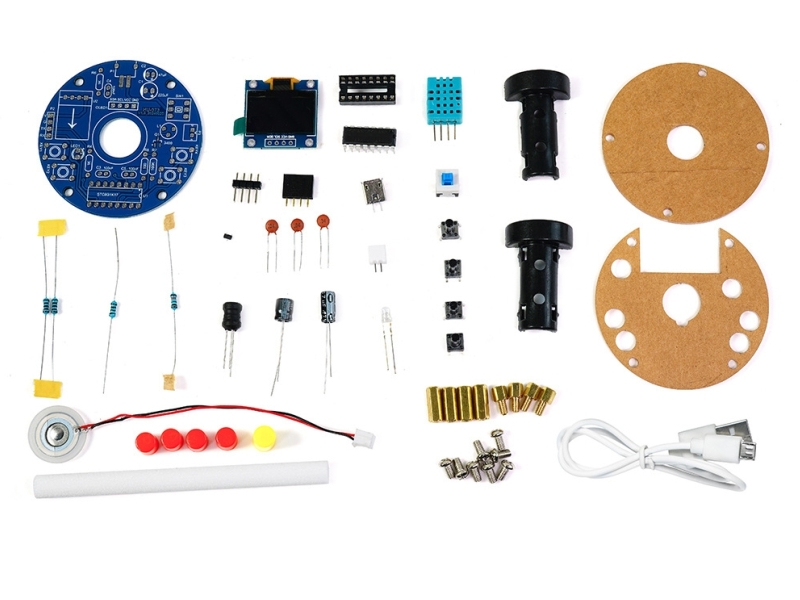
Image: The humidifier operating, displaying current humidity, temperature, and timer settings on the OLED screen.
6. Maintenance
6.1 Cotton Swab Replacement
The humidifier uses a cotton swab to absorb water and feed it to the atomizing film. Over time, the cotton swab may become dirty or less effective. Replace it as needed to ensure optimal performance.
- Gently remove the old cotton swab from the nebulizer housing.
- Insert a new, clean cotton swab.
- Ensure the new swab is fully saturated with water before operating the humidifier.

Image: The humidifier unit shown with a cotton swab, indicating its role in the humidification process.
6.2 Cleaning
Periodically clean the atomizing film and the water reservoir (if using an external container) to prevent mineral buildup and maintain hygiene.
- Disconnect power before cleaning.
- Wipe the atomizing film gently with a soft cloth. Do not use abrasive materials.
- Clean any external water container regularly.
7. Troubleshooting
If you encounter issues with your humidifier, refer to the following common problems and solutions:
| Problem | Possible Cause | Solution |
|---|---|---|
| No mist production | Cotton swab not saturated or incorrectly installed; atomizing film dirty or damaged; insufficient water. | Ensure cotton swab is fully wet and correctly positioned. Clean or replace atomizing film. Add water to the container. |
| OLED display not working | Loose connection; faulty OLED module; power issue. | Check all connections to the OLED module. Verify power supply. |
| Incorrect humidity/temperature readings | Sensor faulty or obstructed. | Ensure the sensor is clean and unobstructed. Check sensor connections. |
| Device not powering on | No power supply; faulty USB cable; power switch issue. | Check USB power source and cable. Ensure power switch is pressed. |
8. Specifications
- Brand: TKXEC
- Model Name: TKXEC- DIY 2
- Power Supply: USB 5V
- Maximum Working Current: Approximately 150mA (when atomization starts)
- PCB Size: 60mm x 60mm (2.36 x 2.36 inches)
- Product Dimensions (assembled): Approximately 60mm (diameter) x 37.8mm (height) / 2.36 x 1.49 inches
- Item Weight: 0.1 Kilograms (3.52 ounces)
- Special Feature: Timer, Temperature & Humidity Control, Auto-Off, Memory Function
- Operation Mode: Automatic and Manual
Image: Technical diagram illustrating the physical dimensions of the assembled humidifier and its cotton swab.
9. Warranty and Support
For warranty information or technical support, please refer to the seller's contact information provided at the point of purchase. Keep your purchase receipt as proof of purchase.