
1. Introduction
The EWEADN X7S Wireless Keyboard is designed for versatile use across various devices and operating systems. It features dual-mode connectivity, a durable metal panel, comfortable water drop keycaps, and an ergonomic design to enhance your typing experience. This manual provides essential information for setup, operation, maintenance, and troubleshooting.

Figure 1: EWEADN X7S Wireless Keyboard with highlighted features.
2. Package Contents
Please ensure all items are present in the package:
- EWEADN X7S Wireless Keyboard
- USB-C Charging Cable
- 2.4G USB Receiver
- Quick Start Guide (Instructions)
3. Setup and Connectivity
The EWEADN X7S keyboard supports dual-mode connectivity: 2.4GHz wireless and Bluetooth 5.0.
3.1. 2.4GHz Wireless Connection
- Locate the 2.4G USB receiver. It is typically stored in a compartment on the keyboard or included separately in the packaging.
- Plug the USB receiver into an available USB port on your computer or device.
- Turn on the keyboard using the power switch, usually located on the side or back.
- Press the Fn + 1 keys simultaneously to switch the keyboard to 2.4G wireless mode. The indicator light should confirm the connection.

Figure 2: Connecting the 2.4G USB receiver to a device.
Video 1: Overview of the keyboard's features, including the USB receiver and charging port, demonstrating its wireless capabilities.
3.2. Bluetooth Connection
- Turn on the keyboard using the power switch.
- Press the Fn + 2 or Fn + 3 keys simultaneously to switch to Bluetooth mode (BT1 or BT2). The indicator light will blink, indicating it's in pairing mode.
- On your device (PC, laptop, tablet, smartphone), go to Bluetooth settings and search for new devices.
- Select "EWEADN X7S" (or similar name) from the list of available devices to pair.
- Once paired, the indicator light on the keyboard will stop blinking and remain solid.
Video 2: Demonstration of the keyboard's white backlight and quiet typing, implying successful wireless connection.
4. Operating Instructions
4.1. Backlight Control
The EWEADN X7S keyboard features a single blue backlight with adjustable brightness and breathing modes.
- To turn the backlight ON/OFF: Press Fn + SL (Scroll Lock).
- To increase brightness (5 levels): Press Fn + PU (Page Up).
- To decrease brightness (5 levels): Press Fn + PD (Page Down).
- The keyboard also supports a breathing light mode with 5 speed settings.

Figure 3: Backlight control keys and adjustable brightness levels.

Figure 4: Keyboard in use with blue backlighting.
4.2. Key Functions and Ergonomics
The keyboard features upgraded "water drop" pudding keycaps with a concave and convex design for comfortable typing. It also includes 26-key anti-ghosting technology for accurate input during fast typing or gaming.
- Anti-Ghosting: Allows multiple keys to be pressed simultaneously without conflicts, ensuring all keystrokes are registered.
- Ergonomic Design: The keyboard base includes two adjustable feet and four non-slip pads, allowing you to tilt it to a comfortable 7° angle for optimal ergonomic support and reduced hand fatigue.
- Quiet Typing: Designed to be 95% quieter than standard keyboards, making it suitable for quiet environments.
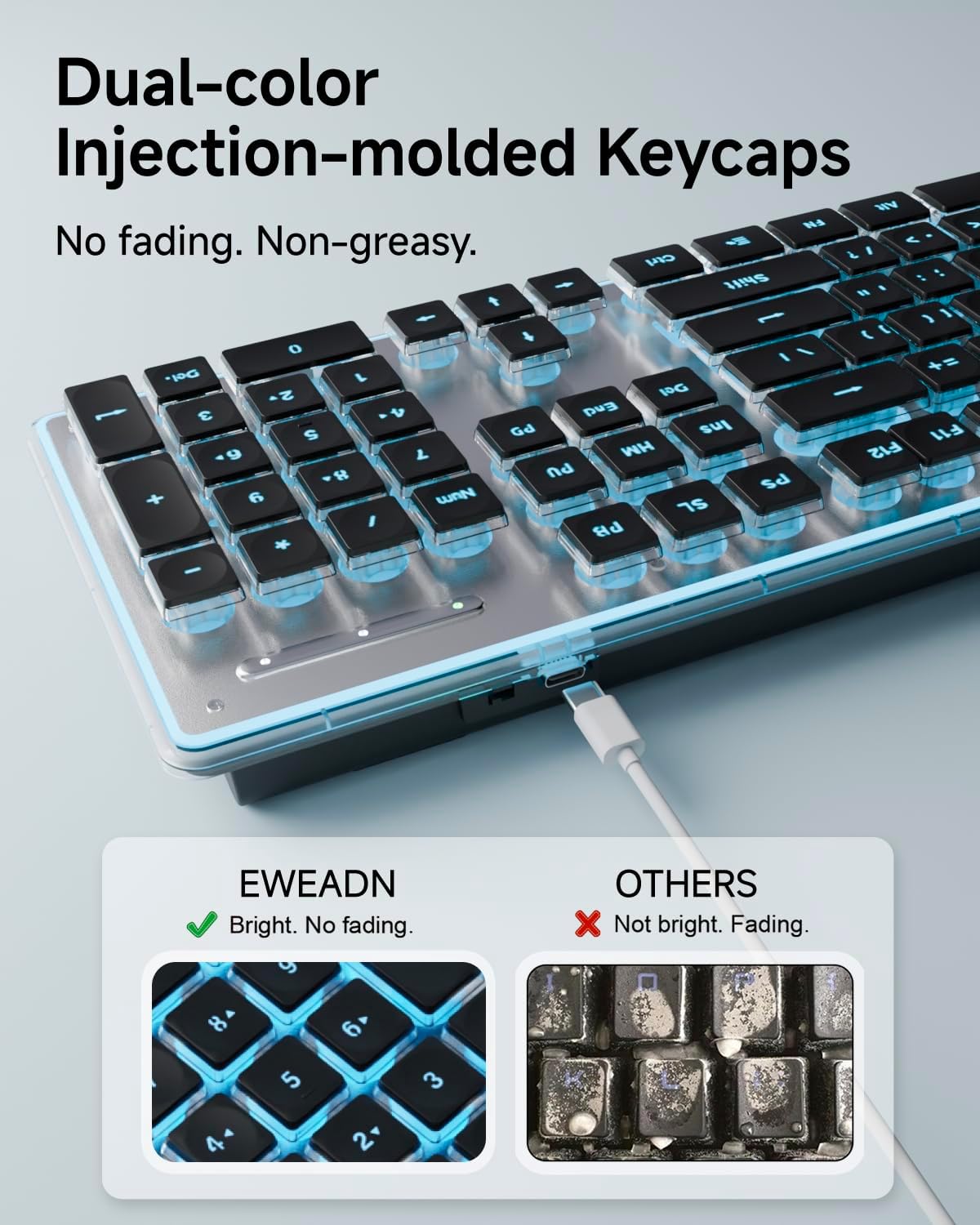
Figure 5: Demonstration of 26-key anti-ghosting feature.

Figure 6: Ergonomic design and silent structure details.
5. Maintenance
To ensure the longevity and optimal performance of your EWEADN X7S keyboard, follow these maintenance guidelines:
- Cleaning: Use a soft, dry cloth to wipe down the keyboard surface. For deeper cleaning, a slightly damp cloth can be used, ensuring no liquid enters the key switches. Avoid harsh chemicals.
- Charging: The keyboard features a built-in rechargeable battery. Connect the provided USB-C cable to the keyboard's charging port and the other end to a USB power source (e.g., computer, wall adapter). You can continue typing or gaming while it charges.
- Storage: When not in use for extended periods, store the keyboard in a cool, dry place away from direct sunlight and extreme temperatures.

Figure 7: USB-C charging port on the keyboard.
6. Troubleshooting
If you encounter any issues with your EWEADN X7S keyboard, please refer to the following common troubleshooting steps:
| Problem | Possible Cause | Solution |
|---|---|---|
| Keyboard not connecting/responding. | Low battery, incorrect mode, USB receiver issue, Bluetooth pairing issue. |
|
| Backlight not turning on. | Backlight is off or brightness is set to minimum. |
|
| Delayed typing or missed keystrokes. | Interference, low battery, distance from receiver/device. |
|
If these steps do not resolve the issue, please contact customer support.
7. Specifications
| Feature | Detail |
|---|---|
| Model Name | X7S-04 |
| Connectivity Technology | Bluetooth 5.0, 2.4GHz Wireless, USB-C (for charging) |
| Number of Keys | 104 |
| Keyboard Description | Membrane |
| Material | Plastic, Metal |
| Color | Black |
| Item Weight | 1.68 pounds |
| Package Dimensions | 19.21 x 6.97 x 2.13 inches |
| Compatible Devices | Laptop, PC, Gaming Console, Tablet, Smartphone (Windows, Linux, Chrome OS, Mac) |
8. Warranty and Support
EWEADN provides 24-month brand support for this product. If you have any questions, concerns, or require assistance, please do not hesitate to contact our expert support team. We are committed to ensuring your satisfaction.
For support, please refer to the contact information provided on the product packaging or the official SEUNKWANG website.