
1. Introduction
Thank you for choosing the SEUNKWANG EWEADN X7S Wireless Keyboard. This full-size keyboard is designed for versatility and comfort, featuring dual-mode connectivity (Bluetooth and 2.4GHz wireless), a durable metal panel, and a blue backlit display. Its ergonomic design and quiet keycaps make it suitable for various environments, from office work to casual use. This manual provides detailed instructions for setup, operation, maintenance, and troubleshooting to ensure optimal performance and longevity of your keyboard.

Image: The EWEADN X7S Wireless Keyboard in white and blue, showcasing its illuminated keys and sleek design, with a hand positioned for typing.
2. Package Contents
Please verify that all items are present in the package:
- EWEADN X7S Wireless Keyboard
- USB Receiver (for 2.4GHz wireless connection)
- Type-C Charging Cable
3. Features
- Dual-Mode Connectivity: Seamlessly switch between Bluetooth 5.0 and 2.4GHz wireless modes. The 2.4GHz mode uses a single USB receiver, providing a stable connection up to 33 feet (10 meters). Bluetooth mode supports two separate connections (BT1 and BT2).
- Rechargeable Battery: Equipped with a built-in rechargeable battery and a convenient Type-C charging port, allowing you to charge while using the keyboard.
- Premium Metal Panel: Constructed with a durable, thickened metal panel and a frosted matte finish for enhanced scratch resistance and a premium tactile experience.
- Blue Backlight: Features a single warm blue backlight with two modes: always-on (5 brightness levels) and breathing light (5 speed settings).
- Upgraded Water Drop Keycaps: Designed with a concave and convex profile, these pudding keycaps fit fingertips perfectly, ensuring comfortable and effortless typing. They also offer excellent light transmittance and contribute to quiet operation.
- Quiet Typing: Engineered to be approximately 95% quieter than standard keyboards, making it ideal for quiet environments such as libraries, cafes, offices, or dorm rooms.
- Ergonomic Design: The keyboard features an ergonomic layout with adjustable feet that allow for a comfortable 7° typing angle. Four non-slip pads ensure stability during use.
- 26-Key Anti-Ghosting: Advanced anti-ghosting technology allows for simultaneous pressing of up to 26 keys without conflicts, enhancing accuracy for fast typing and gaming.
- Universal Compatibility: Compatible with a wide range of devices including PCs, desktops, laptops, notebooks, gaming consoles, smartphones, and tablets. Supports Windows, Linux, Chrome OS, and Mac operating systems.

Image: An overview of the EWEADN X7S Wireless Keyboard, visually listing its main features such as dual connectivity, durable metal panel, and ergonomic design.

Image: A detailed view of the keyboard's water drop pudding keycaps, emphasizing their comfortable fit, quiet operation (99% noise reduction), and high translucency.
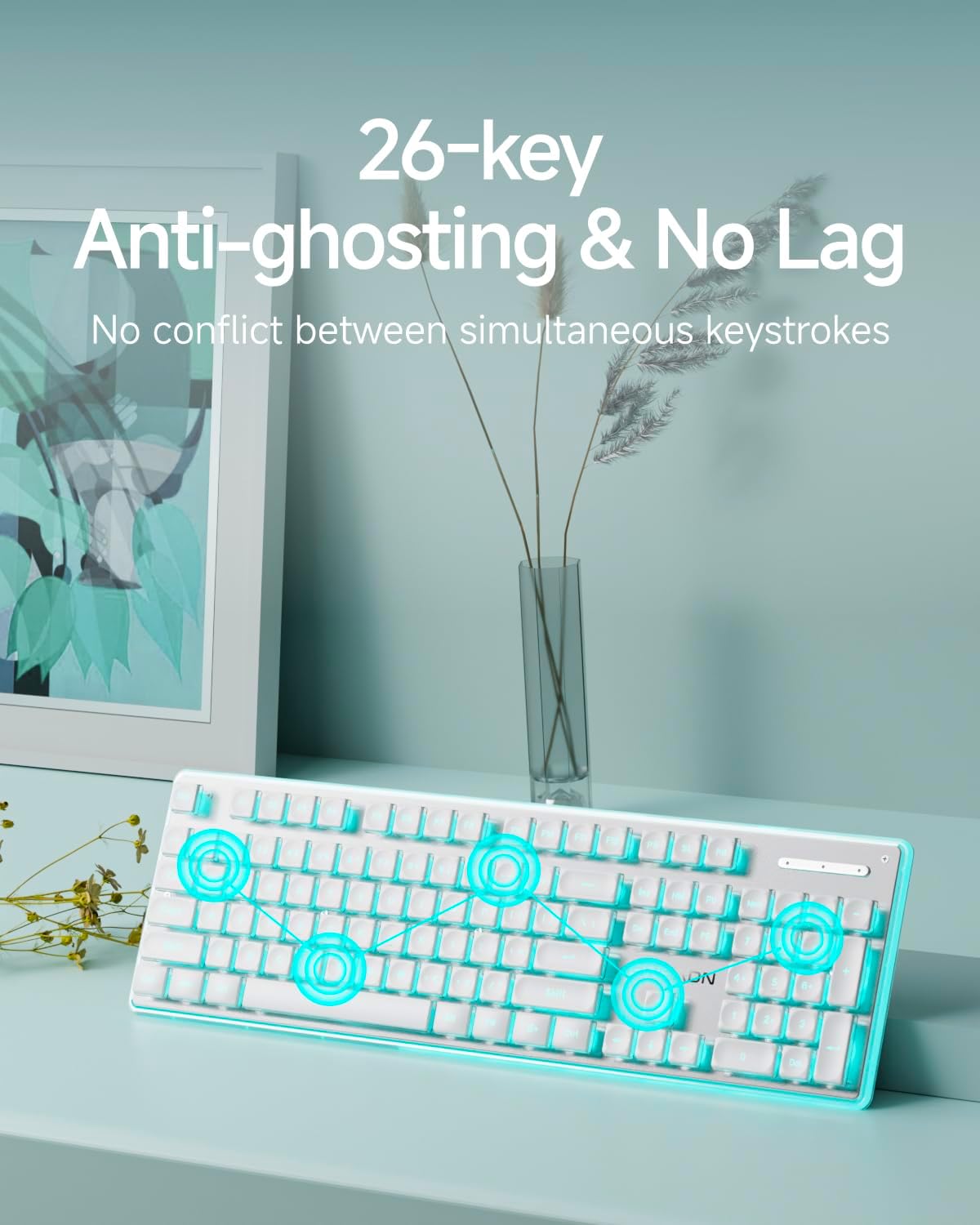
Image: The keyboard with visual indicators demonstrating its 26-key anti-ghosting capability, ensuring no lag or conflicts during rapid keystrokes.
4. Setup
4.1 Initial Charging
Before first use, it is recommended to fully charge the keyboard. Connect the supplied Type-C cable to the keyboard's charging port and the other end to a USB power source (e.g., computer USB port, USB wall adapter). The charging indicator light will show the charging status and turn off when fully charged. A full charge typically takes approximately 3 hours.
4.2 Connecting via 2.4GHz Wireless Mode
- Locate the USB receiver included in the package.
- Plug the USB receiver into an available USB port on your computer or compatible device.
- On the keyboard, press the FN key simultaneously with the 1 key to activate 2.4G mode. The indicator light for 2.4G mode will illuminate.
- The keyboard should automatically connect to your device. No additional drivers are typically required.
4.3 Connecting via Bluetooth Mode
The keyboard supports two separate Bluetooth connections (BT1 and BT2).
- On the keyboard, press the FN key simultaneously with the 2 key for Bluetooth connection 1 (BT1), or FN + 3 for Bluetooth connection 2 (BT2). The corresponding indicator light will flash, indicating pairing mode.
- On your device (PC, laptop, tablet, smartphone), enable Bluetooth and search for new devices.
- Select "EWEADN X7S" or a similar name from the list of available Bluetooth devices.
- Follow any on-screen prompts to complete the pairing process. Once connected, the indicator light on the keyboard will stop flashing and remain solid.
- To switch between connected Bluetooth devices or the 2.4G mode, simply press FN + 1 (2.4G), FN + 2 (BT1), or FN + 3 (BT2).

Image: The keyboard positioned next to a laptop, demonstrating its dual wireless capabilities (2.4G and Bluetooth) and its rechargeable nature via a Type-C cable.
5. Operating Instructions
5.1 Backlight Control
The EWEADN X7S keyboard features an adjustable blue backlight.
- Turn On/Off Backlight: Press FN + SL (Scroll Lock key) to toggle the backlight on or off.
- Adjust Brightness: Press FN + PU (Page Up key) to increase backlight brightness (5 levels). Press FN + PD (Page Down key) to decrease backlight brightness (5 levels).
- Breathing Light Mode: The keyboard also supports a breathing light effect. Specific key combinations for this mode may vary or be automatically engaged at certain brightness levels.

Image: The keyboard displaying its blue backlight, with visual cues indicating the use of FN + PD (Brightness-), FN + PU (Brightness+), and FN + SL (ON/OFF Light) for backlight control.
5.2 Multimedia and Function Keys
The keyboard includes dedicated function keys (F1-F12) that can be combined with the FN key to access multimedia controls and other shortcuts. Refer to the keycap legends for specific functions (e.g., volume control, media playback, web browser, email).
5.3 Ergonomic Adjustment
To enhance typing comfort, you can adjust the keyboard's angle using the foldable feet located on the underside. Gently pull out the feet to raise the keyboard to a 7° angle. Ensure the non-slip pads are clean for optimal stability.
6. Maintenance
Proper maintenance ensures the longevity and performance of your keyboard.
- Cleaning: Use a soft, dry cloth to wipe the surface of the keyboard. For stubborn dirt, a slightly damp cloth with mild soap can be used, ensuring no liquid enters the keyboard. Avoid abrasive cleaners or solvents.
- Keycap Care: The dual-color injection-molded keycaps are designed for durability and to resist fading. However, avoid excessive force or sharp objects that could damage them.
- Storage: When not in use for extended periods, store the keyboard in a cool, dry place away from direct sunlight and extreme temperatures.
- Battery Care: To preserve battery life, avoid fully discharging the keyboard frequently. Charge it when the low battery indicator appears. If storing for a long time, charge it to about 50% every few months.
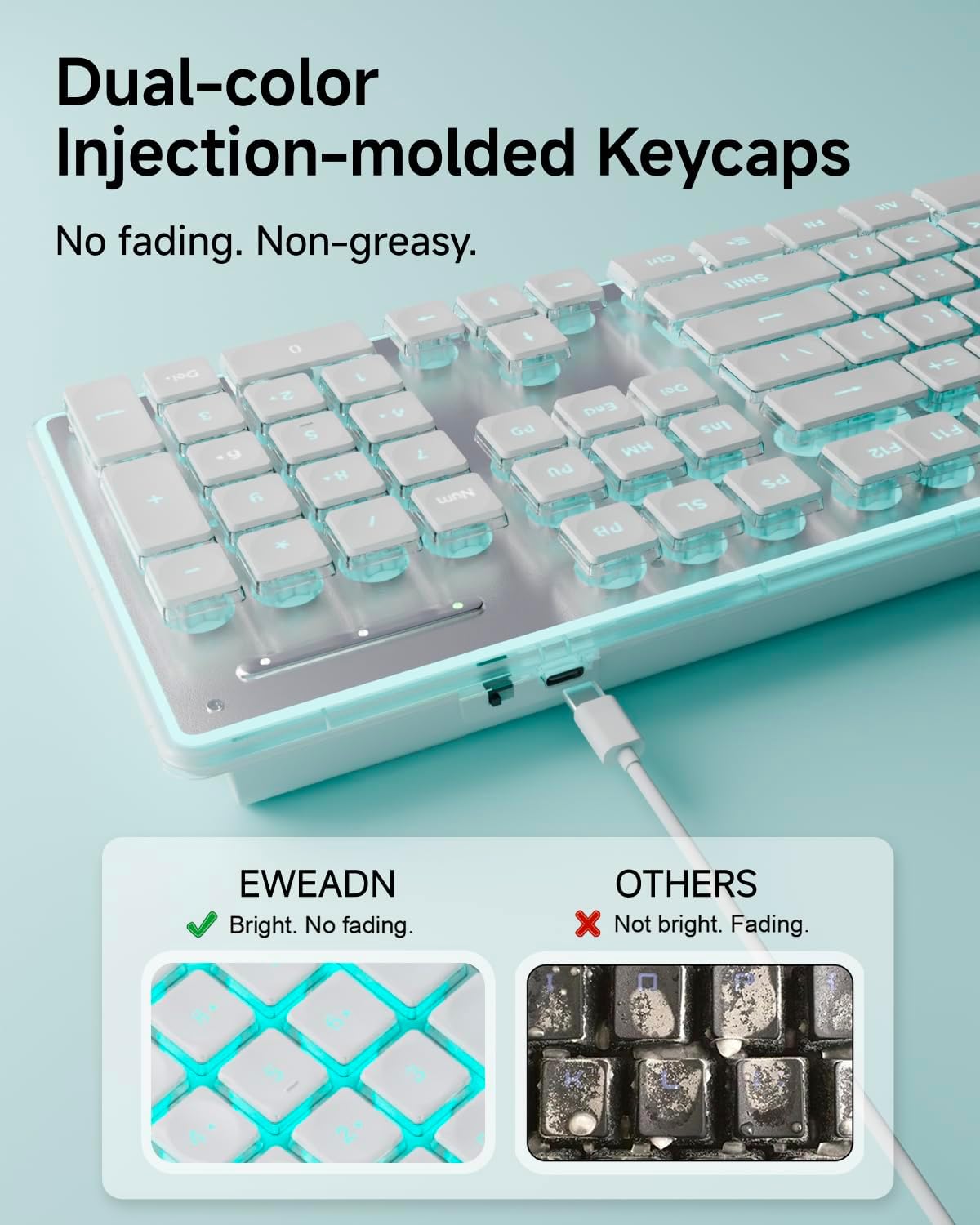
Image: A visual comparison highlighting the superior durability and non-fading properties of the EWEADN keyboard's dual-color injection-molded keycaps compared to standard keycaps.
7. Troubleshooting
If you encounter issues with your EWEADN X7S keyboard, please refer to the following common solutions:
- Keyboard Not Responding:
- Ensure the keyboard is charged. Connect it to a power source using the Type-C cable.
- Verify the correct connection mode is selected (2.4G, BT1, or BT2) by pressing FN + 1/2/3.
- For 2.4GHz mode, ensure the USB receiver is securely plugged into your device. Try a different USB port.
- For Bluetooth mode, ensure Bluetooth is enabled on your device and the keyboard is paired. Try unpairing and re-pairing the keyboard.
- Restart your computer or device.
- Backlight Not Working or Dim:
- Press FN + SL to ensure the backlight is turned on.
- Press FN + PU repeatedly to increase brightness.
- The backlight may automatically turn off after a period of inactivity to conserve battery. Press any key to reactivate it.
- Ensure the keyboard has sufficient battery charge.
- Keys Not Registering or Lagging:
- Ensure the keyboard is within the 33-foot (10-meter) operating range of your device.
- Reduce interference by moving away from other wireless devices (e.g., Wi-Fi routers, cordless phones).
- Check for low battery.
- For 2.4GHz mode, try re-plugging the USB receiver.
- Keyboard Disconnects Frequently:
- Ensure the keyboard is fully charged.
- Check for strong wireless interference.
- Update Bluetooth drivers on your device if using Bluetooth mode.
8. Specifications
| Feature | Detail |
|---|---|
| Model Name | X7S-02 |
| Connectivity Technology | 2.4G Wireless, Bluetooth 5.0 |
| Keyboard Description | Membrane |
| Keycaps | Water Drop Pudding Keycaps, Dual-color Injection-molded |
| Backlight | Blue (5 brightness levels, breathing mode) |
| Anti-Ghosting | 26-Key Anti-Ghosting |
| Power Source | Battery Powered (Rechargeable via Type-C) |
| Material | Metal, Plastic |
| Color | White&Blue |
| Item Weight | 2 pounds |
| Package Dimensions | 21 x 6.9 x 2 inches |
| Compatible Devices | Gaming Console, Laptop, PC, Smartphone, Tablet |
| Date First Available | March 1, 2025 |
9. Warranty and Support
The EWEADN X7S Wireless Keyboard comes with 24-month brand support. For any questions, technical assistance, or warranty claims, please contact SEUNKWANG customer support through the retailer where you purchased the product or visit the official SEUNKWANG store page on Amazon.
As a responsible company, EWEADN is committed to high environmental and social standards, ensuring sustainability in its operations and supply chain.