
1. Introduction
This manual provides essential information for setting up, operating, maintaining, and troubleshooting your Skylight Digital Picture Frame 2. Please read these instructions carefully to ensure optimal performance and longevity of your device.
2. Setup
Setting up your Skylight Digital Picture Frame 2 is designed to be straightforward, allowing you to enjoy your memories quickly.
- Plug, Play, and Enjoy: Simply plug in your frame, connect it to your Wi-Fi network, and select a unique Skylight email address. No apps or subscriptions are required for basic photo sharing.

Figure 2.1: The Skylight Digital Picture Frame 2, shown with its packaging and the companion mobile application, ready for initial setup.
3. Operating Instructions
The Skylight Frame 2 offers intuitive features for managing and displaying your photos and videos.
3.1 Sending Photos and Videos
Share moments instantly with your frame from anywhere.
- Email Sharing: Send photos and videos directly to your frame's unique Skylight email address.
- App Sharing: Use the free Skylight app (available for iOS and Android) to easily upload and manage photos. You can invite family and friends to contribute to your frame.
- Privacy-First Sharing: Your family's photos are always private and secure.

Figure 3.1: The Skylight Frame displaying a photo, with a smartphone showing the companion app for easy photo sharing.

Figure 3.2: A Skylight Frame showcasing a photo, illustrating the secure and private photo sharing capabilities via email or the dedicated app.
3.2 Touchscreen Navigation
The 10-inch Full HD touch-screen display provides an intuitive user experience.
- Intuitive Controls: Easily adjust, pinch, and zoom photos directly on the frame.
- Responsive Experience: The 2GHz quad-core processor ensures smooth slideshows and a responsive touch experience.
- Stunning Display: Enjoy vivid colors and sharp detail with the 1920x1200 Full HD resolution and auto-brightness adjustment.

Figure 3.3: The touchscreen interface of the Skylight Frame, highlighting intuitive gestures like tapping to reveal new photos and adjusting images.

Figure 3.4: A close-up of the Skylight Frame's display, demonstrating its Full HD resolution and vivid color reproduction.
3.3 Gift Mode
Preload and personalize your digital frame without unboxing it.
- Pre-load Photos: Activate Gift Mode to upload photos before gifting, ensuring the recipient sees cherished memories immediately upon setup.

Figure 3.5: The Skylight Frame in 'Gift Mode', showing how photos can be pre-loaded before gifting, ensuring a personalized experience upon unboxing.
3.4 Adaptive Orientation
The frame automatically adjusts to its position.
- Auto-Rotate: Your images auto-rotate and resize to match the frame's position, whether in landscape or portrait orientation.
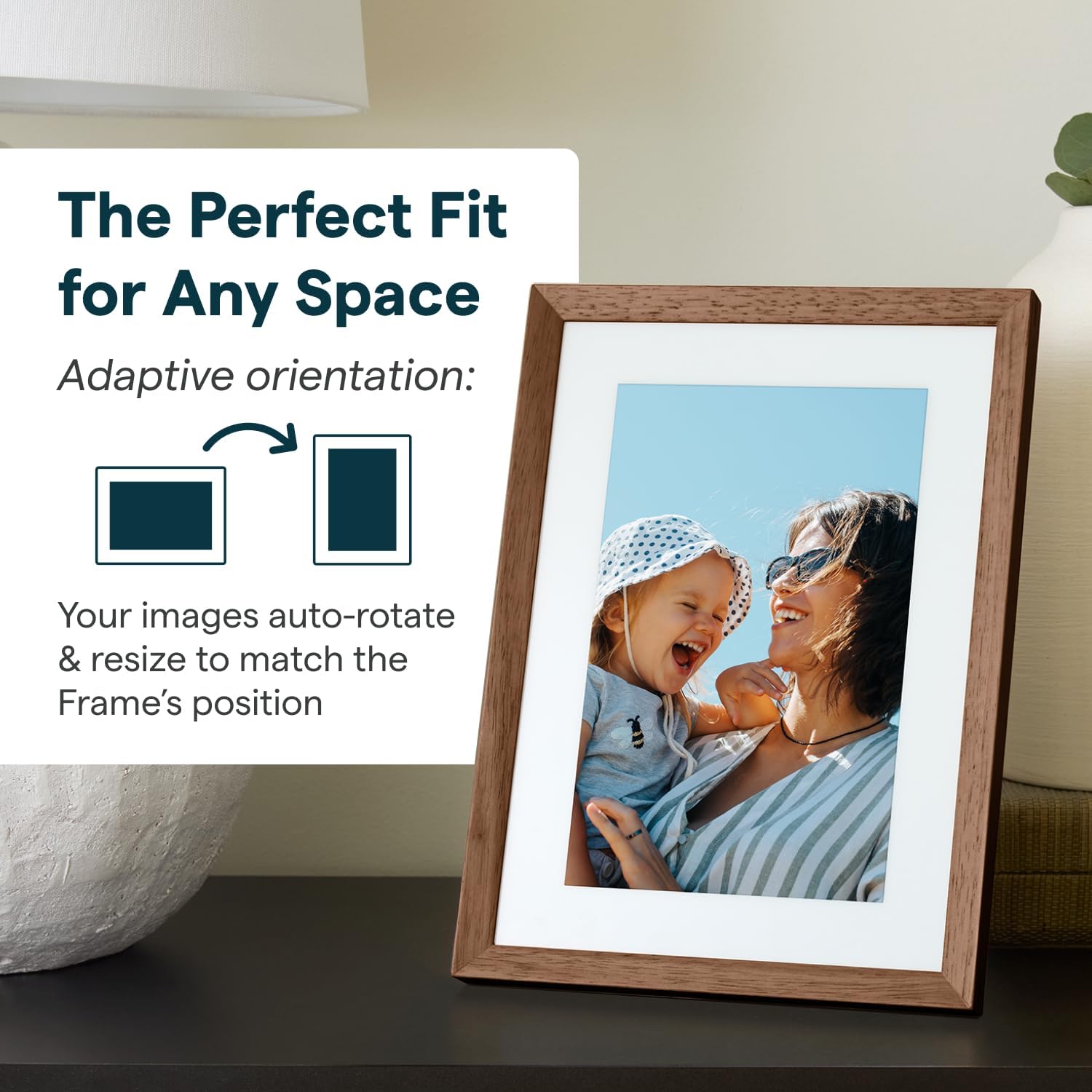
Figure 3.6: The Skylight Frame demonstrating its adaptive orientation feature, automatically adjusting images for both landscape and portrait display.
3.5 Storage and Performance
- 16GB Storage: Save thousands of photos and videos directly on the frame. Cloud-based storage eliminates the need for SD cards.
- Fast Performance: The 2GHz quad-core processor ensures fast uploads and smooth operation.
3.6 Design Features
- Elegant Design: Features premium wood and interchangeable Snap Frames to match any decor.
- Anti-Glare Screen: Improves viewing in various lighting conditions.

Figure 3.7: The Skylight Frame highlighting its upgraded features, including premium wood, interchangeable snap frames, Full HD display, auto-brightness, and anti-glare screen.
4. Maintenance
Proper care will ensure your Skylight Frame 2 remains in excellent condition.
- Cleaning the Screen: Use a soft, lint-free cloth to gently wipe the screen. For stubborn smudges, slightly dampen the cloth with water or a screen-safe cleaner. Avoid harsh chemicals.
- Cleaning the Frame: Wipe the frame with a dry or slightly damp cloth. Do not use abrasive cleaners.
- Placement: Place the frame on a stable, flat surface away from direct sunlight, extreme temperatures, and high humidity.
5. Troubleshooting
If you encounter issues with your Skylight Frame 2, refer to the following common solutions.
| Problem | Possible Cause | Solution |
|---|---|---|
| Frame not turning on | Power adapter not connected or faulty. | Ensure the power adapter is securely plugged into the frame and a working power outlet. Try a different outlet. |
| Cannot connect to Wi-Fi | Incorrect Wi-Fi password, weak signal, or router issue. | Double-check the Wi-Fi password. Move the frame closer to the router. Restart your Wi-Fi router. |
| Photos not appearing | Incorrect email address used, Wi-Fi disconnected, or server delay. | Verify the Skylight email address. Ensure the frame is connected to Wi-Fi. Allow some time for photos to sync. |
| Touchscreen unresponsive | Temporary software glitch. | Restart the frame by unplugging it and plugging it back in after 10 seconds. |
If these steps do not resolve your issue, please contact Skylight customer support.
6. Specifications
Key technical specifications for the Skylight Digital Picture Frame 2.
- Product Dimensions: 10 x 10 x 0.99 inches
- Item Weight: 2.81 pounds
- Batteries: 1 Lithium Metal battery required (included)
- Manufacturer: Skylight Frame
- Country of Origin: China
- Color: Walnut - 10" Frame 2
- Resolution: 1920x1200
- Compatible Devices: Smartphone
- Screen Size: 10 Inches
7. Warranty and Support
Skylight is committed to providing excellent customer service.
- Customer Support: For any questions or assistance, please refer to the contact information provided with your product packaging or visit the official Skylight website.
- Warranty Information: Details regarding the product warranty are typically included in the packaging or available on the manufacturer's website. Please retain your proof of purchase for warranty claims.


