
Pure 254585
Pure Classic H4i Internet Radio User Manual
Model: 254585
1. Introduction
The Pure Classic H4i is a versatile internet radio designed to provide a comprehensive audio experience. It combines traditional radio functionalities with modern connectivity options, allowing access to a vast array of content. This manual provides detailed instructions for setting up, operating, and maintaining your Pure Classic H4i to ensure optimal performance and longevity.

Figure 1: Front view of the Pure Classic H4i Internet Radio, showcasing its display, control knobs, and buttons.
2. What's in the Box
Upon unpacking your Pure Classic H4i, please ensure all the following components are present:
- Pure Classic H4i Internet Radio Unit
- Quick Start Guide
- Remote Control
- Battery (for Remote control)
- Telescopic antenna
- Power Adapter with two plug adapters

Figure 2: The Pure Classic H4i unit shown alongside its remote control.
3. Setup Guide
3.1 Initial Power-Up
- Connect Power: Plug the provided power adapter into the DC input on the back of the Pure Classic H4i, then connect it to a wall outlet.
- Extend Antenna: Fully extend the telescopic antenna for optimal FM and DAB+ reception.
- Power On: Press the Standby button on the front panel or remote control to turn on the radio.
3.2 Network Connection (Wi-Fi)
The Pure Classic H4i requires a Wi-Fi connection for Internet Radio and software updates. It supports 2.4GHz Wi-Fi networks.
- Language Selection: Upon first power-up, the display will prompt you to select your preferred language. Use the Select knob to navigate and press to confirm.
- Network Scan: The radio will automatically scan for available Wi-Fi networks.
- Select Network: Use the Select knob to choose your Wi-Fi network from the list and press to confirm.
- Enter Password: Use the Select knob to navigate through characters (letters, numbers, symbols) and press to enter each character of your Wi-Fi password. Select the "Done" option when finished.
- Connection Confirmation: The radio will attempt to connect. Once successful, a Wi-Fi icon will appear on the display.
Note: The device only supports 2.4GHz Wi-Fi bands. Ensure your router is configured to allow connections on this frequency.
3.3 Initial Setup and Updates
- Time Zone Setting: Follow the on-screen prompts to set your correct time zone.
- DAB+ Scan: The radio will perform an initial scan for DAB+ stations. This may take a few minutes.
- Firmware Update: The radio may prompt you to update its firmware. It is recommended to perform this update to ensure you have the latest features and bug fixes. Follow the on-screen instructions.
- Audio Codec Update: After a firmware update, an audio codec update might be offered. Allow this to complete for optimal audio performance.

Figure 3: The Pure Classic H4i displaying station information on its color screen.
4. Operating Instructions
4.1 Basic Controls
- Volume Knob: Rotate to adjust the listening volume.
- Select Knob: Rotate to scroll through menus and lists. Press to confirm a selection.
- Back Button: Returns to the previous menu or screen.
- Source Button: Cycles through available audio sources (Internet Radio, DAB+, FM, Bluetooth, USB, AUX).
- Standby Button: Powers the unit on or off.
4.2 Audio Sources
The Pure Classic H4i offers multiple ways to enjoy audio content:

Figure 4: Visual representation of the multiple connectivity options available on the Pure Classic H4i.
- Internet Radio: Access thousands of radio stations worldwide via your Wi-Fi connection. Navigate by genre, location, or search for specific stations.
- DAB+ Digital Radio: Enjoy high-quality digital radio broadcasts. The radio will automatically scan and list available stations.
- FM Radio: Tune into traditional FM radio stations. Use the tuning function to find stations or perform an auto-scan.
- Bluetooth 5.3: Pair your smartphone, tablet, or other Bluetooth-enabled device to stream audio wirelessly.
- Press the Source button until Bluetooth is selected.
- Press the Pair button (Bluetooth icon) on the radio.
- Enable Bluetooth on your device and select "Pure Classic H4i" from the list of available devices.
- USB Playback: Connect a USB flash drive to the USB port on the back to play audio files (e.g., MP3, WMA).
- AUX Input: Connect external audio devices (e.g., MP3 players, CD players) using a 3.5mm audio cable to the AUX input on the back.
4.3 Presets and Favourites
The Pure Classic H4i allows you to save up to 150 favourite stations for quick access.

Figure 5: The radio's interface highlighting the quick access buttons for favourite stations.
- Saving a Preset:
- Tune to the desired station.
- Press and hold one of the numbered preset buttons (1-4) or the Add button (for additional presets) until "Preset Saved" appears on the display.
- Recalling a Preset:
- Briefly press the desired numbered preset button (1-4).
- For other saved favourites, press the Favourites button and use the Select knob to choose from the list.
4.4 Smart Features: Timers and Alarms
The Pure Classic H4i includes convenient timing functions.

Figure 6: Icons representing the sleep timer, kitchen timer, and alarm functions.
- Sleep Timer: Set the radio to turn off automatically after a set period (e.g., 15, 30, 60 minutes). Press the Timer button repeatedly to cycle through options.
- Kitchen Timer: A countdown timer useful for cooking or other activities. Access via the menu or dedicated button (if available).
- Alarm Function: Set one or more alarms to wake up to your favourite station or a buzzer. Configure alarm time, source, and volume through the menu settings.
- Snooze Function: When an alarm sounds, press the Select knob or a designated snooze button to temporarily silence it for a few minutes.
4.5 Sound Settings (EQ)
Adjust the audio output to suit your preference with the built-in equalizer settings.

Figure 7: Icons indicating the powerful sound and equalizer settings of the radio.
- Navigate to the "Audio Settings" or "Equalizer" option in the main menu.
- Choose from preset EQ modes (e.g., Normal, Jazz, Rock, Classical) or a custom setting to adjust bass and treble levels.
5. Maintenance
Proper care and maintenance will ensure the longevity of your Pure Classic H4i.
- Cleaning: Use a soft, dry cloth to clean the exterior of the radio. For stubborn marks, a slightly damp cloth can be used, followed by a dry cloth. Do not use abrasive cleaners, waxes, or solvents.
- Display Care: The 2.4" color TFT display can be cleaned with a soft, lint-free cloth. Avoid pressing too hard on the screen.
- Ventilation: Ensure the ventilation openings on the unit are not blocked to prevent overheating.
- Antenna: Handle the telescopic antenna with care to avoid bending or breaking.
- Storage: If storing the radio for an extended period, disconnect it from the power supply and store it in a cool, dry place.
6. Troubleshooting
If you encounter issues with your Pure Classic H4i, refer to the following common problems and solutions:
| Problem | Possible Cause | Solution |
|---|---|---|
| No power / Unit does not turn on. | Power adapter not connected or faulty outlet. | Ensure the power adapter is securely plugged into the radio and a working wall outlet. Try a different outlet. |
| Cannot connect to Wi-Fi. | Incorrect password, out of range, or 5GHz network. | Double-check Wi-Fi password. Move the radio closer to the router. Ensure your Wi-Fi network is 2.4GHz. Restart your router. |
| Poor DAB+ or FM reception. | Antenna not extended, weak signal area. | Fully extend the telescopic antenna. Try repositioning the radio, especially near a window. Perform a new station scan. |
| No sound from speaker. | Volume too low, muted, or incorrect source selected. | Increase volume. Check if the radio is muted. Ensure the correct audio source (Internet Radio, DAB+, FM, Bluetooth, USB, AUX) is selected. |
| Bluetooth device won't pair. | Radio not in pairing mode, device too far, or already paired with another device. | Ensure the radio is in Bluetooth pairing mode. Move devices closer. Disconnect from other Bluetooth devices. |
| Display is blank or frozen. | Temporary software glitch. | Unplug the power adapter from the radio, wait 10 seconds, then plug it back in to perform a soft reset. |
If the problem persists after trying these solutions, please refer to the warranty and support information.
7. Specifications
| Feature | Detail |
|---|---|
| Model Number | 254585 |
| Brand | Pure |
| Product Dimensions (L x W x H) | 29 x 36.5 x 13 cm (approx. 200 x 117 x 140 mm for unit) |
| Weight | 1.2 kg |
| Speaker Output | 10W full-range speaker |
| Display | 2.4" Color TFT Screen |
| Connectivity Technology | Bluetooth 5.3, Wi-Fi (2.4GHz) |
| Radio Bands Supported | Internet Radio, DAB+, FM |
| Inputs | USB, AUX (3.5mm) |
| Presets | 150 (Internet Radio, DAB+, FM combined) |
| Special Features | Alarm & Sleep Timer, Kitchen Timer, Snooze Function, Quick Access Buttons |
| Power Source | Corded Electric |
| Country of Origin | China |
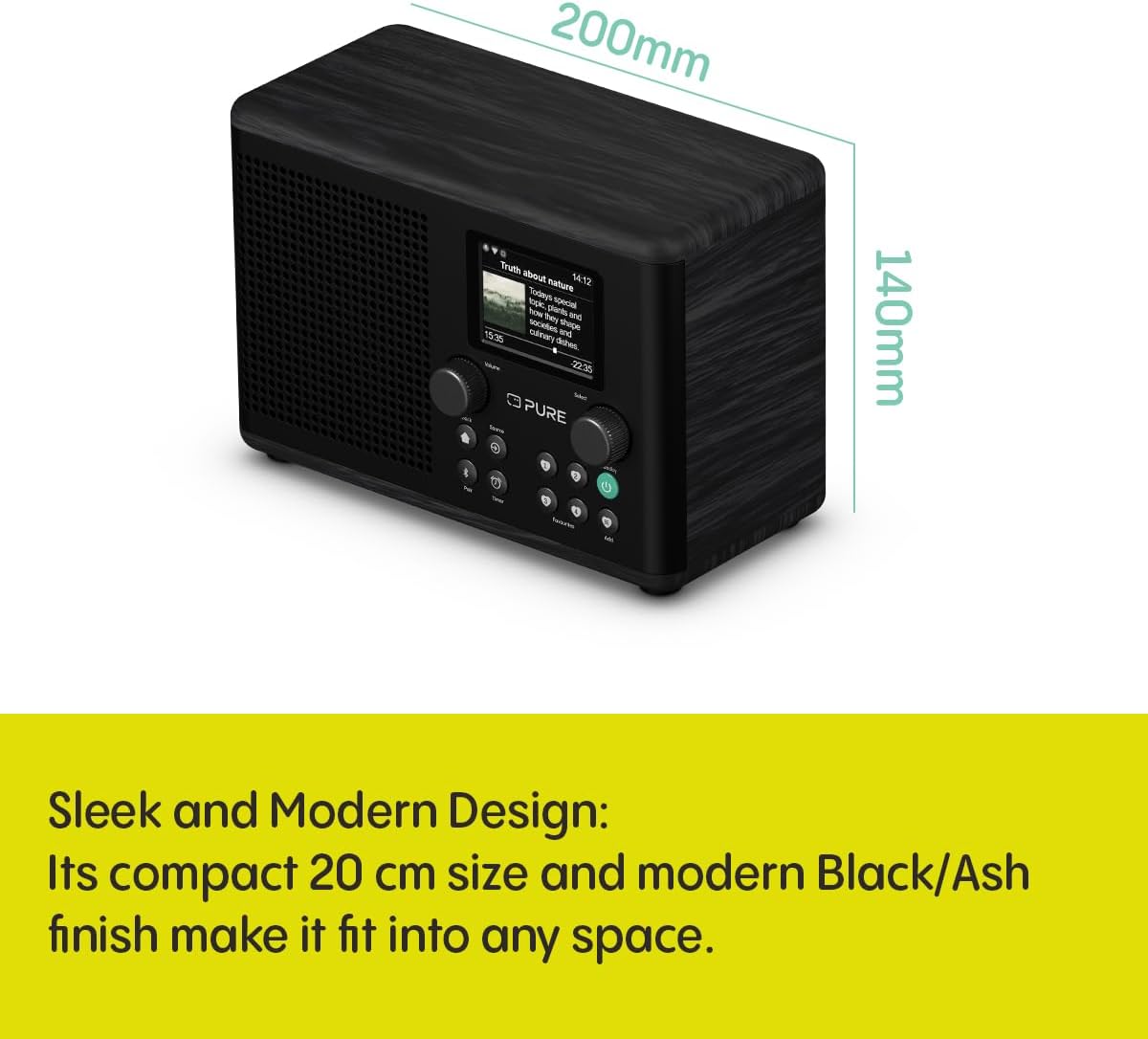
Figure 8: The Pure Classic H4i with its approximate dimensions indicated.
8. Warranty and Support
For warranty information, technical support, or service inquiries, please refer to the official Pure website or contact their customer support directly. The product typically comes with a manufacturer's warranty covering defects in materials and workmanship for a specified period from the date of purchase.
Please retain your proof of purchase for warranty claims.
Online Resources: For the most up-to-date information, FAQs, and additional support, visit the Pure official website: www.pure.com
Related documents254585


Ask a question about this manual
Ask about setup, troubleshooting, compatibility, parts, safety, or missing instructions. Manuals+ will review the question and use this page’s manual context to help answer it.