
birdsnap P33
birdsnap® P33 Smart Bird Feeder with Camera
User Manual
1. Introduction
The birdsnap® P33 Smart Bird Feeder with Camera offers an innovative way to observe and interact with wild birds in your backyard. Featuring a 2K HD camera, AI bird identification, and solar power, this device provides real-time monitoring and automatic recording of your feathered visitors. This manual provides detailed instructions for setup, operation, and maintenance to ensure optimal performance and enjoyment of your smart bird feeder.
2. Package Contents
Before beginning installation, please verify that all components are present and in good condition.
- Bird Feeder Camera x1
- Solar Panel x1
- Mounting Kit (includes mounting screws, drilling template, anchors, hose clip)
- 32GB Memory Card x1 (pre-installed or separate)
- USB Type-C Power Cable x1
- Perch Screws & Perch
- Anti-ant Cup
- Ejector Pin
- User Manual x1

Figure 2.1: Included Components
This image displays all parts included in the birdsnap P33 package, such as the bird feeder housing, the detachable camera, the solar panel, various mounting screws, a 32GB memory card, and the user manual.
3. Setup and Installation
Proper installation is crucial for the performance and longevity of your bird feeder. The birdsnap P33 supports various mounting options.
3.1 Choosing a Location
Select a location that offers a clear view of birds, is easily accessible for refilling and cleaning, and receives ample direct sunlight for the solar panel. Ensure the location is within range of your 2.4GHz Wi-Fi network (5GHz Wi-Fi is not supported).
3.2 Mounting the Feeder
The feeder can be mounted on a tree, wall, or pole using the provided mounting kit.
- Assemble the Perch: Attach the perch to the feeder base using the perch screws.
- Install Mounting Bracket: Use the drilling template to mark holes. Drill pilot holes and secure the mounting bracket to your chosen surface with the appropriate screws and anchors.
- Attach Feeder to Bracket: Slide the bird feeder onto the installed mounting bracket until it clicks securely into place.
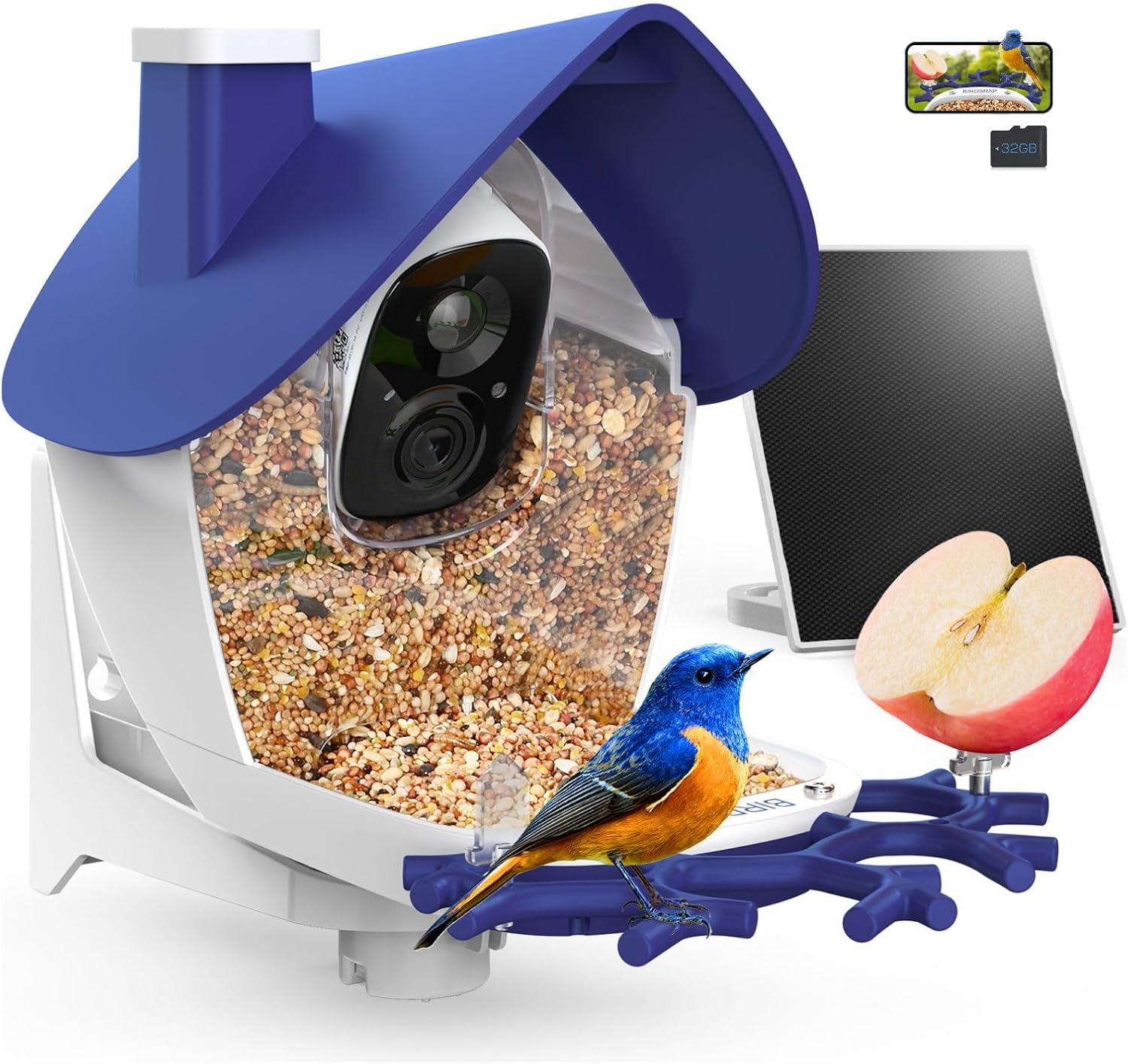
Figure 3.1: Mounted Bird Feeder
This image illustrates the birdsnap P33 Smart Bird Feeder installed, highlighting its design and the integrated camera and solar panel.
3.3 Installing the Solar Panel
The solar panel provides continuous power to the camera, reducing the need for manual charging.
- Mount the Solar Panel: Secure the solar panel in a location that receives maximum direct sunlight throughout the day. It can be mounted near the feeder or in a separate sunny spot.
- Connect to Camera: Connect the USB Type-C power cable from the solar panel to the camera's charging port. Ensure the connection is secure and protected from the elements.
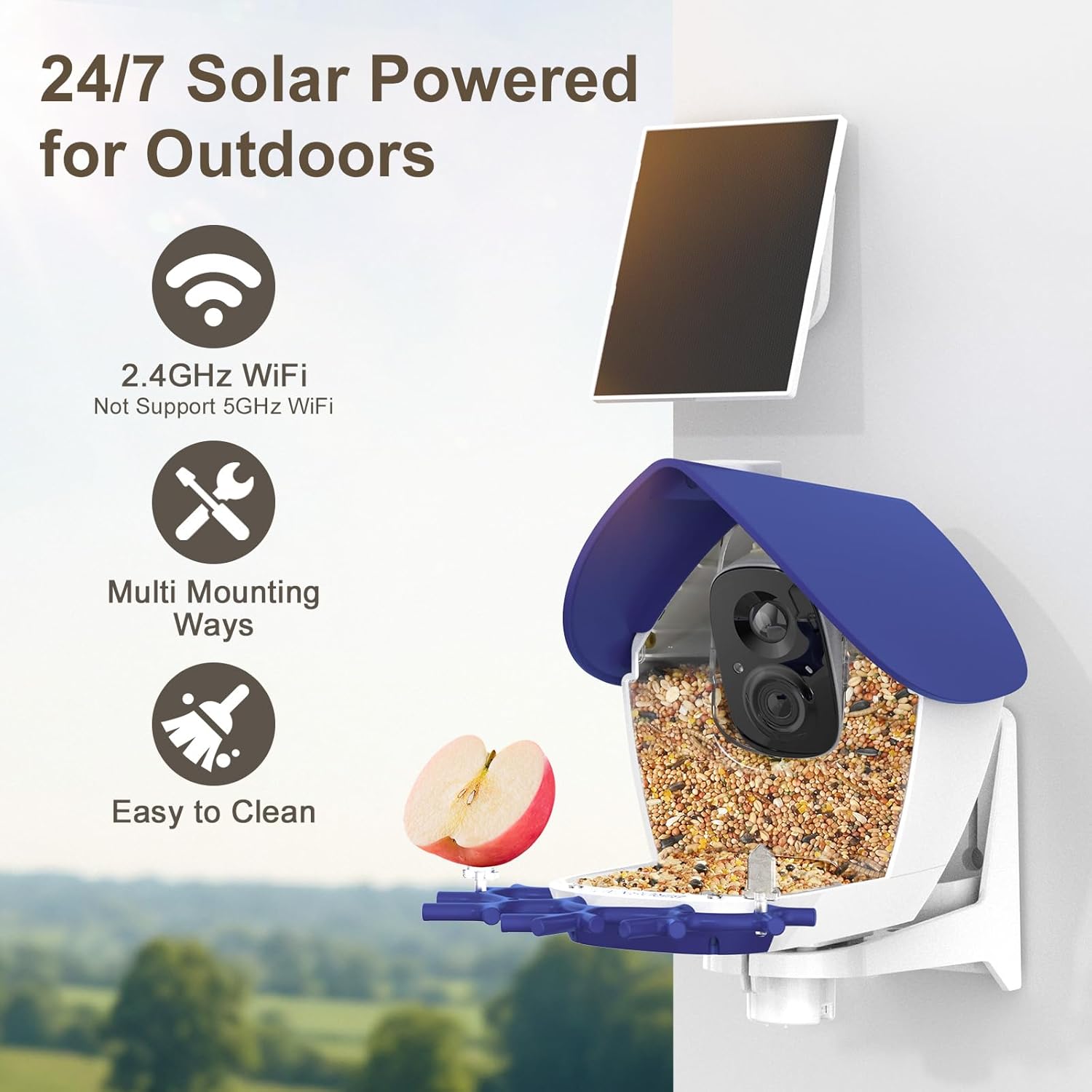
Figure 3.2: Solar Panel Installation
This image illustrates the bird feeder and its solar panel, emphasizing its outdoor suitability, 2.4GHz Wi-Fi connectivity, multiple mounting options, and ease of cleaning.
3.4 Initial Camera Setup and App Connection
The camera connects to your smartphone via the VicoHome app.
- Download App: Scan the QR code in the user manual or search for "VicoHome" in your app store (iOS/Android).
- Create Account: Follow the in-app instructions to create a new account.
- Add Device: Power on the camera. In the VicoHome app, select "Add Device" and follow the prompts to connect the camera to your 2.4GHz Wi-Fi network.
- Insert SD Card: Ensure the included 32GB memory card is properly inserted into the camera for local storage.
4. Operation
4.1 Real-Time Bird Watching and Notifications
Once connected, the camera will automatically detect birds and send instant notifications to your smartphone.
- Live View: Open the VicoHome app to access the live 2K HD video feed from your bird feeder.
- Notifications: Receive alerts when motion is detected, indicating a bird visit.
- Multi-User Sharing: The app supports up to 4 users watching simultaneously and offers one-click social sharing of captured moments.

Figure 4.1: Live View and Sharing
This image depicts multiple users enjoying the 2K HD live view and sharing capabilities of the birdsnap P33, highlighting its family-friendly features.
4.2 AI Bird Identification
The birdsnap P33 utilizes advanced AI technology to identify over 10,000+ bird species.
- Automatic Identification: The AI will attempt to identify the species of birds captured by the camera.
- Learn More: Detailed information about identified birds is available through a subscription service within the app (e.g., $2.99/month).

Figure 4.2: AI Identification Feature
This image demonstrates the AI identification capability of the birdsnap P33, showing how the app identifies bird species and provides notifications.
4.3 Video Storage
Recordings are stored locally on the included 32GB memory card or via cloud storage.
- Local Storage: The 32GB memory card can store a significant number of videos (up to 128GB supported).
- Cloud Storage: A 3-day rolling cloud storage is typically included, with options for extended retention plans.

Figure 4.3: Storage Options
This image highlights the free storage options available with the birdsnap P33, including the included 32GB memory card and cloud storage capabilities.
4.4 Night Vision and Squirrel Deterrence
The camera features 2K color night vision and includes functions to deter squirrels.
- Color Night Vision: Provides clear, colorful footage even in low-light conditions.
- Sound Alarm: An audible alarm can be activated to scare away unwanted visitors like squirrels.
- Two-Way Audio: A built-in microphone allows for two-way communication.

Figure 4.4: Night Vision and Squirrel Deterrence
This image demonstrates the full color night vision capabilities and the effective squirrel repellent features, including an audible alarm and built-in microphone.
5. Maintenance
5.1 Refilling Bird Seed
The feeder has a 1L capacity seed compartment. To refill:
- Open the top lid of the feeder.
- Pour bird seed into the compartment.
- Close the lid securely to keep seed dry.
Additional fruit forks are included for attracting a wider variety of birds.
5.2 Cleaning the Feeder
Regular cleaning is essential for bird health and feeder hygiene.
- Detach Camera: The magnetic camera is easy to remove for cleaning.
- Empty Seed: Dispose of any old or wet bird seed.
- Wash Feeder: Clean the feeder body with warm, soapy water. Rinse thoroughly and allow to dry completely before refilling.
- Reassemble: Reattach the camera and refill with fresh seed.

Figure 5.1: Cleaning Process
This image provides a visual guide to the easy cleaning process of the birdsnap P33, showing how to detach the camera and wash the feeder.
6. Troubleshooting
| Problem | Possible Cause | Solution |
|---|---|---|
| Camera not connecting to Wi-Fi | Incorrect Wi-Fi password; 5GHz Wi-Fi network; too far from router. | Ensure correct 2.4GHz Wi-Fi password. Move feeder closer to router or use a Wi-Fi extender. |
| Camera battery not charging | Insufficient sunlight on solar panel; loose cable connection; faulty solar panel/cable. | Relocate solar panel to receive more direct sunlight. Check all cable connections. Contact support if issue persists. |
| No bird detection notifications | Motion detection sensitivity too low; app notifications disabled; camera offline. | Adjust motion detection sensitivity in the app. Enable notifications for the VicoHome app. Check camera's Wi-Fi connection. |
| Poor video quality | Dirty camera lens; poor Wi-Fi signal; low light conditions. | Clean the camera lens. Improve Wi-Fi signal strength. Ensure adequate lighting (night vision should activate automatically). |
7. Specifications
- Model: P33 (Smart Bird Feeder with Camera)
- Brand: birdsnap®
- Dimensions: 7.09"L x 11.97"W x 8.62"H
- Weight: 4.22 pounds
- Material: ABS+PC
- Camera Resolution: 2K HD
- Field of View: 150° wide-angle
- Night Vision: Color Night Vision
- Power Source: Solar Powered (3W external solar panel)
- Battery: 5200mAh
- Wi-Fi Connectivity: 2.4GHz (not compatible with 5GHz)
- Storage: 32GB MicroSD card included (supports up to 128GB), 3-day rolling cloud storage
- AI Identification: 10,000+ bird species
- Weatherproof Rating: IP65
- Seed Capacity: 1 Liter
- Special Features: Real-Time Bird Watching, AI Recognition, Bird Coming Alerts, Sound Alarm, Two-Way Audio, Detachable Camera
8. Warranty and Support
For product support, warranty information, or technical assistance, please contact birdsnap customer service.
Email: birdsnap@outlook.com
Please refer to your purchase documentation for specific warranty terms and conditions.
Related documentsP33


Ask a question about this manual
Ask about setup, troubleshooting, compatibility, parts, safety, or missing instructions. Manuals+ will review the question and use this page’s manual context to help answer it.