
GD-002
Generic GD-002 RGB Wired Gaming Mouse User Manual
1. Introduction
1.1 Product Overview
This manual provides instructions for the Generic GD-002 RGB Wired Gaming Mouse. This mouse is designed for gaming, offering features such as customizable RGB lighting, adjustable DPI settings, and programmable macro buttons. It connects via a durable USB cable and is compatible with various operating systems.
1.2 Package Contents
- GD-002 RGB Wired Gaming Mouse
- User Manual
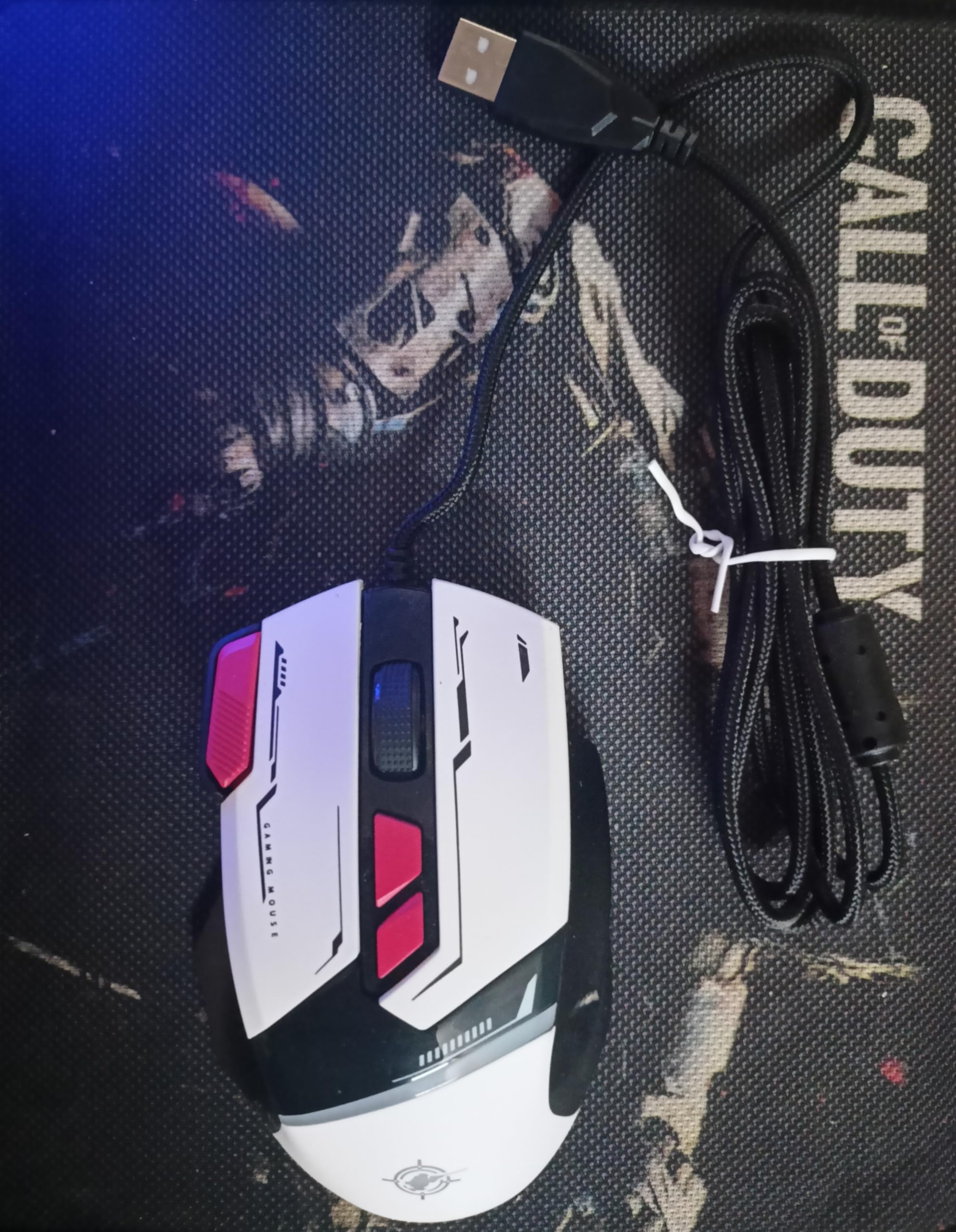
Figure 1: The GD-002 RGB Wired Gaming Mouse packaging.
2. Setup Instructions
2.1 Connecting the Mouse
- Locate an available USB port on your computer (PC, Mac, or Linux system).
- Plug the USB connector of the GD-002 gaming mouse into the USB port.
- The operating system will automatically detect and install the necessary drivers. No additional software installation is typically required for basic functionality.
2.2 Initial Use
Once connected, the mouse should be immediately functional. The RGB lighting will activate, and you can begin using the mouse for navigation and gaming.
3. Operating Instructions
3.1 Basic Functionality
The GD-002 mouse features standard left-click, right-click, and scroll wheel functions. The scroll wheel also acts as a middle-click button.
3.2 DPI Adjustment
The mouse offers 4 adjustable DPI (Dots Per Inch) levels, allowing you to change cursor sensitivity on the fly. A dedicated DPI button, usually located behind the scroll wheel, cycles through these settings. Each DPI level may be indicated by a change in the mouse's LED color or a visual indicator on screen (if supported by software, though not explicitly mentioned for this model).
3.3 RGB Lighting Control
The GD-002 mouse features RGB lighting with over 5 customizable modes. These modes can typically be cycled through using a dedicated button on the mouse, often combined with the DPI button or a separate button on the underside. Refer to the product's specific documentation or manufacturer's website for detailed instructions on changing lighting modes.

Figure 2: Mouse with blue lighting.

Figure 3: Mouse with red lighting.

Figure 4: Mouse with white lighting.

Figure 5: Mouse with yellow lighting.
3.4 Customizing Macro Buttons
The mouse features two customizable side buttons. These buttons can be programmed for macro functions, allowing for quick execution of complex commands or automatic weapon switching in games (e.g., SKS, M16). Macro programming typically requires dedicated software from the manufacturer, which may be available for download from their official website. Consult the manufacturer's resources for software availability and programming instructions.
4. Maintenance
4.1 Cleaning
To maintain optimal performance and appearance, clean your mouse regularly:
- Disconnect the mouse from your computer before cleaning.
- Use a soft, lint-free cloth slightly dampened with water or a mild cleaning solution.
- Avoid using harsh chemicals, abrasive cleaners, or solvents, as these can damage the mouse's surface.
- Gently wipe the surface of the mouse and the cable.
- For optical sensor cleaning, use a cotton swab to carefully remove any dust or debris.
4.2 Storage
When not in use for extended periods, store the mouse in a clean, dry environment away from direct sunlight and extreme temperatures. Avoid coiling the cable too tightly to prevent damage.
5. Troubleshooting
5.1 Mouse Not Responding
- Check USB Connection: Ensure the USB cable is securely plugged into a working USB port on your computer. Try a different USB port.
- Restart Computer: Sometimes a simple restart can resolve connectivity issues.
- Test on Another Computer: If possible, test the mouse on another computer to determine if the issue is with the mouse or your computer's setup.
5.2 DPI or RGB Lighting Issues
- DPI Button: Ensure you are pressing the correct button for DPI adjustment. Cycle through all DPI settings to see if it responds.
- RGB Control: Verify the button used for RGB mode changes. Some mice require a combination of buttons or specific software for advanced lighting customization.
5.3 Macro Button Malfunction
- Software Check: If you are using custom macro settings, ensure the manufacturer's software is installed and running correctly.
- Re-program Macros: Try re-programming the macro buttons within the software.
6. Specifications
| Feature | Detail |
|---|---|
| Brand | Generic |
| Model Name | GD-002 |
| Color | White |
| Connectivity Technology | Wired USB |
| Special Features | LED Lighting (RGB) |
| Movement Detection | Trackball (Note: Typically optical for gaming mice, refer to manufacturer for clarification) |
| Compatible Devices | Personal Computer (Linux, Mac, PC) |
| Item Weight | 90 grams |
| Style | Modern |
| Material | Plastic |
| Primary Subject | Video Games |
| Included Components | Mouse |
| Batteries Required | No |
| Manufacturer | Qc pass |
| Cable Length | 1.5 meters |
| DPI Levels | 4 adjustable levels |
| RGB Modes | 5+ customizable modes |
7. Warranty and Support
7.1 Warranty Information
Please refer to the warranty card included with your product or contact the retailer for specific warranty terms and conditions. Standard warranty typically covers manufacturing defects for a limited period from the date of purchase.
7.2 Technical Support
For technical assistance or further inquiries, please contact the retailer or the manufacturer, Qc pass. Contact information may be available on the product packaging or the manufacturer's official website.
Related documentsGD-002


Ask a question about this manual
Ask about setup, troubleshooting, compatibility, parts, safety, or missing instructions. Manuals+ will review the question and use this page’s manual context to help answer it.