
Introduction
This user manual provides comprehensive instructions for the setup, operation, maintenance, and troubleshooting of your Oakcastle Hifi400 Home Stereo System. The Hifi400 is a versatile audio system featuring Bluetooth connectivity, an FM radio, a multi-format CD player, USB playback, and an auxiliary input, all housed in a solid wood build with powerful 40W stereo sound and dual alarm functionality. Please read this manual thoroughly before using the device to ensure proper and safe operation.
What's in the Box
Upon unpacking, please ensure all items listed below are present and in good condition. If any items are missing or damaged, contact customer support.
- 1x Oakcastle HIFI400 compact stereo system
- 1x Remote Control
- 1x Power Adapter
- 1x User Manual

Image: The Oakcastle Hifi400 stereo system, its remote control, power adapter, and user manual as packaged in the box.
Product Overview
Front Panel

Image: The Oakcastle Hifi400 stereo system, showcasing its front panel with the display, CD tray, and main controls, alongside the remote control.

Image: A detailed view of the Hifi400's front panel, highlighting the buttons for mode selection, volume control, and other functions.
The front panel features the main display, CD tray, and essential control buttons including Power, Mode, Volume, Play/Pause, Skip, and Scan/Program. The integrated speakers are located on the top surface.
Rear Panel
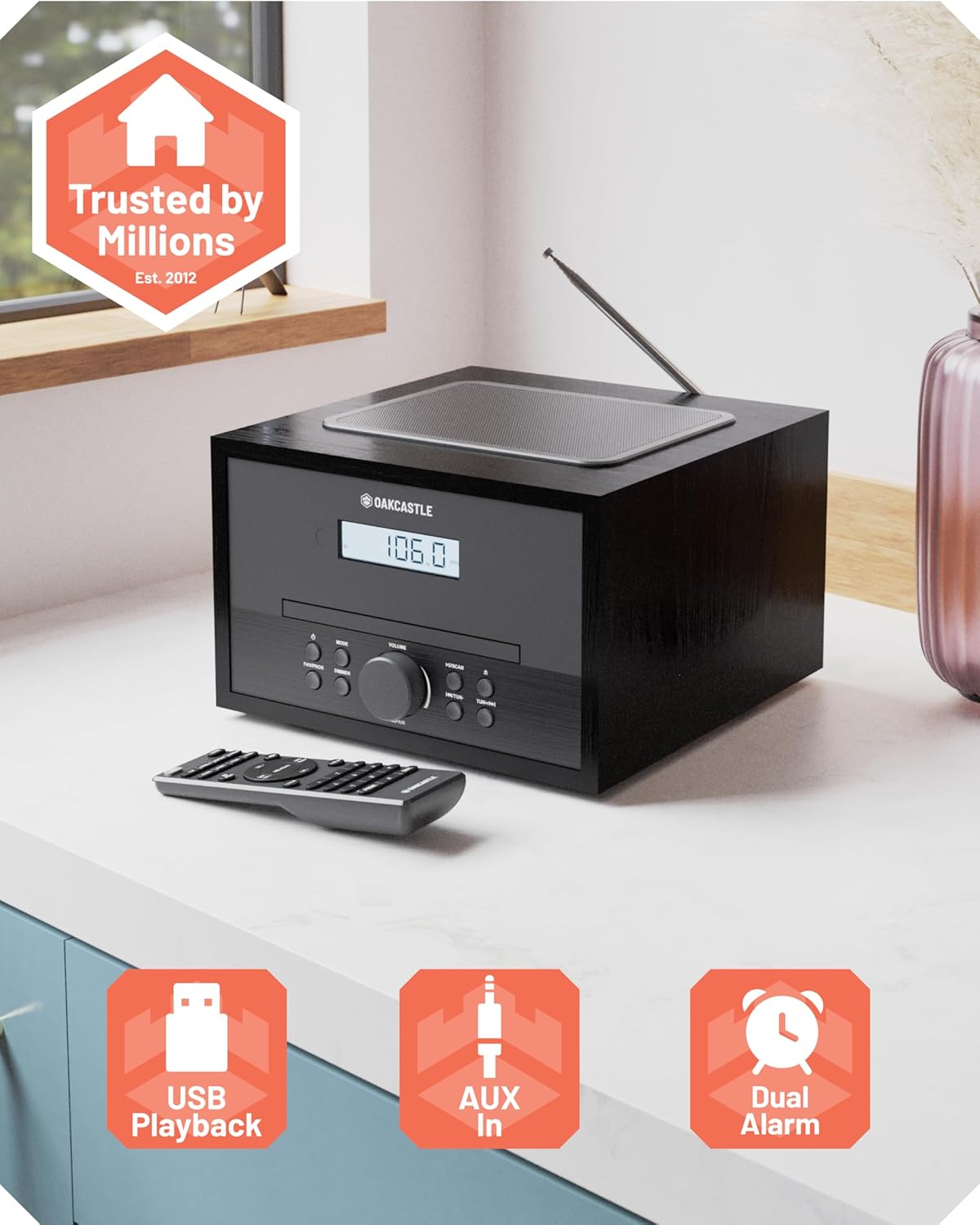
Image: The rear panel of the Hifi400, displaying the DC IN port for power, AUX IN for external audio devices, and a USB port for media playback.

Image: A close-up view of the connectivity ports on the back of the Hifi400, including DC IN, AUX IN, and USB.
The rear panel includes the DC IN port for power connection, an AUX IN port for connecting external audio sources, and a USB port for playing media from USB flash drives. An extendable FM antenna is also located at the rear.
Remote Control

Image: The remote control for the Oakcastle Hifi400, featuring buttons for power, mode, volume, track control, EQ, and alarm settings.

Image: A detailed view of the remote control, showing the layout and labeling of its various function buttons.
The included remote control allows for convenient operation of all functions from a distance, including power, mode selection, volume adjustment, track navigation, EQ control, and alarm settings.
Setup
- Unpacking: Carefully remove the Hifi400 unit and all accessories from the packaging.
- Placement: Place the unit on a stable, flat surface away from direct sunlight, heat sources, and excessive moisture. Ensure adequate ventilation around the unit.
- Connect Power: Insert the power adapter cable into the "DC IN" port on the rear of the unit. Plug the other end of the power adapter into a standard wall outlet.
- Extend FM Antenna: For optimal FM radio reception, fully extend the telescopic antenna located at the rear of the unit. Adjust its position for the best signal.
- Initial Power On: Press the Power button on the front panel or the remote control to turn on the unit. The display will illuminate.
Operating Instructions
General Operation
- Power On/Off: Press the Power button on the unit or remote.
- Mode Selection: Press the Mode button repeatedly to cycle through available modes: CD, FM Radio, Bluetooth, USB, AUX.
- Volume Control: Rotate the Volume knob on the front panel or use the VOL+ / VOL- buttons on the remote.
- EQ Control: Use the EQ button on the remote to adjust sound equalization (Bass/Treble). Note: EQ settings may reset upon power off.
Bluetooth Mode

Image: The Hifi400 unit displaying "Bluetooth" on its screen, with a smartphone playing music wirelessly, demonstrating Bluetooth connectivity.
- Press the Mode button until "Bluetooth" appears on the display. The unit will enter pairing mode, indicated by a flashing Bluetooth icon or "PAIRING" message.
- On your smartphone, tablet, or other Bluetooth-enabled device, enable Bluetooth and search for available devices.
- Select "Oakcastle Hifi400" from the list of devices. Once connected, the unit will confirm with an audible tone or a steady Bluetooth icon/message.
- You can now play audio from your connected device through the Hifi400. Use your device or the Hifi400's controls for playback (Play/Pause, Skip).
CD Player

Image: The CD tray of the Hifi400 extended, with a compact disc partially inserted, illustrating the loading process.
The Hifi400 supports MP3 CDs, standard CDs, CD-Rs, and HDCDs.
- Press the Mode button until "CD" appears on the display.
- Gently insert a CD into the disc tray with the label side facing up. The tray will automatically pull the disc in.
- Playback will usually begin automatically. If not, press the Play/Pause button.
- Use the Skip buttons (|<< / >>|) to navigate between tracks.
- Press Play/Pause to pause or resume playback.
FM Radio
- Press the Mode button until "FM" appears on the display.
- Auto Scan: Press and hold the Scan button (or Play/Pause button on some models) to automatically scan and save available FM stations. The unit can store up to 30 presets.
- Manual Tuning: Briefly press the Skip buttons (|<< / >>|) to fine-tune the frequency. Press and hold to automatically search for the next strong station.
- Select Presets: Use the Preset +/- buttons on the remote to cycle through saved stations.
USB Playback
- Insert a USB flash drive into the USB port on the rear of the unit.
- Press the Mode button until "USB" appears on the display.
- The unit will automatically detect and begin playing compatible audio files (e.g., MP3) from the USB drive.
- Use the playback controls (Play/Pause, Skip) to manage your music.
AUX Input
- Connect one end of a 3.5mm audio cable (not included) to the AUX IN port on the rear of the Hifi400.
- Connect the other end of the cable to the headphone jack or audio output of your external device (e.g., MP3 player, smartphone).
- Press the Mode button until "AUX" appears on the display.
- Control playback and volume primarily from your external device.
Dual Alarm Function
The Hifi400 allows you to set two independent alarms.
- Press the Alarm button on the remote control.
- Use the Skip buttons to select Alarm 1 or Alarm 2.
- Press Enter (or Play/Pause) to confirm.
- Set the alarm time using the Skip buttons and confirm with Enter.
- Select the alarm source (Buzzer, FM, CD) and desired volume level.
- Confirm settings to activate the alarm. An alarm icon will appear on the display.
Maintenance
- Cleaning: Use a soft, dry cloth to clean the exterior of the unit. Do not use abrasive cleaners, waxes, or solvents.
- CD Player Care: Handle CDs by their edges to avoid fingerprints. If the CD player experiences issues, try cleaning the disc with a soft, lint-free cloth. Do not attempt to clean the internal lens.
- Ventilation: Ensure the ventilation openings on the unit are not blocked to prevent overheating.
- Storage: If storing the unit for an extended period, disconnect it from the power outlet and store it in a cool, dry place.
Troubleshooting
If you encounter issues with your Hifi400, please consult the following table before contacting customer support.
| Problem | Possible Cause | Solution |
|---|---|---|
| Unit does not power on. | Power adapter not connected properly or power outlet is faulty. | Ensure the power adapter is securely plugged into the unit and a working wall outlet. Try a different outlet. |
| No sound. | Volume is too low or muted; incorrect mode selected; external device not connected properly. | Increase volume. Check if the unit is muted. Ensure the correct input mode (CD, BT, FM, USB, AUX) is selected. For AUX/BT, check volume on external device. |
| CD does not play or skips. | CD is dirty, scratched, or inserted incorrectly; unsupported disc format. | Clean the CD with a soft cloth. Ensure the CD is inserted correctly (label side up). Try a different CD. Verify disc format is supported. |
| Poor FM radio reception. | Antenna not extended or positioned poorly; strong interference. | Fully extend and adjust the telescopic antenna. Try repositioning the unit away from other electronic devices that may cause interference. |
| Bluetooth pairing issues. | Device is too far; Bluetooth not enabled on external device; unit already paired with another device. | Ensure the external device is within 10 meters (33 feet) of the Hifi400. Make sure Bluetooth is enabled on your device and the Hifi400 is in pairing mode. Disconnect from other Bluetooth devices. |
| EQ settings reset after power off. | This is a characteristic of the device's design. | The Hifi400 may not retain EQ settings after being powered off or entering standby. Adjust EQ settings as needed upon each use. |
Specifications
| Feature | Detail |
|---|---|
| Model | Hifi400 |
| Brand | Oakcastle |
| Product Dimensions (L x W x H) | 8.58 x 8.7 x 5.31 inches (21.8 x 22.1 x 13.5 cm) |
| Item Weight | 6.32 pounds (2.87 kg) |
| Connectivity Technology | Bluetooth, FM Radio, CD Player, USB Flashdrive Playback, 3.5mm Headphone Jack, Auxiliary Input |
| Speaker Type | Stereo |
| Audio Output Power | 40W |
| FM Radio Presets | 30 |
| CD Compatibility | MP3 CDs, standard CDs, CD-Rs, HDCDs |
| Alarm Function | Dual Alarm |
| Color | Black |
Warranty and Support
The Oakcastle Hifi400 Home Stereo System comes with a 3-year warranty, ensuring peace of mind and reliable support for your product. For warranty registration, technical assistance, or any inquiries not covered in this manual, please visit the official Oakcastle support website or contact their customer service team.
For the most up-to-date support information, please refer to the contact details provided on the Oakcastle official website or the warranty card included with your product.