
1. Introduction
This manual provides essential information for the proper setup, operation, and maintenance of your Tunhail 15.6-inch Laptop. Please read this guide thoroughly before using your device to ensure optimal performance and longevity. Keep this manual for future reference.
2. Safety Information
- Do not expose the laptop to extreme temperatures, direct sunlight, or high humidity.
- Avoid placing heavy objects on the laptop.
- Use only the original power adapter provided with the device.
- Keep the laptop away from liquids and corrosive substances.
- Do not attempt to disassemble or repair the laptop yourself. Contact qualified service personnel for assistance.
- Ensure proper ventilation to prevent overheating.
3. Package Contents
Verify that all items are present in the package:
- Tunhail 15.6-inch Laptop
- Power Adapter
- User Manual (this document)
4. Product Overview
Familiarize yourself with the components and features of your Tunhail laptop.

Figure 4.1: Front view of the Tunhail 15.6-inch Laptop, highlighting its 1920x1080 FHD IPS display, 8GB RAM, 256GB ROM, UHD Graphics, and Celeron N4000 processor.
4.1. Display and Hinge
The laptop features a 15.6-inch Full HD (1920x1080) IPS display. The screen supports a 180-degree opening, allowing for flexible viewing angles and collaborative use.
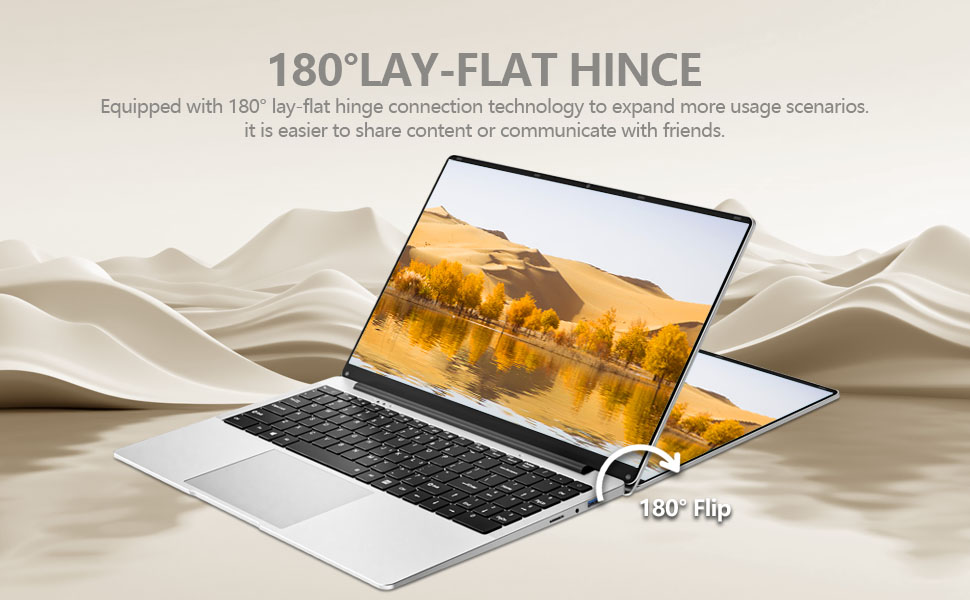
Figure 4.2: The laptop's 180-degree lay-flat hinge, enabling various usage scenarios and easier content sharing.
4.2. Processor and Performance
Equipped with a Celeron N4000 processor, the laptop offers a base frequency of 1.1 GHz and a turbo frequency up to 2.6 GHz. It features 2 cores, 2 threads, and 4MB L3 Cache, designed for smooth daily computing tasks.

Figure 4.3: Illustration of the Celeron N4000 CPU, highlighting its specifications for smooth operation.
4.3. Memory and Storage
The laptop includes 8GB LPDDR4 RAM and a 256GB SSD, providing efficient multitasking and fast data access. The storage can be expanded via a TF card slot.

Figure 4.4: Visual representation of the laptop's 8GB DDR4 RAM and 256GB SSD for efficient performance and storage.
4.4. Ports and Connectivity
The laptop offers versatile connectivity options:
- 2x USB 3.0 ports
- 1x Mini HDMI port
- 1x Standard 3.5mm headphone jack
- 1x Micro TF card slot
- 1x 3.5mm DC power port
It also supports WiFi 2.4G/5G and Bluetooth 4.2 for wireless communication.

Figure 4.5: Side view of the laptop illustrating the TF card slot, earphone jack, USB 3.0 ports, DC power port, and Mini HDMI port.
4.5. Keyboard and Audio
The laptop features a full-size QWERTY keyboard with a responsive trackpad. It includes stereo speakers, an HD camera, and dual digital microphones for enhanced communication.

Figure 4.6: The laptop's user-centric features, including stereo speakers, HD camera, and digital microphones for clear communication.
5. Setup
5.1. Initial Charging
- Connect the power adapter to the DC power port on the laptop.
- Plug the power adapter into a wall outlet.
- Allow the laptop to charge for at least 3 hours before initial use, or until the battery indicator shows a full charge.
5.2. Powering On
Press and hold the power button located on the keyboard until the screen illuminates.
5.3. Windows 11 Pro Setup
Follow the on-screen instructions to complete the initial setup of Windows 11 Pro. This typically involves:
- Selecting your region and keyboard layout.
- Connecting to a Wi-Fi network.
- Signing in with a Microsoft account or creating a local account.
- Setting up privacy settings.
6. Operating Instructions
6.1. Power Management
- Power On: Press the power button.
- Sleep Mode: Briefly press the power button or close the lid.
- Shut Down: Click the Start button, then Power > Shut down.
- Restart: Click the Start button, then Power > Restart.
6.2. Display Settings
- Brightness Adjustment: Use the function keys (Fn + Fx) or Windows display settings.
- External Display: Connect an external monitor via the Mini HDMI port. Press Fn + Fx (usually F7 or F8) to cycle through display modes (duplicate, extend, second screen only).
6.3. Keyboard and Touchpad
- The keyboard provides a standard QWERTY layout.
- The touchpad supports multi-touch gestures for navigation. Refer to Windows settings for customization.
6.4. Connectivity
- Wi-Fi: Access Wi-Fi settings from the taskbar to connect to available networks.
- Bluetooth: Enable Bluetooth in Windows settings to pair with compatible devices.
- USB Devices: Connect USB devices to the USB 3.0 ports.
- TF Card: Insert a TF card into the designated slot for expanded storage or data transfer.
7. Maintenance
7.1. Cleaning
- Use a soft, lint-free cloth to clean the screen and exterior.
- Do not use harsh chemicals or abrasive cleaners.
- For stubborn marks, lightly dampen the cloth with water or a screen-safe cleaning solution.
7.2. Battery Care
- Avoid fully discharging the battery frequently.
- Do not leave the laptop plugged in constantly after it is fully charged for extended periods.
- Store the laptop in a cool, dry place if not used for a long time, with the battery charged to about 50%.
7.3. Software Updates
Regularly check for and install Windows updates to ensure system stability, security, and performance.
8. Troubleshooting
| Problem | Possible Cause | Solution |
|---|---|---|
| Laptop does not power on | Low battery; Power adapter issue | Connect power adapter and charge; Ensure adapter is securely connected to laptop and outlet. |
| Screen is blank or black | Laptop in sleep mode; Display settings issue | Press any key or the power button to wake; Press Fn + Fx to cycle display modes. |
| Wi-Fi not connecting | Wi-Fi disabled; Incorrect password; Router issue | Check Wi-Fi settings; Re-enter password; Restart router. |
| Slow performance | Too many applications open; Low storage space; Malware | Close unnecessary applications; Free up disk space; Run antivirus scan. |
9. Specifications
| Feature | Detail |
|---|---|
| Model | N4000 |
| Screen Size | 15.6 Inches |
| Display Resolution | 1920 x 1080 Full HD IPS |
| Processor | Intel Celeron N4000 (up to 2.6 GHz) |
| Graphics | UHD Graphics 600 (up to 750 MHz) |
| RAM | 8GB LPDDR4 |
| Storage | 256GB SSD (expandable via TF card) |
| Operating System | Windows 11 Pro |
| Ports | 2x USB 3.0, 1x Mini HDMI, 1x 3.5mm Headphone Jack, 1x Micro TF, 1x 3.5mm DC Port |
| Wireless Connectivity | WiFi 2.4G/5G, Bluetooth 4.2 |
| Battery | 7.6V/5,000mWh (38Wh) |
| Dimensions (LxWxH) | 14 x 9 x 0.8 inches |
| Weight | 4.93 pounds (approx. 1.5 kg) |
10. Warranty and Support
This product comes with a 2-year warranty. For any questions, quality issues, or technical support, please contact customer service. Refer to your purchase documentation for specific contact details.