
UCOCARE R9-Pro
UCOCARE 4G LTE Cellular Security Camera R9-Pro User Manual
Model: R9-Pro | Brand: UCOCARE
Introduction
This manual provides detailed instructions for the setup, operation, and maintenance of your UCOCARE 4G LTE Cellular Security Camera (Model R9-Pro). This camera is designed for remote monitoring in areas without Wi-Fi access, utilizing a 4G LTE network connection. Please read this manual thoroughly before using the product to ensure proper functionality and safety.

Image: The UCOCARE R9-Pro 4G LTE Cellular Security Camera, showcasing its compact design and cellular connectivity.
What's in the Box
Verify that all components are present upon unboxing:
- Security Camera (2 units for 2-pack)
- Mounting Bracket
- 4G SIM Card
- Screw Pack
- User Manual
Product Features
- 4G LTE Connectivity: Operates independently of Wi-Fi, ideal for remote locations.
- Long Battery Life: Equipped with a 5200mAh rechargeable battery and low-power technology for extended operation.
- High Definition Video: Captures 1080P HD video with a 160° wide-angle view and 10x digital zoom.
- Enhanced Night Vision: Clear visibility up to 33 feet in low-light conditions using IR LEDs.
- Accurate Motion Detection: Smart AI detects people, cars, and pets, reducing false alarms.
- Instant Alerts: Receive immediate notifications on your smartphone when motion is detected.
- Remote Viewing: Access live feed and recordings from anywhere via the mobile application.
- Flexible Storage: Supports local storage via Micro SD card (up to 128GB, not included) and cloud storage (30-day trial available).
- Portable Design: Compact and wire-free for versatile indoor, outdoor, and vehicle use.

Image: Overview of the camera's key features, highlighting 4G LTE connectivity and battery life.
Setup Guide
1. Charging the Camera
Before initial use, fully charge the camera's 5200mAh battery using a standard USB power adapter (not included) and the provided USB-C cable. A full charge ensures optimal performance and extended battery life.

Image: The camera's 5200mAh battery, illustrating its extended life due to low-power technology.
2. Installing the 4G SIM Card
- Locate the SIM card slot on the camera.
- Insert the provided 4G SIM card into the slot. Ensure it is correctly oriented.
- The camera comes with a prepaid 4G SIM card including a 300MB free data trial. Additional data plans can be renewed via the app. The camera is also compatible with SIM cards from major carriers like AT&T, T-Mobile, and Verizon.

Image: Visual guide for the five-step connection process, including SIM card installation.
3. App Download and Camera Connection
- Download the "UBox" application from your smartphone's app store (available for Android and iOS).
- Open the UBox app and follow the on-screen instructions to register an account.
- Power on the camera. Wait for the blue indicator light to become solid, indicating it's ready for connection.
- In the UBox app, select "Add Device" and scan the QR code located on the camera.
- Follow any further prompts in the app to complete the connection process.
4. Mounting the Camera
The camera can be mounted using the included mounting bracket and screw pack. It supports ceiling mount, tabletop mount, and wall mount configurations. Its compact size allows for flexible placement indoors or outdoors.

Image: Examples of the camera's portability and various mounting options.
Operating Instructions
1. Remote Viewing and Real-time Response
Once connected, use the UBox app to access the camera's live feed from anywhere. You can view real-time video and communicate through the camera's two-way audio feature (if available, not explicitly stated but implied by "respond instantly").

Image: Remote viewing and real-time interaction via the UBox app.
2. Motion Detection and Alerts
The camera features smart AI for detecting human, vehicle, and pet motion. When motion is detected, the camera will send instant alerts to your smartphone via the UBox app. You can customize alert sensitivity levels and time periods within the app to minimize unnecessary notifications.

Image: Motion detection and instant alert functionality.
3. Video Quality and Night Vision
The camera provides 1080P HD clarity with a 160° wide-angle lens and 10x digital zoom, allowing for detailed monitoring up to 130 feet during the day. For nighttime surveillance, enhanced IR LEDs provide clear vision up to 33 feet, ensuring continuous monitoring in low-light conditions.

Image: Day and night vision capabilities of the camera.
4. Video Storage Options
The camera offers two storage methods for recorded events:
- Local Storage: Insert a Micro SD card (up to 128GB, not included) into the camera's designated slot. The camera will automatically overwrite older recordings when the card is full.
- Cloud Storage: A 30-day free trial of cloud storage is available. After the trial, subscription plans can be purchased through the UBox app.
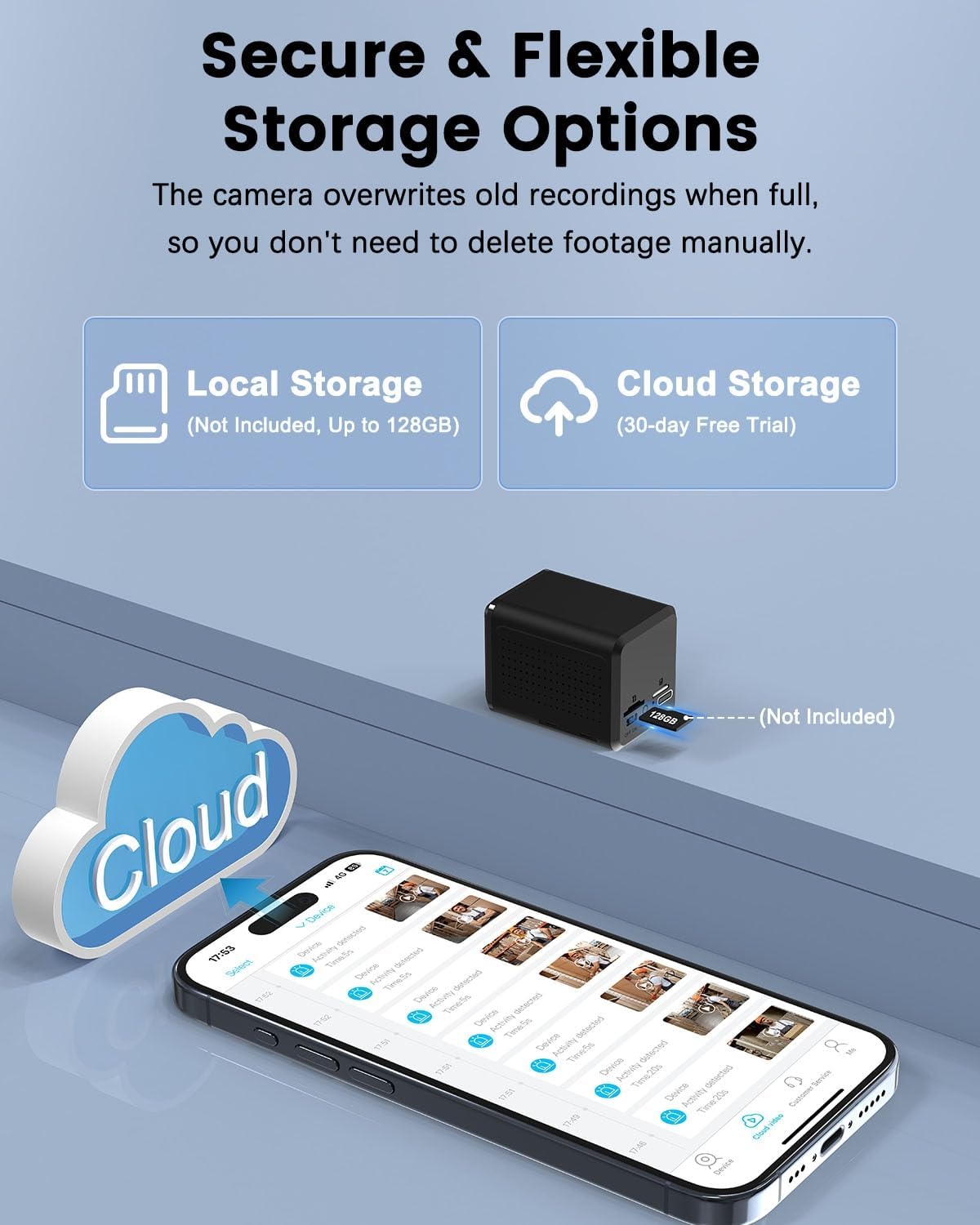
Image: Local and cloud storage options for recorded video.
5. Data Plan Management
For continuous 4G LTE connectivity, manage your data plan through the UBox app. After the initial 300MB trial, you can renew with various unlimited data plans offered by UCOCARE or use a compatible SIM card from other carriers.
Maintenance
- Cleaning: Use a soft, dry cloth to clean the camera lens and body. Avoid abrasive cleaners or solvents.
- Battery Care: To prolong battery life, avoid extreme temperatures. Recharge the battery when the app indicates low power.
- Firmware Updates: Periodically check the UBox app for available firmware updates to ensure optimal performance and security.
- SD Card Management: If using local storage, regularly review and back up important footage. The camera automatically overwrites old files when full.
Troubleshooting
- Camera Not Connecting:
- Ensure the SIM card is correctly inserted and has an active data plan.
- Verify that the camera is powered on and the blue indicator light is solid.
- Check for adequate 4G LTE signal strength in the camera's location.
- Restart the camera and the UBox app.
- No Motion Detection Alerts:
- Check the motion detection settings in the UBox app (sensitivity, schedule).
- Ensure the camera has a clear view of the area to be monitored.
- Short Battery Life:
- Reduce motion detection sensitivity or frequency of recordings.
- Ensure the camera is fully charged before deployment.
- Extreme temperatures can affect battery performance.
- Poor Video Quality:
- Clean the camera lens.
- Ensure sufficient lighting for optimal image capture, especially at night.
- Check 4G signal strength, as weak signals can affect streaming quality.
Specifications
| Model Name | R9-Pro |
| Brand | UCOCARE |
| Connectivity Technology | Wireless (4G LTE Cellular) |
| Power Source | Battery Powered (5200mAh Lithium Ion) |
| Video Capture Resolution | 1080P HD (2K sensor) |
| Viewing Angle | 160 Degrees |
| Night Vision Range | 33 Feet |
| Digital Zoom | 10x |
| Storage Type | Micro SD (up to 128GB, not included), Cloud Storage |
| Controller Type | Smartphone (UBox App) |
| Indoor/Outdoor Usage | Indoor, Outdoor |
| Dimensions (L x W x H) | 2.16 x 1.49 x 1.65 inches |
| Item Weight | 15.8 ounces |
Warranty and Support
UCOCARE is committed to providing reliable products and customer satisfaction. For any technical assistance, warranty claims, or product-related inquiries, please contact UCOCARE customer support. Refer to the contact information provided in the packaging or on the official UCOCARE website.

Image: UCOCARE customer support team.
Ask a question about this manual
Ask about setup, troubleshooting, compatibility, parts, safety, or missing instructions. Manuals+ will review the question and use this page’s manual context to help answer it.