
1. Introduction
Thank you for purchasing the ZEBRONICS MAX LINK PRO Wireless Controller. This manual provides detailed instructions for setting up, operating, and maintaining your new gamepad. Please read this manual carefully before use to ensure optimal performance and longevity of the product.
2. Product Overview
The ZEBRONICS MAX LINK PRO is a versatile wireless controller designed for an immersive gaming experience. It features Hall Effect joysticks, a 6-axis gyro sensor, analog triggers, a touch pad, dual motor haptics for force feedback, and programmable macro buttons. Its transparent design with RGB LED lighting adds a dynamic visual element.
2.1 Package Contents
- Gamepad - 1 unit
- Charging cable - 1 unit
- QR Code Guide - 1 unit
2.2 Controller Layout
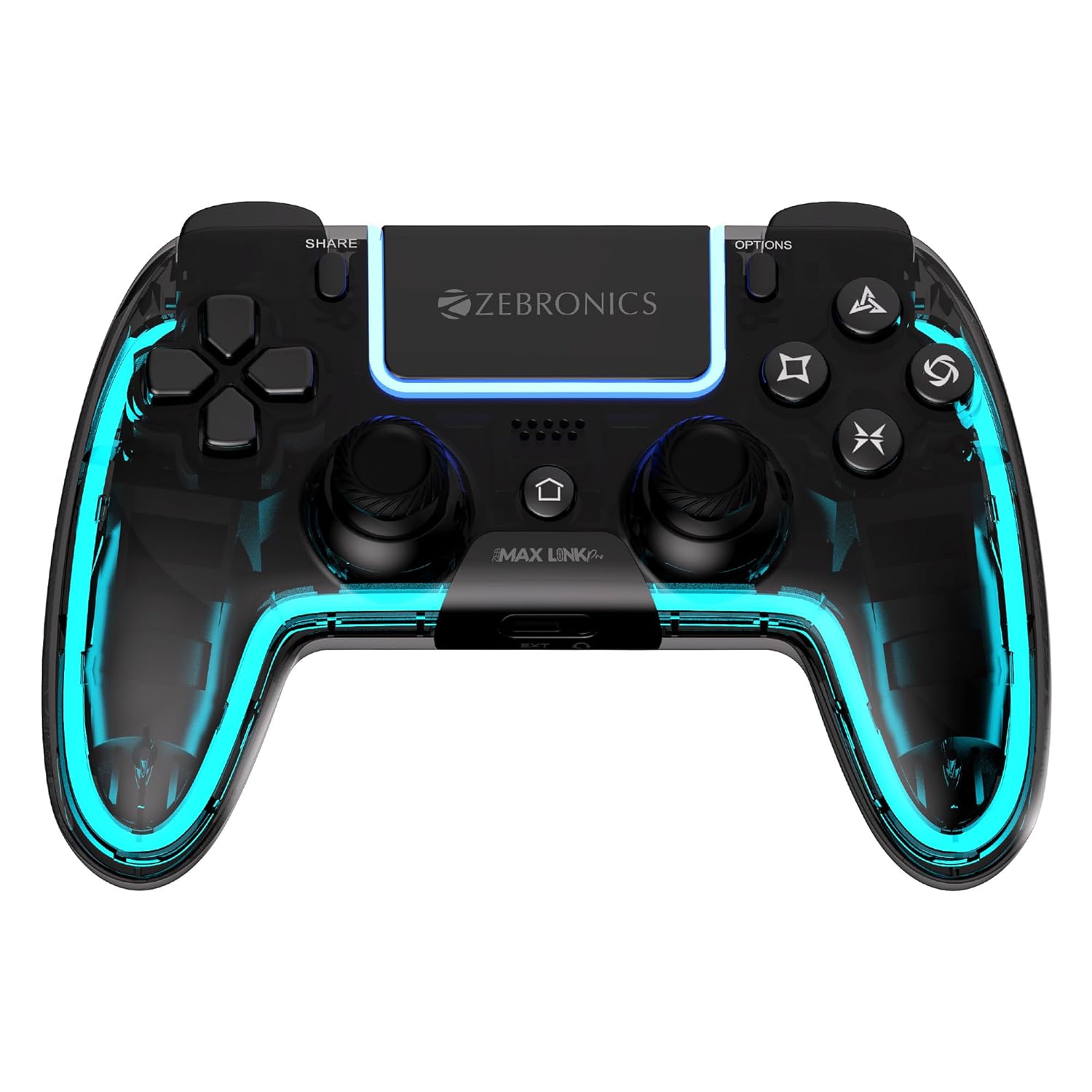
Image 1: Front view of the ZEBRONICS MAX LINK PRO Wireless Controller, showcasing its transparent design and button layout.
The controller features standard gamepad buttons, two analog sticks, a D-pad, shoulder buttons (L1, R1), triggers (L2, R2), a central touch pad, SHARE and OPTIONS buttons, and additional programmable macro buttons on the underside.

Image 2: Side view highlighting the charging dock port, 3.5mm audio jack, LED indicator, and touch pad controls.
The controller includes a Type-C charging port, a dedicated charging dock port, and a 3.5mm audio jack for headset connectivity. An LED indicator provides status information.
3. Setup and Connectivity
3.1 Charging the Controller
Before first use, fully charge the controller.
- Connect the provided Type-C charging cable to the controller's Type-C port and a USB power source.
- Alternatively, place the controller on a compatible charging dock using the dedicated dock port.
- The LED indicator will show charging status and turn off or change color when fully charged.

Image 3: The controller connected via Type-C for charging, illustrating its built-in rechargeable battery.
A full charge provides up to 10 hours of usage time without RGB lighting, depending on usage conditions.
3.2 Connecting Wirelessly (Bluetooth)
The controller supports wireless connectivity via Bluetooth for compatible devices.
- Ensure the controller is sufficiently charged.
- Turn on the controller.
- On your device (PS4, PS3, Windows PC, Android, iOS), enable Bluetooth and search for available devices.
- Select "ZEB-MAX LINK PRO" from the list of discovered devices to pair.
- The LED indicator will confirm successful pairing.

Image 4: The controller being used wirelessly via Bluetooth, demonstrating dual-mode connectivity.
3.3 Connecting with a Cable (Wired Mode)
For uninterrupted gameplay or devices without Bluetooth, use the wired connection.
- Connect the Type-C charging cable to the controller and the other end to your gaming console or PC's USB port.
- The controller will automatically switch to wired mode.

Image 5: Illustrates the controller's compatibility with PS4, PS3, Windows, iOS, and Android devices.
4. Operating Instructions
4.1 Basic Controls
- Analog Sticks: For precise movement and camera control.
- D-Pad: For directional input in menus or specific game actions.
- Action Buttons (X, O, Square, Triangle): For in-game actions.
- Shoulder Buttons (L1, R1) & Triggers (L2, R2): For various game functions, with L2/R2 offering analog input.
- SHARE Button: For sharing gameplay content (platform dependent).
- OPTIONS Button: For accessing in-game menus or system options.
- Touch Pad: Functions as a clickable button and offers touch input (platform dependent).
4.2 Advanced Features
4.2.1 Programmable Macro Buttons
The controller includes programmable macro buttons (MR, ML) on the underside, allowing you to map multiple actions to a single button press. Refer to the QR Code Guide for detailed instructions on programming these buttons.

Image 6: Underside view showing the programmable macro buttons and the RGB control button.
4.2.2 RGB LED Lighting Control
The transparent design of the controller is enhanced with vibrant RGB LED lights. Use the dedicated RGB Control Button (located near the macro buttons) to cycle through different lighting modes or turn the lights off.
Image 7: Demonstrates the range of RGB lighting options available on the controller.
4.2.3 Hall Effect Joysticks and Analog Triggers
Experience precise and durable control with Hall Effect joysticks, which use magnetic sensors for enhanced accuracy and longevity. The twin front analog triggers (L2, R2) provide proportional input, ideal for racing and shooting games.

Image 8: A user operating the controller, highlighting the Hall Effect Joysticks for accurate control.
4.2.4 6-Axis Gyro Sensor and Dual Motor Force Feedback
The integrated 6-axis gyro sensor allows for motion-based controls in compatible games, providing an additional layer of immersion. Dual motors provide haptic feedback, delivering realistic vibrations for in-game events.

Image 9: Visual representation of the 6-axis gyro sensor, twin front analog triggers, dual motor force feedback, and built-in speaker.
4.2.5 Built-in Speaker and 3.5mm Audio Jack
The controller features a built-in speaker for immersive in-game audio (compatible only with PS4). For private listening, connect your headphones to the 3.5mm audio jack.
5. Maintenance and Care
- Keep the controller clean by wiping it with a soft, dry cloth.
- Avoid using harsh chemicals or abrasive cleaners.
- Store the controller in a cool, dry place away from direct sunlight and extreme temperatures.
- Do not expose the controller to water or other liquids.
- Avoid dropping or subjecting the controller to strong impacts.
6. Troubleshooting
6.1 Controller Not Turning On
- Ensure the battery is charged. Connect the controller to a power source using the Type-C cable.
- If the issue persists, try resetting the controller (refer to the QR Code Guide for reset instructions).
6.2 Connectivity Issues
- Wireless (Bluetooth):
- Ensure Bluetooth is enabled on your device and the controller is in pairing mode.
- Move the controller closer to the device to reduce interference.
- Remove any obstacles between the controller and the device.
- Try unpairing and re-pairing the controller from your device's Bluetooth settings.
- Wired:
- Ensure the Type-C cable is securely connected to both the controller and the device.
- Try using a different USB port on your device.
- Test with a different Type-C cable to rule out cable malfunction.
6.3 Buttons or Joysticks Not Responding
- Ensure the controller is properly connected (wired or wireless).
- Restart the controller and the connected device.
- Check if the game or application supports gamepad input.
- If specific buttons are unresponsive, check for physical obstructions or debris.
6.4 No Audio from 3.5mm Jack (PS4 only)
- Ensure your headphones are fully plugged into the 3.5mm jack.
- Check PS4 audio settings to ensure output is directed to the controller.
- Test headphones with another device to confirm they are working.
7. Specifications
| Feature | Detail |
|---|---|
| Brand | ZEBRONICS |
| Model Name | Zeb-Max Link Pro |
| Connectivity Technology | Wireless (Bluetooth), USB (Wired) |
| Controller Type | Wireless Gamepad |
| Compatible Devices | Android, iOS, PlayStation 3, PlayStation 4, Windows |
| Hardware Platform | Gaming Console, PC |
| Power Source | Battery Powered (Rechargeable) |
| Battery Life | Up to 10 hours (without RGB light, depending on usage) |
| Charging Port | Type-C, Dedicated Dock Port |
| Special Features | Hall Effect Joysticks, 6-Axis Gyro, Analog Triggers, Touch Pad, Dual Motor Haptics, Macro Buttons, RGB LED Lighting, Built-in Speaker (PS4 only), 3.5mm Audio Jack |
| Color | Black (Transparent) |
| Item Dimensions (LxWxH) | 10 x 15.5 x 5 cm |
| Item Weight | 235 g |
| Country of Origin | China |
8. Warranty Information
ZEBRONICS products are covered by a limited warranty from the date of purchase. Please refer to the warranty card included in your package or visit the official ZEBRONICS website for detailed warranty terms and conditions. Keep your purchase receipt as proof of purchase for warranty claims.
9. Customer Support
For any technical assistance, troubleshooting, or product-related inquiries, please contact ZEBRONICS customer support.
- Website: Visit the official ZEBRONICS website for FAQs, drivers, and support resources.
- Contact Information: Refer to the QR Code Guide or the ZEBRONICS website for specific customer service contact details (phone, email).
