
FAIMEE 4GB RAM+32GB ROM
FAIMEE AI Box Wireless CarPlay & Auto Adapter User Manual
Model: 4GB RAM+32GB ROM
1. Introduction and Overview
Thank you for choosing the FAIMEE AI Box Wireless CarPlay & Auto Adapter. This device is designed to upgrade your wired CarPlay system to a wireless experience, offering seamless integration with your smartphone and expanding your car's infotainment capabilities with Android 12.0 OS. Enjoy features like 4K video playback, dual-band WiFi, Bluetooth 5.0, and voice assistant support.
This manual provides detailed instructions for setting up, operating, maintaining, and troubleshooting your AI Box to ensure optimal performance and a convenient driving experience.

Figure 1.1: FAIMEE AI Box showcasing multimedia capabilities like YouTube and Netflix on a car display.
2. Setup Guide
The FAIMEE AI Box is designed for plug-and-play installation, making setup quick and easy. Ensure your vehicle is equipped with factory wired CarPlay before proceeding.
2.1 Compatibility Check
This adapter is compatible with most factory OEM CarPlay systems. It supports iPhone 7+ (iOS 10.0+) for Wireless CarPlay and Android 11.0+ smartphones for Wireless Android Auto.

Figure 2.1: The AI Box is compatible with over 1000 car models equipped with wired CarPlay. Note: Only for cars with wired Apple CarPlay.
2.2 Installation Steps
- Plug In: Connect the FAIMEE AI Box to your car's USB port that supports wired CarPlay. Use the provided USB-C or USB-A cable as appropriate for your vehicle.
- Pair: On your smartphone, enable Bluetooth and Wi-Fi. Search for the AI Box's Bluetooth signal and pair with it. Follow any on-screen prompts on your car's display.
- Use: Once paired, your car's display will automatically switch to the AI Box interface, allowing you to access Wireless CarPlay or Android Auto.

Figure 2.2: Simple 3-step setup for the FAIMEE AI Box: Plug, Pair, and Use.
3. Operating Instructions
The FAIMEE AI Box transforms your car's infotainment system, offering a wide range of features for enhanced connectivity and entertainment.
3.1 Wireless CarPlay & Android Auto
After initial pairing, the AI Box will automatically reconnect to your smartphone every time the vehicle is started, providing instant access to Wireless CarPlay or Android Auto. This allows you to use navigation, make calls, send messages, and listen to music directly from your car's display without cables.

Figure 3.1: The AI Box offers a 10-meter connection range and automatically reconnects for continuous convenience.
3.2 Multimedia Expansion (Android 12.0 OS)
The built-in Android 12.0 OS allows you to download and use various apps directly on your car's screen, including Google Maps, YouTube, Netflix, and more. The dual-band WiFi (2.4GHz/5GHz) ensures fast and stable internet connectivity for streaming and browsing.

Figure 3.2: Enjoy 4K Ultra-HD video output and access popular streaming platforms directly on your car's display.
3.3 Bluetooth 5.0 & Local Media Playback
Equipped with Bluetooth 5.0, the adapter provides faster pairing and stable audio transmission for hands-free calls and music streaming. It also supports USB flash drives and SD cards (up to 128GB) for playing your favorite multimedia content directly from local storage.
3.4 Voice Assistant Support
The AI Box supports voice assistants like Siri and Google Assistant, allowing for hands-free control of navigation, calls, messages, and music. This enhances driving safety and convenience.

Figure 3.3: Utilize voice control for a safer and more convenient driving experience.
3.5 Control Methods
The AI Box integrates seamlessly with your car's existing control methods, including OEM rotary controls, touch screen control, and steering wheel controls, providing a familiar user experience.

Figure 3.4: Access CarPlay apps with high-quality display and intuitive controls.
4. Maintenance
To ensure the longevity and optimal performance of your FAIMEE AI Box, follow these maintenance guidelines:
- Cleaning: Use a soft, dry cloth to clean the exterior of the device. Avoid using liquid cleaners or abrasive materials.
- Software Updates: The device supports automatic system updates. Ensure your AI Box is connected to a stable internet connection periodically to receive the latest features and security enhancements. You can usually check for updates within the device's settings menu on your car's display.
- Storage: When not in use for extended periods, store the device in a cool, dry place away from direct sunlight and extreme temperatures.
- Heat Dissipation: The AI Box is designed with advanced materials and chips for efficient heat dissipation. Ensure the device is not covered or placed in an enclosed space that could hinder airflow during operation.
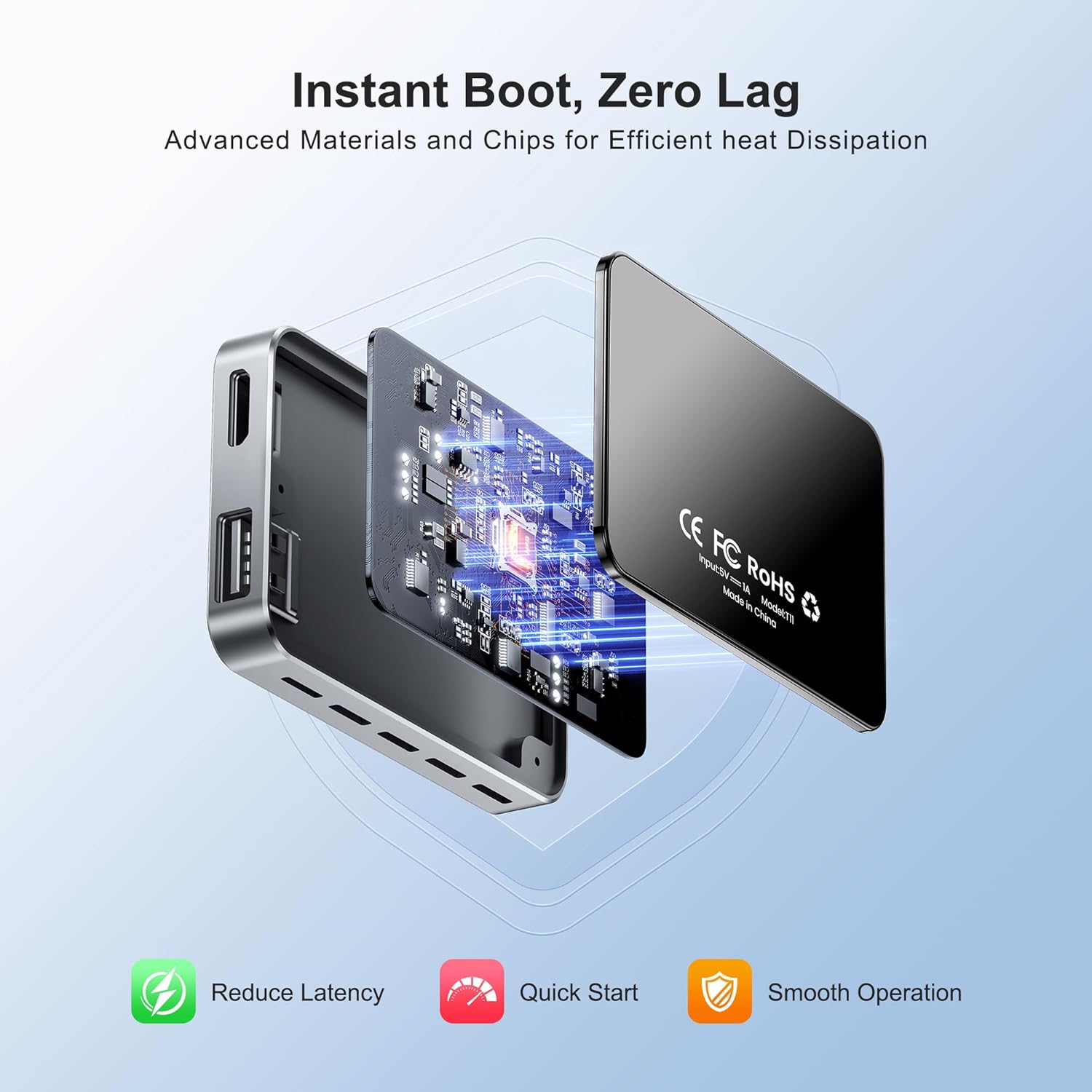
Figure 4.1: Advanced materials and chips contribute to efficient heat dissipation for instant boot and zero lag.
5. Troubleshooting
If you encounter issues with your FAIMEE AI Box, please refer to the following common troubleshooting steps:
- No Connection/Device Not Recognized:
- Ensure your car has factory wired CarPlay. The AI Box is not compatible with cars that do not have wired CarPlay.
- Check the USB cable connection. Try a different USB port in your car if available.
- Restart your car's infotainment system and the AI Box (by unplugging and replugging).
- Ensure your smartphone's Bluetooth and Wi-Fi are enabled and that it is paired with the AI Box.
- Intermittent Connection/Lag:
- Ensure there are no strong Wi-Fi or Bluetooth interferences nearby.
- Check for software updates for the AI Box.
- Ensure your smartphone's operating system is up to date.
- No Audio/Poor Audio Quality:
- Verify that your car's audio input is set to the correct source (e.g., USB, AUX).
- Check the volume levels on both your car's system and your smartphone.
- Restart the AI Box and your smartphone.
- Apps Not Loading/Crashing:
- Ensure the AI Box has a stable internet connection (via Wi-Fi hotspot from your phone or car's built-in Wi-Fi).
- Clear the cache of the problematic app within the AI Box's Android settings.
- Check for system updates for the AI Box.
If these steps do not resolve the issue, please contact FAIMEE customer support for further assistance.
6. Specifications
| Feature | Description |
|---|---|
| Brand | FAIMEE |
| Model | 4GB RAM+32GB ROM |
| Operating System | Android 12.0 |
| Connectivity Technology | USB, Dual-Band WiFi (2.4GHz/5GHz), Bluetooth 5.0 |
| Compatible Devices | Factory Wired CarPlay Systems, iPhone 7+ (iOS 10.0+), Android 11.0+ Smartphones |
| Video Output | HDMI (4K Upscaling) |
| Total HDMI Ports | 1 |
| Connector Type | HDMI, USB Type-C |
| Audio Output Mode | Stereo |
| Surround Sound Channel Configuration | 2.0 or 2.1 |
| Video Encoding | H.264, H.265/HEVC |
| Storage Expansion | Supports USB flash drives and SD cards (up to 128GB) |
7. Warranty and Support
FAIMEE products are designed for reliability and performance. For information regarding warranty coverage, technical support, or service inquiries, please refer to the warranty card included with your product or visit the official FAIMEE website. You may also contact FAIMEE customer service through the retailer where you purchased the product.
Please retain your proof of purchase for warranty claims.
Ask a question about this manual
Ask about setup, troubleshooting, compatibility, parts, safety, or missing instructions. Manuals+ will review the question and use this page’s manual context to help answer it.