
1. Product Overview
The Joysea E41 Pro is a versatile thermal label printer designed for printing shipping labels and other label types. It offers dual connectivity options, supporting both USB and Bluetooth, making it compatible with a wide range of devices including Windows, Mac, iOS, and Android systems. This printer is optimized for efficiency in small business and e-commerce environments, providing clear, high-quality prints at 203 DPI resolution.
Key Features:
- Dual Connectivity: USB for Windows/Mac, Bluetooth for iOS/Android.
- High Print Quality: 203 DPI thermal print head for crisp labels.
- Fast Printing: Up to 150mm/s print speed.
- Wide Label Compatibility: Supports label widths from 0.98” to 4.4” (25mm-112mm).
- Compact Design: Built for small business and home office use.
2. What's in the Box
Upon unpacking, please ensure all items are present:
- Joysea E41 Pro Thermal Label Printer
- USB Cable
- User Manual (this document)
3. Setup Guide
3.1 Unpacking and Initial Placement
Carefully remove the printer from its packaging. Place the printer on a stable, flat surface near a power outlet and your computer or mobile device.
3.2 Loading Labels
The Joysea E41 Pro supports various label sizes. Follow these steps to load your thermal labels:
- Open the top cover of the printer.
- Adjust the label guides to match the width of your labels.
- Insert the labels, ensuring the print side is facing up.
- Close the top cover. The printer will automatically detect and calibrate the label size.

Image: The printer's adjustable width mechanism for various label sizes, ranging from 25mm to 115mm (0.98" to 4.5"). A smartphone screen shows custom label design options.
3.3 Power Connection
Connect the power cable to the printer and then plug it into a wall outlet. Press the power button to turn on the printer.
3.4 Driver Installation and Connectivity
The E41 Pro offers both USB and Bluetooth connectivity.

Image: Demonstrates the dual connectivity of the Joysea E41 Pro, showing a USB connection to a laptop (for Windows/Mac) and a Bluetooth connection to a smartphone (for Android/iOS). Note: Mac OS users can only connect via USB cable.
3.4.1 USB Connection (Windows/Mac)
- Connect the provided USB cable from the printer to your computer.
- For Windows, the driver should install automatically. If not, download the latest driver from the official Joysea website.
- For Mac, download the appropriate driver from the official Joysea website. Note: Mac OS users can only connect via USB cable.
- Follow the on-screen instructions to complete the driver installation.
3.4.2 Bluetooth Connection (iOS/Android)
- Download the official Joysea printing application from your device's app store (e.g., "Label Expert").
- Ensure Bluetooth is enabled on your mobile device.
- Open the Joysea app and follow the in-app instructions to search for and pair with your E41 Pro printer.
- The printer's Bluetooth name typically includes "E41 Pro".
4. Operating Instructions
4.1 Printing from Computer (Windows/Mac)
- Ensure the printer is connected via USB and powered on.
- Open the document or label file you wish to print (e.g., PDF shipping label).
- Go to File > Print.
- Select the Joysea E41 Pro as your printer.
- Adjust print settings such as paper size (e.g., 4x6 inches) and orientation as needed.
- Click Print.

Image: The Joysea E41 Pro printer in operation, printing a shipping label. The image also displays logos of various compatible platforms like Amazon, FedEx, UPS, Shopify, eBay, Etsy, and USPS, indicating its wide application for e-commerce and logistics.
4.2 Printing from Mobile App (iOS/Android)
- Ensure the printer is powered on and successfully paired via Bluetooth with your mobile device.
- Open the Joysea printing application (e.g., "Label Expert").
- Select the type of print job (e.g., PDF print, image print, local template).
- Load your label data or design your label within the app.
- Confirm print settings and quantity.
- Tap Print.
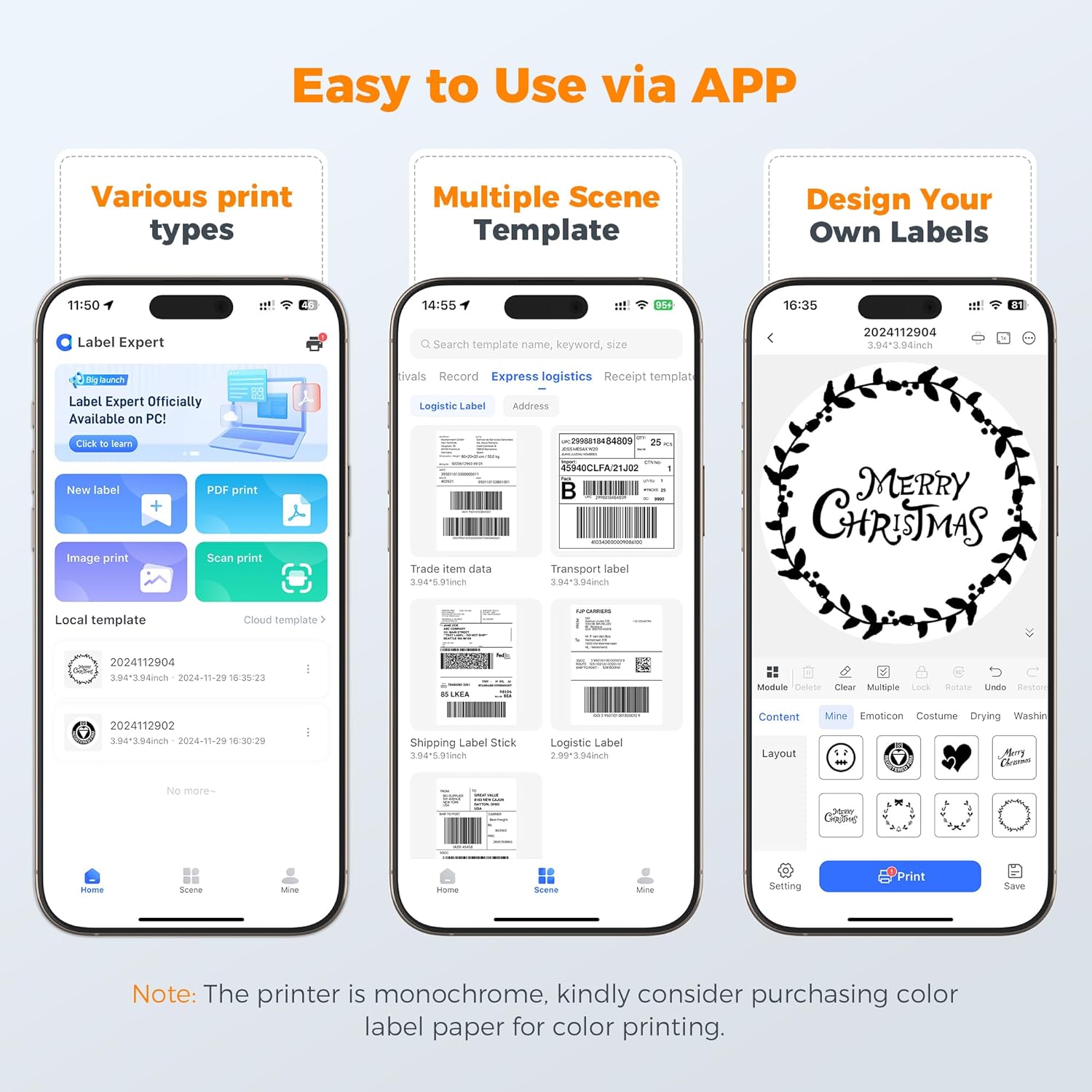
Image: Three smartphone screens illustrating the "Label Expert" app interface. The first shows options for various print types (PDF, image, local template), the second displays multiple scene templates for logistics and shipping, and the third demonstrates a custom label design feature.
4.3 Print Quality and Resolution
The E41 Pro features a 203 DPI thermal print head, providing clear and legible prints for barcodes, text, and graphics. For optimal print quality, ensure you are using high-quality thermal labels.

Image: A close-up view of a shipping label printed by the Joysea E41 Pro, demonstrating the clear 203 DPI print quality. A magnifying glass emphasizes the sharp details of the text and barcode on the label.
5. Maintenance
Regular maintenance ensures optimal performance and extends the lifespan of your printer.
5.1 Cleaning the Print Head
The thermal print head can accumulate dust or adhesive residue, affecting print quality. Clean it regularly:
- Turn off the printer and unplug the power cable.
- Open the top cover.
- Gently wipe the print head with an alcohol swab or a lint-free cloth dampened with isopropyl alcohol.
- Allow the print head to dry completely before closing the cover and powering on the printer.
5.2 Cleaning the Platen Roller
The platen roller helps feed labels smoothly. Clean it if you notice feeding issues:
- Turn off the printer and unplug the power cable.
- Open the top cover.
- Rotate the platen roller manually and wipe its surface with an alcohol swab or a lint-free cloth dampened with isopropyl alcohol.
- Allow it to dry completely.
5.3 Label Storage
Store thermal labels in a cool, dry place away from direct sunlight and heat to prevent premature fading or damage to the thermal coating.
6. Troubleshooting
If you encounter issues with your Joysea E41 Pro printer, refer to the following common problems and solutions:
6.1 Printer Not Responding
- Check Power: Ensure the printer is plugged in and the power button is pressed.
- Check Cable Connections: Verify that the USB cable is securely connected to both the printer and the computer.
- Bluetooth Connection: For mobile printing, ensure Bluetooth is enabled on your device and the printer is paired correctly within the app.
- Restart Devices: Try restarting the printer, your computer, or your mobile device.
6.2 Poor Print Quality
- Clean Print Head: Follow the instructions in Section 5.1 to clean the print head.
- Check Labels: Ensure you are using high-quality thermal labels and that they are loaded correctly (print side up).
- Adjust Print Density: Some printer drivers or apps allow adjusting print density. Increase it if prints are too light.
- Driver Update: Ensure you have the latest printer drivers installed.
6.3 Labels Not Feeding Correctly
- Reload Labels: Ensure labels are loaded correctly and the label guides are adjusted to the label width.
- Clean Platen Roller: Follow instructions in Section 5.2 to clean the platen roller.
- Calibration: Perform a label calibration. This is usually done by holding down the feed button until the printer emits a specific sound or light pattern, then releasing it. Refer to the printer's quick start guide for exact steps.
6.4 Printer Prints Blank Labels
- Label Orientation: Ensure the thermal labels are loaded with the print side facing up. Thermal labels only print on one side.
- Thermal Labels: Confirm you are using thermal labels, not regular paper.
7. Product Specifications
| Feature | Specification |
|---|---|
| Model | E41 Pro |
| Printing Technology | Thermal |
| Connectivity Technology | Bluetooth, USB |
| Print Resolution | 203 x 203 dpi |
| Maximum Print Speed (Monochrome) | 36 ppm (150mm/s) |
| Maximum Media Size | 101.6mm x 152.4mm (4x6 inches) |
| Supported Label Widths | 0.98” to 4.4” (25mm-112mm) |
| Product Dimensions | 8.5D x 18.5W x 6.5H Centimeters |
| Item Weight | 490 g (0.49 Kilograms) |
| Control Method | App, USB |
| Compatible Operating Systems | iOS, Android, Windows, Mac |
| Included Components | Printer, USB Cable |

Image: Examples of the wide variety of uses for the Joysea E41 Pro printer, showcasing its versatility for printing shipping labels on packages, small labels for coffee beans and candy floss jars, and custom labels for product packaging.
8. Warranty and Support
8.1 Warranty Information
The Joysea E41 Pro printer typically comes with a standard manufacturer's warranty. For specific details regarding the warranty period and coverage, please refer to the warranty card included with your product or contact Joysea customer support. Extended warranty options may also be available for purchase.
- 1 Year Extended Warranty: Available for purchase.
- 2 Year Extended Warranty: Available for purchase.
8.2 Customer Support
For technical assistance, troubleshooting, or any inquiries regarding your Joysea E41 Pro printer, please contact Joysea customer support. Contact information can usually be found on the official Joysea website or on the product packaging.
Manufacturer: Xiamen AiYin Technology Co., Ltd.