
VENTION ADOBB-NEW
VENTION 4K@30Hz Wireless HDMI Transmitter and Receiver
Model: ADOBB-NEW
1. Introduction
This manual provides detailed instructions for the installation, operation, and maintenance of your VENTION 4K@30Hz Wireless HDMI Transmitter and Receiver. Please read this manual thoroughly before using the product to ensure proper functionality and to prevent damage.
The VENTION Wireless HDMI Transmitter and Receiver system allows you to wirelessly extend or mirror video signals from a USB-C enabled source device to an HDMI display, supporting resolutions up to 4K@30Hz over a distance of up to 50 meters (165 feet).
2. Package Contents
Verify that all items listed below are present in your product package:
- Wireless Transmitter (TX) with integrated USB-C cable
- Wireless Receiver (RX)
- USB-A to USB-C Power Cable (1m)
- HDMI Cable (0.3m)
- Instruction Manual

Image: Contents of the VENTION Wireless HDMI Transmitter and Receiver package, showing the transmitter, receiver, USB-A to USB-C power cable, HDMI cable, and instruction manual.
3. Product Overview
The VENTION Wireless HDMI system consists of two main components: the Transmitter (TX) and the Receiver (RX).

Image: The VENTION Wireless HDMI Transmitter (TX) and Receiver (RX) units, showing their compact design and integrated USB-C cable on the transmitter.
3.1 Transmitter (TX)
- USB-C Connector: Connects to your source device (laptop, phone, tablet).
- PD 60W Charging Port: Allows for simultaneous charging of the source device while transmitting video.
- Status Indicator LED: Indicates connection status.
- Function Button: Used for pairing and mode switching.
3.2 Receiver (RX)
- HDMI Output: Connects to your display device (TV, monitor, projector).
- USB-C Power Input: Provides power to the receiver unit.
- Status Indicator LED: Indicates connection status.
- Function Button: Used for pairing.
4. Setup Guide
Follow these steps to set up your VENTION Wireless HDMI system:
- Connect the Receiver (RX):
Connect the HDMI output of the Receiver (RX) to an available HDMI input port on your TV, monitor, or projector using the provided HDMI cable. Then, connect the USB-A to USB-C power cable to the RX unit's USB-C power input and plug the USB-A end into a power adapter (not included) or a USB port on your display device for power.
- Connect the Transmitter (TX):
Plug the integrated USB-C connector of the Transmitter (TX) into the USB-C port of your source device (laptop, smartphone, tablet). Ensure your source device's USB-C port supports video output (DisplayPort Alternate Mode).
- Select Input Source:
On your display device (TV, monitor, projector), switch the input source to the HDMI port where the Receiver (RX) is connected.
- Automatic Connection:
The Transmitter (TX) and Receiver (RX) are pre-paired from the factory. Once both units are powered on and connected, the indicator lights will flash rapidly for approximately 10 seconds, then become solid, indicating a successful connection. Your device's screen should now be mirrored or extended to the display.

Image: Visual representation of the setup process, showing the receiver connected to a TV, the transmitter connected to a laptop, and the final connected display.
4.1 Manual Pairing (If needed)
If the units do not connect automatically, you may need to manually pair them:
- Press and hold the function button on the Receiver (RX) for 3-5 seconds until its LED indicator starts blinking.
- Then, press and hold the function button on the Transmitter (TX) until its LED indicator also starts blinking.
- Wait for 10-15 seconds. Both LEDs should become solid, indicating successful pairing and connection.
5. Operating Modes
The VENTION Wireless HDMI system supports both Mirror and Extend display modes.
5.1 Mirror Mode
In Mirror Mode, the content displayed on your source device (laptop, phone, tablet) is duplicated onto the external display. This is ideal for presentations or sharing content directly.
5.2 Extend Mode
In Extend Mode, the external display acts as a separate workspace, allowing you to have different content on your source device and the external display. This is useful for multitasking and increasing productivity.
To switch between Mirror and Extend modes, you typically adjust the display settings on your source device's operating system (e.g., Windows Display Settings, macOS System Preferences).
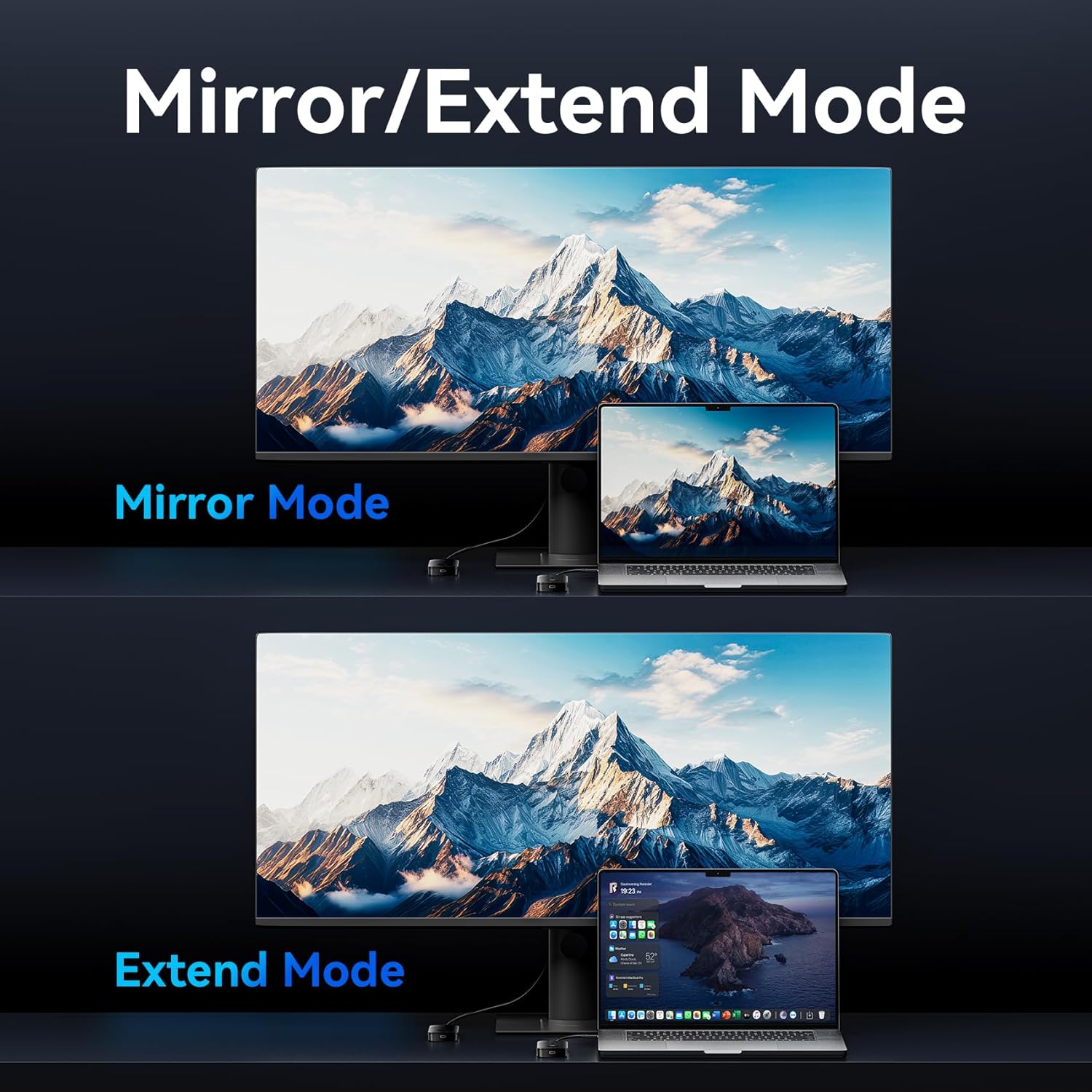
Image: Depiction of Mirror Mode, where the laptop screen is duplicated on the monitor, and Extend Mode, where the monitor acts as a secondary display for the laptop.
6. Charging Functionality
The Transmitter (TX) unit features a 60W Power Delivery (PD) fast charging port. This allows you to charge your source device (laptop, phone, tablet) simultaneously while transmitting video, ensuring uninterrupted operation during long usage periods.
- Connect a USB-C PD charger (not included) to the PD 60W port on the Transmitter (TX).
- Ensure your source device supports PD charging via its USB-C port.

Image: The VENTION Wireless HDMI Transmitter (TX) connected to a laptop, with a USB-C cable plugged into its 60W PD port for fast charging the laptop.
7. Compatibility
The VENTION Wireless HDMI system offers broad compatibility with various devices and operating systems.
7.1 Source Devices (Transmitter - TX)
Compatible with devices equipped with a USB-C port that supports DisplayPort Alternate Mode (DP Alt Mode) for video output, including:
- Laptops (e.g., MacBook Air/Pro, iMac, Mac Mini M4, Windows laptops with full-featured USB-C/Thunderbolt ports)
- Tablets (e.g., iPad Pro, Android tablets with full-featured USB-C ports)
- Smartphones (e.g., iPhone 16/15 series, Samsung Galaxy S25/S24/S23/S22/S21, and other Android phones with full-featured USB-C ports)
7.2 Display Devices (Receiver - RX)
Compatible with most HDMI output devices, including:
- Televisions (TVs)
- Monitors
- Projectors
7.3 Compatible Operating Systems
- Windows
- macOS
- Android
- iPadOS
- iOS
Note: The USB-C port on the transmitter device must support video signal output (DisplayPort Alternate Mode).

Image: A diagram illustrating the compatibility of the VENTION Wireless HDMI system with various source devices (laptops, tablets, phones) and display devices (TVs, monitors, projectors), along with supported operating systems (Windows, macOS, Android, iPadOS, iOS).
8. Specifications
| Feature | Detail |
|---|---|
| Model Name | ADOBB-NEW |
| Brand | VENTION |
| Connectivity Technology | Wireless HDMI (5G Protocol) |
| Max Resolution | 4K@30Hz (backward compatible with 2K/1080P) |
| Transmission Distance | Up to 50 meters (165 feet) in open areas |
| Transmitter Charging | 60W PD Fast Charging (USB-C) |
| Color | Black |
| Product Dimensions | 3.6 x 0.6 x 2 inches |
| Item Weight | 8.4 ounces |

Image: A visual comparison demonstrating the clarity of 4K (3840x2160 pixels) versus 1080P (1920x1080 pixels), highlighting the 4K@30Hz Ultra HD display capability of the device.

Image: An illustration depicting the VENTION Wireless HDMI system transmitting a video signal from a laptop to a large projection screen over a distance of 50 meters, emphasizing its long-range transmission capability.

Image: A visual comparison between 5G and 2.4G wireless bands, indicating that the VENTION device uses the 5GHz Wi-Fi band for stronger and more stable signals, reducing lag and flickering.
9. Troubleshooting
| Problem | Possible Cause / Solution |
|---|---|
| No signal on display. |
|
| Flickering screen or unstable connection. |
|
| Source device not charging via TX. |
|
| Audio/Video out of sync. |
|
10. Maintenance
To ensure the longevity and optimal performance of your VENTION Wireless HDMI system, follow these maintenance guidelines:
- Cleaning: Use a soft, dry cloth to clean the devices. Do not use liquid cleaners or aerosols.
- Storage: Store the devices in a cool, dry place away from direct sunlight and extreme temperatures.
- Handling: Avoid dropping or subjecting the devices to strong impacts.
- Ventilation: Ensure proper ventilation around the units during operation to prevent overheating.
11. Safety Information
Please observe the following safety precautions:
- Do not disassemble or modify the devices. This may void the warranty and pose safety risks.
- Keep the devices away from water, moisture, and high humidity environments.
- Avoid exposing the devices to open flames or extreme heat sources.
- Use only approved power adapters and cables.
- This product is intended for indoor use only.
12. Warranty and Support
The VENTION 4K@30Hz Wireless HDMI Transmitter and Receiver is covered by a standard manufacturer's warranty. For specific warranty terms, technical support, or service inquiries, please refer to the warranty card included in your package or visit the official VENTION website:
Related documentsADOBB-NEW


Ask a question about this manual
Ask about setup, troubleshooting, compatibility, parts, safety, or missing instructions. Manuals+ will review the question and use this page’s manual context to help answer it.