
Introduction
The MSI PRO Z890-S WiFi PZ Motherboard is engineered for efficient and stable performance, supporting the latest Intel Core Ultra Processors (Series 2) with an LGA 1851 socket. This ATX motherboard features a unique back-connect design for streamlined cable management, premium GPU support with a PCIe 5.0 x16 slot, enhanced DDR5 memory capabilities (up to 8600+ MT/s OC), and extensive M.2 Gen5 storage options. It incorporates a robust 12 Duet Rail Power System (P-PAK) VRM and advanced cooling solutions to ensure reliable operation for demanding tasks.
This manual provides essential information for the proper installation, operation, and maintenance of your MSI PRO Z890-S WiFi PZ Motherboard.

Figure 1: MSI PRO Z890-S WiFi PZ Motherboard and its retail packaging.
Setup and Installation
Proper installation is crucial for the stability and performance of your system. Follow these steps carefully.
1. Preparing the Motherboard
- Unpack the motherboard and place it on an anti-static surface.
- Ensure you have all necessary components: CPU, CPU cooler, DDR5 RAM modules, M.2 SSDs, graphics card, power supply, and PC case.
2. CPU Installation (LGA 1851)
- Locate the LGA 1851 CPU socket on the motherboard.
- Open the CPU retention lever and remove the protective cover.
- Carefully align the CPU with the socket, ensuring the triangular mark on the CPU matches the mark on the socket.
- Gently lower the CPU into the socket. Do not force it.
- Close the retention lever to secure the CPU.
3. RAM Installation (DDR5)
- The motherboard supports 4 x DDR5 DIMM SMT slots. Refer to the motherboard manual for recommended slot population for dual-channel operation.
- Open the clips on both ends of the DIMM slot.
- Align the notch on the DDR5 module with the key in the DIMM slot.
- Press down firmly on both ends of the RAM module until the clips snap into place.
4. M.2 SSD Installation
- The motherboard includes 1 x M.2 Gen5 x4 128Gbps slot and 2 x M.2 Gen4 x4 64Gbps slots, all equipped with M.2 Shield Frozr heatsinks.
- Remove the M.2 Shield Frozr heatsink from the desired M.2 slot.
- Insert the M.2 SSD into the slot at an angle.
- Gently push down the M.2 SSD and secure it with the provided screw or tool-less latch.
- Reattach the M.2 Shield Frozr heatsink to ensure optimal thermal performance.
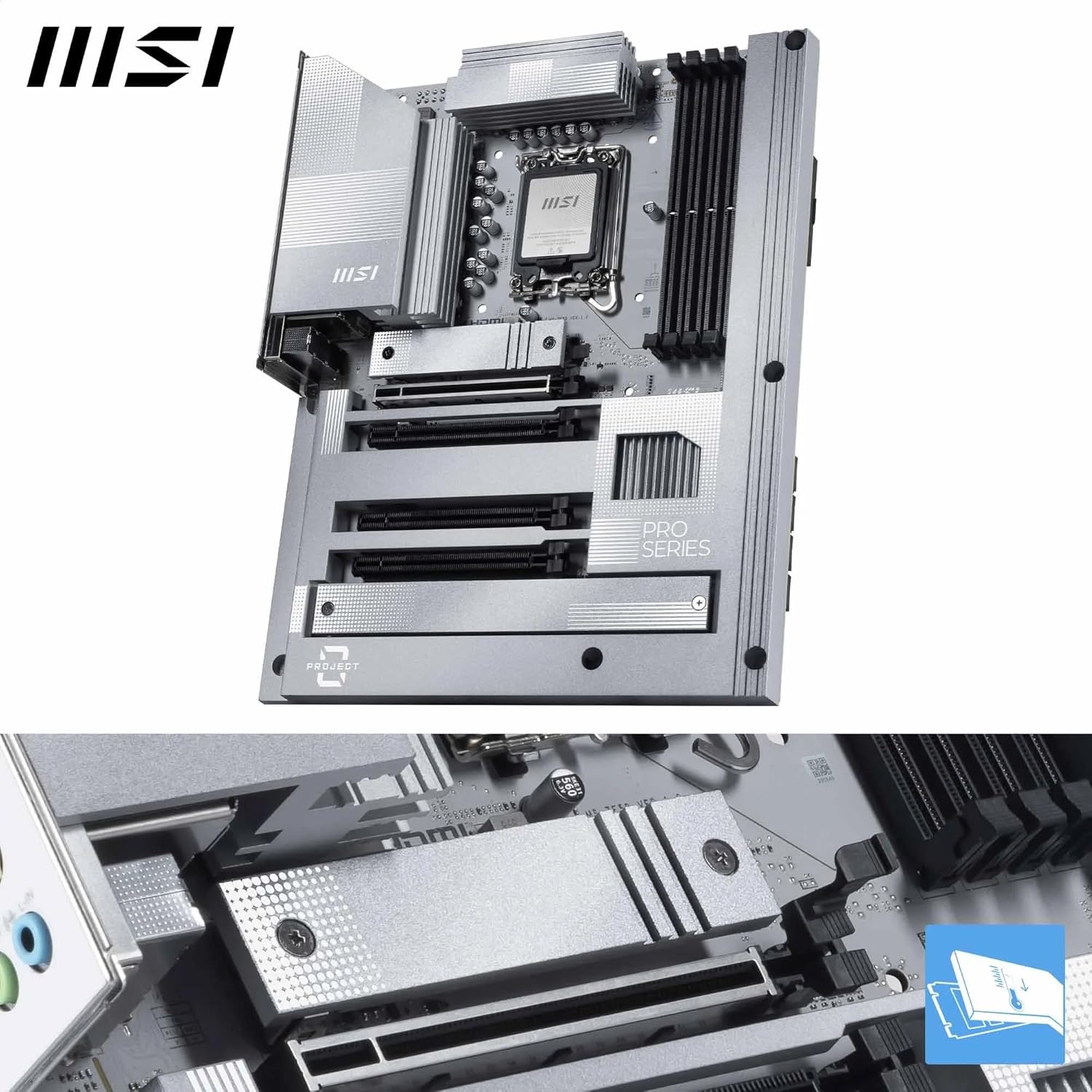
Figure 2: Close-up view of the motherboard's heatsinks and M.2 slots with Shield Frozr.
5. Graphics Card Installation (PCIe 5.0 x16)
- Locate the PCIe 5.0 x16 SMT slot with Steel Armor.
- Open the retention clip at the end of the slot.
- Align your graphics card with the slot and press down firmly until it clicks into place.
- Secure the graphics card to your PC case with screws.
6. Power Connections
- Connect the 24-pin ATX power connector from your power supply to the motherboard.
- Connect the dual 8-pin CPU power connectors to the motherboard.
- Utilize the back-connect design of the motherboard to route cables cleanly behind the motherboard tray in compatible cases.
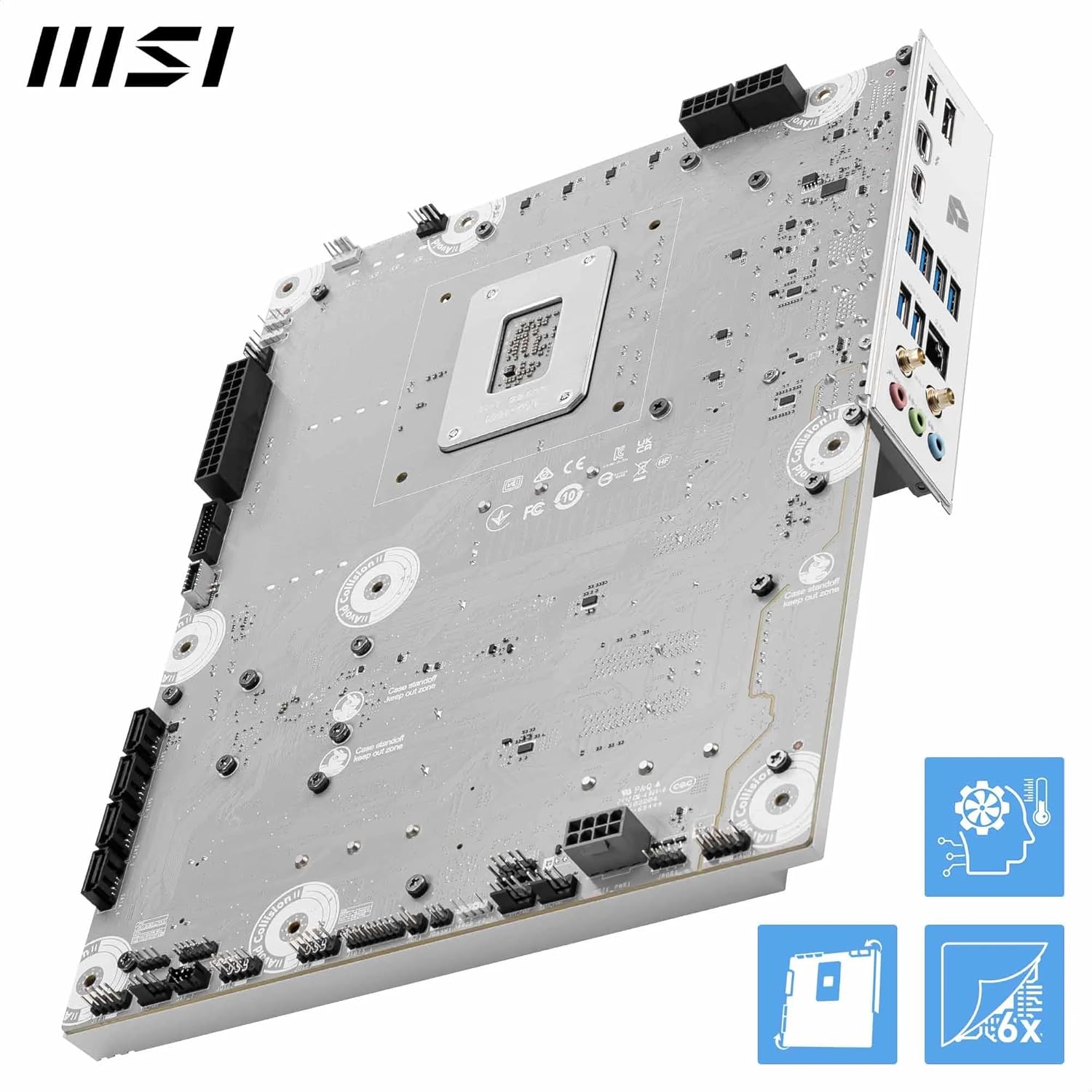
Figure 3: Rear view of the motherboard highlighting the back-connect design for power and other cables.
7. BIOS Update (Critical for Windows 11)
Important: Before installing Windows 11, it is highly recommended to update the motherboard's BIOS to the latest version. Without the latest BIOS, the system may fail to boot into the Windows setup process.
- Download the latest BIOS file from the official MSI website for your specific motherboard model.
- Use the MSI M-Flash utility (accessible via BIOS) and a USB drive to perform the update. Detailed instructions are available on the MSI support page.
Operating Your Motherboard
Once all components are installed and power is connected, you can proceed with system operation.
System Boot-up
- Power on your system. The motherboard will perform a Power-On Self-Test (POST).
- Access the BIOS/UEFI setup by pressing the designated key (usually Del or F2) during boot-up.
- Configure boot order, enable XMP for memory overclocking, and adjust other system settings as needed.
Connectivity
The MSI PRO Z890-S WiFi PZ offers comprehensive connectivity options:
- Wireless: Full-speed Wi-Fi 7 module and Bluetooth 5.4 technology for high-speed wireless networking and peripheral connections.
- Wired LAN: Realtek 2.5G LAN for stable and fast wired internet access.
- USB: Multiple USB ports, including Thunderbolt 4 Type-C (40Gbps) with 8K display support, and various USB 5Gbps Type-A ports.
- Audio: 7.1 HD audio with Audio Boost for immersive sound experiences.
- Display: HDMI and DisplayPort outputs for integrated graphics (if supported by CPU).

Figure 4: Diagram illustrating the rear I/O panel and its various connectivity options.
Performance Features
- Core Boost: Optimizes power delivery to the CPU for enhanced performance.
- Memory Boost: Supports extreme memory overclocking speeds up to 8600+ MT/s (OC) for DDR5 modules.
- PCIe 5.0: Provides cutting-edge bandwidth for the latest graphics cards and high-speed NVMe storage.
Maintenance
Regular maintenance helps ensure the longevity and optimal performance of your motherboard.
Cooling System
The motherboard features robust cooling solutions:
- Extended Heatsink: Provides increased surface area for heat dissipation from critical components.
- M.2 Shield Frozr: Dedicated heatsinks for M.2 SSDs to prevent thermal throttling and maintain high performance.
- Thermal Pads: High-quality 7W/mK MOSFET thermal pads and extra choke thermal pads ensure efficient heat transfer.
- Fan Headers: Includes a Combo-fan header (for pump & system) for flexible cooling configurations.
General Cleaning
- Periodically clean dust from the motherboard and other PC components using compressed air.
- Ensure proper airflow within your PC case to prevent heat buildup.
Durability
MSI Z890 PRO motherboards are built with durable server-grade PCBs and utilize Surface Mount Technology (SMT) solder welding for improved signal clarity and reliability.
Troubleshooting
This section addresses common issues you might encounter.
No Display / No Boot
- BIOS Update: As noted in the Setup section, ensure your BIOS is updated, especially if you are installing Windows 11. An outdated BIOS can prevent the system from booting.
- Power Connections: Double-check all power cables (24-pin ATX, 8-pin CPU) are securely connected to the motherboard and power supply.
- RAM Seating: Reseat your DDR5 RAM modules firmly in their slots. Try booting with only one RAM stick if you have multiple.
- Graphics Card: Ensure the graphics card is fully seated in the PCIe slot and any necessary PCIe power cables are connected.
- CPU Seating: Verify the CPU is correctly installed and the retention lever is locked.
Connectivity Issues (Wi-Fi/LAN)
- Driver Installation: Ensure all necessary drivers for Wi-Fi, LAN, and Bluetooth are installed from the MSI support website.
- Antenna Connection: For Wi-Fi, ensure the included Wi-Fi antenna is securely connected to the rear I/O panel.
- Cable Check: For LAN, verify the Ethernet cable is properly connected to both the motherboard and your router/modem.

Figure 5: The contents of the MSI PRO Z890-S WiFi PZ motherboard box, including the Wi-Fi antenna, cables, and mounting hardware.
System Instability / Crashes
- Overclocking: If you have overclocked your CPU or RAM, try reverting to default settings to check for stability. Gradually increase speeds if desired.
- Temperatures: Monitor CPU and GPU temperatures using monitoring software. Ensure adequate cooling.
- Driver Conflicts: Ensure all drivers are up-to-date and there are no conflicting software installations.
Contacting Support
If you encounter persistent issues, please refer to the comprehensive troubleshooting guide on the official MSI website or contact MSI customer service for assistance.
Specifications
Detailed technical specifications for the MSI PRO Z890-S WiFi PZ Motherboard.
| Feature | Specification |
|---|---|
| Brand | MSI |
| Model Name | MSI PRO Z890-S WiFi |
| CPU Socket | LGA 1851 |
| Compatible Processors | Intel Core Ultra Processors (Series 2) |
| Chipset Type | INTEL Z890 |
| RAM Memory Technology | DDR5 |
| Memory Clock Speed | 8800 MHz (OC) |
| RAM Memory Maximum Size | 256 GB |
| PCIe Slots | 1 x PCIe 5.0 x16 SMT slot |
| M.2 Connectors | 1 x M.2 Gen5 x4 128Gbps, 2 x M.2 Gen4 x4 64Gbps |
| Wireless Connectivity | Wi-Fi 7, Bluetooth 5.4 |
| LAN | Realtek 2.5G LAN |
| USB Ports | Thunderbolt 4 Type-C (40Gbps), USB 5Gbps Type-A |
| Audio | 7.1 HD Audio with Audio Boost |
| Form Factor | ATX (Back-Connect) |
| Item Weight | 4.2 pounds |
| Package Dimensions | 13.7 x 11.22 x 3.03 inches |
| First Available Date | February 24, 2025 |
Warranty and Support
MSI provides support and warranty services for its products.
Product Warranty
Your MSI PRO Z890-S WiFi PZ Motherboard comes with a standard manufacturer's warranty. Please refer to the warranty card included in your product packaging or visit the official MSI website for detailed warranty terms and conditions specific to your region.
Extended Protection Plans
Optional extended protection plans may be available for purchase to provide additional coverage beyond the standard warranty period. These plans typically offer:
- 3-Year Protection Plan
- 4-Year Protection Plan
- Complete Protect (monthly subscription covering multiple eligible purchases)
Check with your retailer or MSI's official channels for availability and pricing of these protection plans.
Customer Support
For technical assistance, driver downloads, BIOS updates, or any product-related inquiries, please visit the official MSI support website. MSI offers various support channels, including online FAQs, knowledge bases, driver downloads, and direct customer service via chat or email.