
1. Product Overview
The DJI Neo is a palm-sized, lightweight drone designed for ease of use and cinematic capture. Weighing 135g, it offers controller-free operation, intelligent shooting modes, and high-quality imaging with a 1/2-inch sensor. This combo includes the drone, an RC-N3 Remote Controller, three intelligent batteries, a two-way charging hub, and a customized travel case, providing a comprehensive solution for aerial photography and videography.
2. Setup and Getting Started
2.1 Package Contents
Verify that all items are present in your DJI Neo Combo package:
- DJI Neo Aircraft
- RC-N3 Remote Controller
- DJI Neo Intelligent Flight Battery (x3)
- DJI Neo Two-Way Charging Hub
- DJI Neo Propeller Guard (Pair)
- DJI Neo Gimbal Protector
- Type-C to Type-C PD Cable
- DJI Neo Spare Propellers (Pair)
- DJI Neo Spare Propeller Screw (x4)
- Screwdriver
- Portable Storage Bag for DJI Neo Fly More Combo with Custom Interior and Retractable Handle
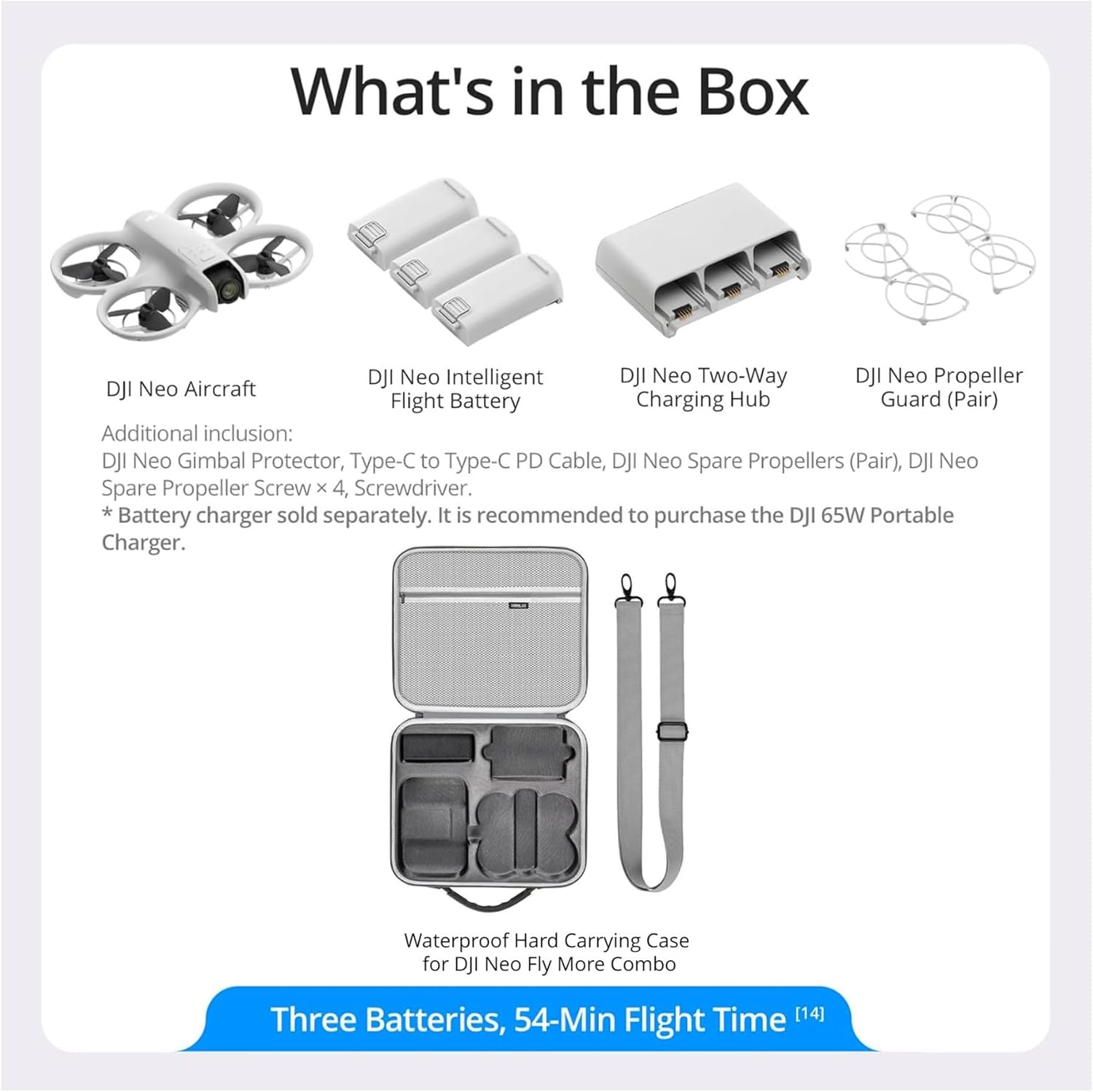
Image: Package Contents. This image displays the DJI Neo aircraft, three intelligent flight batteries, a two-way charging hub, propeller guards, and the waterproof hard carrying case, illustrating the complete contents of the DJI Neo Combo.
2.2 Initial Charging
Before first use, fully charge the intelligent flight batteries and the remote controller. Connect the two-way charging hub to a power source using the provided Type-C PD cable and a compatible charger (sold separately). Insert the batteries into the charging hub. The indicator lights on the batteries will show charging status.
2.3 Battery Installation
Insert a fully charged intelligent flight battery into the battery compartment on the rear of the DJI Neo aircraft until it clicks securely into place.
3. Operating the DJI Neo Drone
3.1 Basic Flight Operations
The DJI Neo supports intuitive, controller-free operation for basic flight maneuvers.
- Power On: Press and hold the power button on the drone until the indicator lights illuminate.
- Palm Takeoff: Place the drone on your open palm. Ensure your hand is flat and clear of the propellers. The drone will automatically detect your palm and initiate takeoff.
- Landing: To land, extend your open palm beneath the drone. The drone will detect your hand and gently descend for a palm landing.

Image: Unique Shots in Three Steps. This image illustrates the simplified process of operating the DJI Neo: 1. Turning on the drone, 2. Selecting a shooting mode, and 3. Performing a palm takeoff to begin filming.
3.2 Control Methods
The DJI Neo offers multiple control options to suit various user preferences and scenarios:
- Controller-Free: Basic flight and intelligent shooting modes can be activated directly from the drone.
- Mobile App Control: Connect the drone to the DJI Fly app on your smartphone for advanced flight control, camera settings, and intelligent features.
- RC Control: Utilize the included RC-N3 Remote Controller for precise manual flight control.
- Voice Control: Certain functions can be activated using voice commands when connected to a compatible device.
- Motion Control: For an immersive experience, the drone can be controlled with DJI Goggles and RC Motion (accessories sold separately).

Image: Versatile Control Methods. This image demonstrates five different ways to control the DJI Neo: controller-free hand gestures, voice control via a smartphone, mobile app control, motion control with goggles and a controller, and traditional RC control.
3.3 Intelligent Shooting Modes
The DJI Neo features six intelligent shooting modes to capture dynamic footage automatically:
- QuickShots: Pre-programmed flight paths and recording patterns for cinematic effects.
- Smart Tracking: The drone can follow a designated subject, keeping it centered in the frame.
- Close-Up Shooting: Captures detailed shots from a short distance.
To activate these modes, press the mode button on the Neo and select your desired option. The drone will then execute the chosen maneuver.

Image: Take Center Frame With Neo. This image illustrates the DJI Neo's intelligent capabilities, including Close-Up Shooting, Smart Tracking of a subject, and the execution of Multiple QuickShots Modes for dynamic aerial footage.
3.4 Camera Features
The DJI Neo is equipped with a 1/2-inch image sensor capable of capturing high-quality visuals:
- Photo Resolution: 12 Megapixels (MP) stills.
- Video Resolution: Up to 4K UHD stabilized videos.
- Stabilization: Features RockSteady and HorizonBalancing stabilization algorithms to ensure smooth footage even during high-speed flight or in windy conditions (up to Level-4 wind).

Image: 4K Ultra HD Video, Capture What Matters Most. This image demonstrates the DJI Neo's camera capabilities, showing a comparison of video footage with RockSteady stabilization on versus off, and the difference between 4K and 2.7K video resolutions.
4. Maintenance
4.1 General Care
- Keep the drone clean and free from dust and debris. Use a soft, dry cloth for cleaning.
- Avoid exposing the drone to extreme temperatures or direct sunlight for extended periods.
- Store the drone and its accessories in the provided travel case when not in use to protect them from damage.
4.2 Battery Care
- Do not overcharge or over-discharge the intelligent flight batteries.
- Store batteries in a cool, dry place, ideally at approximately 50% charge for long-term storage.
- If a battery shows signs of swelling, leakage, or damage, discontinue use immediately and dispose of it properly according to local regulations.
4.3 Propeller Inspection
- Regularly inspect propellers for cracks, bends, or other damage.
- Replace damaged propellers immediately using the spare propellers and screwdriver provided. Ensure propellers are installed correctly according to the markings.
5. Troubleshooting
5.1 Drone Does Not Power On
- Ensure the intelligent flight battery is fully charged and correctly inserted into the drone.
- Press and hold the power button for the specified duration (usually a few seconds) to power on.
5.2 Unstable Flight
- Check for damaged propellers and replace if necessary.
- Ensure the drone is calibrated correctly before flight. Refer to the DJI Fly app for calibration procedures.
- Avoid flying in strong winds or adverse weather conditions.
5.3 Camera Not Recording or Poor Quality
- Ensure a compatible microSD card is inserted and has sufficient free space.
- Check camera settings in the DJI Fly app to confirm resolution and recording mode.
- Clean the camera lens with a soft, lint-free cloth.
- Verify that the gimbal protector has been removed before flight.
5.4 Remote Controller Not Connecting
- Ensure both the drone and the remote controller are powered on and fully charged.
- Follow the pairing instructions in the DJI Fly app to re-link the remote controller with the drone.
- Ensure there is no significant interference in the operating environment.
6. Specifications
| Feature | Detail |
|---|---|
| Model Number | DJINEOCOMBO_K5 |
| Brand | DJI |
| Item Weight | 3.44 pounds (approx. 1.56 kg for the combo) |
| Product Dimensions | 16.3 x 12.3 x 8.7 inches (approx. 41.4 x 31.2 x 22.1 cm) |
| UPC | 196271125228 |
| Image Sensor | 1/2-inch |
| Photo Resolution | 12 MP |
| Video Resolution | Up to 4K UHD |
| Stabilization | RockSteady, HorizonBalancing |
| Flight Time | Approx. 18 minutes per battery |
| Batteries Included | No (refers to standard AA/AAA, intelligent flight batteries are included) |
7. Warranty and Support
7.1 Warranty Information
DJI products typically come with a limited manufacturer's warranty. The specific terms and duration of the warranty may vary by region and product component. Please refer to the official DJI website or the warranty card included with your product for detailed information regarding warranty coverage, terms, and conditions. Keep your proof of purchase for warranty claims.
7.2 Customer Support
For technical assistance, troubleshooting beyond this manual, or warranty service, please contact DJI Customer Support through their official website. You can typically find support resources, FAQs, and contact information at www.dji.com/support.

