
TP-Link TL-WR3002X
TP-Link TL-WR3002X AX3000 Wi-Fi 6 Travel Router
User Manual
Product Overview
The TP-Link TL-WR3002X is a compact and powerful Dual-Band Wi-Fi 6 AX3000 Travel Router designed to provide a personal, secure Wi-Fi network wherever you go. It leverages Wi-Fi 6 technology for increased capacity and faster wireless speeds, supporting up to 2402 Mbps on the 5 GHz band and 574 Mbps on the 2.4 GHz band. This router offers robust encryption and authentication with OpenVPN and WireGuard support, ensuring secure browsing on public Wi-Fi networks. Its versatile network modes allow it to function as a router, hotspot, or access point/range extender, adapting to various scenarios from hotel rooms to cafes.
Equipped with an MTK dual-core 1.3 GHz CPU, the TL-WR3002X features compact dimensions (4.1 x 3.5 x 1.1 inches) and weighs approximately 5.3 ounces, making it highly portable. It includes a 2.5 Gbps WAN/LAN port and a 1 Gbps LAN port for high-speed wired connections, alongside a USB 3.0 port for network storage and phone tethering. Advanced features such as beamforming, MU-MIMO, OFDMA, Target Wake Time (TWT), DFS, HT160, and QoS are supported to optimize network performance. The device also incorporates comprehensive security features including DoS protection, SPI firewall, IP/MAC address filtering, and parental controls via the Tether App.

Image: The TP-Link TL-WR3002X AX3000 Wi-Fi 6 Travel Router shown with its retail packaging.
Features
- AX3000 Dual-Band Wi-Fi 6: Offers wireless speeds up to 2402 Mbps on 5 GHz and 574 Mbps on 2.4 GHz, supporting up to 80 devices for seamless streaming and gaming.
- Versatile Connectivity Modes: Supports Router Mode (Ethernet or USB tethering), Hotspot Mode (secure public Wi-Fi access), and AP/RE Mode (Wi-Fi coverage expansion or adding Wi-Fi to wired networks).
- Multi-Gigabit Ports: Includes one 2.5 Gbps WAN/LAN port and one 1 Gbps LAN port for high-speed wired and wireless data transmissions.
- Enhanced Cybersecurity: Designed with advanced security features, including OpenVPN and WireGuard support for VPN client and server, ensuring private and secure browsing.
- One-Step Captive Portal Authentication: Easily create a secure private network from public Wi-Fi using the Tether App, eliminating repeated logins.
- Flexible Power Options: Can be powered via its USB-C port using the included adapter or any 5V PD power source like a power bank.
- USB 3.0 Port & MicroSD Slot: Enables file sharing and USB internet tethering, creating a mobile home media hub.

Image: Visual representation of the router's Wi-Fi 6 capabilities, including 3000 Mbps blazing fast speeds across 5 GHz and 2.4 GHz bands, and its 2.5 Gbps WAN/LAN and 1.0 Gbps LAN ports.

Image: A hand holding the compact TL-WR3002X router, highlighting its dimensions (4.1" x 3.5" x 1.1") and port labels for USB Type-C Power, USB 3.0, 1 Gbps LAN, and 2.5 Gbps WAN/LAN.
Package Contents
The following items are included in the TL-WR3002X package:
- TP-Link TL-WR3002X Travel Router
- Power Adapter
- RJ45 Ethernet Cable
- USB Cable
- Quick Installation Guide
Setup
To set up your TP-Link TL-WR3002X Travel Router, follow the instructions in the included Quick Installation Guide. The initial setup can be completed efficiently using the TP-Link Tether App, which provides a guided process for connecting your router to the modem and configuring your network settings. Ensure the router is powered via the included adapter or a compatible 5V PD power source.
For public Wi-Fi environments, the router allows you to create a secure private network for all your devices with a single login via the Tether App, eliminating the need for repeated authentications on each device.

Image: A user working on a laptop with the TL-WR3002X router, illustrating the ability to create a private network even when connected to public Wi-Fi.
Operating Modes
The TL-WR3002X offers multiple operating modes to suit various networking needs:
- Router Mode: Utilizes an Ethernet connection or USB (phone) tethering for internet access. Ideal for use in offices or during travel where a wired connection is available.
- Hotspot Mode: Converts public Wi-Fi into a private, secure network. This mode is ideal for accessing public Wi-Fi securely in locations such as airports, cafes, or hotels.
- AP/RE Mode (Access Point/Range Extender Mode): Functions as an Access Point to add Wi-Fi capabilities to wired networks or as a Range Extender to expand existing Wi-Fi coverage. This is useful for eliminating Wi-Fi dead zones in homes or offices.

Image: A visual guide to the router's three main operating modes: Router Mode (ideal for office/travel), Hotspot Mode (ideal for airport/cafe/hotel), and AP/RE Mode (ideal for home/office).
VPN Configuration
The TL-WR3002X supports various VPN protocols, including OpenVPN and WireGuard, for both VPN client and server functionalities. This allows you to establish a secure and private connection over public networks, protecting your data from potential threats. PPTP and L2TP protocols are also supported for broader compatibility.
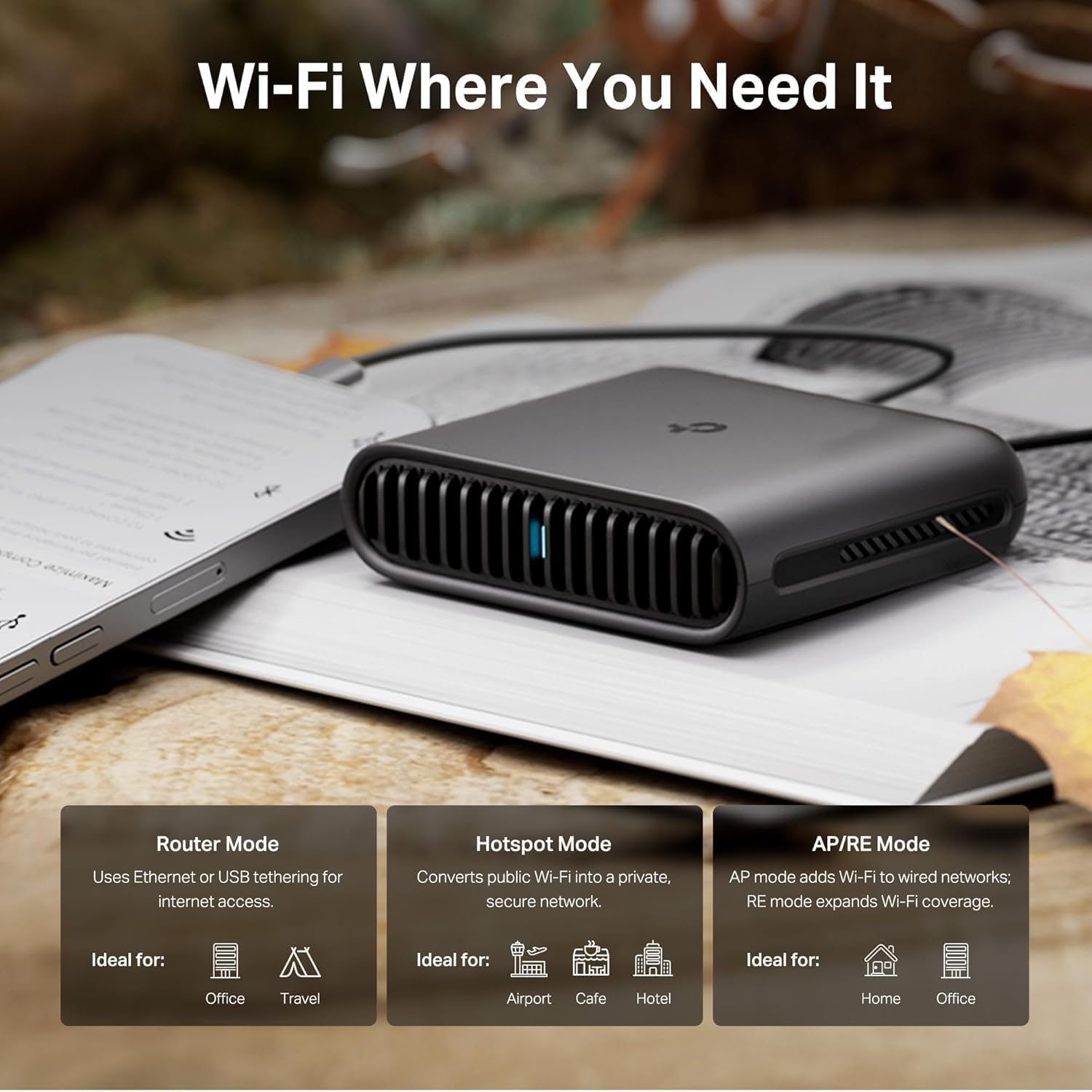
Image: A user interacting with a laptop, with the TL-WR3002X router visible, emphasizing its support for various VPN services and protocols.
Network Storage
The router features a USB 3.0 port and a microSD slot, enabling you to connect external storage devices for file sharing across your network. This functionality allows you to create a mobile home media hub, providing convenient access to your media files from any connected device.

Image: A setup showing a laptop connected to the TL-WR3002X router, which is in turn connected to an external hard drive, illustrating the network storage capability.
Tether App
The TP-Link Tether App provides an intuitive interface for managing your TL-WR3002X router. Through the app, you can easily set up the router, monitor connected devices, configure parental controls (including URL content filtering and website blocking), and manage guest networks. The app simplifies network management, making it accessible even for users without extensive technical knowledge.

Image: A smartphone displaying the TP-Link Tether App interface, showing the TL-WR3002X router's status and various operational settings.
Maintenance
To ensure optimal performance and longevity of your TL-WR3002X router, consider the following maintenance practices:
- Firmware Updates: The router supports automatic firmware updates via cloud services. Ensure this feature is enabled to receive the latest security patches and performance enhancements.
- Placement: Place the router in a well-ventilated area to prevent overheating. Avoid placing it near obstructions or other electronic devices that may cause interference.
- Cleaning: Periodically clean the router's exterior with a soft, dry cloth. Ensure vents are free from dust accumulation.
- Rebooting: Occasionally rebooting the router can help resolve minor connectivity issues and improve performance.
Troubleshooting
If you encounter issues with your TL-WR3002X router, consider these common troubleshooting steps:
- No Internet Connection: Verify that the Ethernet cable is securely connected to the WAN/LAN port and that your internet service is active. If using USB tethering, ensure your phone's mobile data is enabled and tethering is active.
- Weak Wi-Fi Signal: Adjust the router's position to minimize obstructions. If in AP/RE mode, ensure the router is within range of the main Wi-Fi signal.
- Cannot Access Router Settings: Ensure your device is connected to the router's Wi-Fi network or via an Ethernet cable. Try accessing the router's web interface or the Tether App.
- VPN Connection Issues: Double-check your VPN configuration settings. Ensure your VPN service is active and your credentials are correct.
- Factory Reset: As a last resort, you can perform a factory reset by pressing and holding the reset button (usually located in a small pinhole) for several seconds until the LED indicators change. Note: This will erase all custom settings.
For more detailed troubleshooting, refer to the official User Guide (PDF) or Installation Manual (PDF) provided by TP-Link.
Specifications
| Attribute | Value |
|---|---|
| Product Dimensions | 3.6 x 1.18 x 4.13 inches |
| Item Weight | 5.3 ounces |
| Item Model Number | TL-WR3002X |
| Brand | TP-Link |
| Model Name | AX3000 Wi-Fi 6 Portable Router |
| Frequency Band Class | Dual-Band |
| Wireless Communication Standard | 802.11ac, 802.11ax, 802.11b, 802.11g, 802.11n |
| Compatible Devices | Personal Computer, Security Camera, Smart Television, Smartphone, Tablet |
| Frequency | 5 GHz |
| Recommended Uses For Product | Business, Home |
| Connectivity Technology | Ethernet, USB, Wi-Fi |
| Operating Temperature | 32°F to 104°F (0°C to 40°C) |
| Operating Humidity | 10% to 90% non-condensing |
Warranty and Support
The TP-Link TL-WR3002X Travel Router comes with a 2-year warranty upon registration. TP-Link is committed to cybersecurity and adheres to the U.S. Cybersecurity and Infrastructure Security Agency’s (CISA) Secure-by-Design pledge, ensuring advanced security as a core requirement for their devices.
For technical assistance, product registration, or to access additional resources, please visit the official TP-Link support website or refer to the comprehensive User Guide and Installation Manual available in PDF format.
- User Guide (PDF): Download Here
- Installation Manual (PDF): Download Here
Related documentsTL-WR3002X


Ask a question about this manual
Ask about setup, troubleshooting, compatibility, parts, safety, or missing instructions. Manuals+ will review the question and use this page’s manual context to help answer it.