
UMJIGF F01
UMJIGF F01 Fingerprint Attendance Machine User Manual
Brand: UMJIGF
Model: F01
1. Product Overview
The UMJIGF F01 Fingerprint Attendance Machine is an electronic device designed to accurately track and record employee attendance and work hours. It utilizes biometric identification (fingerprints) to log when employees clock in and out, streamlining payroll management, monitoring attendance patterns, and ensuring accurate records for compliance and productivity analysis.

Figure 1: Front view of the UMJIGF F01 Fingerprint Attendance Machine, showing the screen, keypad, and fingerprint scanner.
2. Key Features
- Efficient Time Tracking: Accurately records employee attendance, work hours, and shifts, streamlining time management processes.
- Versatile Application: Suitable for various environments such as offices, factories, schools, and retail locations, enhancing operational efficiency and reducing administrative tasks.
- Reliable Performance: Designed to handle daily attendance needs with consistent reliability and minimal maintenance.
- User Capacity: Capable of storing information for a large number of users and recording extensive attendance data.
- Fast Recognition: Utilizes advanced technology for quick identification, ensuring rapid and accurate clock-in and clock-out times.
- Simple and Easy to Learn: Enter fingerprints once for user registration.
- 2.4-inch TFT Screen: Provides clear display for time, date, and operational menus.
- T9 Input Method Editor: Allows direct output of attendance reports including machine name, department, and shift information.
- USB Data Output: Facilitates easy transfer of attendance data to a computer.

Figure 2: Diagram highlighting key features such as fingerprint collection, automatic report generation, T9 input, real voice function, and USB export.
3. Setup Guide
3.1. Unboxing and Initial Inspection
Carefully remove the attendance machine from its packaging. Inspect the device for any signs of damage during transit. Ensure all components listed in the packing list are present, including the attendance machine, power adapter, and any included cables or mounting hardware.
3.2. Power Connection
Connect the provided power adapter to the DC input port on the attendance machine. Plug the power adapter into a standard electrical outlet. The device should power on automatically, and the screen will illuminate.
3.3. Basic Configuration
Upon first power-on, you may be prompted to set the date and time. Use the keypad and navigation buttons (Up/Down, OK, ESC) to adjust these settings. Refer to the on-screen prompts for guidance. It is crucial to set the correct date and time for accurate attendance records.
4. Operating Instructions
4.1. User Registration (Fingerprint)
To register a new user:
- Press the MENU button to access the main menu.
- Navigate to "User Management" or "Enroll User" using the navigation buttons and press OK.
- Select "Enroll Fingerprint" and follow the on-screen instructions.
- Place the user's finger on the scanner. The device will prompt you to lift and place the finger multiple times (typically 3 times) for accurate registration.
- Assign a User ID and optionally a name using the T9 input method.
- Press OK to save the user.
4.2. Clocking In/Out
For daily attendance:
- Ensure the device is powered on and in standby mode.
- Place the registered finger firmly on the fingerprint scanner.
- The device will recognize the fingerprint and display a confirmation message (e.g., "Thank you" or "Clock In/Out Successful").
- The time record will be automatically saved.
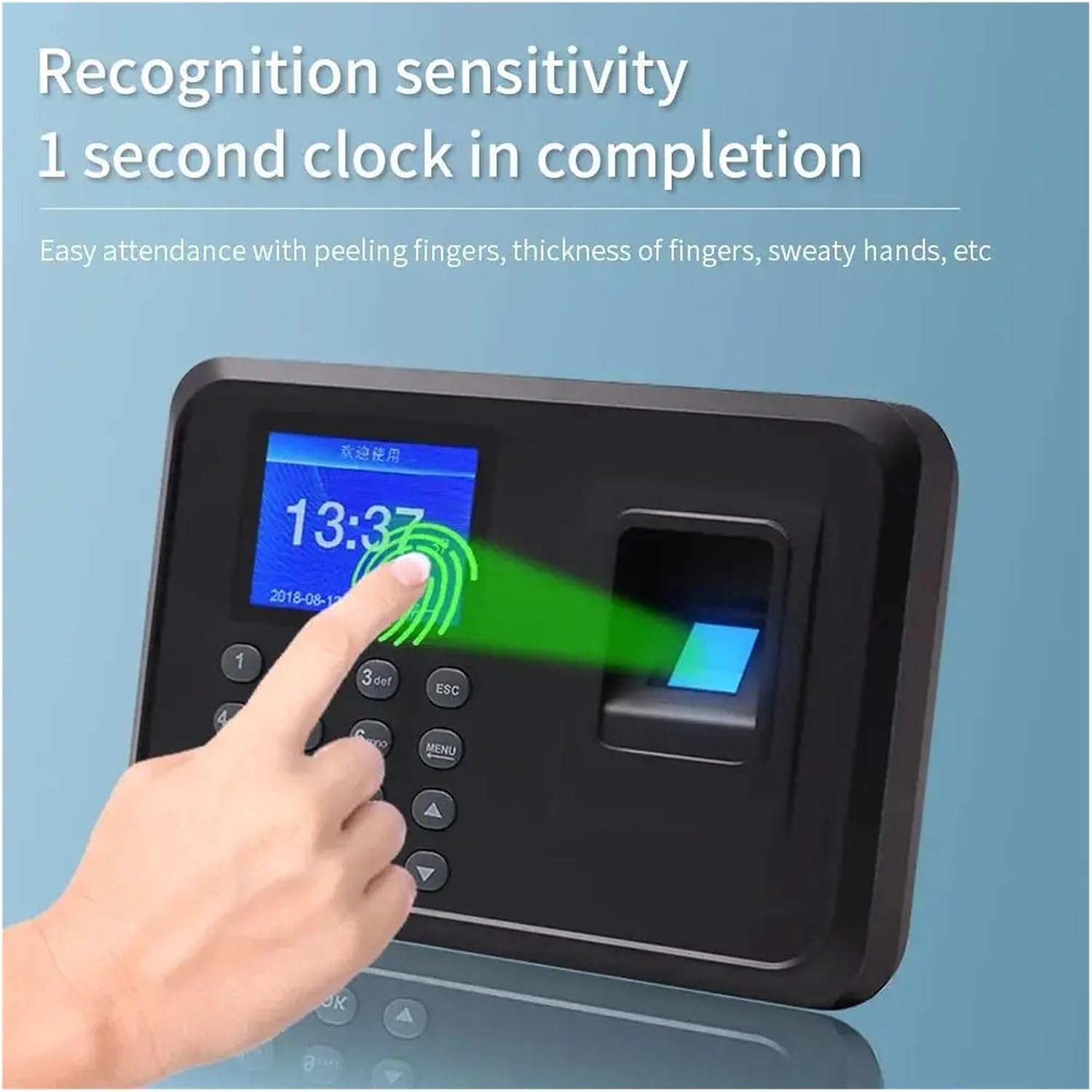
Figure 3: Illustration of the fingerprint recognition process, demonstrating the 1-second clock-in completion.
4.3. Data Export (USB)
To export attendance data:
- Insert a USB flash drive into the USB port on the side or back of the device.
- Press the MENU button.
- Navigate to "Data Management" or "Download Data" and press OK.
- Select "Download Attendance Report" or "Download Raw Data" as needed.
- Confirm the export. The data will be saved to the USB drive, typically in a CSV or Excel format.
- Safely remove the USB drive after the export is complete.
5. Maintenance
5.1. Cleaning the Device
Regular cleaning helps maintain the performance and longevity of your attendance machine. Use a soft, dry, lint-free cloth to wipe the screen and the body of the device. For the fingerprint scanner, gently wipe it with a clean, dry microfiber cloth. Avoid using abrasive cleaners, solvents, or spraying liquids directly onto the device.
5.2. Software Updates
Periodically check the manufacturer's website (if applicable) for any available firmware or software updates. Updates can improve performance, add new features, or fix bugs. Follow the instructions provided with the update package carefully to avoid damaging the device.
6. Troubleshooting
6.1. Common Issues and Solutions
| Issue | Possible Cause | Solution |
|---|---|---|
| Device not powering on | No power supply; faulty adapter; loose connection. | Check power outlet; ensure adapter is securely connected; try a different outlet. |
| Fingerprint not recognized | Finger not placed correctly; dirty scanner; unregistered fingerprint; dry/wet finger. | Ensure full finger contact; clean scanner; re-enroll fingerprint if necessary; ensure finger is clean and dry. |
| Data export issues (USB) | Incompatible USB drive; full USB drive; incorrect export settings. | Try a different USB drive (FAT32 format recommended); ensure USB drive has sufficient space; verify export settings in the menu. |
| Screen is blank or frozen | Software glitch; power issue. | Perform a soft reset by unplugging and replugging the power adapter. If issue persists, contact support. |
7. Specifications
| Feature | Detail |
|---|---|
| Model Number | F01 |
| Type | Multifunctional Time Recording Device |
| Display Screen | 2.4-inch TFT Screen |
| Identification Method | Fingerprint Biometric |
| Input Method | T9 Input Method Editor |
| Data Output | USB Drive Export |
| Recognition Speed | 1 second clock-in completion |
| Manufacturer | UMJIGF |
| ASIN | B0DY7X75DW |
8. Warranty and Support
This product comes with a standard manufacturer's warranty. Please refer to the warranty card included in your product packaging for specific terms and conditions, including the warranty period and coverage details. For technical support, troubleshooting assistance beyond this manual, or warranty claims, please contact the seller or manufacturer directly through the platform where the product was purchased or via their official contact channels.
For further assistance, please visit the UMJIGF brand page on Amazon or contact their customer service.
Ask a question about this manual
Ask about setup, troubleshooting, compatibility, parts, safety, or missing instructions. Manuals+ will review the question and use this page’s manual context to help answer it.