
1. Introduction
This manual provides comprehensive instructions for the Aonerex 7 Inch Wireless CarPlay Screen with Android Auto and included back camera. It covers installation, operation, maintenance, and troubleshooting to ensure optimal performance and user experience. Please read this manual thoroughly before using the device.
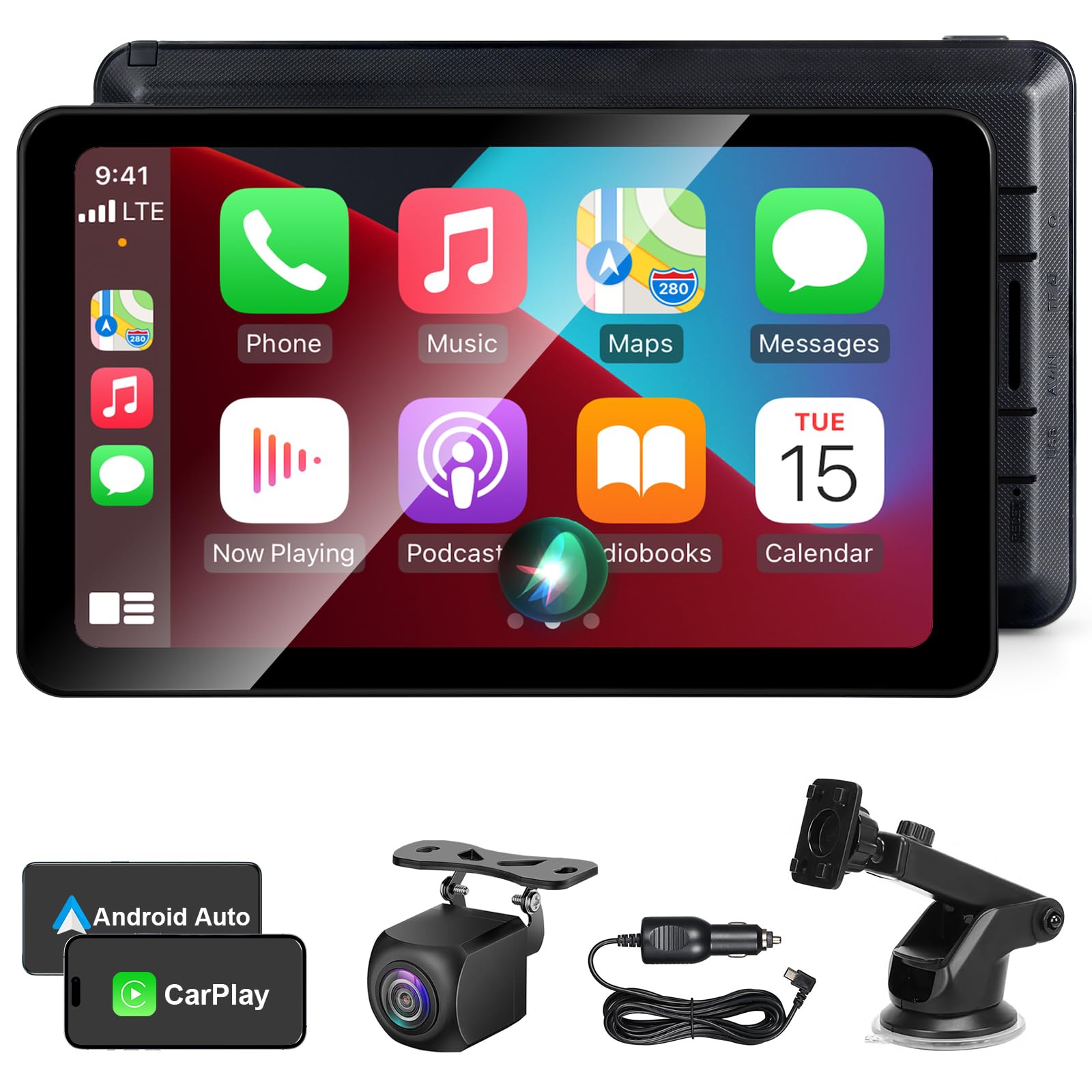
Figure 1.1: Aonerex 7 Inch Wireless CarPlay Screen with included back camera.
2. What's in the Box
Verify that all components are present in the package:
- Screen Unit
- Stand (Mounting Bracket)
- AUX Cable
- Car Charger
- User Manual
- Back Camera (for "7 Inch + Back Camera" model)
3. Product Features
The Aonerex 7 Inch Wireless CarPlay Screen offers a range of features designed to enhance your driving experience:
- 7-inch HD Touch Screen: Provides a clear and responsive interface for navigation and media.
- Wireless CarPlay & Android Auto: Seamless integration with iOS (9+) and Android (10+) smartphones for navigation, music, calls, and messages.
- Mirror Link Functionality: Display your phone's screen directly on the unit.
- Voice Assistant Support: Compatible with Siri and Google Assistant for hands-free control.
- Multiple Audio Output Methods: Built-in speakers, AUX cable, FM transmission, and Bluetooth for flexible audio routing.
- Included Back Camera: Provides a clear view for parking and reversing (specific to this model).
- Easy Installation: Portable design allows for quick setup without complex wiring.

Figure 3.1: Overview of Aonerex screen features and ease of installation compared to traditional car stereos.
4. Setup and Installation
4.1 Mounting the Screen Unit
- Attach the stand to the back of the screen unit.
- Clean the desired mounting surface on your dashboard or windshield. Ensure it is flat and free of dust or grease.
- Secure the stand to the cleaned surface using the suction cup or adhesive pad provided. Adjust the angle for optimal viewing.
4.2 Power Connection
- Connect the car charger to the power input port on the screen unit.
- Plug the car charger into your vehicle's 12V power outlet (cigarette lighter socket).
- The unit will power on automatically when the vehicle's ignition is turned on.
4.3 Back Camera Installation (Optional for this model)
For models including a back camera, follow these steps:
- Mount the back camera at the rear of your vehicle, ensuring a clear view. Common locations include above the license plate.
- Route the camera cable from the rear of the vehicle to the screen unit, typically along the vehicle's interior trim.
- Connect the camera cable to the designated input port on the screen unit.
- Connect the camera's power wire to your vehicle's reverse light power supply. This allows the camera to activate automatically when shifting into reverse.

Figure 4.1: Illustration of back camera components and its view on the screen.
5. Operating Instructions
5.1 Wireless CarPlay / Android Auto Connection
To connect your smartphone wirelessly:
- Ensure your phone's Bluetooth and Wi-Fi are enabled.
- On the Aonerex screen, select either "CarPlay" or "Android Auto" from the main menu.
- On your phone, search for and connect to the device's Bluetooth name (usually "CarPlay" or "Android Auto" followed by a model number).
- Confirm the pairing request on both your phone and the screen.
- Once Bluetooth is paired, the unit will automatically establish a Wi-Fi connection for CarPlay or Android Auto functionality.
- For iOS users, ensure Siri is enabled on your iPhone. For Android users, ensure the Android Auto app is updated to the latest version.
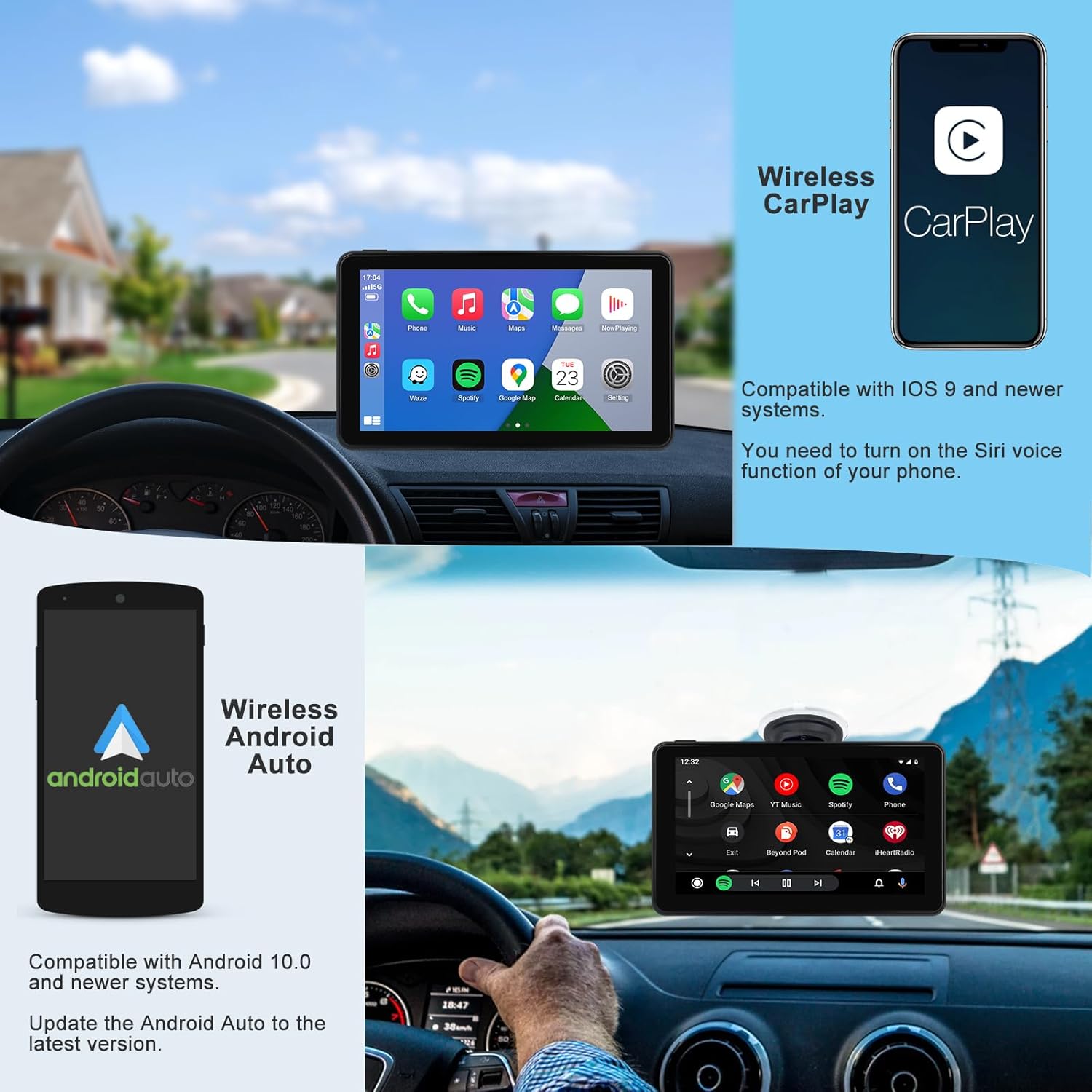
Figure 5.1: Wireless CarPlay and Android Auto interfaces shown on the screen, compatible with iOS 9+ and Android 10+.
5.2 Mirror Link
The Mirror Link feature allows you to display your smartphone's screen directly on the Aonerex unit. This function is compatible with both Android and iOS devices.
- Select "Mirror Link" from the main menu on the screen.
- Follow the on-screen instructions to connect your phone via Wi-Fi or USB cable, depending on your device and the specific Mirror Link protocol.
- Note: Due to copyright restrictions, some streaming content may not support screen mirroring.

Figure 5.2: Screen Mirroring functionality displaying smartphone content on the 7-inch HD screen.
5.3 Audio Output Methods
The unit supports four methods for audio output:
- Built-in Speakers: Audio plays directly from the unit's integrated speakers.
- Bluetooth: Connect the unit to your car's Bluetooth system for audio playback through your car speakers.
- AUX to Car Audio: Use the provided AUX cable to connect the unit's AUX output to your car's AUX input.
- FM Transmission: Select an unused FM frequency on the unit and tune your car radio to the same frequency to transmit audio.

Figure 5.3: Visual representation of the four available audio output options.
5.4 Voice Assistant and Navigation
Utilize Siri or Google Assistant for hands-free control of navigation, calls, and music. Activate the voice assistant by saying "Hey Siri" or "Hi Google" or by pressing the voice command button on the screen.

Figure 5.4: Example of voice commands for navigation and interaction with Siri or Google Assistant.
5.5 Rear Camera Display
When the back camera is properly installed and connected to your vehicle's reverse light power, the screen will automatically switch to the rear camera view when you engage reverse gear. This provides a clear visual aid for parking and maneuvering.
6. Maintenance
To ensure the longevity and optimal performance of your Aonerex CarPlay screen:
- Cleaning: Use a soft, dry, lint-free cloth to clean the screen. For stubborn smudges, slightly dampen the cloth with water or a screen-safe cleaner. Avoid harsh chemicals or abrasive materials.
- Temperature: Avoid exposing the unit to extreme temperatures, both hot and cold, for extended periods.
- Storage: If storing the unit for a long time, disconnect it from power and store it in a cool, dry place.
7. Troubleshooting
If you encounter issues with your Aonerex CarPlay screen, refer to the following common problems and solutions:
| Problem | Possible Cause | Solution |
|---|---|---|
| Unit does not power on. | No power from car charger or vehicle outlet. | Check car charger connection and vehicle's 12V outlet. Ensure vehicle ignition is on. |
| Wireless CarPlay/Android Auto not connecting. | Bluetooth/Wi-Fi off on phone, incorrect pairing, or software issues. | Ensure phone's Bluetooth and Wi-Fi are on. Forget device on phone and re-pair. Update Android Auto app if applicable. Ensure Siri is enabled for iOS. |
| No audio output. | Incorrect audio output setting, volume too low, or cable issue. | Check audio output settings on the unit (Built-in, Bluetooth, AUX, FM). Adjust volume on both unit and car stereo. Ensure AUX cable is fully inserted. If using FM, verify frequency match. |
| Back camera not displaying. | Camera not powered, cable loose, or reverse gear not detected. | Check camera power connection to reverse light. Ensure camera cable is securely connected to the unit. Verify vehicle is in reverse gear. |
| Touch screen unresponsive. | Temporary software glitch. | Restart the unit by disconnecting and reconnecting power. |
8. Specifications
| Feature | Detail |
|---|---|
| Brand | Aonerex |
| Model | 7 Inch + Back Camera |
| Screen Size | 7 Inches |
| Display Resolution | 1280*720 HD |
| Connectivity Technology | Bluetooth, Wi-Fi |
| Compatible Devices | Android (10+), iPhone (iOS 9+) |
| Controller Type | Android, iOS |
| Special Features | Touchscreen, Wireless CarPlay, Wireless Android Auto, Mirror Link, Voice Assistant, Back Camera |
| Audio Output Mode | Stereo (Built-in Speakers, Bluetooth, AUX, FM Transmission) |
| Connector Type | 3.5mm Jack (AUX), USB Type-C (Power) |
9. Warranty and Support
The Aonerex 7 Inch Wireless CarPlay Screen comes with a 1-Year Warranty from the manufacturer. For warranty claims or technical support, please contact Aonerex customer service through the retailer where the product was purchased or refer to the contact information provided on the official Aonerex website.
Optional extended protection plans may be available for purchase:
- 2-Year Protection Plan
- 3-Year Protection Plan
Please retain your proof of purchase for warranty purposes.