
Machenike G3V2PE
Machenike G3V2 Bluetooth Controller User Manual
Model: G3V2PE
Introduction
This manual provides detailed instructions for the setup, operation, maintenance, and troubleshooting of your Machenike G3V2 Bluetooth Controller. Please read this manual thoroughly to ensure proper use and to maximize your gaming experience across PC, Switch, iOS, and Android platforms.
What's in the Box
- Machenike G3V2 Bluetooth Controller
- Charging Dock
- USB-C Cable
- 2.4GHz Wireless Dongle
- User Manual (this document)
Product Overview
The Machenike G3V2 is a versatile gaming controller designed for high-performance gameplay. It features Hall Effect joysticks and triggers for precision, customizable RGB lighting, and multiple connectivity options.

Image: The Machenike G3V2 Bluetooth Controller in black, resting on its dedicated charging dock. The controller features RGB lighting around the joysticks and a translucent design.

Image: A collage highlighting key features including Dual 1000Hz Polling Rate, Dual Customizable Back Buttons, 1000mAh High-Capacity Battery, Dual-Core Receiver, Native Vibration Feedback, APP-Keylinker2.0 support, and Tri-Mode Connectivity.
Setup
1. Charging the Controller
The controller comes with a 1000mAh battery. For optimal performance, fully charge the controller before first use.
- Using the Charging Dock: Place the controller onto the magnetic charging dock. The RGB lighting on the dock will indicate the charging status. A full charge takes approximately 1.8 hours.
- Direct USB-C Connection: Connect the controller directly to a USB power source using the provided USB-C cable.
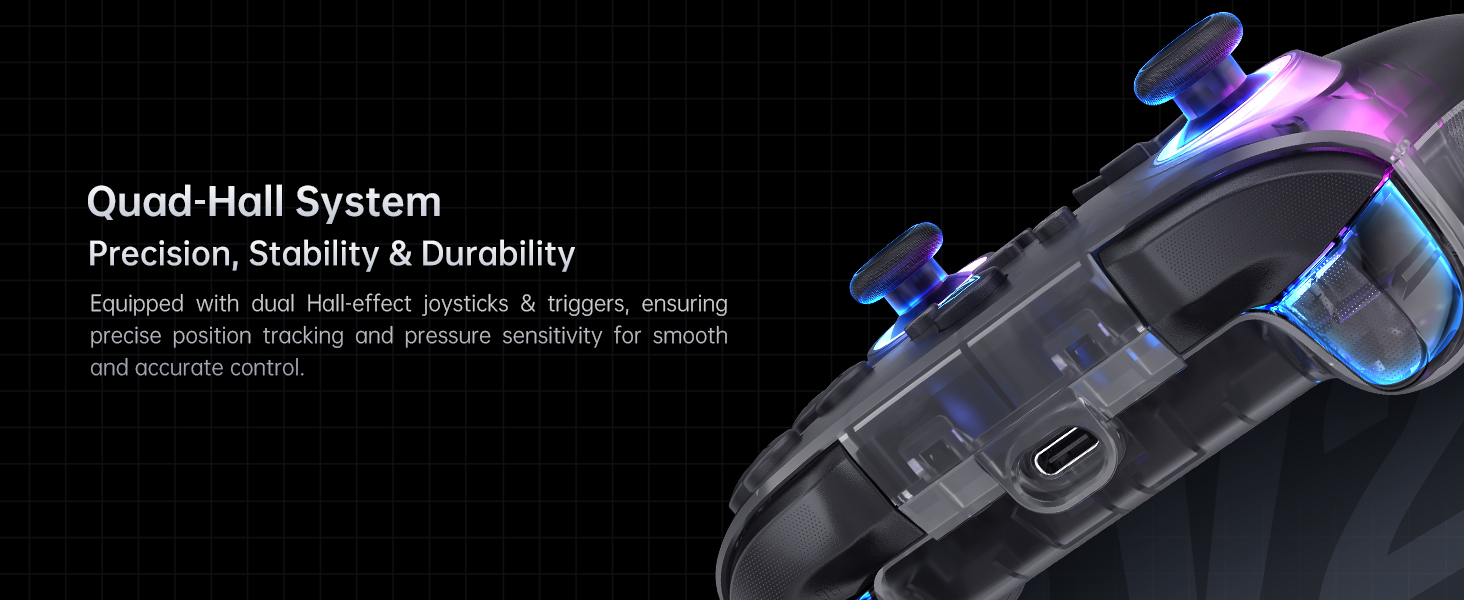
Image: The Machenike G3V2 controller resting on its charging dock, illustrating the instant power boost feature. The dock also features an integrated USB extension port.
2. Connecting to Devices
The G3V2 controller supports three connection modes: Wired, 2.4GHz Wireless, and Bluetooth.
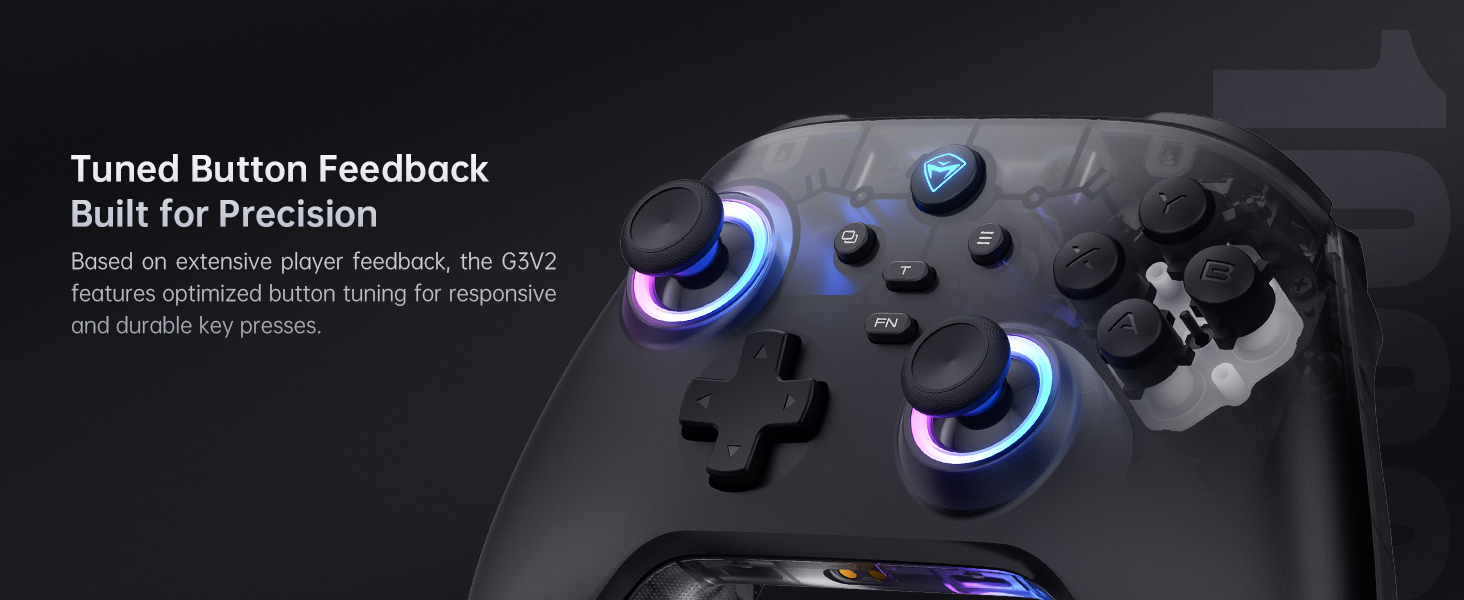
Image: Diagram showing the three connection modes: 2.4G (for PC, Android TV Box, Steam Deck, Raspberry Pi 3B), Bluetooth (for PC, MacOS, Phone/Tablet Android/iOS, Nintendo Switch, Tesla), and Wired (for PC, Android TV).
Wired Connection (PC)
Connect the controller directly to your PC using the provided USB-C cable. The controller will be automatically recognized.
2.4GHz Wireless Connection (PC, Android TV Box, Steam Deck, Raspberry Pi 3B)
- Insert the 2.4GHz wireless dongle into an available USB port on your device.
- Turn on the controller. It should automatically connect to the dongle.
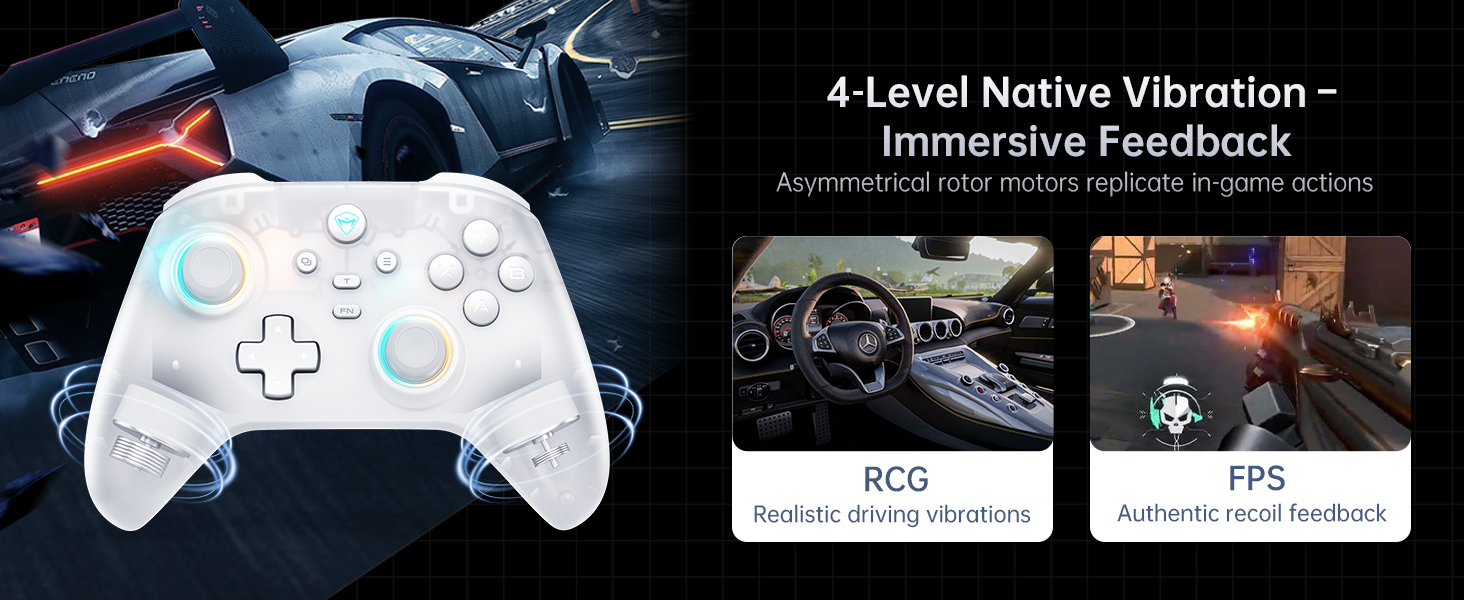
Image: The dual-core receiver dongle inserted into the charging dock, illustrating how one receiver can support simultaneous connection of two controllers (Controller A: G3 V2, Controller B: G3 V2 or other Wireless Controllers).
Bluetooth Connection (PC, MacOS, iOS, Android, Nintendo Switch, Tesla)
- Ensure Bluetooth is enabled on your device.
- Put the controller into Bluetooth pairing mode (refer to the controller's specific button combination for Bluetooth pairing, usually holding a specific button like 'FN' + 'Bluetooth icon button').
- On your device, search for and select 'Machenike G3V2' from the list of available Bluetooth devices to pair.
Operating Instructions
1. Basic Controls
The Machenike G3V2 features standard controller layouts with additional customizable buttons.
- Hall Effect Joysticks: Provide precise, drift-free control.
- Hall Effect Triggers: Offer contactless, millisecond-precision actuation for rapid response.
- Programmable Back Buttons (M1, M2): Located on the rear grips, these buttons can be customized for up to 32 programmable actions, including macro recording and remapping.
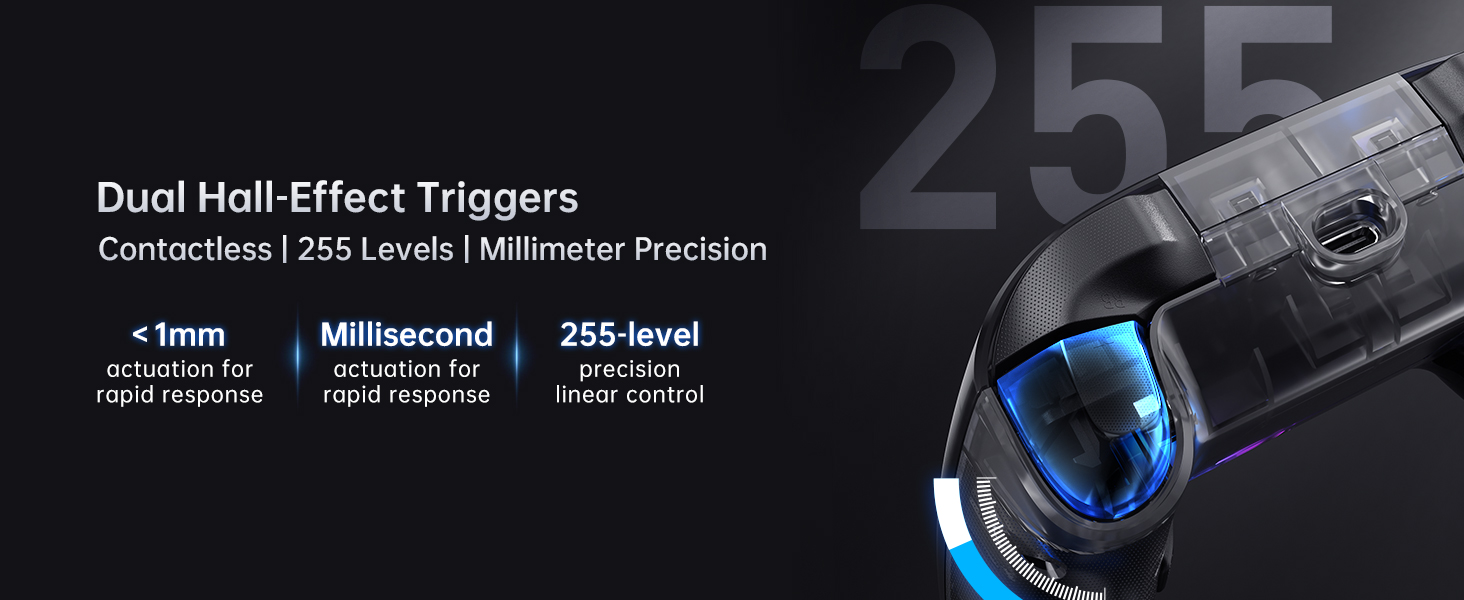
Image: Close-up of the dual Hall-Effect Joysticks, highlighting their 5M+ times cycle lifespan, wear-resistant ring for smooth motion, and electromagnetic sensing to eliminate drift.
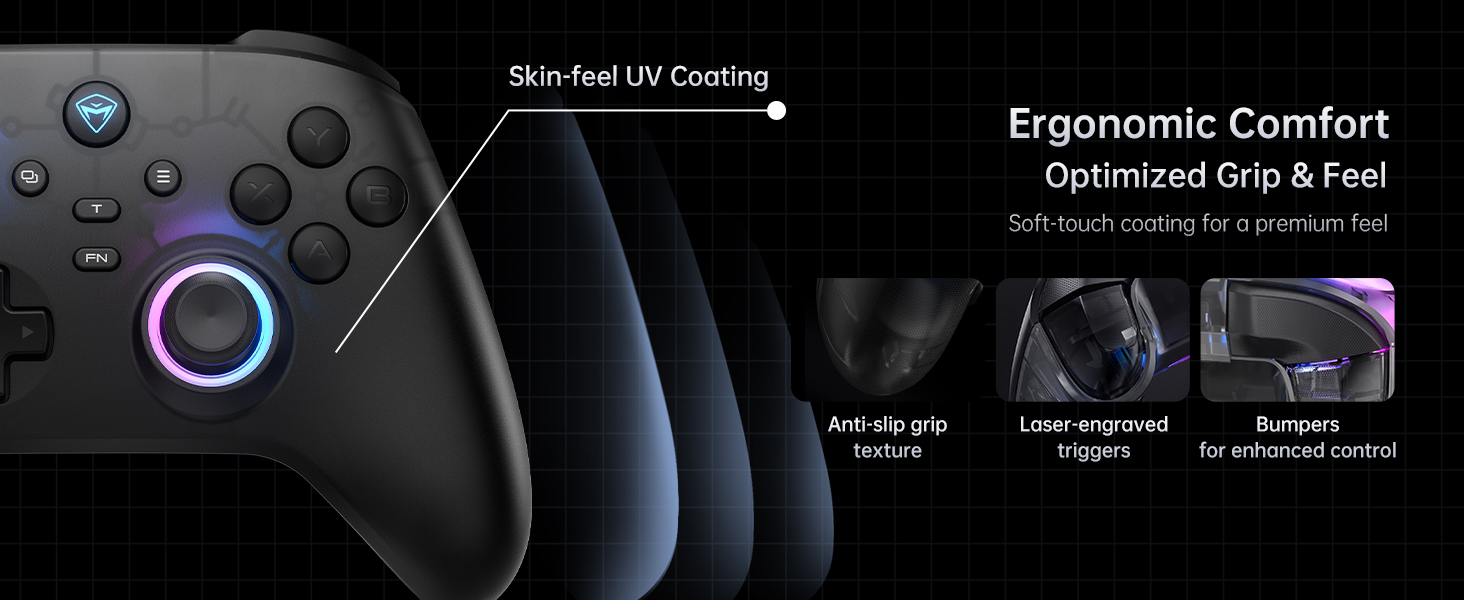
Image: Close-up of the dual Hall-Effect Triggers, emphasizing their contactless design, less than 1mm actuation for rapid response, millisecond precision, and 255-level linear control.
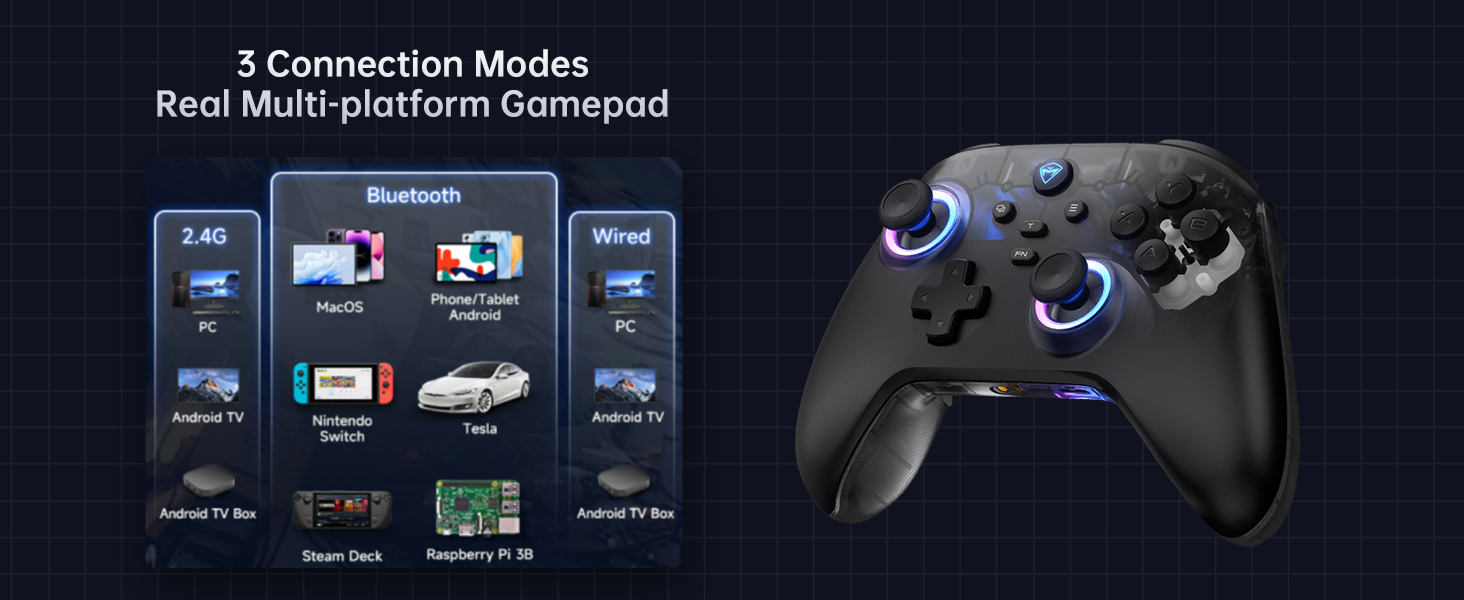
Image: Illustration showing the M1 and M2 dual customizable back buttons on the controller, capable of macro recording and remapping for up to 32 programmable actions.
2. RGB Lighting Customization
The controller features customizable RGB lighting. Refer to the controller's quick start guide or the Keylinker 2.0 app for specific button combinations to change lighting modes, colors, and brightness.
3. Vibration Feedback
The G3V2 includes 4-level native vibration with asymmetrical rotor motors for immersive feedback, replicating in-game actions like realistic driving vibrations in racing games (RCG) and authentic recoil feedback in first-person shooters (FPS).

Image: A white Machenike G3V2 controller with visual cues indicating vibration, alongside examples of realistic driving vibrations (RCG) and authentic recoil feedback (FPS).
4. Keylinker 2.0 App Support
For advanced customization and fine-tuning of your controller, download the Keylinker 2.0 app. The app allows for smart, hassle-free quick setup without manual pairing.
- Customize button mappings.
- Adjust joystick dead zones and curves.
- Configure trigger sensitivity.
- Manage RGB lighting effects.
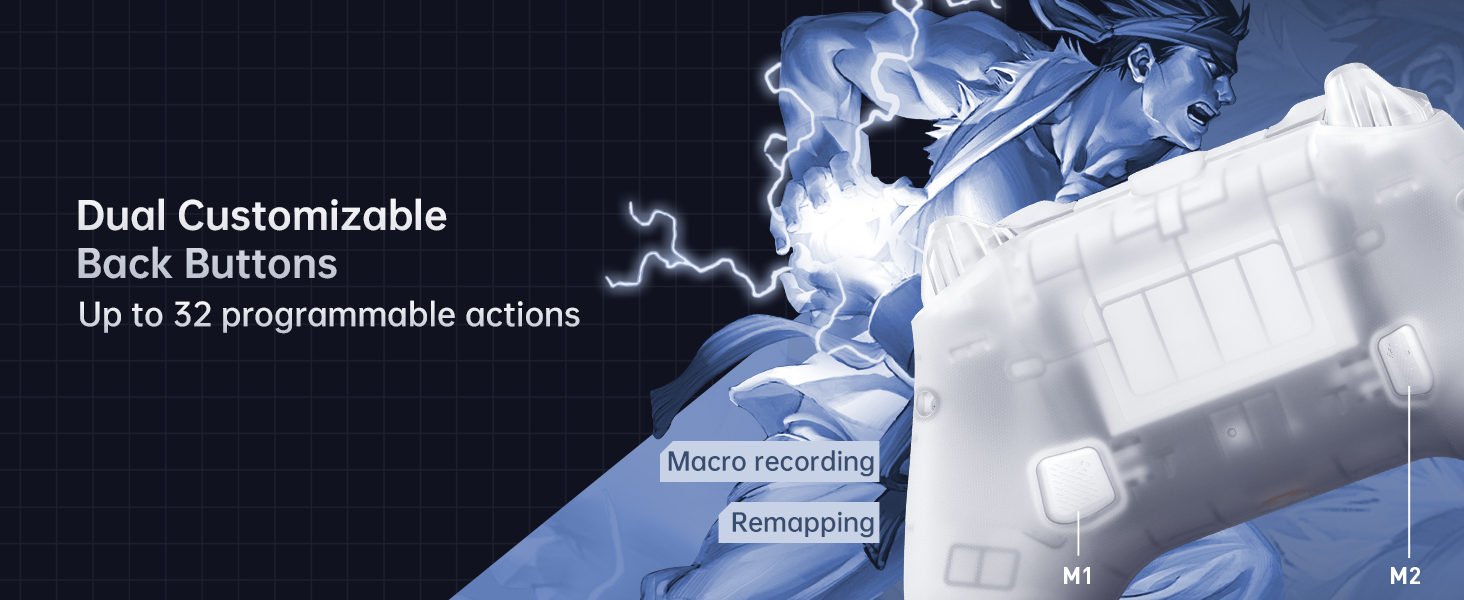
Image: Screenshots of the Keylinker 2.0 app interface, demonstrating various customization options for button mapping, joystick settings, and trigger adjustments.
5. Official Product Video
Watch the official product video for a visual guide on the Machenike G3V2 controller's features and usage.
Video: An official video showcasing the Machenike G3V2 game controller, its RGB lighting, Hall Effect features, and usage in various gaming scenarios.
Maintenance
1. Cleaning
- Use a soft, dry cloth to wipe the controller's surface.
- For stubborn dirt, slightly dampen the cloth with water or a mild cleaning solution. Avoid harsh chemicals.
- Do not allow liquids to enter the controller's openings.
2. Battery Care
- Avoid fully discharging the battery frequently.
- Store the controller in a cool, dry place when not in use for extended periods.
- Charge the controller at least once every three months to maintain battery health.
Troubleshooting
| Problem | Possible Cause | Solution |
|---|---|---|
| Controller not turning on | Low battery; Power button not pressed correctly | Charge the controller; Press and hold the power button for a few seconds |
| Controller not connecting | Incorrect pairing mode; Bluetooth interference; Dongle not recognized | Ensure correct pairing mode for your device; Move closer to the device; Re-insert dongle or try a different USB port |
| Joystick drift or inaccurate input | Software calibration needed; Minor debris | Use the Keylinker 2.0 app to recalibrate joysticks; Clean around the joystick base |
| Vibration not working | Vibration disabled in game or app; Low battery | Check in-game settings; Verify vibration settings in Keylinker 2.0 app; Charge the controller |
Specifications
- Model Number: G3V2PE
- Connectivity: Wired (USB-C), 2.4GHz Wireless, Bluetooth
- Polling Rate: 1000Hz (Wired & 2.4GHz Wireless), 150Hz (Bluetooth)
- Joysticks & Triggers: Hall Effect
- Battery: 1000mAh Lithium Polymer (included)
- Battery Life: Up to 18 hours (without vibration)
- Charging Time: Approx. 1.8 - 2 hours
- Programmable Buttons: 2 (M1, M2)
- Vibration: 4-level adjustable force feedback with asymmetrical motors
- Dimensions: 6.69 x 2.76 x 5.12 inches
- Weight: 0.53 ounces
- Manufacturer: Machenike
- Country of Origin: China
- First Available: September 24, 2024
Warranty and Support
For warranty information and technical support, please refer to the official Machenike website or contact Machenike customer service directly. Keep your purchase receipt as proof of purchase.
Related documentsG3V2PE


Ask a question about this manual
Ask about setup, troubleshooting, compatibility, parts, safety, or missing instructions. Manuals+ will review the question and use this page’s manual context to help answer it.