
ProCase PC-08366177
ProCase Smart Cover User Manual
For Lenovo Tab 10.1 Inch 2025 (Models TB311FU/TB311XU)
Introduction
Thank you for choosing the ProCase Smart Cover for your Lenovo Tab 10.1 Inch 2025. This manual provides detailed instructions on how to properly install, use, and maintain your new protective case. Designed for optimal protection and functionality, this case enhances your tablet experience with its smart features and durable construction.
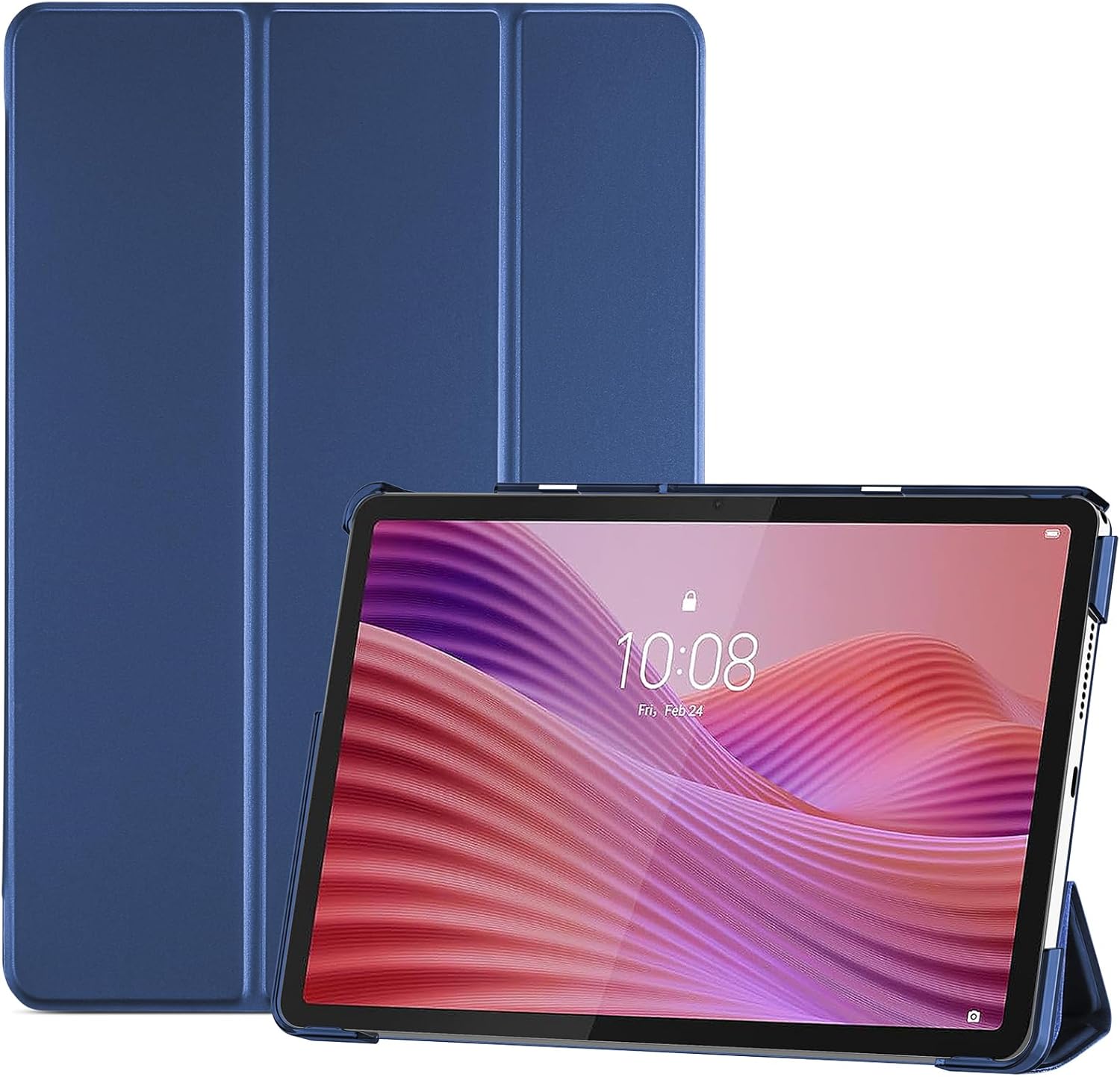
Image: The ProCase Smart Cover in navy blue, showcasing its design with a Lenovo tablet inserted, highlighting the front cover and the hard back shell.
Compatibility
This ProCase Smart Cover is specifically designed for the following Lenovo Tab 10.1 Inch 2025 models:
- Lenovo Tab 10.1" 2025 (Model: TB311FU)
- Lenovo Tab 10.1" 2025 (Model: TB311XU)
Please ensure your tablet model matches one of the listed compatible devices for a proper fit and full functionality. This case is not compatible with any other tablet models.
Key Features
Trifold Stand Functionality
The slim magnetic front cover can be folded into a triangle to prop up your tablet. This allows for two distinct viewing angles: a 65° viewing stand for media consumption and a 30° typing stand for comfortable keyboard use.

Image: Diagram illustrating the two stable stand positions (65° viewing and 30° typing) achievable with the trifold cover.
Slim and Lightweight Design
This case is engineered to add minimal bulk to your tablet while providing sufficient protection. Its sleek profile maintains the tablet's portability.
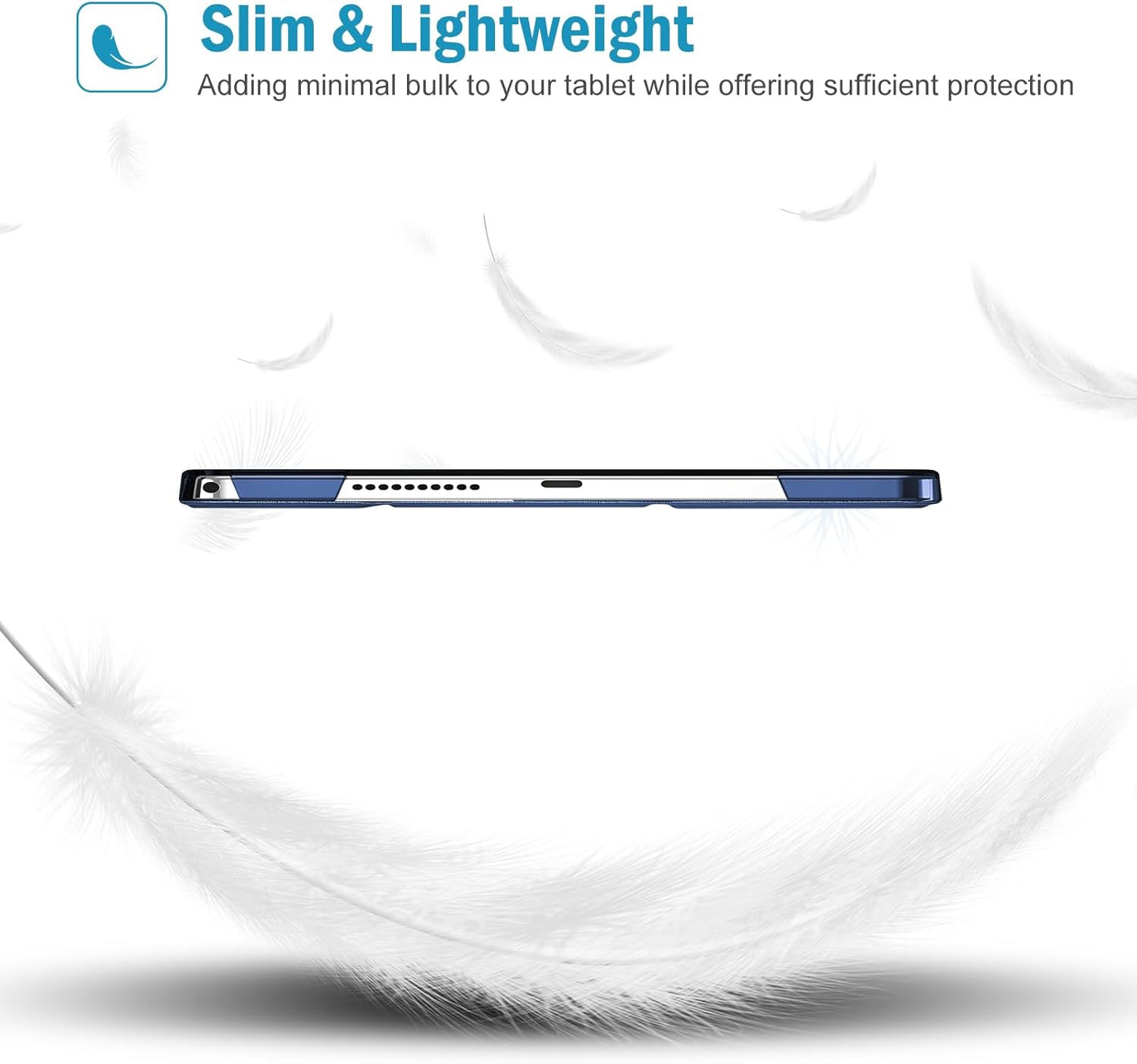
Image: A side view of the tablet case, emphasizing its thinness, with feather graphics to symbolize its lightweight nature.
Translucent Frosted Back Shell
The light translucent frosted back allows the original charm of your tablet to show through while protecting your device against fingerprints and scratches. It features an anti-fingerprint and smudge-free matte finish.

Image: A detailed view of the translucent back cover, highlighting its matte finish and anti-fingerprint properties.
Precise Cutouts and Snug Fit
The case is designed with classic and professional aesthetics, ensuring a snug fit for your tablet. Precise cutouts provide full access to all features, including cameras, speakers, ports, and buttons, without needing to remove the case.

Image: Close-up views of the case's precise cutouts for the tablet's camera, charging port, and speaker grilles.
Magnetic Closure
A built-in magnet secures the case closure, ensuring the cover stays shut when not in use. This feature also supports automatic sleep/wake functionality for compatible tablets, preserving battery life.
Setup: Installing the Case
Prepare your tablet: Ensure your Lenovo Tab 10.1 Inch 2025 is clean and free of dust or debris before installation.
Align the tablet: Gently align your tablet with the hard back shell of the ProCase cover. Make sure the camera cutout and port openings on the case match those on your tablet.
Snap into place: Carefully press the tablet into the hard back shell, starting from one corner and working your way around. You should hear a soft click as the tablet securely snaps into place.
Check fit: Once installed, verify that all edges of the tablet are fully enclosed by the case and that all ports, buttons, and the camera are accessible through their respective cutouts.
The case is designed for easy snap-on and snap-off installation.
Operating the Trifold Stand
The magnetic front cover of your ProCase Smart Cover offers versatile stand positions for enhanced usability:
Viewing Mode (65°): To set up the viewing stand, fold the front cover into a triangular prism shape. Place the tablet's edge into the groove created by the folded cover. This angle is ideal for watching videos, browsing, or video calls.
Typing Mode (30°): For a lower, more ergonomic angle suitable for typing or drawing, fold the front cover into a flatter triangular shape. Position the tablet's edge into this shallower groove. This angle provides a comfortable incline for extended use.

Image: Collage showing the tablet case in use, including a close-up of the stand function, a person holding the cased tablet, and the tablet on a desk during a video call.
Maintenance
To ensure the longevity and appearance of your ProCase Smart Cover, follow these maintenance guidelines:
- Cleaning: Wipe the case regularly with a soft, damp cloth. For stubborn marks, a mild soap solution can be used, but avoid harsh chemicals or abrasive cleaners.
- Drying: Allow the case to air dry completely after cleaning. Do not use heat sources to dry it.
- Storage: When not in use, store the case in a cool, dry place away from direct sunlight and extreme temperatures.
- Avoid Sharp Objects: Keep the case away from sharp objects that could scratch or puncture its surface.
Troubleshooting
| Issue | Possible Cause | Solution |
|---|---|---|
| Tablet does not fit snugly. | Incorrect tablet model. | Verify your tablet model (TB311FU/TB311XU) against the case compatibility. |
| Stand function is unstable. | Improper folding of the cover or uneven surface. | Ensure the trifold cover is folded correctly into a stable triangle. Use on a flat, stable surface. |
| Magnetic closure not working. | Obstruction or misalignment. | Check for any debris between the cover and the tablet. Ensure the cover is properly aligned when closing. |
| Case appears dirty or stained. | Accumulation of dirt or oils. | Clean the case as per the Maintenance section using a soft, damp cloth and mild soap. |
Specifications
- Brand: ProCase
- Model Number: PC-08366177
- Compatible Devices: Lenovo Tab 10.1" 2025 (Models: TB311FU/TB311XU)
- Color: Navy
- Product Dimensions: 9.84 x 6.3 x 0.39 inches
- Item Weight: 7.4 ounces
- Form Factor: Case
- Shell Type: Hard
- Special Features: Slim Fit, Trifold Stand, Magnetic Closure, Translucent Frosted Back
Warranty and Support
Specific warranty information for this ProCase product is not available in the provided documentation. For detailed warranty terms, product support, or to contact customer service, please visit the official ProCase website or refer to the packaging that came with your product.
You may also visit the ProCase Store on Amazon for more information.
Ask a question about this manual
Ask about setup, troubleshooting, compatibility, parts, safety, or missing instructions. Manuals+ will review the question and use this page’s manual context to help answer it.