
1. Introduction
Thank you for choosing the ZEBRONICS EnergiPod 10R1 Power Bank. This device is designed to provide portable power for your electronic devices. Please read this manual carefully before use to ensure proper operation and to maximize the lifespan of your power bank.
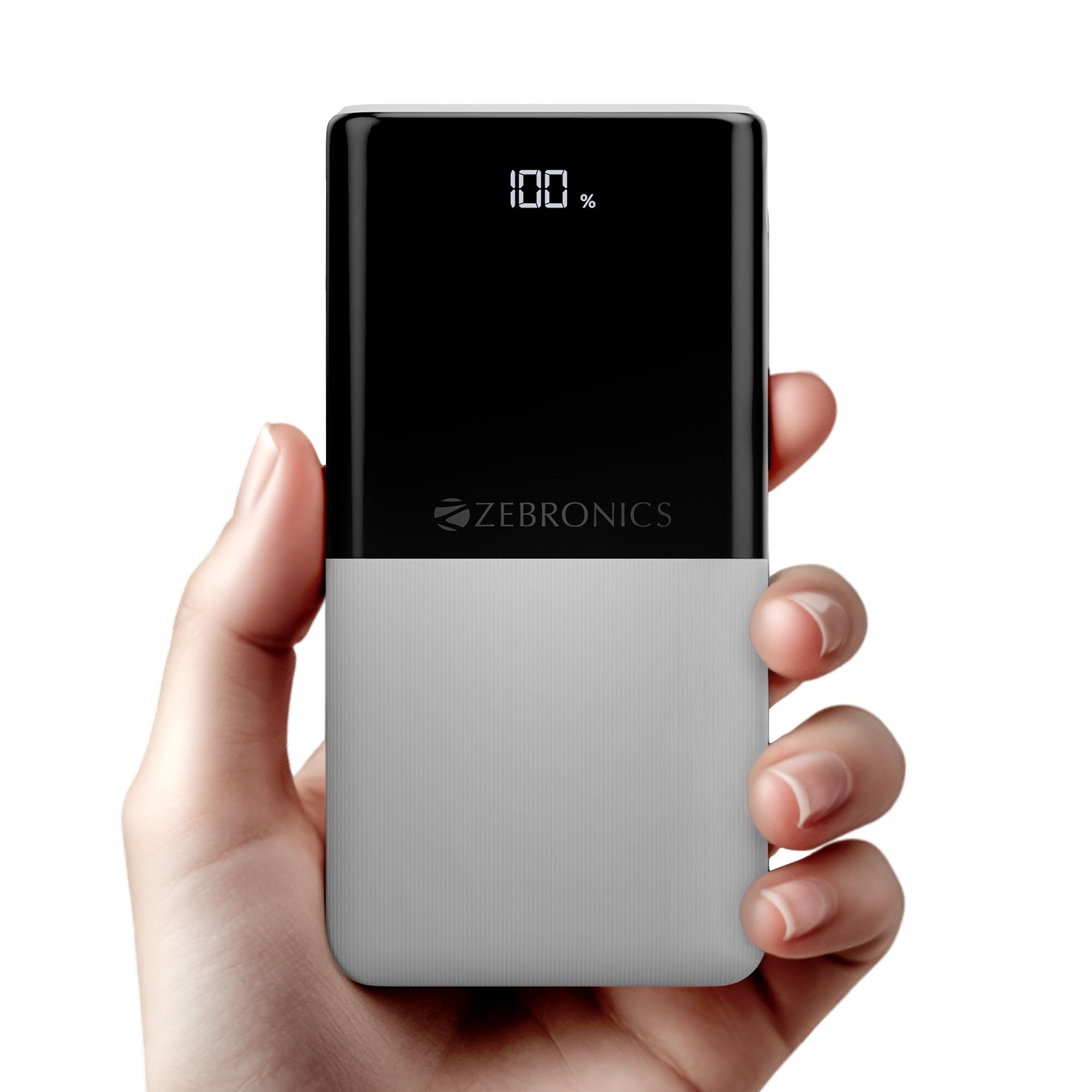
Image: The ZEBRONICS EnergiPod 10R1 Power Bank in white, highlighting its compact and modern design.
What's in the Box:
- EnergiPod 10R1 Power Bank - 1 unit
- Charging Cable - 1 unit
- QR Code Guide - 1 unit
2. Safety Information
To prevent damage to the power bank or injury to yourself and others, please observe the following safety precautions:
- Do not expose the power bank to extreme temperatures (above 45°C or below 0°C).
- Avoid dropping, disassembling, or attempting to repair the device yourself.
- Keep the power bank away from water, moisture, and flammable materials.
- Use only certified charging cables and adapters.
- Do not use the power bank if it is damaged or swollen.
- Keep out of reach of children.
3. Product Features
-
10000mAh Capacity: Provides ample power for multiple charges of smartphones and other devices.

Image: The power bank showing its 10000mAh capacity and 22.5W fast charging output.
- 22.5W Super Fast Charging (PD 3.0 PPS): Supports rapid charging for compatible devices.
-
Dual Type-C & USB Port: Equipped with multiple output options for versatile charging.

Image: Detailed view of the power bank's ports, including Type-C PD 3.0 (Input/Output), USB Output, and Type-C Input.
-
LED Percentage Indicator: Digital display shows the remaining battery percentage and charging status.

Image: The power bank's LED display showing 100% charge, along with its physical dimensions.
-
Safety Protection: Built-in safeguards against overcharge, overload, and short-circuit.

Image: The power bank depicted with a protective shield, illustrating its short circuit, overcharge, and overload protection features.
- Metal Outlook: Sleek and compact design with a patterned finish for enhanced grip.
4. Setup
Initial Charging of the Power Bank:
- Connect the provided USB Type-C charging cable to the Type-C1 input port on the power bank.
- Connect the other end of the cable to a compatible USB wall adapter (not included) or a computer's USB port.
- The LED display will show the charging percentage. Allow the power bank to charge until it reaches 100% for optimal initial use.
It is recommended to fully charge the power bank before its first use.
5. Operating Instructions
Charging External Devices:
- Connect your device's charging cable to one of the power bank's output ports (Type-C1 or USB-A).
- Connect the other end of the cable to your smartphone, tablet, or other compatible device.
- The power bank will automatically begin charging your device. The LED display will show the power bank's remaining charge.
- Disconnect your device once it is fully charged or when you wish to stop charging.
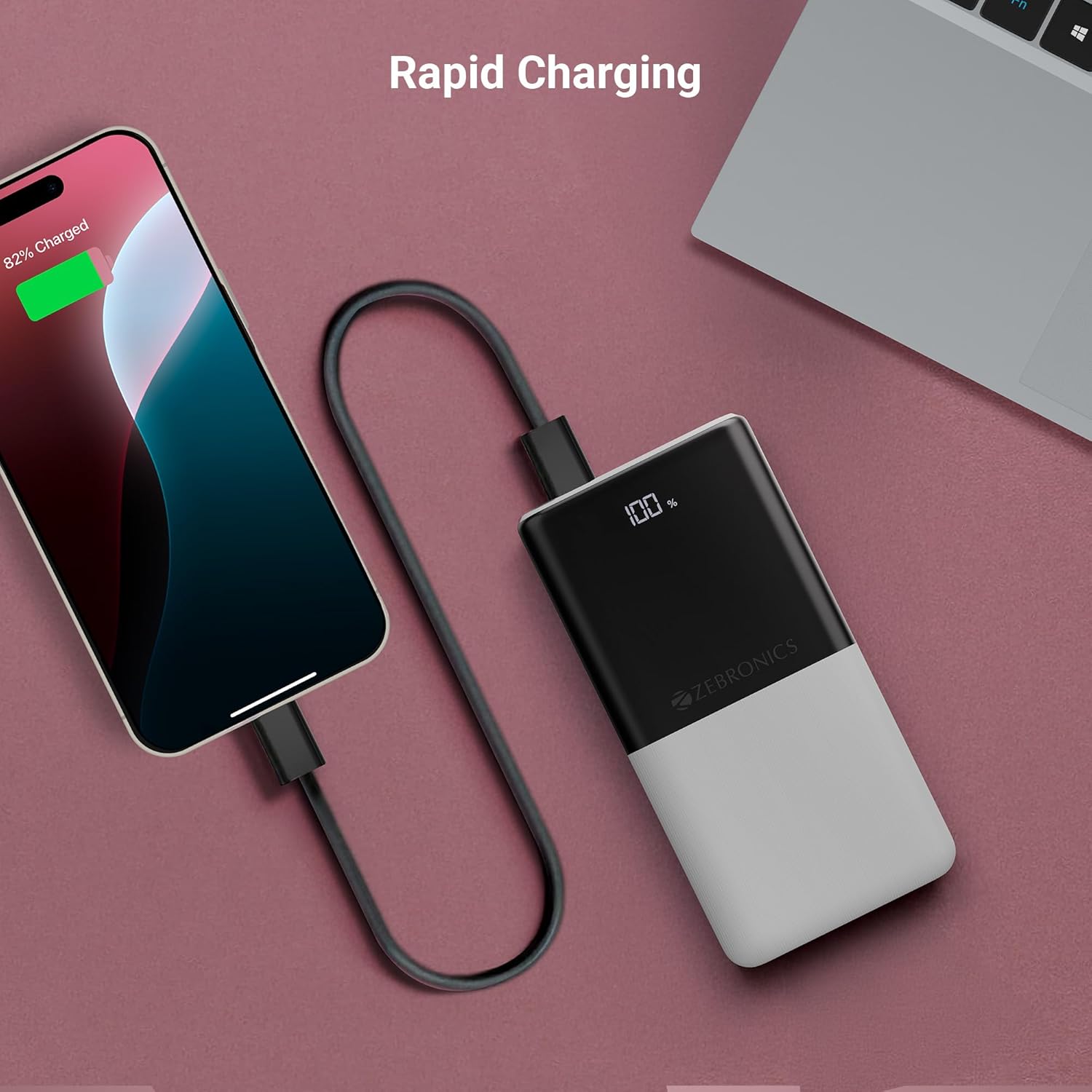
Image: The power bank actively charging a smartphone, demonstrating its rapid charging capability.
Recharging the Power Bank:
Refer to the "Initial Charging of the Power Bank" section (Section 4) for instructions on how to recharge your power bank.
6. Maintenance
- Cleaning: Use a soft, dry cloth to clean the surface of the power bank. Do not use liquid cleaners or abrasive materials.
- Storage: Store the power bank in a cool, dry place away from direct sunlight and extreme temperatures.
- Battery Care: For optimal battery health, fully charge and discharge the power bank at least once every three months if not in regular use.
7. Troubleshooting
Common Issues and Solutions:
-
Power Bank Not Charging:
- Ensure the charging cable is securely connected to both the power bank and the power source.
- Try a different charging cable or wall adapter.
- Verify the power source is active.
-
Device Not Charging from Power Bank:
- Check if the power bank has sufficient charge (refer to the LED display).
- Ensure your device's charging cable is properly connected to both the power bank and your device.
- Try a different charging cable or a different output port on the power bank.
- Confirm your device is compatible with the power bank's output specifications.

Image: The power bank demonstrating its compatibility by charging both a tablet and a smartphone simultaneously.
-
LED Display Not Working or Inconsistent:
- Ensure the power bank is sufficiently charged.
- If the issue persists after charging, contact customer support.
8. Specifications
| Brand | ZEBRONICS |
| Model Name | EnergiPod 10R1 |
| Item Model Number | ZEB-PB 12 |
| Battery Capacity | 10000 mAh |
| Output Power | 22.5W (Max) |
| Type-C1 Port Output | DC 5V/3A, 9V/2.22A, 12V/1.67A, 3.3~11V/2A (PPS) |
| USB-A Output | DC 5V/3A, 9V/2A, 12V/1.85A |
| Type-C1 Input Port | DC 5V/3A, 9V/2A, 12V/1.5A |
| Type-C2 Input Port | DC 5V/2.4A |
| Connector Type | USB Type C |
| Recommended Uses | Phone, Tablet |
| Item Weight | 230 g |
| Package Dimensions | 16.8 x 9.9 x 2.4 cm |
| Country of Origin | India |
9. Warranty and Support
Warranty Information:
The ZEBRONICS EnergiPod 10R1 Power Bank comes with a standard manufacturer's warranty. Please refer to the QR Code Guide included in the box or visit the official ZEBRONICS website for detailed warranty terms and conditions.
Customer Support:
If you encounter any issues or have questions regarding your power bank, please contact ZEBRONICS customer support. Contact details can typically be found on the official ZEBRONICS website or in the product packaging.
For online support, you may visit the ZEBRONICS Store on Amazon.


