1. Introduction
Thank you for choosing the Holy Stone Smart Battery Charging Hub. This device is designed to efficiently charge multiple batteries for your HS360D and HS360E drones, featuring smart priority charging and auto-discharge functions to maintain battery health. Please read this manual thoroughly before use to ensure proper operation and safety.
2. Safety Information
- Use only Holy Stone original batteries and compatible power adapters.
- Do not attempt to charge damaged or swollen batteries.
- Keep the charging hub away from water, moisture, and high temperatures.
- Do not disassemble or modify the charging hub.
- Ensure adequate ventilation during charging.
- Supervise the charging process and disconnect the power once batteries are fully charged.
3. Package Contents
Verify that all items are present in your package:
- Holy Stone Smart Battery Charging Hub (Model CH302A)
- USB-C Charging Cable (Power adapter not included)
- Instruction Manual
4. Product Overview

Figure 1: Holy Stone Smart Battery Charging Hub. This image shows the main unit of the charging hub, highlighting its compact design and the Holy Stone logo. The USB-C input/output port and power button are visible on the side, along with LED indicators on the front.
Components:
- Battery Slots (x3): For inserting HS360D/HS360E drone batteries.
- USB-C IN/OUT Port: Used for power input to charge batteries or power output to charge external devices.
- Power Button: To activate the hub or check battery status.
- LED Indicators: Display charging status and current battery levels.
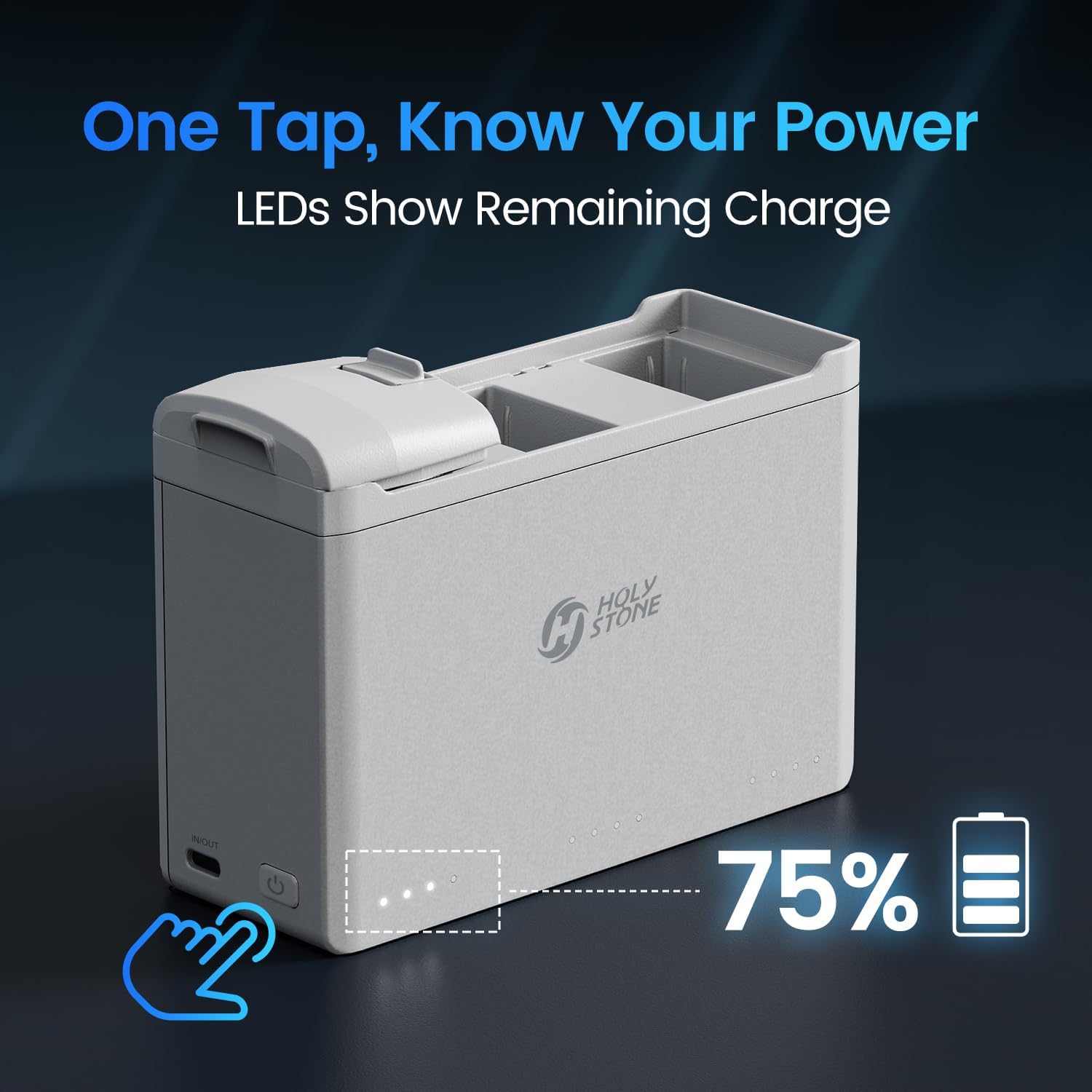
Figure 2: LED Indicators for Battery Level. This image illustrates the LED lights on the charging hub, which indicate the remaining charge of the inserted batteries. A hand is shown pressing the power button to activate the display, showing 75% charge.
5. Setup
- Connect Power: Connect the USB-C charging cable to the IN/OUT port on the charging hub. Connect the other end of the cable to a compatible USB power adapter (not included).
- Insert Batteries: Carefully insert up to three Holy Stone HS360D or HS360E drone batteries into the designated slots on the charging hub. Ensure they are securely seated.

Figure 3: Charging Hub with Batteries Inserted. This image displays the Holy Stone charging hub with three drone batteries securely placed in their respective slots, ready for charging.
6. Operating Instructions
6.1 Charging Batteries
Once batteries are inserted and power is connected, the charging hub will automatically begin charging. It features a Smart Priority system:
- The hub will identify the battery with the highest power level and charge it first.
- Once the first battery is fully charged, it will proceed to charge the next battery with the highest power level, and so on, until all batteries are fully charged.
Approximate Charging Times:
- For HS360E batteries: Approximately 70 minutes per battery.
- For HS360D batteries: Approximately 90 minutes per battery.

Figure 4: Smart Priority Charging. This graphic illustrates the charging hub's ability to charge three batteries sequentially, prioritizing the battery with the highest current charge level first. It also highlights the 36W fast charging capability and the typical charging time of 70-90 minutes for the first battery.
6.2 Auto-Discharge Function
To maintain optimal battery health and extend lifespan, the charging hub features an Auto-Discharge function:
- If fully charged batteries are left unused in the hub for more than 3 days, the charger will autonomously begin to lower the battery level.
- Over approximately one week, the battery level will be reduced to 70%-75%, which is the ideal storage charge for lithium-polymer batteries.
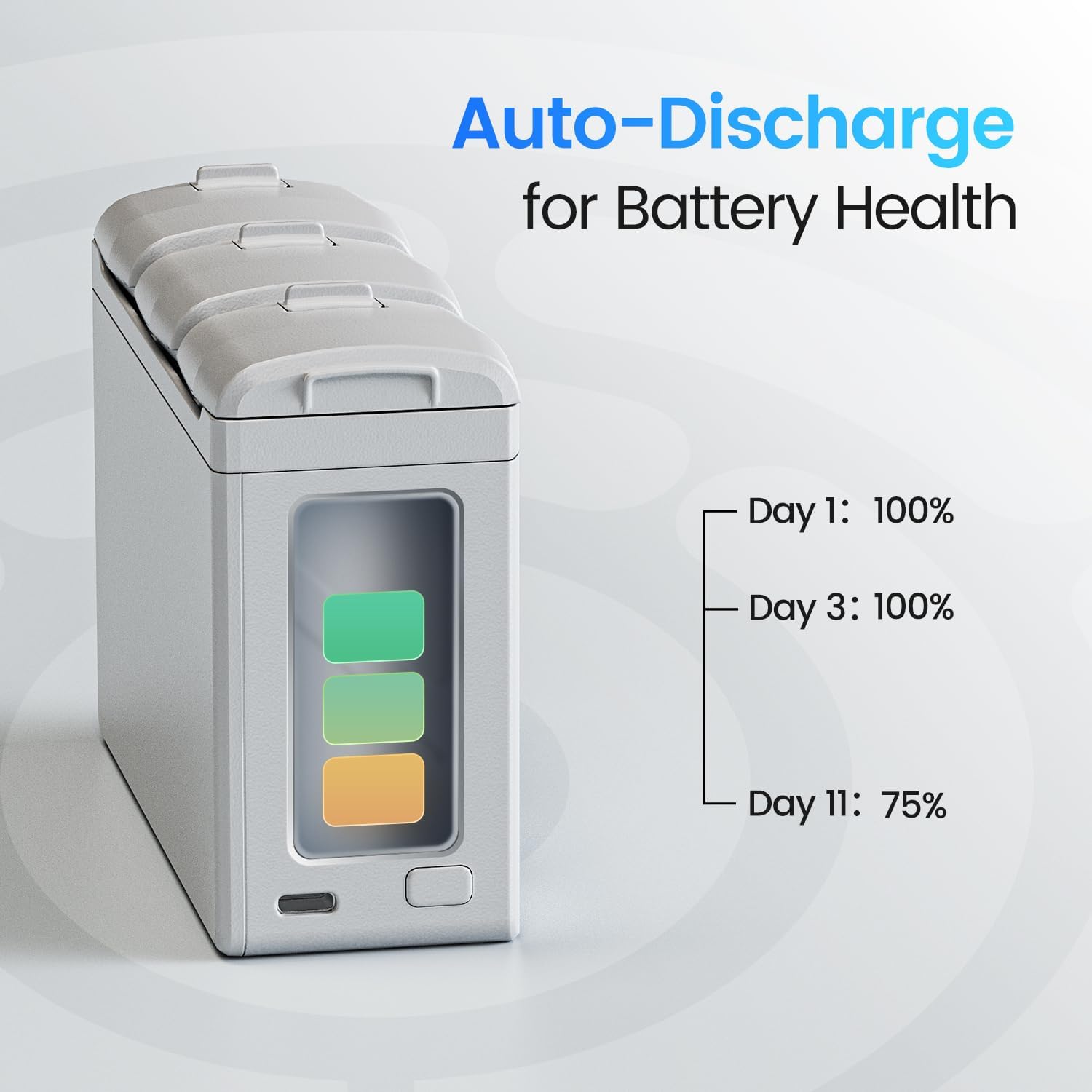
Figure 5: Auto-Discharge for Battery Health. This image visually explains the auto-discharge process, showing a battery at 100% on Day 1 and Day 3, then automatically discharging to 75% by Day 11 to optimize long-term battery health.
6.3 Using as a Power Bank
The charging hub can also function as a power bank:
- Ensure at least one charged drone battery is inserted into the hub.
- Connect your external device (e.g., smartphone, tablet) to the USB-C IN/OUT port on the charging hub using a compatible USB-C cable.
- The hub will begin to supply power to your device, drawing from the inserted drone batteries. It will prioritize discharging the battery with the lowest current charge level first.
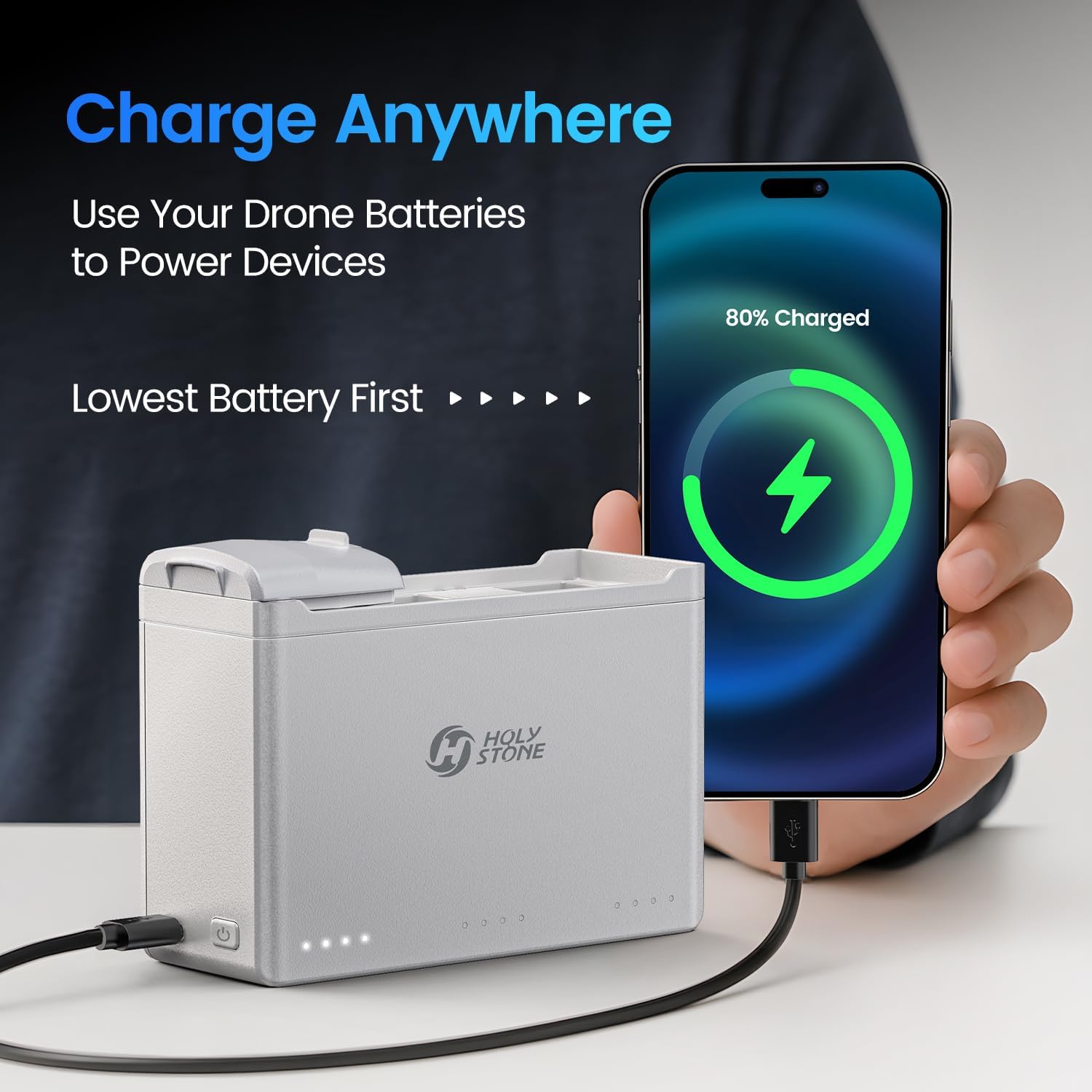
Figure 6: Charging Hub Functioning as a Power Bank. This image demonstrates the charging hub connected via a USB-C cable to a smartphone, illustrating its capability to use drone batteries to charge other devices. The text indicates it will discharge the lowest battery first.
6.4 Checking Battery Level
To check the charge level of the inserted batteries:
- Briefly press the power button on the side of the charging hub.
- The LED indicators on the front will illuminate to show the current charge status of the batteries.
7. Maintenance
- Clean the charging hub with a soft, dry cloth. Do not use liquid cleaners.
- Store the charging hub in a cool, dry place when not in use.
- If storing batteries for extended periods, ensure they are at the recommended 70-75% charge level (the auto-discharge function assists with this).
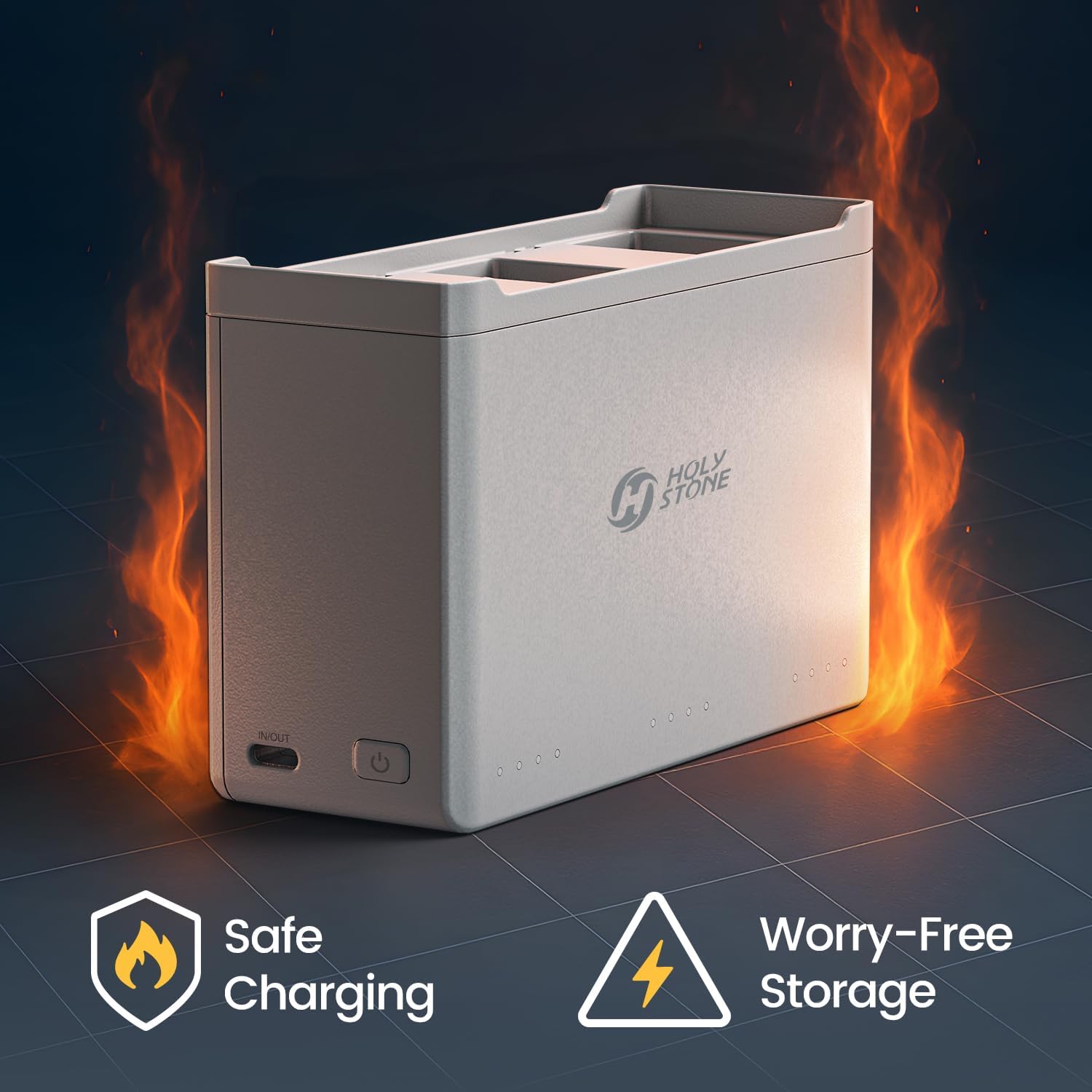
Figure 7: Safe Charging and Worry-Free Storage. This image emphasizes the safety features of the charging hub, depicting it surrounded by flames (stylized, indicating protection) and highlighting its safe charging and storage capabilities.
8. Troubleshooting
| Problem | Possible Cause | Solution |
|---|---|---|
| Batteries not charging. | No power supply; batteries not inserted correctly; damaged cable/adapter. | Ensure power adapter is connected and working. Re-insert batteries firmly. Try a different USB-C cable or power adapter. |
| LED indicators not lighting up. | No power; power button not pressed. | Connect power. Briefly press the power button to activate the display. |
| External device not charging (Power Bank function). | Drone batteries are low; device cable incompatible; device not connected properly. | Ensure drone batteries have sufficient charge. Use a compatible USB-C cable. Reconnect the external device. |
| Auto-discharge not occurring. | Batteries recently charged; less than 3 days elapsed. | The auto-discharge function activates after 3 days of inactivity for fully charged batteries. Allow sufficient time. |
9. Specifications
| Feature | Detail |
|---|---|
| Model Number | CH302A |
| Compatible Drones | Holy Stone HS360D, HS360E |
| Input/Output Port | USB-C |
| Output Voltage | 3.7 Volts |
| Item Weight | 4.6 ounces (approx. 130g) |
| Dimensions (L x W x H) | 126.9mm x 46.8mm x 83.5mm |
| Certifications | RoHS, FCC |

Figure 8: Product Dimensions. This image provides a visual representation of the charging hub's physical dimensions, showing its length (126.9mm), width (46.8mm), and height (83.5mm).
10. Warranty and Support
Holy Stone products typically come with a limited warranty. For specific warranty details, registration, or technical support, please refer to the warranty card included with your product or visit the official Holy Stone website. You can also contact Holy Stone customer service directly for assistance.
Official Holy Stone Website: www.holystone.com


