
Introduction
This manual provides comprehensive instructions for the setup, operation, maintenance, and troubleshooting of your Delton N35 Wireless Keyboard and Mouse Combo. This compact and versatile combo offers dual connectivity options (Bluetooth and 2.4GHz wireless) and is designed for compatibility with various operating systems, including Windows, macOS, and iOS.

Image: The Delton N35 Wireless Keyboard and Mouse Combo, showcasing the compact keyboard, ergonomic mouse, and the 2.4GHz USB dongle.
Package Contents
- Delton N35 Wireless Keyboard
- Delton N35 Wireless Mouse
- 2.4GHz USB Receiver Dongle
- User Manual (this document)
Setup Instructions
1. Battery Installation
The keyboard and mouse each require 2 AAA batteries (not included).
- Locate the battery compartment on the underside of the keyboard and mouse.
- Open the battery compartment cover.
- Insert 2 AAA batteries into each device, ensuring correct polarity (+/-).
- Close the battery compartment cover securely.
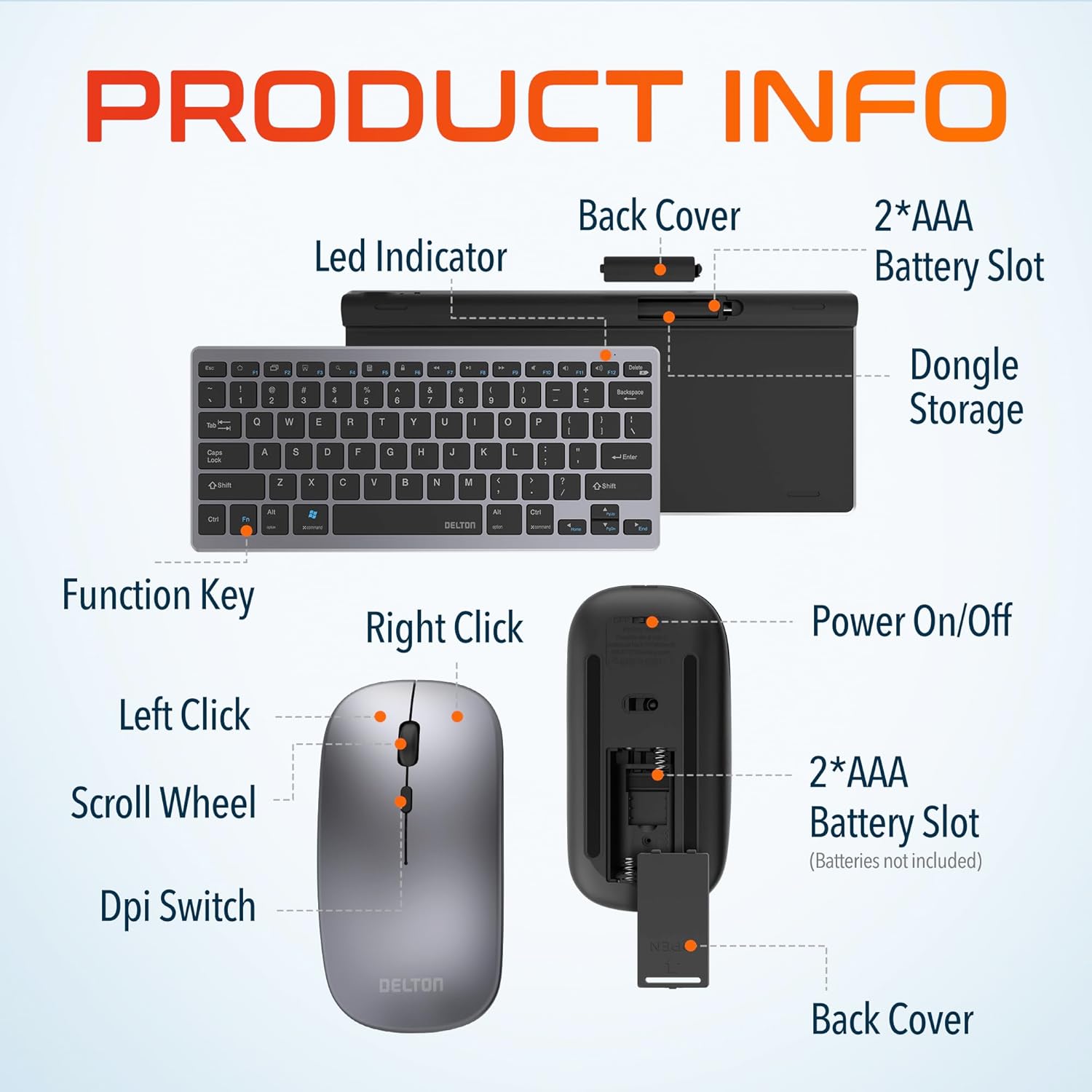
Image: Diagram illustrating the location of battery slots for both the keyboard and mouse, along with the dongle storage compartment in the mouse.
2. Connecting via 2.4GHz USB Dongle
This method provides a stable wireless connection for devices with a USB-A port.
- Locate the 2.4GHz USB receiver dongle, typically stored in the mouse's battery compartment.
- Plug the USB dongle into an available USB-A port on your computer or device.
- Turn on the keyboard and mouse using their respective power switches.
- The devices should automatically connect to your computer. No additional drivers are usually required.
3. Connecting via Bluetooth
The Delton N35 supports Bluetooth connectivity for devices without a USB-A port or for switching between multiple devices.
- Turn on the keyboard and mouse using their respective power switches.
- On the keyboard, press the Fn key simultaneously with either BT1 (F1) or BT2 (F2) to select a Bluetooth channel. The corresponding LED indicator will flash, indicating pairing mode.
- On your device (PC, laptop, tablet, smartphone), navigate to Bluetooth settings.
- Search for new devices. You should see "Delton N35 Keyboard" and "Delton N35 Mouse" appear in the list.
- Select each device to pair. Follow any on-screen prompts, such as entering a pairing code.
- Once paired, the LED indicator on the keyboard will stop flashing and remain solid for a few seconds, then turn off.

Image: Graphic illustrating the dual wireless connectivity options: 2.4GHz auto-pair dongle and Bluetooth, connecting to various devices.
4. Switching Between Connections
The keyboard allows quick switching between connected devices.
- To switch to a 2.4GHz connection, press Fn + 2.4G (F3).
- To switch to Bluetooth Channel 1, press Fn + BT1 (F1).
- To switch to Bluetooth Channel 2, press Fn + BT2 (F2).
Operation
1. Keyboard Functions
The Delton N35 keyboard features a compact layout with integrated function keys and media controls.
- Function Keys (F1-F12): These keys perform standard functions. Many also have secondary media or system control functions (e.g., volume, playback, search) accessible by pressing the Fn key simultaneously. Refer to the keycap legends for specific functions.
- Operating System Modes: The keyboard supports different operating systems. Use Fn + Android, Fn + Windows, or Fn + iOS to optimize key functions for your specific OS.
- Caps Lock Indicator: A small LED indicator in the top right corner illuminates when Caps Lock is active.
2. Mouse Functions
The wireless mouse offers precise control with adjustable sensitivity.
- Left Click Button: Standard selection and activation.
- Right Click Button: Accesses contextual menus.
- Scroll Wheel: For vertical scrolling. Can also be pressed for middle-click functionality.
- DPI Switch: Located on the top of the mouse, this button allows you to cycle through three adjustable DPI (Dots Per Inch) levels: 800, 1200, and 1600. A higher DPI setting increases cursor sensitivity, making it move faster across the screen.
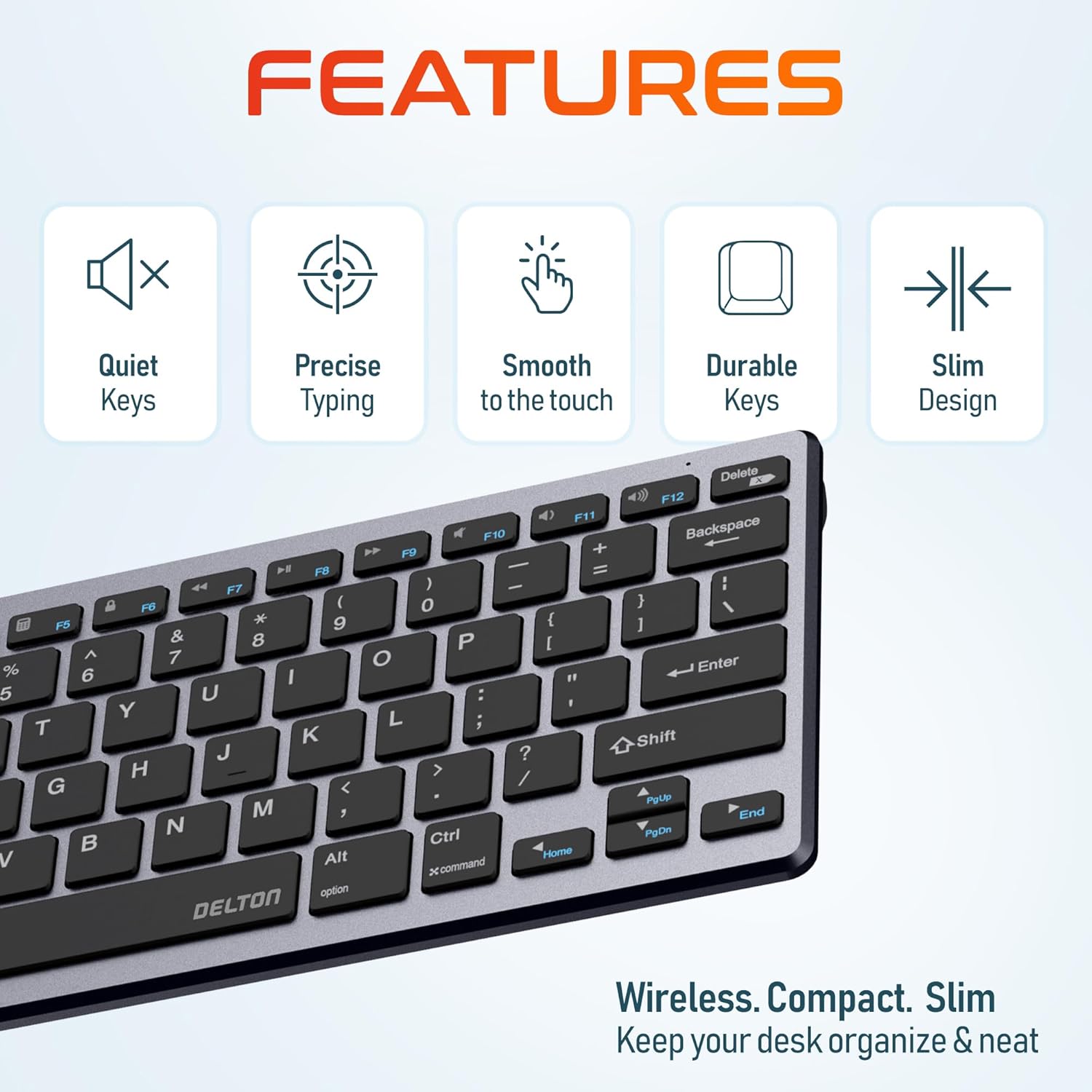
Image: Close-up of the Delton N35 keyboard highlighting its features: quiet keys, precise typing, smooth key feel, durable construction, and slim design.
3. Power Management
The Delton N35 combo is designed for energy efficiency to extend battery life.
- Automatic Power-Saving Mode: After 10 minutes of inactivity, both the keyboard and mouse will enter a power-saving sleep mode.
- Instant Wake-Up: To wake the devices from sleep mode, simply press any key on the keyboard or click any button on the mouse.
- Battery Life: With typical usage, the devices can operate for up to 15 months on a single set of AAA batteries.
- Battery Indicator: The keyboard features an LED battery indicator to alert you when battery levels are low.

Image: Graphic detailing the power efficiency features of the Delton N35, including automatic power saving after 10 minutes, up to 15 months of battery life, and instant wake-up functionality.
Maintenance
1. Cleaning
To maintain optimal performance and appearance, clean your devices regularly.
- Use a soft, lint-free cloth slightly dampened with water or a mild cleaning solution.
- Avoid using harsh chemicals, abrasive cleaners, or solvents, as these can damage the surface.
- For the keyboard, use compressed air to remove dust and debris from between the keys.
2. Battery Replacement
When the battery indicator on the keyboard signals low power, or if the devices become unresponsive, replace the batteries.
- Follow the battery installation steps outlined in the Setup section.
- Always replace both AAA batteries in each device simultaneously for best performance.
- Dispose of used batteries according to local regulations.
Troubleshooting
- Devices not responding:
- Ensure the power switches on both the keyboard and mouse are in the 'ON' position.
- Check battery levels and replace batteries if necessary.
- For 2.4GHz connection, ensure the USB dongle is securely plugged into a working USB port. Try a different USB port.
- For Bluetooth connection, ensure Bluetooth is enabled on your device and the keyboard/mouse are properly paired. Try re-pairing the devices.
- Switch between connection modes (2.4GHz, BT1, BT2) using the Fn key combinations to ensure the correct mode is selected.
- Intermittent connection or lag:
- Move the devices closer to the USB dongle or Bluetooth-enabled device. The effective range is up to 30 feet, but obstacles can reduce this.
- Avoid placing the dongle near other wireless devices or sources of electromagnetic interference (e.g., Wi-Fi routers, cordless phones).
- Ensure your device's operating system is up to date.
- Mouse cursor erratic or not moving:
- Clean the optical sensor on the underside of the mouse.
- Ensure you are using the mouse on a suitable surface. Reflective or uneven surfaces may affect tracking.
- Adjust the DPI setting using the DPI switch on the mouse.
- Keys not typing correctly or double-typing:
- Check battery levels. Low batteries can sometimes cause inconsistent key presses.
- Ensure the correct operating system mode (Windows, macOS, iOS) is selected using the Fn key combinations.
- Clean any debris from under the affected keys using compressed air.
Specifications
| Product Dimensions (Keyboard) | 11.1 x 4.9 x 0.59 inches |
| Product Dimensions (Mouse) | 4.4 x 2.24 inches (approximate) |
| Item Weight (Keyboard) | 16 oz (approximate) |
| Item Weight (Mouse) | 2.3 oz (approximate) |
| Connectivity Technology | Bluetooth, 2.4GHz Wireless |
| Wireless Range | Up to 30 feet |
| DPI Levels (Mouse) | 800, 1200, 1600 |
| Compatible Devices | Laptop, Personal Computer, Tablet |
| Operating System Compatibility | Windows, macOS, iOS |
| Battery Type | 2 x AAA batteries per device (not included) |
| Battery Life | Up to 15 months |
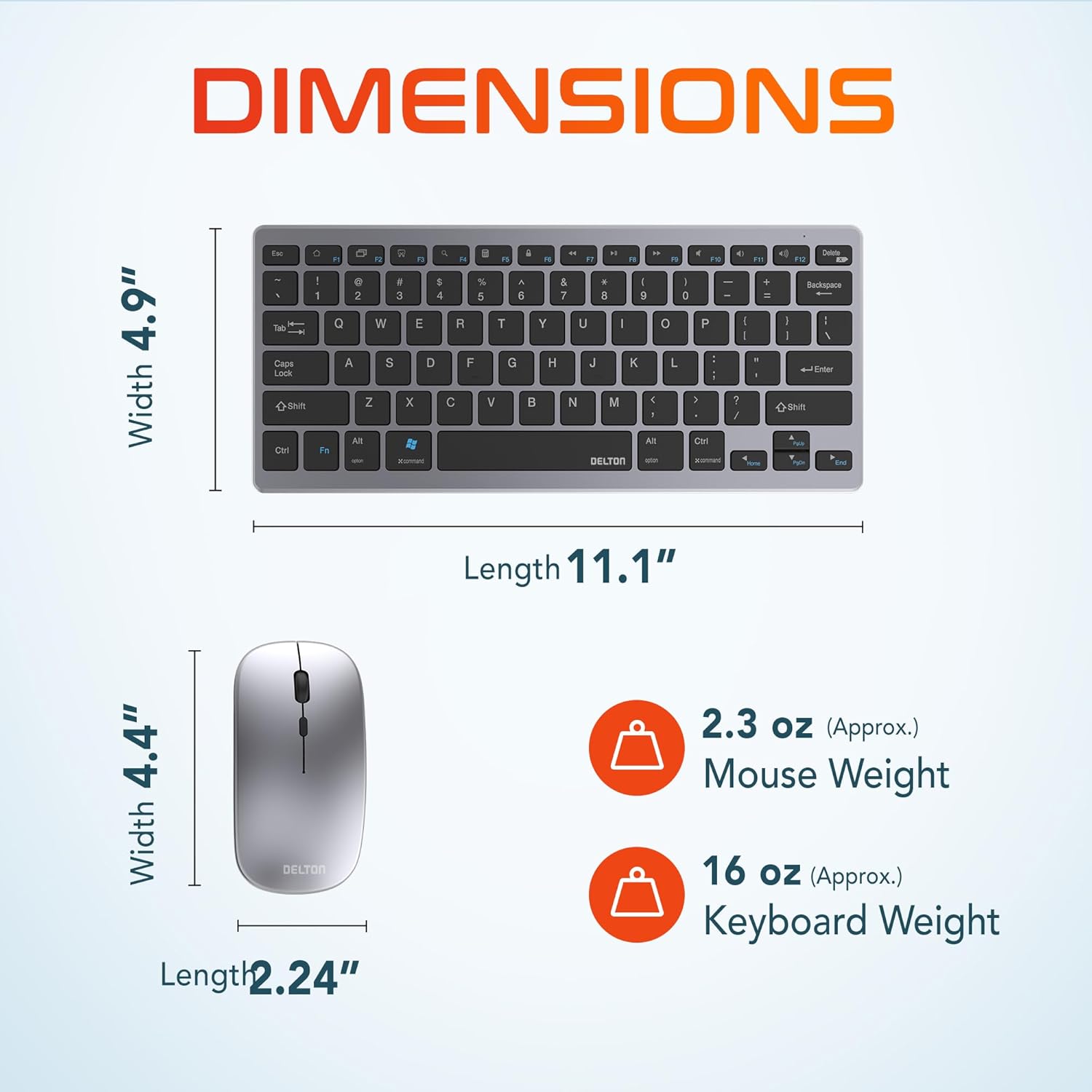
Image: Diagram showing the dimensions of the Delton N35 keyboard (Width 4.9", Length 11.1") and mouse (Width 2.24", Length 4.4"), along with their approximate weights.
Warranty and Support
Warranty Information
Delton products are manufactured to high-quality standards. This product is covered by a limited warranty against defects in materials and workmanship. Please refer to the warranty card included with your purchase or visit the official Delton website for detailed warranty terms and conditions.
Customer Support
For technical assistance, troubleshooting not covered in this manual, or warranty claims, please contact Delton customer support. You can typically find contact information (phone, email, or support portal) on the official Delton website.