
1. Introduction
The Synology ActiveProtect Appliance DP320 is a cyber-resilient data protection solution designed for endpoints and Network Attached Storage (NAS) environments. This appliance provides robust data management and security features for businesses, ensuring efficient handling and protection of critical data assets. This manual provides essential information for the proper setup, operation, and maintenance of your DP320 appliance.
2. Product Overview
The Synology DP320 is engineered for high performance and reliability. It features a total storage capacity of 16 TB, configured with two 8 TB hard drives in a RAID 1 array for enhanced data protection and availability. The appliance supports up to 2500 managed servers, making it suitable for demanding enterprise environments. Its robust design allows it to operate reliably within a temperature range of 0°C to 45°C and humidity between 8% and 80% RH.
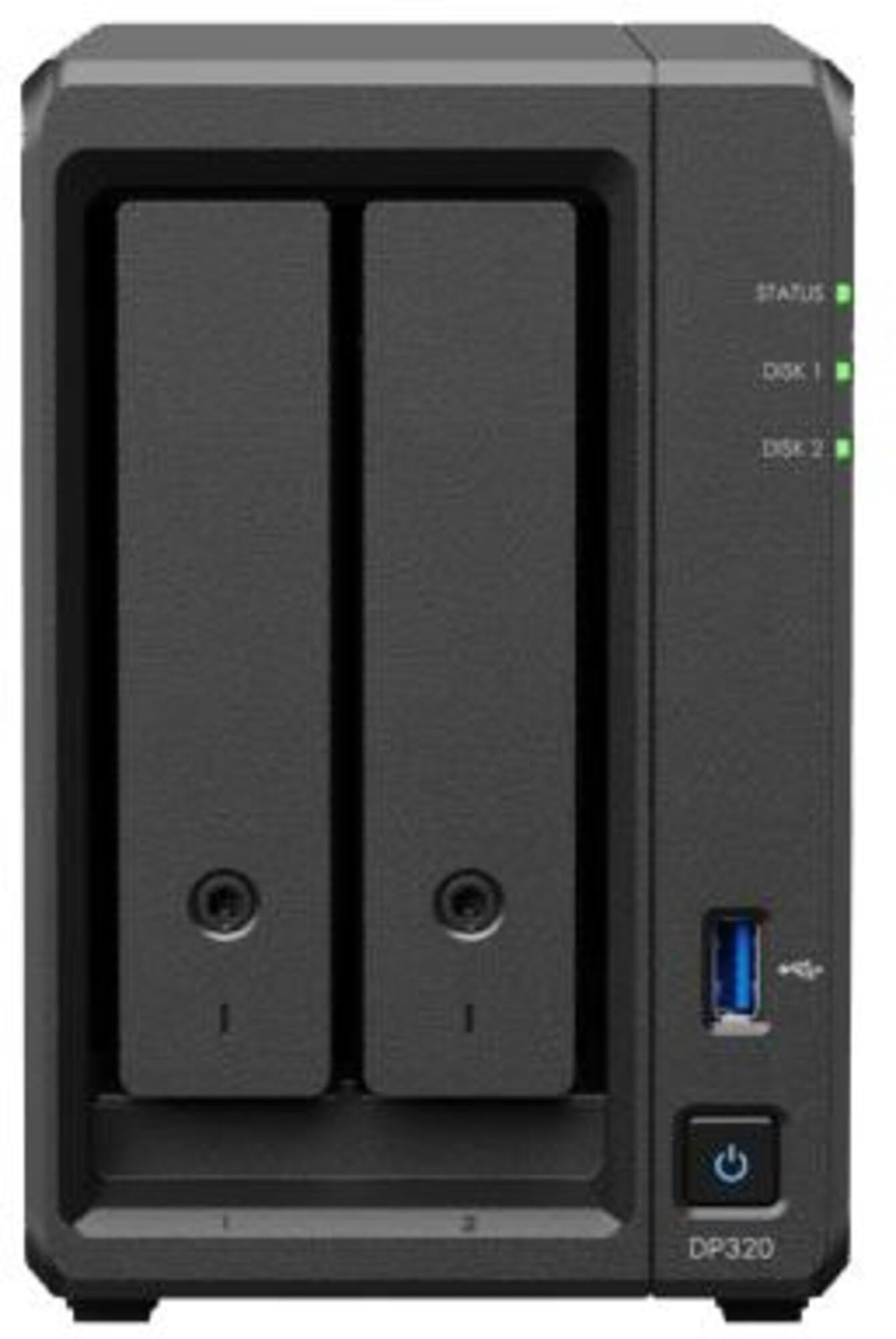
Figure 1: Front view of the Synology DP320 ActiveProtect Appliance. This image displays the compact rack-mount form factor of the appliance, highlighting its professional design suitable for data center integration.
Key Features:
- Processor: AMD R1600, 2-core, 2.6 GHz clock speed.
- Storage: 2 x 8 TB drives, pre-configured in RAID 1.
- Capacity: 16 TB total storage, supporting up to 2500 managed servers.
- Environmental Tolerance: Operates reliably from 0°C to 45°C, 8% to 80% RH.
- Mounting: Rack Mount.
3. Setup
3.1. Unpacking and Inspection
- Carefully remove the DP320 appliance from its packaging.
- Inspect the appliance for any signs of physical damage. If damage is found, contact your vendor immediately.
- Verify that all expected components are present. The unit typically includes the DP320 appliance with pre-installed hard drives, power cord(s), and a quick installation guide.
3.2. Physical Installation
The DP320 is designed for rack mounting.
- Ensure the rack has adequate space and ventilation for the appliance.
- Securely mount the DP320 into the rack using appropriate rack rails or mounting hardware (sold separately or included depending on package).
- Connect the power cord(s) to the appliance and then to a grounded power outlet or uninterruptible power supply (UPS).
- Connect the network cable(s) from the appliance to your network switch or router.
3.3. Initial Power-On and Configuration
- Press the power button on the front panel of the DP320. The system status indicator will illuminate.
- Once the system has booted, use a web browser on a computer connected to the same network to access the Synology management interface. Refer to the Quick Installation Guide for the default IP address or discovery method.
- Follow the on-screen instructions to complete the initial setup, including setting up administrator credentials, network settings, and any required software updates.
- The internal drives are pre-configured in RAID 1. Verify the storage pool status within the management interface to ensure optimal operation.
4. Operating Instructions
4.1. Accessing the Management Interface
The Synology DP320 is managed through a web-based interface. Open a web browser and enter the IP address or hostname of your DP320 appliance. Log in with your administrator credentials.
4.2. Data Protection Tasks
Within the management interface, you can configure and manage various data protection tasks:
- Backup Jobs: Create and schedule backup jobs for endpoints and NAS devices.
- Replication: Configure replication tasks for offsite data redundancy.
- Recovery: Perform data recovery operations from existing backups.
- User Management: Manage user accounts and permissions for accessing the appliance and its data.
4.3. System Monitoring
Regularly monitor the system status through the dashboard in the management interface. Pay attention to:
- Storage utilization and health.
- CPU and memory usage.
- Network activity.
- System logs for any warnings or errors.
5. Maintenance
5.1. Regular Checks
- Periodically check the physical connections (power, network) to ensure they are secure.
- Monitor the appliance's operating environment to ensure it remains within the specified temperature (0°C to 45°C) and humidity (8% to 80% RH) ranges.
- Review system logs and alerts within the management interface regularly.
5.2. Firmware and Software Updates
Keep the DP320's operating system and ActiveProtect software up to date. Synology regularly releases updates that include security patches, bug fixes, and new features.
- Navigate to the update section in the management interface.
- Check for available updates and follow the instructions to install them. It is recommended to perform updates during off-peak hours to minimize disruption.
5.3. Data Integrity Checks
Schedule regular data integrity checks for your storage pools to ensure the health of your data. This can typically be configured within the storage manager section of the management interface.
6. Troubleshooting
This section provides solutions to common issues you might encounter with your Synology DP320.
6.1. Power Issues
- No Power: Ensure the power cord is securely connected to both the appliance and a working power outlet. Test the outlet with another device.
- Unexpected Shutdown: Check for power fluctuations or overheating. Ensure proper ventilation around the appliance.
6.2. Network Connectivity Issues
- Cannot Access Management Interface: Verify network cable connections. Check network settings (IP address, subnet mask, gateway) on both the appliance and your computer. Ensure no IP conflicts exist.
- Slow Network Performance: Check network cable quality, switch/router performance, and network traffic.
6.3. Storage Issues
- Drive Failure: If a drive fails, the RAID 1 configuration will maintain data integrity. Replace the faulty drive as soon as possible. Refer to Synology's documentation for drive replacement procedures.
- Storage Pool Degradation: This indicates an issue with one or more drives in the RAID array. Check the storage manager for details and follow recommended actions.
For more complex issues, consult the Synology knowledge base or contact Synology technical support.
7. Specifications
Detailed technical specifications for the Synology DP320 ActiveProtect Appliance:
| Item Model Number | DP320 |
| Processor Brand | AMD |
| Processor Number | R1600 |
| Cores | 2-core |
| Clock Speed | 2.6 GHz |
| Drive Capacity | 2 x 8 TB |
| RAID Levels | RAID 1 |
| Total Storage Capacity | 16 TB |
| Managed Servers Support | Up to 2500 |
| Operating Temperature | 0°C to 45°C |
| Operating Humidity | 8% to 80% RH |
| Item Weight | 8.8 pounds |
| Package Dimensions | 10.59 x 10.28 x 8.9 inches |
| Mounting Type | Rack Mount |
| Compatible Devices | Desktop, Server |
8. Warranty and Support
Synology products are backed by a limited warranty. For specific warranty terms and conditions applicable to your region and product, please refer to the official Synology website or the warranty card included with your purchase.
For technical assistance, product documentation, software downloads, and knowledge base articles, please visit the official Synology support portal:
https://www.synology.com/support
When contacting support, please have your product model (DP320) and serial number readily available.


