
Introduction
This manual provides essential information for setting up, operating, maintaining, and troubleshooting your Acer Aspire C27 All-in-One Desktop. Please read this manual thoroughly before using your device to ensure proper functionality and longevity.
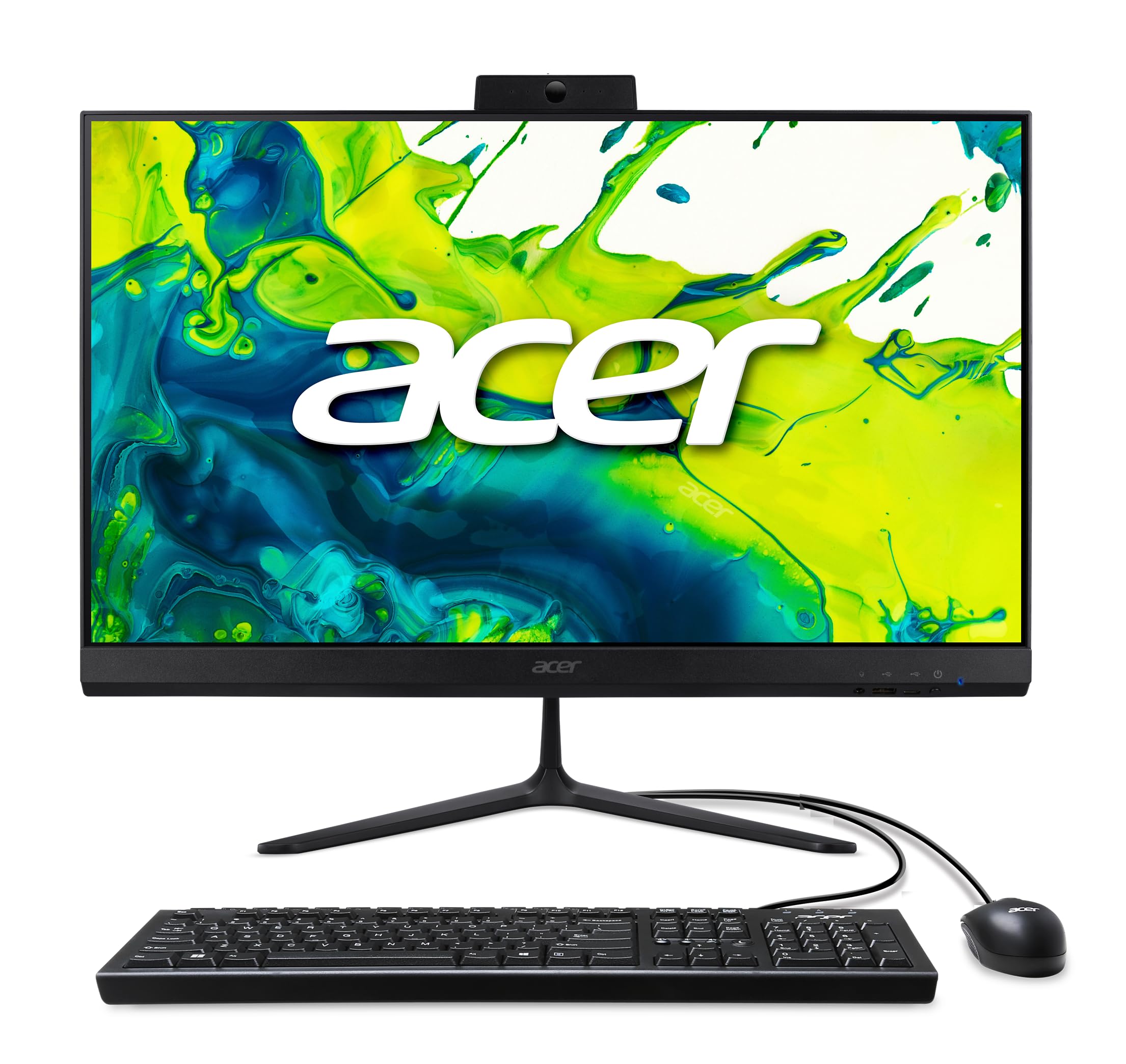
The Acer Aspire C27 All-in-One Desktop, featuring a 27-inch Full HD IPS 120Hz display and AMD Ryzen 7 5700U processor.
1. Setup
1.1 What's in the Box
- Acer Aspire C27 All-in-One Desktop
- USB Keyboard
- USB Mouse
- Power Cord
- AC Adapter
1.2 Initial Setup
- Unpack the Device: Carefully remove the All-in-One PC and all accessories from the packaging.
- Connect Keyboard and Mouse: Plug the USB keyboard and mouse into the available USB ports on the desktop. The Acer Aspire C27 features convenient front I/O access for easy connection.
- Connect Power: Connect the AC adapter to the power input port on the back of the desktop, then plug the power cord into a wall outlet.
- Power On: Press the power button, usually located on the bottom bezel of the display, to turn on the computer.
- Initial Windows Setup: Follow the on-screen instructions to complete the Windows 11 Home setup, including language, region, network connection (Wi-Fi 6 supported), and user account creation.

Front I/O ports for easy access to peripherals.

Rear view of the Acer Aspire C27, highlighting connectivity options.
2. Operating Instructions
2.1 Power On/Off
- To Power On: Press the power button located on the lower bezel of the display.
- To Shut Down: Click the Start button in Windows, then select Power > Shut down.
- To Restart: Click the Start button in Windows, then select Power > Restart.
- To Sleep: Click the Start button in Windows, then select Power > Sleep.
2.2 Display Features
The 27-inch Full HD IPS display offers a 120Hz refresh rate for smooth visuals and Acer VisionCare technology for comfortable viewing. Adjust display settings via Windows Settings > System > Display.

The slim design of the Acer Aspire C27.
2.3 Webcam Usage
The integrated 2.0MP webcam is suitable for video calls. For privacy, utilize the convenient webcam cover by sliding it over the camera lens when not in use.

Webcam with privacy shutter for enhanced security.
2.4 Connectivity
The system supports Wi-Fi 6 (802.11ax) for fast wireless connectivity and Bluetooth 5.2 for connecting wireless peripherals. Wired connections include Ethernet, HDMI out, DisplayPort out, and multiple USB ports (Type-C and Type-A).

Experience fast and stable Wi-Fi 6 connectivity.
3. Maintenance
3.1 Cleaning
- Screen: Use a soft, lint-free cloth slightly dampened with water or a screen cleaner. Avoid harsh chemicals.
- Chassis: Wipe the exterior with a soft, dry cloth.
- Vents: Periodically clean dust from the ventilation openings using compressed air to ensure proper airflow and prevent overheating.
3.2 Software Updates
Regularly check for and install Windows updates to ensure system security and performance. Go to Windows Settings > Windows Update.
3.3 Storage Management
The 1TB PCIe NVMe SSD provides ample storage. To maintain optimal performance, regularly delete unnecessary files, empty the recycle bin, and consider using disk cleanup tools available in Windows.
4. Troubleshooting
4.1 No Power
- Ensure the power cord is securely connected to both the desktop and the wall outlet.
- Verify the wall outlet is functional by plugging in another device.
- Check the AC adapter for any damage.
4.2 Display Issues
- If the screen is blank, ensure the computer is powered on and not in sleep mode.
- Adjust display brightness using the function keys on your keyboard or through Windows display settings.
- If an external monitor is connected, ensure the correct display output is selected (e.g., via Windows display settings).
4.3 Connectivity Problems
- Wi-Fi: Check if Wi-Fi is enabled in Windows settings. Restart your router and the computer.
- Bluetooth: Ensure Bluetooth is enabled and your device is discoverable. Try re-pairing the device.
- USB Devices: Try connecting the device to a different USB port. Ensure drivers are installed if required.
5. Specifications
| Brand | acer |
| Model Number | C27-2G-UR13 |
| Operating System | Windows 11 Home |
| CPU Model | AMD Ryzen 7 5700U Octa-Core Processor (Up to 4.3 GHz) |
| Graphics | AMD Radeon Integrated Graphics |
| Display | 27" Full HD (1920x1080) IPS LED Display, 120Hz Refresh Rate, 16:9 Aspect Ratio |
| Memory (RAM) | 16 GB DDR4 3200MHz SO-DIMM (Max 32 GB, 2 slots) |
| Storage | 1 TB PCIe NVMe SSD |
| Wireless Connectivity | Wi-Fi 6 802.11ax Dual-Band (2.4 GHz and 5 GHz), Bluetooth 5.2 |
| Ports | 1x USB 2.0 Type C (Front), 3x USB 2.0 Type A (1x Front, 2x Rear), 2x USB 3.2 Gen2 10Gbps Type A (Rear), 1x DisplayPort out, 1x HDMI 1.4b out, 1x Ethernet RJ-45, 1x Combo Audio Jack (Front) |
| Webcam | 2 MP (1920 x 1080) with 2 Microphones and Privacy Shutter |
| Audio | Built-in stereo speakers |
| Dimensions | 24.2 x 6.43 x 18.03 inches |
| Weight | 8.03 Kilograms |
6. Warranty Information
Your Acer Aspire C27 All-in-One Desktop comes with a 1 Year Parts and Labor Limited Warranty. This warranty includes toll-free technical support. Please retain your proof of purchase for warranty claims. For full terms and conditions, refer to the warranty card included with your product or visit the official Acer support website.
7. Support
For additional support, driver downloads, FAQs, or to contact customer service, please visit the official Acer support website. You can find detailed information and assistance for your product model there.
Online Support: www.acer.com/support


