
Marea B57014/1
MAREA Smartwatch B57014/1 User Manual
Comprehensive instructions for your MAREA Smartwatch
1. Introduction
Thank you for choosing the MAREA Smartwatch B57014/1. This manual provides detailed instructions on how to set up, operate, and maintain your device. Please read this manual carefully to ensure proper use and to maximize the functionality of your smartwatch.
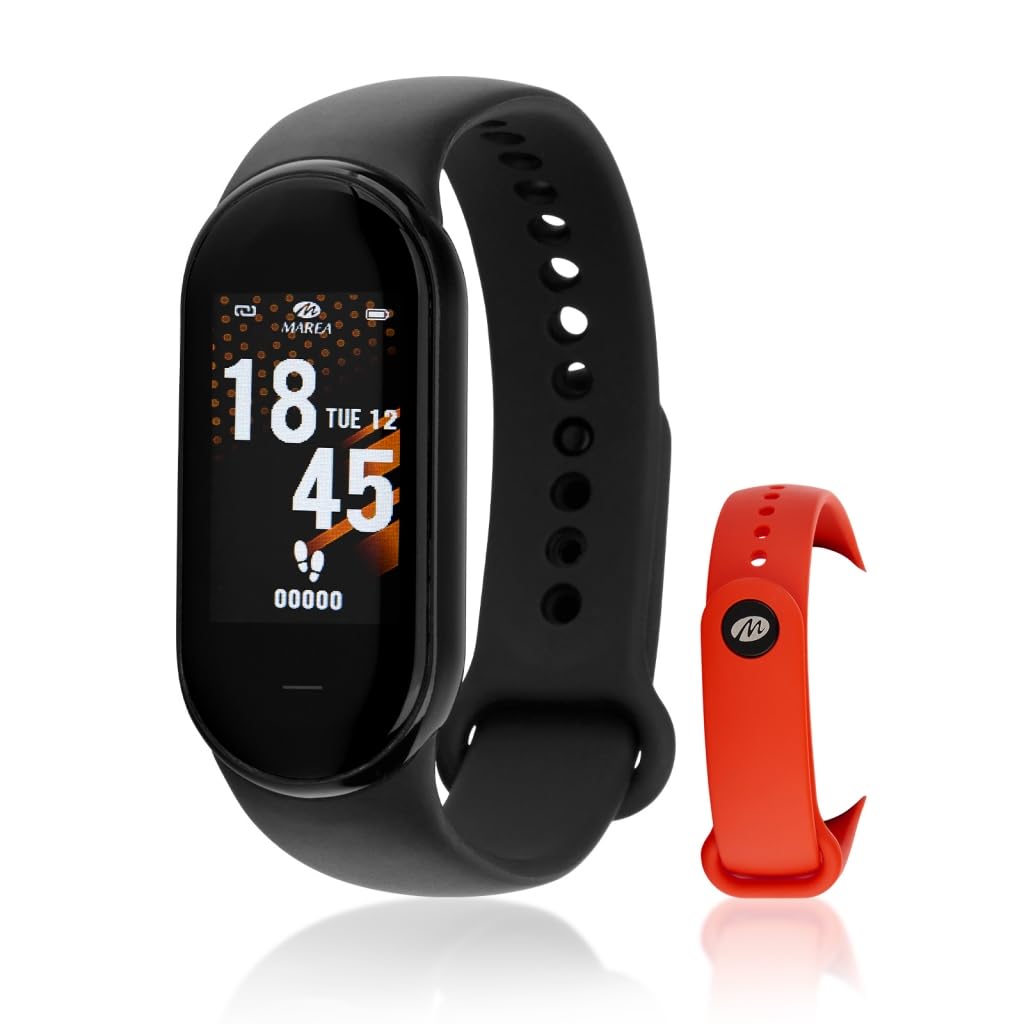
Figure 1: MAREA Smartwatch B57014/1 showing the device with both black and red silicone straps. The watch face displays time, date, and step count.
2. Setup and Initial Use
2.1. Charging the Device
Before first use, fully charge your smartwatch. Connect the charging cable to the designated port on the watch and to a standard USB power adapter. The screen will indicate charging status.
2.2. Pairing with Your Smartphone
- Download the official MAREA smartwatch application from your smartphone's app store (iOS or Android).
- Ensure Bluetooth is enabled on your smartphone.
- Open the MAREA application and follow the on-screen instructions to search for and connect to your B57014/1 smartwatch.
- Confirm the pairing request on both your smartphone and the smartwatch.
2.3. Strap Installation
The smartwatch comes with two silicone straps: one black and one red. To change the strap, locate the quick-release pins on the underside of the watch body where the strap connects. Slide the pin to detach the current strap and attach the desired strap by aligning the pin with the lug holes and releasing it.
3. Operating Instructions
3.1. Basic Navigation
- Touch Screen: The 1.14-inch touch screen allows for intuitive navigation. Swipe left, right, up, or down to access different functions and menus.
- Wake Screen: Raise your wrist to automatically illuminate the screen, or press the side button (if present) to wake the device.
3.2. Key Features
Your MAREA Smartwatch B57014/1 offers a range of features to support your daily activities and health monitoring:
- Activity Tracking: Monitors steps taken, calories burned, and distance traveled. Set daily step goals through the app.
- Health Monitoring: Includes heart rate monitoring, automatic heart rate testing, and blood pressure measurement.
- Sleep Monitoring: Tracks your sleep patterns to provide insights into sleep quality.
- Sport Mode: Dedicated modes for various sports activities to track performance more accurately.
- Notifications: Receive alerts for calls, messages, and social media directly on your wrist. You can also read received messages.
- Reminders: Sedentary reminders encourage movement, and customizable alarms help manage your schedule.
- Remote Camera Control: Use your smartwatch as a remote shutter for your smartphone camera.
- Anti-Loss Function: Helps locate your watch or phone if misplaced (within Bluetooth range).
- Customizable Watch Faces: Choose from various home screen designs to personalize your device.
3.3. Do Not Disturb Mode
Activate "Do Not Disturb" mode through the smartwatch settings or the companion app to silence notifications during specific times or activities.
4. Maintenance and Care
- Cleaning: Wipe the smartwatch screen and body with a soft, dry cloth. For stubborn dirt, use a slightly damp cloth and dry immediately. Avoid harsh chemicals.
- Water Resistance: The device is IP68 water-resistant, meaning it can withstand immersion in water up to 1.5 meters for up to 30 minutes. It is suitable for daily use and showering, but not recommended for diving or high-pressure water activities.
- Battery Care: To prolong battery life, avoid extreme temperatures and do not allow the battery to fully discharge frequently.
- Storage: When not in use for extended periods, store the smartwatch in a cool, dry place.
5. Troubleshooting
| Problem | Possible Solution |
|---|---|
| Device does not turn on. | Ensure the device is fully charged. Connect to the charger and wait a few minutes before attempting to power on. |
| Cannot pair with smartphone. |
|
| Notifications are not received. |
|
| Inaccurate health data. | Ensure the smartwatch is worn snugly on your wrist, not too tight or too loose. Clean the sensors regularly. |
6. Specifications
- Model: B57014/1
- Display: 1.14-inch Touch Screen
- Battery Capacity: 180 mAh
- Battery Life: Approximately 3 days (may vary with usage)
- Case Dimensions: 48 x 22 mm
- Case Material: Plastic (Black)
- Strap Material: Silicone (Black, with additional Red strap)
- Water Resistance: IP68
- Connectivity: Bluetooth
- Functions: Step counter, calorie counter, distance tracker, step goal, DND mode, sleep monitor, heart rate, auto heart rate test, blood pressure, sport mode, sedentary reminder, notifications (social media, email, calls), message reading, alarms, remote camera, anti-loss, customizable watch face, find watch/phone, wrist-raise to wake.
7. Warranty and Support
For warranty information and technical support, please refer to the documentation provided with your purchase or visit the official MAREA website. Keep your proof of purchase for warranty claims.
Official Website: www.marea.es
Ask a question about this manual
Ask about setup, troubleshooting, compatibility, parts, safety, or missing instructions. Manuals+ will review the question and use this page’s manual context to help answer it.