
1. Product Overview
The SIXWIN Android 15 Car Radio is designed to upgrade your Ford Focus Mk2 or Mk3 (2004-2011) with advanced infotainment features. It runs on the latest Android 15 operating system, offering a responsive and fluid user experience with 4GB RAM and 64GB internal storage. The 9-inch HD (1280x720) touchscreen provides clear visuals and intuitive control.
Key features include wireless CarPlay and Android Auto for seamless smartphone integration, Mirror Link functionality, integrated GPS navigation, stable dual-band WiFi, Bluetooth for hands-free calls and music streaming, FM/RDS radio, and a customizable 32-band equalizer for optimal audio performance. The system also supports advanced customization options like a personalized home screen and split-screen multitasking.

Image 1.1: Comparison of the Ford Focus dashboard before and after installing the SIXWIN Android 15 Car Radio, showing the integrated 9-inch touchscreen.
2. Setup and Installation
2.1 Compatibility
This car radio is specifically designed for Ford Focus Mk2 and Mk3 models manufactured between 2004 and 2011. It ensures a plug-and-play installation and seamless aesthetic integration with your vehicle's dashboard.
2.2 Package Contents
Before beginning installation, verify that all components listed in the "What's in the Box" section are present.
2.3 Installation Steps (General Guidelines)
Installation typically involves removing the original car radio and connecting the new unit using the provided wiring harnesses. Due to the specific nature of vehicle electronics, professional installation is recommended. Ensure the vehicle's battery is disconnected before starting any electrical work.
- Disconnect Battery: Always disconnect the negative terminal of your car battery before starting.
- Remove Old Unit: Carefully remove the existing car radio and trim panels.
- Connect Wiring: Connect the provided power cable, USB cables, GPS antenna, and rear camera input cable to the corresponding ports on the new unit and your vehicle's wiring harness. The included Canbus adapter ensures proper communication with your vehicle's systems.
- Mounting: Use the provided mounting brackets and screws to secure the new car radio into the dashboard opening.
- Reconnect Battery: Once all connections are secure and the unit is mounted, reconnect the car battery.
- Initial Power On: Turn on the vehicle and the car radio to perform initial setup and testing.

Image 2.1: The SIXWIN Android 15 Car Radio unit, showcasing its 9-inch touchscreen display.
3. Operating Instructions
3.1 Android 15 System and Display
The unit operates on Android 15, providing a fast and stable experience. The 9-inch HD (1280x720) touchscreen offers vibrant colors and high clarity. The display features IPS technology for wide viewing angles, 2.5D curved glass, and an anti-blue light filter for reduced eye strain.
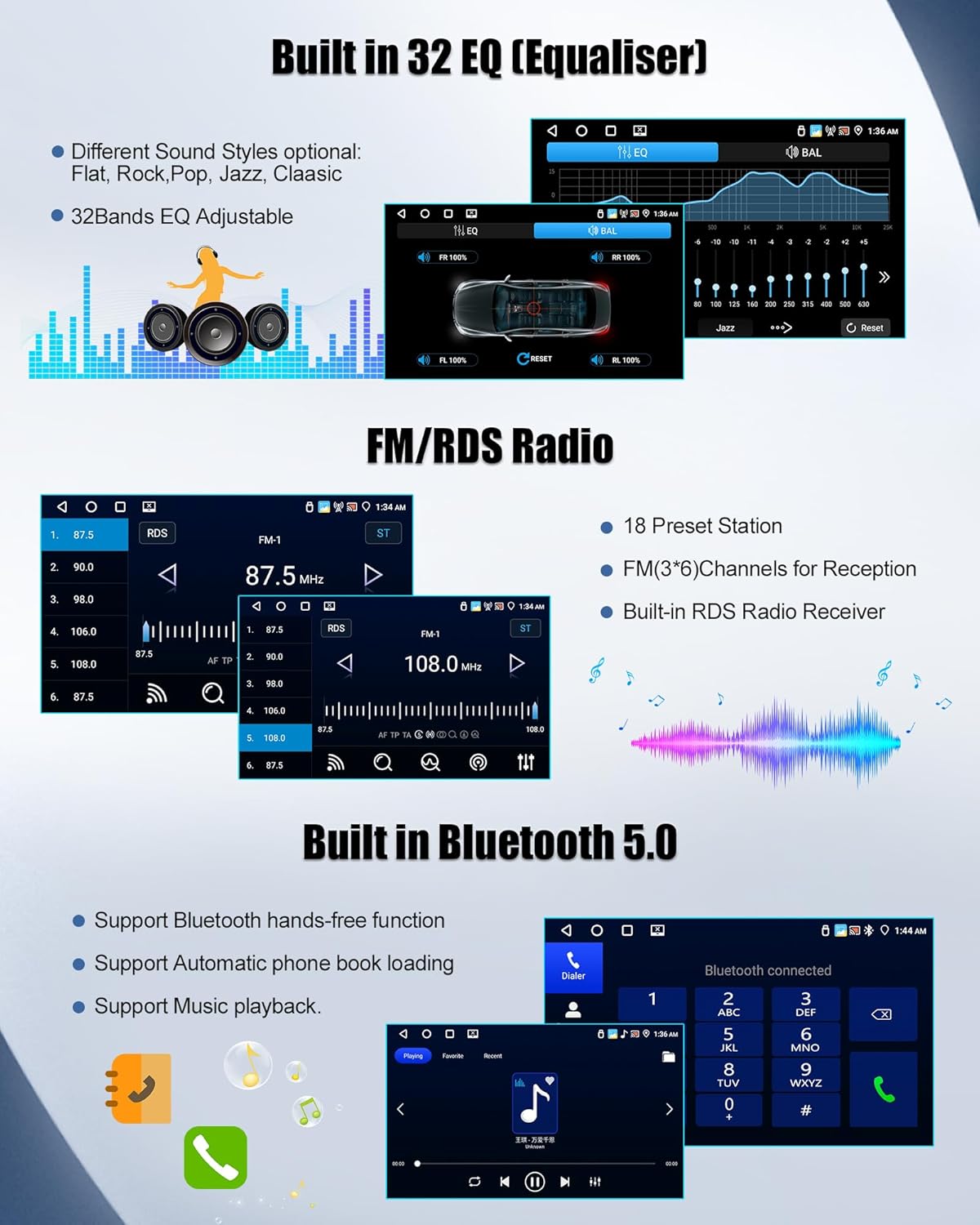
Image 3.1: Visual representation of the IPS display screen with 2.5D touch glass, highlighting its features like IPS, 2.5D, touchscreen, and anti-blue light.
3.2 Wireless CarPlay & Android Auto
Connect your smartphone wirelessly to access navigation, make hands-free calls, send messages, and control music via voice commands or the touchscreen. The connection activates quickly upon entering the vehicle.
- Pairing: Enable Bluetooth and Wi-Fi on your smartphone. On the car radio, navigate to the CarPlay/Android Auto application and follow the on-screen instructions to pair your device.
- Functionality: Once connected, your phone's compatible apps will appear on the car radio screen, allowing for safe and convenient use while driving.

Image 3.2: The user interface for Wireless CarPlay and Android Auto, showing various app icons for navigation, music, and communication.
3.3 Mirror Link Function
Mirror Link allows you to duplicate your smartphone's screen onto the car radio display. This is useful for displaying navigation apps or streaming video content when the vehicle is stationary.
- Android Devices: Connect via Wi-Fi or USB.
- iOS Devices: Connect via Wi-Fi.
- Activation: Access the Mirror Link application on the car radio and follow the pairing instructions for your specific phone model.

Image 3.3: A visual guide to the Mirror Link function, illustrating how a smartphone screen is mirrored onto the car radio display for both iOS and Android devices.
3.4 Integrated GPS Navigation & WiFi
The built-in GPS receiver supports both online and offline maps (compatible with Google Maps, Waze). Stable dual-band WiFi connectivity ensures quick access to online applications, music streaming, and news updates.
- GPS: Launch your preferred navigation app. Ensure the GPS antenna is properly installed for optimal signal reception.
- WiFi: Connect to an available Wi-Fi network (e.g., mobile hotspot) via the system settings to enable online features.

Image 3.4: The GPS navigation interface displaying a map with turn-by-turn directions and various menu icons.
3.5 Bluetooth, FM/RDS Radio & Advanced Equalizer
- Bluetooth: Automatically syncs your contact list and allows high-quality wireless music streaming. Pair your phone through the Bluetooth settings menu.
- FM/RDS Radio: The integrated tuner provides local news and real-time traffic updates. Tune to your desired frequency using the radio application.
- 32-Band Equalizer: Customize audio output with the 32-band equalizer. Select from various presets (Rock, Pop, Classical) or manually adjust frequencies to match your preferences and vehicle acoustics.

Image 3.5: The FM RDS radio interface, showing a digital frequency display and an audio equalizer visualization.

Image 3.6: The equalizer (EQ) settings screen, allowing for detailed audio customization with a frequency spectrum display.
3.6 Advanced Customization & Multitasking
- Customizable Home Screen: Arrange application icons for quick access to your favorite apps.
- Split-Screen Function: Use two applications simultaneously (e.g., navigation and music player) and adjust window sizes as needed.

Image 3.7: The split-screen function in action, showing navigation and music applications running side-by-side on the display.
3.7 Rear Camera Integration
The unit supports a rear view camera input, providing enhanced safety during parking and reversing. The system automatically displays the camera feed when the vehicle is in reverse gear.

Image 3.8: The rear view camera display, featuring night vision capabilities and parking guidelines for easier maneuvering.
4. Maintenance
To ensure the longevity and optimal performance of your SIXWIN car radio, follow these general maintenance guidelines:
- Cleaning the Screen: Use a soft, lint-free cloth to gently wipe the touchscreen. For stubborn smudges, slightly dampen the cloth with water or a screen-safe cleaner. Avoid harsh chemicals or abrasive materials.
- Software Updates: Periodically check for available software updates through the system settings to ensure you have the latest features and performance improvements.
- Environmental Conditions: Avoid exposing the unit to extreme temperatures, direct sunlight for prolonged periods, or excessive moisture.
- Cable Connections: Periodically check all cable connections to ensure they are secure and free from damage.
5. Troubleshooting
This section addresses common issues you might encounter. For more complex problems, please contact customer support.
| Problem | Possible Cause | Solution |
|---|---|---|
| Unit does not power on. | Loose power connection, blown fuse, vehicle battery issue. | Check power cable connections. Inspect vehicle fuses. Ensure car battery is charged. |
| No sound or distorted audio. | Incorrect speaker wiring, volume too low, EQ settings. | Verify speaker connections. Adjust volume. Reset EQ settings to default or adjust. |
| GPS signal is weak or inaccurate. | GPS antenna improperly installed or obstructed. | Ensure the GPS antenna is mounted in a clear location with an unobstructed view of the sky. Check antenna connection. |
| CarPlay/Android Auto not connecting. | Bluetooth/Wi-Fi issues on phone or unit, incompatible phone. | Restart phone and car radio. Ensure Bluetooth and Wi-Fi are enabled on both devices. Check phone compatibility. |
| Engine fault or power loss after installation. | Potential issue with the CAN-BUS adapter. | This is a critical issue. Immediately consult a professional automotive technician. The CAN-BUS adapter may be causing interference with the vehicle's engine control unit. |
| Screen display issues (e.g., lines on screen). | Manufacturing defect or damage during installation. | If present from the start, contact customer support for a replacement. If it occurred after installation, check for physical damage or improper seating. |
6. Technical Specifications
| Feature | Detail |
|---|---|
| Operating System | Android 15 |
| RAM | 4 GB |
| Internal Storage | 64 GB |
| Display Size | 9 inches |
| Display Resolution | HD (1280x720) |
| Connectivity Technology | Wi-Fi, Bluetooth |
| Special Features | Wireless CarPlay & Android Auto, Mirror Link, Integrated GPS, FM/RDS Radio, 32-band EQ |
| Compatible Devices | Ford Focus Exi MT 2 3 Mk2/Mk3 (2004-2011) |
| Connector Type | USB, FM Antenna |
| Audio Output Mode | Stereo |
| Surround Sound Channels | 5.1 |
| Output Power | 45 Watts |
| Video Encoding | H.264, H.265/HEVC, MPEG-4, etc. |
| Product Dimensions | 32 x 22.5 x 9.5 cm; 1.58 kg |
| Country of Origin | China |
7. What's in the Box
The package includes the following components:
- 1 x Car Player Unit + 1 x Canbus
- 1 x Power Cable + 2 x USB Cables + 1 x GPS Antenna
- 1 x Rear Camera Input Cable + 1 x Rear Camera
- 1 x RCA Cable + 1 x Microphone
- 2 x Mounting Brackets + 4 x Screws + 1 x Instruction Manual
8. Warranty and Support
8.1 Warranty Information
This product comes with a 2-year warranty. Additionally, a 30-day return policy is available from the date of purchase.
8.2 Customer Support
For any questions, technical assistance, or warranty claims, please contact our customer support team. We offer 24-hour service.
You can find additional help and user manuals at: SixWinVip126.com

Image 8.1: A customer service representative, symbolizing the available support and assistance.
