
ISTOYO IS-CALENDAR-DE
ISTOYO 15.6-inch Digital Smart Calendar
Model: IS-CALENDAR-DE - Instruction Manual
Introduction
The ISTOYO 15.6-inch Digital Smart Calendar is an electronic device designed to streamline family and office organization. This Wi-Fi connected, touchscreen calendar offers a centralized platform for managing schedules, tasks, and communications. It integrates various features to enhance daily planning and coordination for multiple users.

Image: The ISTOYO Digital Smart Calendar showing its interface alongside a smartphone displaying the companion app. This illustrates the device's connectivity and user interface.
Package Contents
Before proceeding with setup, please verify that all items are present in the package:
- ISTOYO 15.6-inch Digital Smart Calendar Unit
- Power Adapter
- Desktop Stand
- Wall Mounting Screws and Anchors (x2)
- Small Screwdriver
- Drilling Template for Wall Mounting
- Instruction Manual

Image: An exploded view diagram illustrating the calendar unit, desktop holder, power plug, screws, and expansion bolts included in the package. This helps users confirm they have all necessary parts for installation.
Setup
- Placement: Decide whether to place the calendar on a desk using the included stand or mount it on a wall.
- Power Connection: Connect the power adapter to the calendar unit and plug it into a power outlet. The device will automatically power on.
- Initial Configuration: Follow the on-screen prompts to select your language, time zone, and connect to your Wi-Fi network. A stable Wi-Fi connection is essential for full functionality.
- App Download: Download the "eCalendar" companion app on your smartphone (available on Apple App Store and Google Play Store). Scan the QR code displayed on the calendar screen or found in the quick start guide to easily locate the app.
- Account Registration & Device Pairing: Register for an account within the eCalendar app. Once registered, follow the app's instructions to pair your smartphone with the ISTOYO Digital Smart Calendar. This typically involves scanning a QR code displayed on the calendar screen using the app.
- Mounting (Optional):
- Desktop Stand: Attach the metal stand to the back of the calendar unit using the provided screws. Ensure it is securely fastened.
- Wall Mount: Use the drilling template to mark the desired position on the wall. Drill holes, insert the anchors, and then secure the calendar to the wall using the provided screws. Ensure the mounting is level and secure. The device can be oriented in either portrait or landscape mode.

Image: A visual guide demonstrating the three steps for device placement: deciding on wall mount or stand, mounting with screws and anchors, and adjusting orientation. This clarifies the physical setup process.
Operating Instructions
1. Calendar Management
The 15.6-inch touchscreen allows direct interaction with the calendar. You can add, edit, and view events directly on the device or through the eCalendar app. Events can be color-coded to differentiate between family members or event types, providing a clear overview of everyone's schedule.
- Adding Events: Tap the '+' icon on the calendar interface or in the app to create a new event. Enter details such as title, date, time, participants, and assign a color.
- Viewing Options: Switch between daily, weekly, and monthly views to suit your preference.
- Synchronization: The calendar supports one-click data synchronization with popular calendar services including Google Calendar, Outlook, Apple Calendar, Yahoo, iCloud, and Cozi. This ensures all your appointments are consolidated in one place.

Image: The calendar screen showing integration with various online calendar services like Google, Outlook, Apple, Yahoo, iCloud, and Cozi. This highlights the device's broad compatibility for schedule synchronization.
2. Photo Album Function
Utilize the calendar's 32GB internal memory to store and display your favorite photos. The device can function as a digital photo frame, showcasing a dynamic slideshow of images. Photos can be uploaded via the eCalendar app.
- Uploading Photos: Use the eCalendar app to select and upload photos from your smartphone to the device.
- Display Modes: Configure the calendar to display photos as a screensaver or as rotating backgrounds.
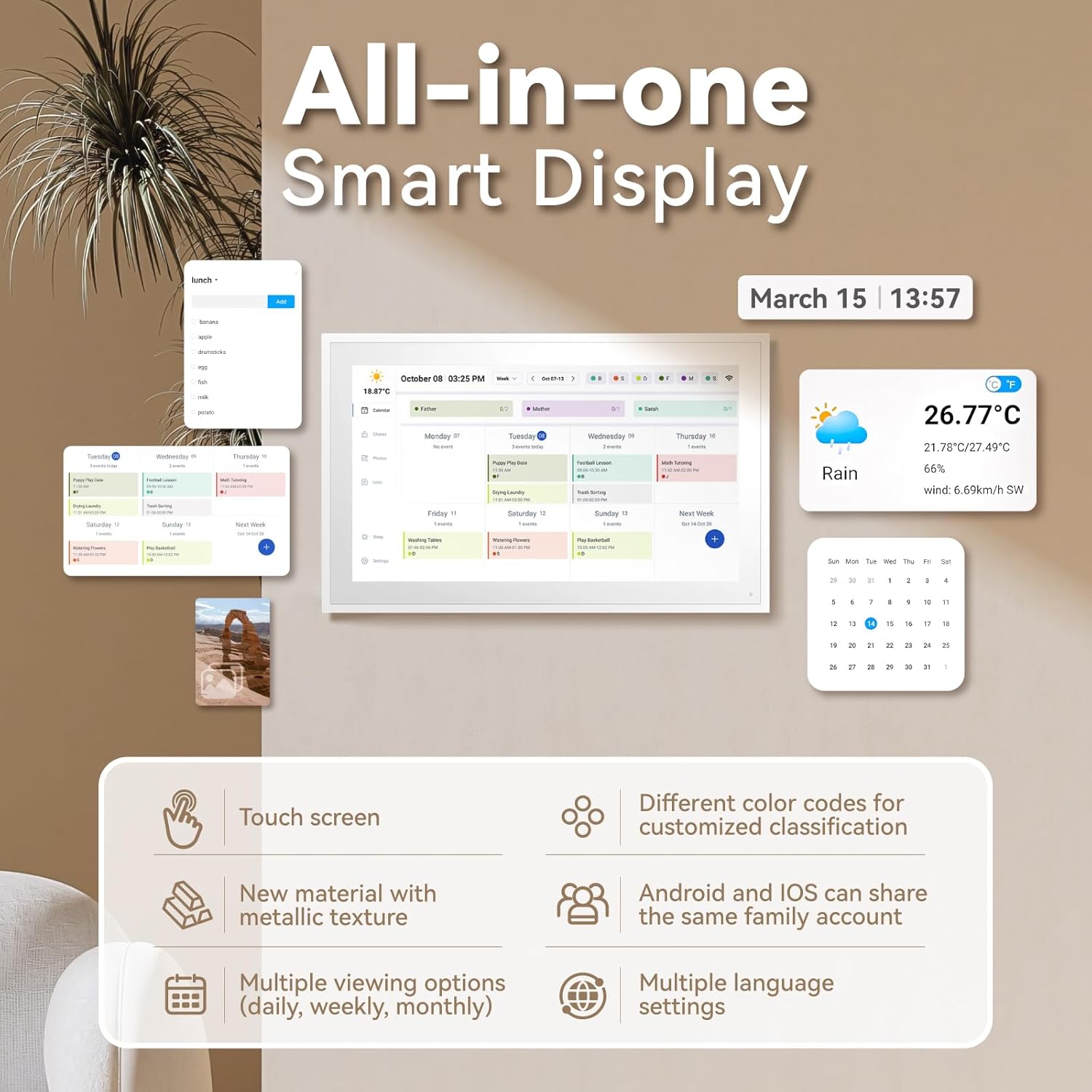
Image: The calendar screen displaying a photo album, with a smartphone showing the eCalendar app's photo upload feature. This demonstrates how users can manage and display personal photos on the device.
3. Task Management & Reward System
Create and manage to-do lists and assign tasks to different family members. The integrated reward system allows for assigning stars upon task completion, which can be used to motivate children and track progress.
- Creating Tasks: Add tasks with due dates and assign them to specific users.
- Tracking Progress: Mark tasks as complete and award stars.
4. Meal Planning & Shopping Lists
Plan your meals and create shopping lists directly on the device or through the app. This feature helps organize household logistics efficiently.
- Meal Categories: Organize meals by categories (e.g., breakfast, lunch, dinner).
- Recipe Management: Add and manage recipes.
- Shopping Lists: Create and synchronize shopping lists for easy access.
5. Weather Display
The calendar can display current weather conditions and a three-day forecast for any selected city. This information is typically shown prominently on the main display.

Image: A close-up of the calendar screen showing an advanced weather forecast interface, detailing temperature, humidity, and wind direction for selected cities over three days. This illustrates the weather display functionality.
6. Multi-User Access and Information Sharing
The ISTOYO calendar supports connection to up to 20 user accounts. Family members can share schedule information, ensuring everyone is aware of each other's plans. Remote access via the app allows for managing schedules from anywhere.

Image: A family interacting with the digital calendar, emphasizing the multi-user connectivity and shared task management features. This visually represents the collaborative aspect of the device.
Specifications
| Brand | ISTOYO |
| Model Number | IS-CALENDAR-DE |
| Screen Size | 15.6 inches (39.6 cm) |
| Product Dimensions (L x W x H) | 25 x 25 x 40 cm |
| Item Weight | 2.6 Kilograms |
| Internal Storage | 32GB |
| Connectivity | Wi-Fi |
| Compatible Calendars | Google, Outlook, Apple, Cozi, Yahoo, iCloud |
| Origin | China |

Image: A diagram detailing the physical dimensions of the 15.6-inch touchscreen calendar, including its height and width. This provides clear size information for users.
Maintenance
- Cleaning: Use a soft, dry, lint-free cloth to clean the screen and exterior. Avoid abrasive cleaners or solvents.
- Software Updates: Ensure the device's software is kept up-to-date for optimal performance and security. Updates are typically managed through the eCalendar app or directly on the device.
- Power Management: The device features a sleep mode to conserve energy. It will resume normal operation after a power interruption without data loss.
Troubleshooting
| Problem | Possible Cause | Solution |
|---|---|---|
| Device does not power on. | Power adapter not connected or faulty outlet. | Ensure the power adapter is securely connected to the device and a working power outlet. Try a different outlet. |
| Cannot connect to Wi-Fi. | Incorrect password, weak signal, or router issue. | Verify Wi-Fi password. Move the device closer to the router. Restart your router. |
| Calendar events not syncing. | App not paired, incorrect calendar settings, or internet connectivity issues. | Check app pairing status. Verify calendar synchronization settings in the eCalendar app. Ensure stable internet connection. |
| Photos not uploading/displaying. | App connection issue, insufficient storage, or incorrect file format. | Confirm app is connected. Check available storage. Ensure photos are in a compatible format (e.g., JPEG, PNG). |
Warranty and Support
For warranty information, technical support, or service inquiries, please refer to the contact details provided with your purchase documentation or visit the official ISTOYO website. Keep your proof of purchase for warranty claims.
Ask a question about this manual
Ask about setup, troubleshooting, compatibility, parts, safety, or missing instructions. Manuals+ will review the question and use this page’s manual context to help answer it.