
1. Introduction
Welcome to the user manual for your new XINDADA H99 2025 Smartwatch. This manual provides essential information on how to set up, operate, and maintain your device. Please read it carefully to ensure optimal performance and longevity of your smartwatch.
2. Safety Information
- Battery Safety: Do not attempt to replace the battery yourself. Use only the provided charging cable and adapter. Avoid exposing the device to extreme temperatures or direct sunlight for prolonged periods.
- Water Resistance: The device may have a degree of water resistance; however, it is not waterproof. Avoid submerging the watch in water or exposing it to high-pressure water jets.
- Operating Environment: Operate the smartwatch within a temperature range of 0°C to 40°C (32°F to 104°F).
- Medical Devices: If you use a pacemaker or other medical electronic equipment, consult your physician before using this device.
- Disposal: Dispose of the device and its battery responsibly according to local regulations. Do not dispose of it with household waste.
3. Package Contents
Please check the box for the following items:
- XINDADA H99 2025 Smartwatch
- Charging Cable
- User Manual
If any items are missing or damaged, please contact your retailer.
4. Product Overview
Familiarize yourself with the components of your XINDADA H99 2025 Smartwatch.

Image 1: Front view of the XINDADA H99 2025 Smartwatch, highlighting the main display and the integrated rotatable camera mechanism on the side.

Image 2: The XINDADA H99 2025 Smartwatch showcasing its 190-degree rotatable pull-out HD camera, designed for versatile photography and video calls.
- AMOLED Display: 1.95-inch (4.95 cm) round touchscreen for clear visuals and interactive control.
- Rotatable Camera: Integrated HD camera that can be rotated for various viewing angles.
- Power/Function Button: Located on the side, used for powering on/off, waking the screen, and returning to the home screen.
- SIM Card Slot: Supports 4G Nano-SIM cards for cellular connectivity.
- Microphone: For voice commands and calls.
- Speaker: For audio output during calls, notifications, and media playback.
- Charging Port: Magnetic charging pins on the back of the watch.
- Sensors: Various sensors for health tracking and device functionality.
5. Setup
5.1. Charging the Smartwatch
Before first use, fully charge your smartwatch. Connect the magnetic charging cable to the charging pins on the back of the watch and plug the USB end into a power adapter (not included) or a computer's USB port. The screen will indicate charging status.
5.2. Power On/Off
- Power On: Press and hold the Power/Function button until the XINDADA logo appears.
- Power Off: Press and hold the Power/Function button, then select 'Power Off' on the screen.
5.3. SIM Card Installation
The XINDADA H99 2025 supports 4G cellular connectivity via a Nano-SIM card.
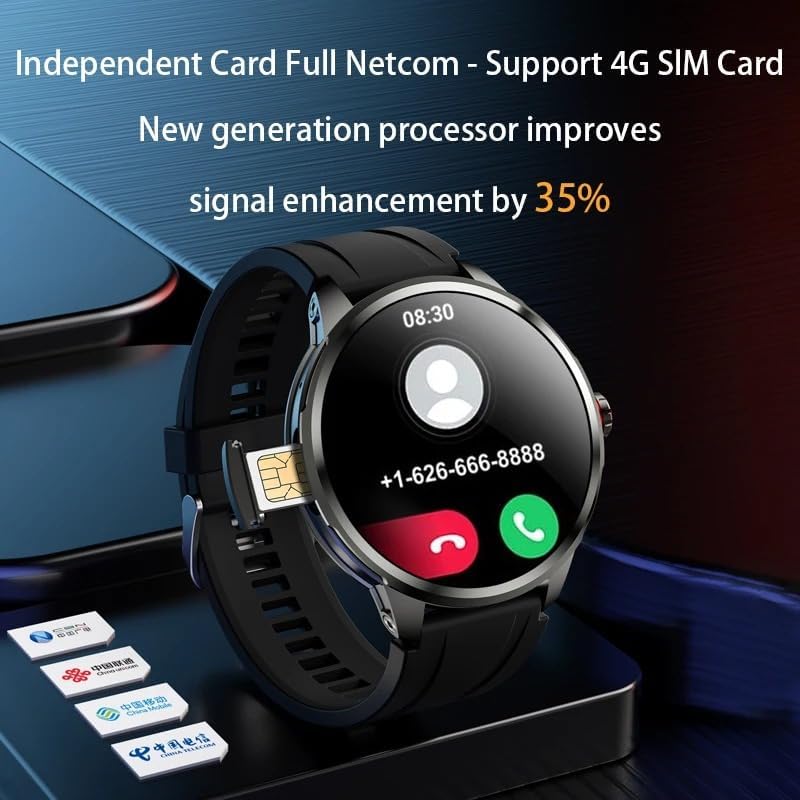
Image 3: The XINDADA H99 2025 Smartwatch displaying its SIM card slot, indicating support for 4G independent network communication.
- Locate the SIM card slot on the side of the smartwatch.
- Carefully open the SIM card tray using the provided tool (if applicable) or by gently prying it open.
- Insert a Nano-SIM card into the tray with the gold contacts facing down and the notched corner aligned correctly.
- Gently push the SIM card tray back into the slot until it clicks into place.
5.4. Initial Configuration
Upon first power-on, the smartwatch will guide you through initial setup steps:
- Language Selection: Choose your preferred language.
- Time and Date: Set the correct time zone and synchronize time.
- Wi-Fi Connection: Connect to a Wi-Fi network for internet access and software updates.
- Account Setup: Log in with your Google account or create a new one to access the app store and other Android services.
6. Operating Instructions
6.1. Basic Navigation
- Touchscreen: Tap to select, swipe to scroll, pinch to zoom (where applicable).
- Home Screen: Displays time, date, notifications, and quick access icons.
- Notifications: Swipe down from the top of the screen to view notifications.
- Quick Settings: Swipe down again or from the top right to access quick settings like Wi-Fi, Bluetooth, brightness.
- App Drawer: Swipe up from the bottom or press the function button to access all installed applications.
6.2. Calls and Messages
With a 4G SIM card installed, you can make and receive calls and messages directly from your smartwatch.
- Making Calls: Open the 'Phone' app, dial a number, or select a contact.
- Receiving Calls: Tap the green icon to answer or the red icon to decline.
- Messaging: Use the 'Messages' app to send and receive SMS.
6.3. Using the Rotatable Camera
The integrated HD camera can be rotated up to 190 degrees for flexible photo and video capture.
- Open the 'Camera' app.
- Gently rotate the camera module on the side of the watch to your desired angle.
- Tap the screen to focus and press the shutter button to take a photo or start/stop video recording.
6.4. GPS and Navigation
The smartwatch features built-in GPS for location tracking and navigation. Use compatible mapping applications downloaded from the app store.
6.5. Wi-Fi Connectivity
To connect to a Wi-Fi network:
- Go to 'Settings' > 'Network & Internet' > 'Wi-Fi'.
- Turn on Wi-Fi and select your desired network.
- Enter the password if prompted.
6.6. App Installation
As an Android OS device, the H99 2025 supports a wide range of applications.
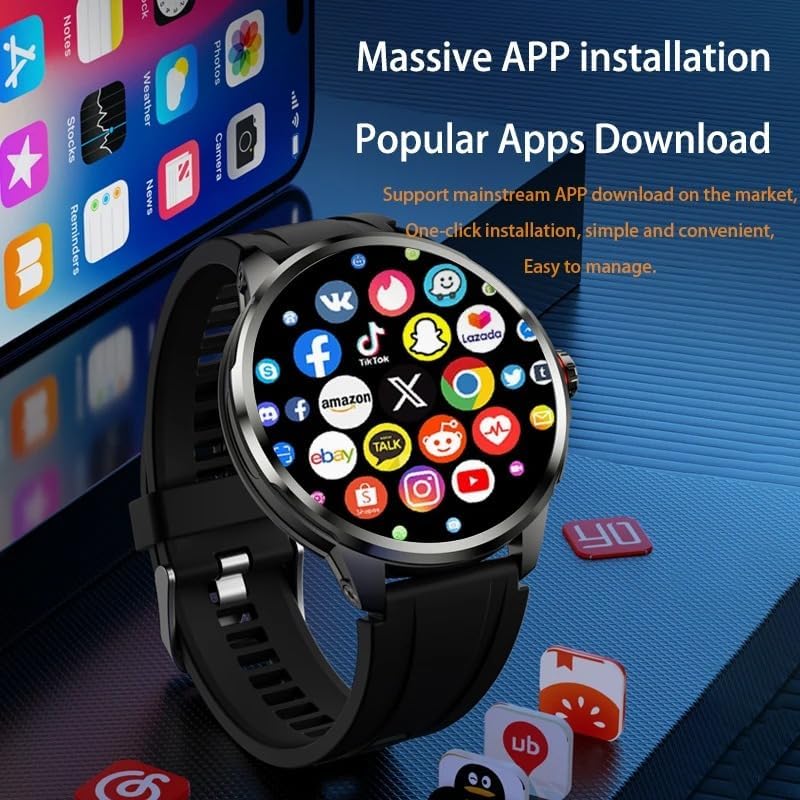
Image 4: The XINDADA H99 2025 Smartwatch screen showing a grid of popular application icons, illustrating its capability for massive app installation and downloads.
- Open the 'Play Store' app (or equivalent app store).
- Search for the desired application.
- Tap 'Install' to download and install the app.
6.7. Facial Recognition
Set up facial recognition for secure unlocking of your smartwatch.
- Go to 'Settings' > 'Security & Location' > 'Face Unlock'.
- Follow the on-screen instructions to register your face.
- Once set up, your watch can be unlocked by recognizing your face.
6.8. Media Playback
The large AMOLED screen supports video playback.
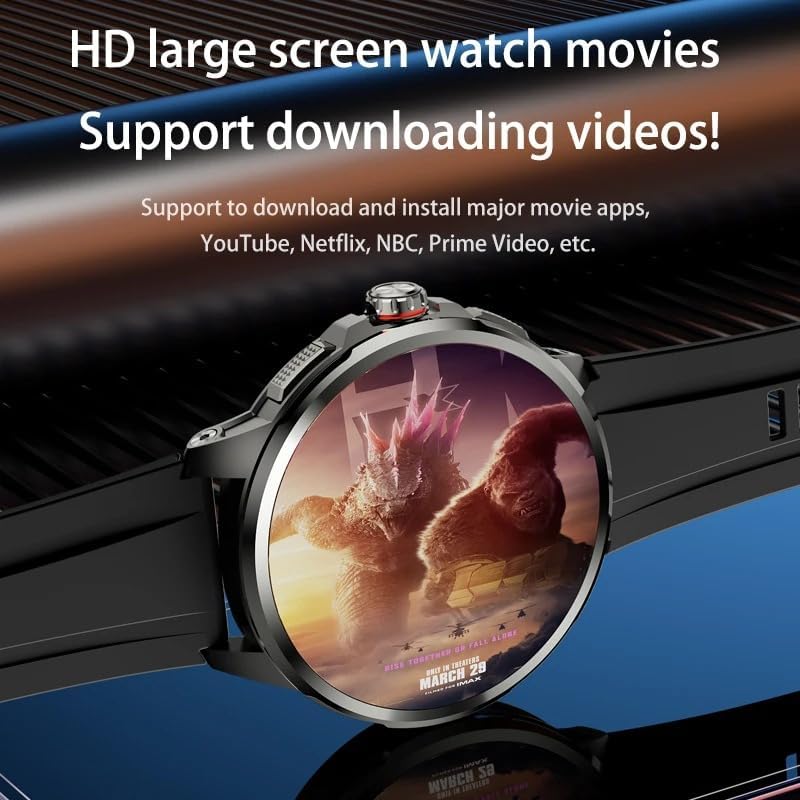
Image 5: The XINDADA H99 2025 Smartwatch displaying a movie on its HD large screen, demonstrating its capability to download and play videos from various platforms.
Download video streaming apps or transfer video files to the watch's storage to enjoy media on the go.
7. Maintenance
7.1. Cleaning
- Wipe the screen and watch body with a soft, lint-free cloth.
- Avoid using harsh chemicals or abrasive materials.
- Ensure the charging contacts are clean and dry before charging.
7.2. Storage
When not in use for extended periods, store the smartwatch in a cool, dry place. Charge the battery periodically to prevent deep discharge.
7.3. Software Updates
Regularly check for and install software updates to ensure optimal performance, security, and access to new features. Go to 'Settings' > 'About Watch' > 'Software Update'.
8. Troubleshooting
| Issue | Possible Solution |
|---|---|
| Watch does not power on | Ensure the battery is charged. Connect to the charger for at least 30 minutes. If still unresponsive, perform a forced restart by holding the Power/Function button for 15 seconds. |
| Cannot connect to Wi-Fi/4G | Check Wi-Fi settings and password. Ensure the SIM card is correctly inserted and activated. Restart the watch and try again. Verify network coverage for 4G. |
| Touchscreen unresponsive | Restart the smartwatch. Ensure the screen is clean and dry. If the issue persists, contact support. |
| Apps crashing or freezing | Close and reopen the app. Clear the app's cache in 'Settings' > 'Apps'. Ensure the watch's software is up to date. |
9. Specifications

Image 6: Close-up of the XINDADA H99 2025 Smartwatch's 1.95-inch AMOLED HD large screen, highlighting its 720x720 display resolution and 98% Adobe RGB Ultra-Wide Color Gamut.
- Model: H99 2025
- Brand: XINDADA
- Operating System: Android OS
- Display: 1.95-inch (4.95 cm) AMOLED HD Round Display, 720*720 Resolution
- Processor: High-performance flagship chip
- Memory: 4GB RAM
- Storage: 128GB
- Connectivity: 4G (SIM card support), GPS, Wi-Fi, Bluetooth
- Camera: 190° Rotatable HD Camera
- Special Features: Facial Recognition
- Color: Silice noire (Black Silicone)
10. Warranty and Support
For warranty information and customer support, please refer to the warranty card included with your purchase or contact your retailer. Information regarding spare parts availability and software updates beyond the initial period is not available at this time.