1. Introduction
This manual provides instructions for the NPET S21 Wireless Gaming Keyboard and Mouse Combo. This combo features 2.4G high-speed wireless transmission, ensuring stable performance for various tasks. The keyboard and mouse are designed for ergonomic comfort and durability, with customizable RGB backlighting and programmable functions.
2. Package Contents
- NPET S21 Wireless Gaming Keyboard
- NPET S21 Wireless Gaming Mouse
- Purple Mouse Pad
- USB Receiver (located at the bottom of the mouse)
- USB Charging Cable
- Keycap Puller Tool
- Extra Key Switches
- Instruction Manual
3. Setup
3.1 Connecting the Device
- Locate the USB receiver at the bottom of the mouse.
- Insert the USB receiver into an available USB port on your computer.
- Turn on both the keyboard and the mouse. They are pre-paired and should connect automatically.
 Image: NPET S21 Wireless Gaming Keyboard and Mouse Combo set up on a desk.
3.2 Charging the Keyboard and Mouse
The keyboard is equipped with a 3000 mAh battery, and the mouse with an 800 mAh battery. For optimal performance, charge both devices for 8 hours before initial use.
- Connect the provided USB charging cable to the keyboard/mouse and a power source.
- The devices feature smart energy-saving functions, automatically entering sleep mode after 2 minutes of inactivity. Press any key to wake them up.
 Image: Keyboard and mouse connected for charging.
3.3 Adjusting Keyboard Height
The keyboard features adjustable feet on the underside to customize the typing angle for ergonomic comfort.
Video: Demonstration of adjusting the keyboard's height using the flip-out feet on the underside.
4. Operating Instructions
4.1 Keyboard Backlight Control
The keyboard features built-in rainbow backlight effects with breathing modes, 3 static modes, and 4 brightness levels. The mouse has a 7-color cyclic gradual lighting effect.
- Press the Fn key + LED key (usually located near the arrow keys or F-row) to cycle through backlight modes.
- Press Fn + Page Up to increase brightness.
- Press Fn + Page Down to decrease brightness.
- Press the LED key alone to turn the backlight on/off.
 Image: Keyboard displaying various RGB backlight colors.
4.2 Mouse DPI Adjustment
The gaming mouse features adjustable DPI settings for precision control.
- Press the DPI button on the mouse to cycle through 800, 1600, 2400, and 3200 DPI settings.
 Image: Gaming mouse with DPI adjustment options.
4.3 Multimedia Keys
Access multimedia functions using the Fn key in combination with the F-row keys.
- Fn + F1: Media Player
- Fn + F2: Volume Down
- Fn + F3: Volume Up
- Fn + F4: Mute
- Fn + F5: Stop
- Fn + F6: Previous Track
- Fn + F7: Play/Pause
- Fn + F8: Next Track
- Fn + F9: Email
- Fn + F10: Web Browser
- Fn + F11: Lock Windows Key
- Fn + F12: Calculator
4.4 Anti-Ghosting Keys
The keyboard features 19 anti-ghosting keys, ensuring accurate registration of multiple simultaneous key presses during intense gaming sessions.
4.5 WASD and Arrow Key Swap
For user preference, the WASD keys can be swapped with the arrow keys.
- Press Fn + W to swap the functionality of the WASD keys with the arrow keys. Repeat to revert.
5. Maintenance
5.1 Cleaning and Spill Resistance
The keyboard is designed with spill-resistant features and drainage holes on the bottom to protect against accidental liquid spills. The ABS keycaps use a two-color injection molding process, ensuring the characters do not fade over time.
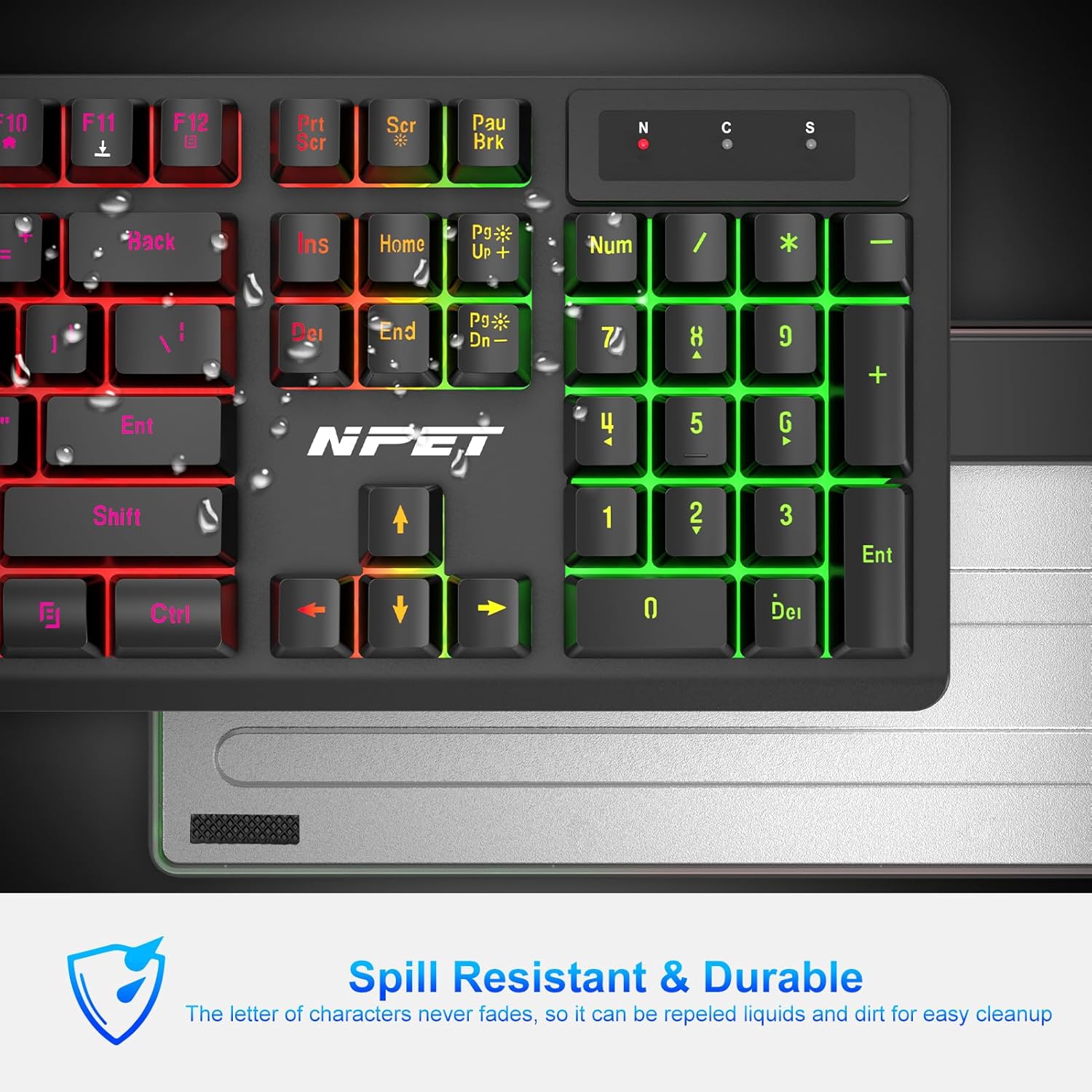 Image: Keyboard demonstrating spill resistance.
5.2 Keycap and Switch Replacement
The keyboard features hot-swappable switches, allowing for easy replacement of individual keycaps and switches.
- Use the provided keycap puller tool to carefully remove keycaps.
- Use the switch puller (often integrated with the keycap puller) to remove the underlying switch.
- Align and press new switches and keycaps into place.
 Image: Keycap removal process.
Video: Demonstration of removing and replacing keycaps and switches on the keyboard.
6. Troubleshooting
- Connection Issues: If the wireless connection is lost, reset the code pairing by following the instructions in the full manual (if available) or by contacting customer support.
- General Malfunctions: If the device cannot be used for any reason, please contact NPET customer support for assistance.
7. Specifications
- Brand: NPET
- Model: S21
- Connectivity: 2.4G Wireless (USB Receiver)
- Keyboard Battery: 3000 mAh
- Mouse Battery: 800 mAh
- Backlight: RGB (Rainbow effects, breathing modes, static modes, 4 brightness levels for keyboard; 7-color cyclic gradual for mouse)
- Key Switches: Mechanical-feeling (Hot-swappable Red switches mentioned in video)
- Anti-Ghosting: 19 keys
- Special Features: Ergonomic design, Spill-resistant, Fade-proof keycaps, Multimedia keys, WASD/Arrow key swap, Windows key lock.
8. Warranty and Support
For warranty information, technical support, or any product-related inquiries, please refer to the official NPET website or contact their customer service directly. Keep your purchase receipt for warranty claims.


