
1. Introduction
Thank you for purchasing the llano Wireless HDMI Transmitter and Receiver Set. This device allows you to wirelessly transmit video and audio from your source device to a display, supporting Full HD 1080P resolution at 60Hz with ultra-low latency. It features two versatile connection modes and Type-C charging compatibility, making it ideal for various applications from home entertainment to professional presentations.
This manual provides detailed instructions for setup, operation, and troubleshooting to ensure optimal performance and a seamless user experience.
2. Package Contents
Please check the package contents to ensure all items are present:
- 1 x llano Wireless HDMI Receiver (RX)
- 1 x llano Wireless HDMI Transmitter (TX)
- 1 x HDMI Extension Cable
- 1 x USB Power Cable (Type-A to Type-C)
- 1 x User Manual
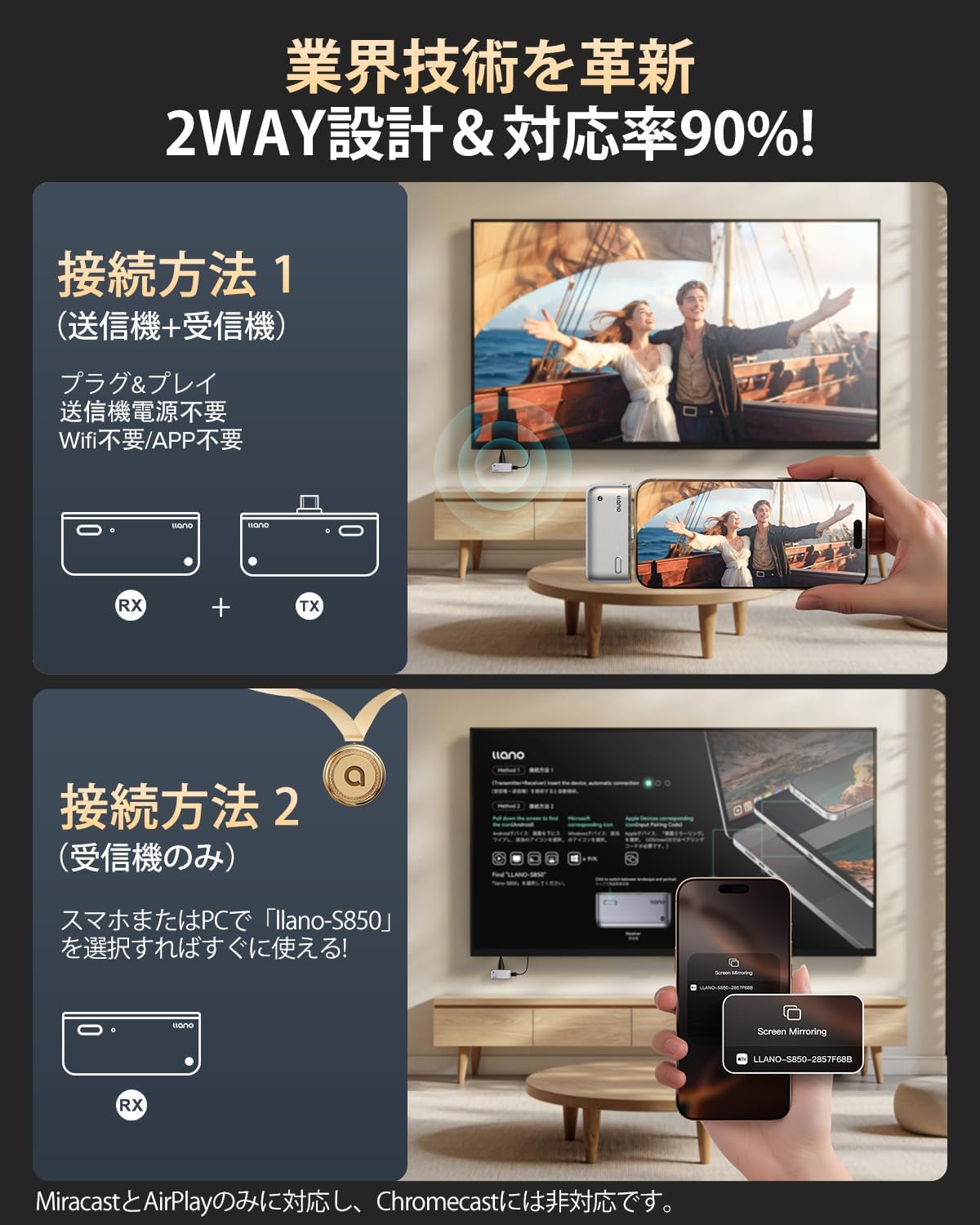
Image: Components of the llano Wireless HDMI Transmitter and Receiver Set, including the receiver, transmitter, HDMI extension cable, and USB power cable.
3. Safety Information
- Do not expose the device to water or excessive humidity.
- Avoid dropping or subjecting the device to strong impacts.
- Use only the provided cables and accessories.
- Keep the device away from heat sources and direct sunlight.
- Do not attempt to disassemble or repair the device yourself. Contact customer support for assistance.
4. Setup Instructions
4.1. Connection Method 1: Using both Transmitter (TX) and Receiver (RX)
This method is recommended for most devices, offering a plug-and-play experience without requiring Wi-Fi or complex settings.
- Connect the Receiver (RX): Plug the HDMI end of the receiver into an HDMI port on your display (TV, monitor, projector). Connect the USB power cable to the receiver and then to a 5V power adapter or a USB port on your display for power.
- Connect the Transmitter (TX): Plug the Type-C end of the transmitter into the Type-C port of your source device (smartphone, tablet, laptop).
- Automatic Pairing: The devices will automatically pair within approximately 5-10 seconds. The LED indicator on the transmitter will blink during preparation and become solid when connected.
- Switch Display Input: On your display, switch the input source to the corresponding HDMI port where the receiver is connected.
Video: Demonstrates connecting the receiver to a TV's HDMI and power, then connecting the transmitter to a tablet. The tablet screen is then mirrored to the TV.

Image: Visual guide showing the four steps to connect the transmitter and receiver: 1. Connect receiver power, 2. Connect receiver HDMI, 3. Connect transmitter to source, 4. Screen sharing begins.
4.2. Connection Method 2: Using Receiver (RX) Only for Wireless Mirroring
This method allows direct wireless mirroring from compatible devices (e.g., iPhone, Android, Mac, Windows) to the receiver without needing the separate transmitter unit.
- Connect the Receiver (RX): Plug the HDMI end of the receiver into an HDMI port on your display. Connect the USB power cable to the receiver and then to a 5V power adapter or a USB port on your display for power.
- Switch Display Input: On your display, switch the input source to the corresponding HDMI port where the receiver is connected. The mirroring initial screen will appear.
- Initiate Mirroring from Source Device:
- iPhone/iPad/Mac: Select "Screen Mirroring" from your device's control center. Choose the device name "LLANO-S850-[Product Number]" from the list. If prompted, enter the PIN code displayed on your TV screen. Screen sharing will begin automatically.
- Android Smartphone: Go to "Wireless Display," "Wireless Share," or "Multi-screen" settings. Select the device name "LLANO-S850-[Product Number]". Screen sharing will begin.
- Windows 10/11: Press "Windows Key + K". Find and select the device name "LLANO-S850-[Product Number]". Screen sharing will begin.
Video: Demonstrates connecting the receiver to a TV's HDMI and power, then wirelessly mirroring an Android phone and an iPhone to the TV.

Image: Visual guide showing the three steps to connect the receiver only: 1. Connect receiver power, 2. Connect receiver HDMI, 3. Initiate screen mirroring from your device.

Image: Detailed steps for iPhone screen mirroring: 1. Select Screen Mirroring, 2. Choose LLANO-S850 product number, 3. Enter PIN code displayed on screen.
5. Operating Instructions
5.1. Mirror Mode vs. Extended Mode
The llano Wireless HDMI set supports two display modes:
- Mirror Mode: Duplicates the content of your source device's screen onto the larger display. Ideal for presentations, watching videos, or sharing photos.
- Extended Mode: Extends your desktop, allowing you to have different content on your source device and the larger display. This enhances multitasking and work efficiency.

Image: Illustration of Mirror Mode (displaying identical content on laptop and external monitor) and Extended Mode (displaying different content on laptop and external monitor).
5.2. Switching Screen Orientation
When using the transmitter with a smartphone or tablet, you can switch between portrait and landscape orientations by tapping the button on the transmitter. This allows for flexible viewing on your display.
5.3. Charging While in Use
The transmitter features a Type-C charging port, allowing you to charge your smartphone or laptop while simultaneously mirroring its screen. This ensures uninterrupted usage during long sessions.

Image: A smartphone connected to the transmitter, which is then connected to a power adapter via a Type-C cable, demonstrating simultaneous charging and mirroring.
6. Maintenance
- Clean the device with a soft, dry cloth. Do not use liquid cleaners.
- Store the device in a cool, dry place when not in use.
- Ensure connectors are free from dust and debris before connecting.
7. Troubleshooting
| Problem | Possible Cause | Solution |
|---|---|---|
| No signal on display | Incorrect HDMI input selected; Loose cable connections; Insufficient power; Devices not paired. | Ensure the correct HDMI input is selected on your display. Check all cable connections. Ensure the receiver is powered correctly. Re-pair the devices if using Method 1. |
| Unstable connection or flickering screen | Interference from other wireless devices; Obstacles between transmitter and receiver; Devices too far apart. | Minimize interference by moving other wireless devices away. Ensure a clear line of sight between the transmitter and receiver. Reduce the distance between the devices. |
| No audio | Audio settings on source device or display; Volume too low. | Check audio output settings on your source device and display. Increase volume on both devices. |
| Transmitter not charging source device | Charging cable not connected; Power adapter insufficient. | Ensure a Type-C charging cable is connected to the transmitter and a power source. Use a compatible power adapter with sufficient wattage. |
8. Specifications
| Feature | Detail |
|---|---|
| Model Number | T1 |
| Brand | llano |
| Color | Gray |
| Product Dimensions | 5 x 5 x 2 cm |
| Product Weight | 0.14 kg (141.8 g) |
| Max Wireless Transmission Distance | Up to 50m (line of sight) |
| Resolution Support | 480P, 576P, 720P, 1080P@60Hz |
| Latency | Approx. 0.06 seconds |
| Wireless Frequency | 5.8G (Dual Channel) |
| Charging Port | Type-C (for simultaneous charging) |
| Certification | Japanese Technical Conformity Certification (Tech-Kite Number: 220-JP8967) |
9. Warranty and Support
llano offers a 90-day unconditional return or exchange policy if you encounter any connection issues with the product.
For further assistance, technical support, or warranty claims, please contact llano customer service through the retailer where you purchased the product.