
1. Introduction
This manual provides comprehensive instructions for the installation, operation, and maintenance of your Rimoody 4G+64G Android Car Radio. Please read this manual thoroughly before using the product to ensure proper functionality and to prevent damage. Keep this manual for future reference.
2. Product Overview
Key Features:
- 9-inch Incell HD Capacitive Touch Screen (1280 x 720 resolution)
- Android Operating System with 4GB RAM + 64GB ROM
- Wireless Carplay and Android Auto support
- Integrated GPS Navigation and Wi-Fi connectivity
- Bluetooth 5.0 for hands-free calls and music streaming
- FM/RDS Radio tuner with 30 preset stations
- Steering Wheel Control (SWC) support
- Rear View Camera (AHD/CVBS) input
- Dual USB interface
- External microphone support
- Split Screen functionality
- Mirror Link for iOS/Android devices
- Built-in EQ sound effects
- Canbus integration for vehicle information synchronization
Specifications:
| System | Android |
| Screen Material | Incell |
| Operating Speed | 1.5 GHz |
| Screen Size | 9 inches |
| Memory (RAM+ROM) | 4GB RAM + 64GB ROM |
| Screen Resolution | 1280 x 720 |
| Bluetooth | Supported |
| Radio Chip | UMW2652 |
| Output Power | 4 x 45 W (180 Watts total) |
| Operating Voltage | 9-16 V |
| Operating Temperature | -20 to 70 °C |
| Steering Wheel Controls | Supported |
| Radio Frequency | FM/RDS |
| Rear View Input | AHD/CVBS |
| External Microphone | Supported |
| Split Screen | Supported |
| Mirror Link | Supported |
| Maps | Integrated offline maps (data download required) |
| Wi-Fi | Supported |
| USB Interface | Dual USB |
| Supported Languages | Chinese, English, French, Italian, Korean, Japanese, Arabic, Spanish, Portuguese, Russian, Turkish, Vietnamese, Hebrew, Polish, German |
3. Setup and Installation
This section details the steps for installing your new car radio. Professional installation is recommended. Ensure the vehicle's power is disconnected before beginning installation.
3.1 Package Contents:
Before installation, verify that all components are present in the package:
- Autoradio unit
- GPS Antenna
- USB Cable (x2)
- User Manual
- Original USB Cable
- RCA Cable
- Rear Camera Input Cable
- Microphone (MIC)
- Camera
- Radio Antenna
- Canbus
- Installation Tool
- Power Cable

Image: Overview of the Rimoody Android Car Radio unit, its dimensions, and a comparison of the dashboard before and after installation. The image also displays all included accessories: GPS Antenna, USB Cables, User Manual, Original USB Cable, RCA Cable, Rear Camera Input Cable, Microphone, Camera, Radio Antenna, Canbus, Installation Tool, and Power Cable.
3.2 Installation Steps:
- Remove the air vents on both sides and the emergency button from the original radio panel.
- Connect the wires of the new radio to the original car harness.
- Attach the protocol box (Canbus) if required for your vehicle model.
- Carefully integrate the new radio into the dashboard opening.
- Secure the radio in place.
- Reinstall the air vents and emergency button.
- Test all functions before fully reassembling the dashboard.
Important: If the wiring harness does not match your vehicle, contact customer service to request the correct wiring harness.

Image: A series of four photographs illustrating the installation process of the car radio. The first image shows the removal of air vents, the second shows the wiring connections, the third shows the connection of the protocol box, and the fourth shows the new radio installed in the dashboard.
4. Operating Instructions
4.1 Wireless Carplay & Android Auto
Connect your iOS or Android smartphone wirelessly to access phone features directly on the car radio screen. This includes navigation, music, calls, messages, and voice commands.
- Carplay (iOS): Connect your iPhone wirelessly to use Apple Carplay. Access contacts, emails, notifications, map navigation, music, and videos. Use Siri for voice control.
- Android Auto (Android): Connect your Android phone wirelessly to use Android Auto. Access contacts, music, and other compatible apps. Use Google Assistant for voice control.
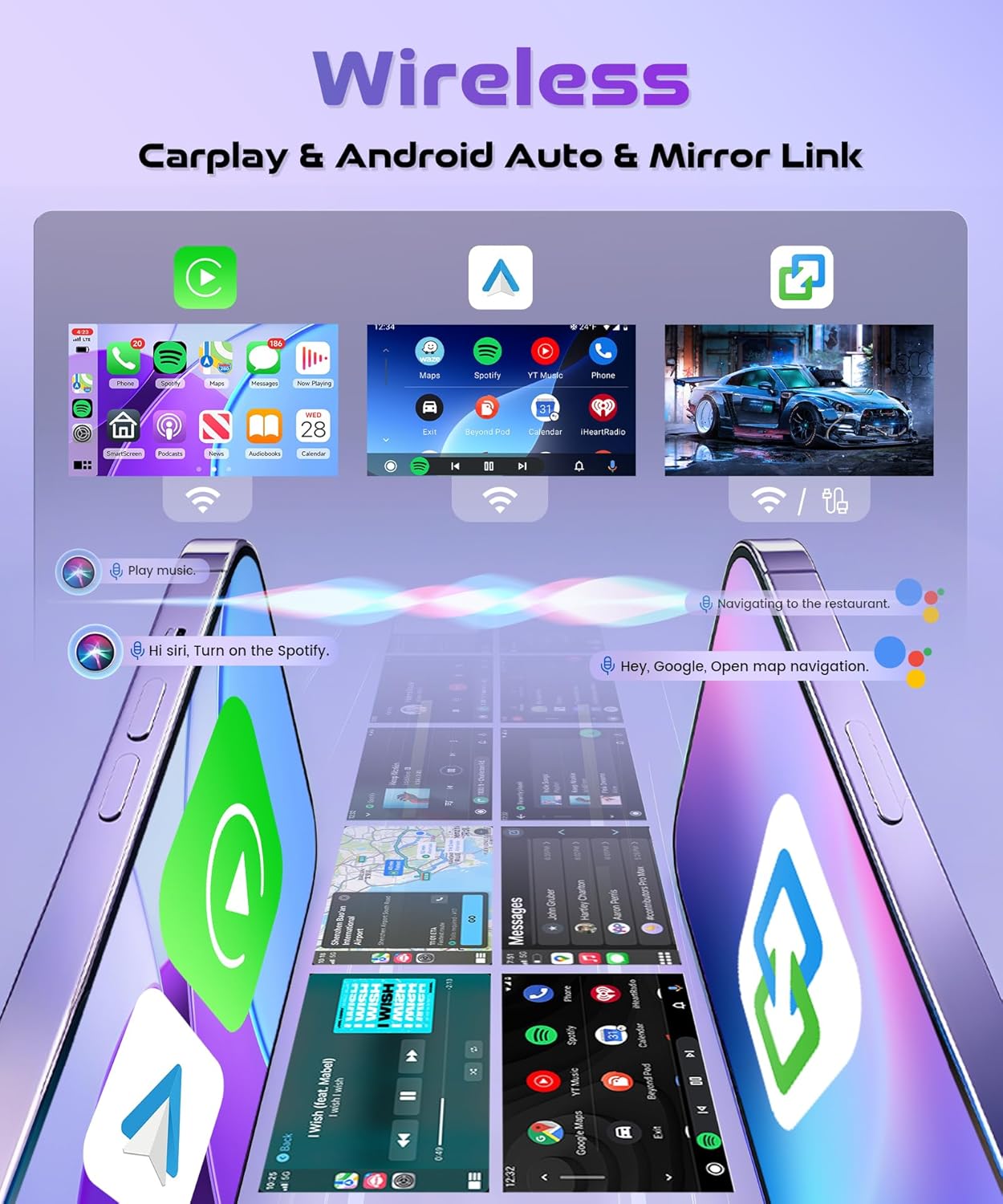
Image: A visual representation of the wireless Carplay and Android Auto interfaces displayed on the car radio screen, showing various app icons and navigation prompts. It also illustrates voice command functionality for music and navigation.
4.2 GPS Navigation & Wi-Fi
The unit features integrated GPS navigation. Connect to Wi-Fi to download offline maps or use online navigation services like Google Maps, Waze, etc.
- Offline Maps: Download map data directly from the Play Store for navigation without an internet connection.
- Online Navigation: Connect to a Wi-Fi hotspot (e.g., from your smartphone) to use real-time navigation and traffic updates.
- App Store: Download additional navigation or entertainment apps from the integrated App Store.

Image: A graphic showing the car radio screen displaying a GPS map, with Wi-Fi signal icons and a stylized car. It also highlights the 4G+64G memory configuration.
4.3 Bluetooth Functionality
The car radio supports Bluetooth 5.0 for hands-free calling and audio streaming.
- Hands-Free Calls: Pair your phone via Bluetooth to make and receive calls directly through the car radio's microphone and speakers.
- Bluetooth Music: Stream audio from your phone to the car radio for playback.
4.4 FM/RDS Radio
Tune into your favorite FM radio stations. RDS (Radio Data System) provides additional information like station name and program type.
- Automatic/Manual Search: Scan for available stations or tune manually.
- Preset Stations: Save up to 30 of your preferred stations for quick access.
4.5 EQ Sound Effects
Customize your audio experience with various equalizer settings. Adjust bass, treble, and other audio parameters to suit your preferences.

Image: A composite image showing the user interfaces for Bluetooth connectivity (calls and music), FM/RDS radio tuning, equalizer (EQ) settings, and the on-screen display for programming steering wheel controls.
4.6 Steering Wheel Control (SWC)
Program your vehicle's steering wheel buttons to control the car radio functions, such as volume, track skipping, and mode selection, for safer driving.
- Programming: Access the SWC settings menu to assign functions to your steering wheel buttons.
4.7 Rear View Camera
When the vehicle is shifted into reverse, the car radio screen will automatically display the rear camera feed, providing a clear view for safer parking and maneuvering.
- AHD/CVBS Support: Compatible with both AHD and CVBS camera types.
- Automatic Display: The display switches automatically when reverse gear is engaged.
4.8 Split Screen Functionality
Utilize the split-screen feature to display two applications simultaneously, such as navigation on one side and music playback on the other.

Image: The car radio screen displaying a rear view camera feed with parking guidelines. Below, the split-screen feature is shown, allowing two applications (e.g., Wi-Fi settings and radio) to be viewed side-by-side.
4.9 Incell Touch Screen & App Management
The Incell touchscreen technology provides a thinner display with more realistic colors and improved light transmission. Its integrated design reduces dust sensitivity and touch malfunctions.
- App Switching: Long-press an application icon on the home screen to change its position or replace it with another application according to your usage habits.

Image: A detailed view of the 9-inch Incell HD Touch Screen, highlighting its thin profile, 1280x720 resolution, 68% light transmittance, and 100% sRGB color accuracy. A hand is shown interacting with the touchscreen.
5. Maintenance
To ensure the longevity and optimal performance of your Rimoody Car Radio, follow these maintenance guidelines:
- Cleaning the Screen: Use a soft, lint-free cloth to gently wipe the touchscreen. Avoid abrasive cleaners or solvents that could damage the screen surface.
- General Cleaning: Keep the unit free from dust and debris. Use a soft brush or compressed air to clean vents and ports.
- Software Updates: Periodically check for and install software updates to ensure optimal performance and access to new features.
- Avoid Extreme Temperatures: Do not expose the unit to extreme heat or cold, as this can affect its electronic components.
6. Troubleshooting
This section addresses common issues you might encounter. For problems not listed here, please contact customer support.
| Problem | Possible Cause | Solution |
|---|---|---|
| Unit does not power on. | Incorrect wiring, blown fuse, power supply issue. | Check power connections and fuses. Ensure proper wiring according to the installation guide. |
| No sound. | Volume too low, incorrect audio output settings, speaker wiring issue. | Increase volume. Check audio settings and speaker connections. |
| GPS signal lost or inaccurate. | GPS antenna not properly connected or obstructed, outdated map data. | Ensure GPS antenna is securely connected and has a clear view of the sky. Update map data if necessary. |
| Bluetooth connection issues. | Device not paired, Bluetooth off, interference. | Ensure Bluetooth is enabled on both devices. Re-pair the device. Move closer to the unit. |
| Touchscreen unresponsive or slow. | Software glitch, screen protector interference, excessive dust. | Restart the unit. Clean the screen. If a screen protector is used, ensure it is properly applied. |
| Rear camera not displaying. | Camera not connected, incorrect wiring, camera malfunction. | Check camera connections and wiring. Ensure the vehicle is in reverse gear. |
7. Warranty and Support
Your Rimoody Car Radio comes with a limited warranty. Please refer to the warranty card included in your package for specific terms and conditions. For technical support, troubleshooting assistance, or warranty claims, please contact Rimoody customer service.
Manufacturer: Rimoody
Country of Origin: China
For further assistance, visit the official Rimoody Store on Amazon.


