
1. Introduction
This manual provides detailed instructions for the installation, configuration, operation, and maintenance of the Reyee RG-AIRMETRO460G 5GHz Wireless Customer Premises Equipment (CPE). The RG-AIRMETRO460G is designed for robust long-range wireless connectivity in various outdoor environments, supporting Point-to-Point (PtP) and Point-to-Multipoint (PtMP) applications.
2. Product Overview
The Reyee RG-AIRMETRO460G is a high-performance outdoor CPE featuring advanced wireless technology for reliable and high-speed data transmission.
Key Features:
- Long-Range Wireless Connectivity: Supports PtP and PtMP applications up to 15km.
- High-Speed 5GHz WiFi 5: Delivers 867Mbps dual-stream performance for seamless data transfer.
- Directional High-Gain Antennas: Equipped with 2 x 15dBi beamforming antennas offering 9° horizontal and 9° vertical coverage for stable and focused signal transmission.
- Gigabit Ethernet with Passive PoE: Features 1 x GbE port supporting 24V Passive PoE @ 12W, simplifying power and data delivery with a single cable.
- Rugged Outdoor Design: IP65-rated enclosure ensures protection against water and dust, suitable for harsh outdoor conditions.
- Enhanced Protection: Includes 6KV lightning protection for increased durability and reliability.
- Versatile Applications: Ideal for wireless bridging, ISP deployments, surveillance backhaul, and large-scale outdoor connectivity in rural and enterprise networks.
- Flexible Management: Supports WebUI, Cloud, and App-based management for streamlined deployment and remote monitoring.
3. Safety Information
Please read and follow these safety guidelines to prevent injury and damage to the device:
- Ensure proper grounding for lightning protection.
- Do not open the device enclosure. Refer all servicing to qualified personnel.
- Use only the power adapter or PoE injector specified for this device.
- Mount the device securely to prevent it from falling.
- Avoid installing the device during a thunderstorm.
- Keep the device away from heat sources and direct sunlight.
4. Package Contents
Verify that all items are present in your package:
- Reyee RG-AIRMETRO460G CPE Unit
- Mounting Kit (Pole Mount Straps/Brackets)
- 24V Passive PoE Injector (may be sold separately depending on region)
- Quick Start Guide
5. Hardware Description
Familiarize yourself with the physical components of the RG-AIRMETRO460G CPE.
5.1 Front View

Figure 1: Front view of the Reyee RG-AIRMETRO460G CPE, showing the parabolic reflector dish with a central adjustment knob.
5.2 Side View with Mounting Bracket
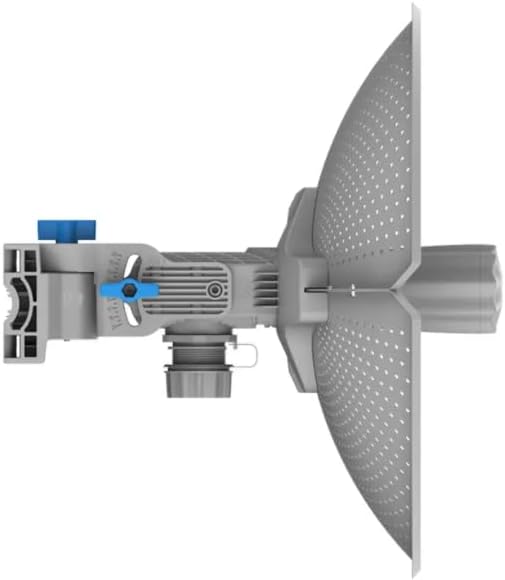
Figure 2: Side view of the Reyee RG-AIRMETRO460G CPE, illustrating the adjustable mounting bracket and the main unit's profile.
5.3 Rear View with Mounting Bracket

Figure 3: Rear view of the Reyee RG-AIRMETRO460G CPE, showing the back of the parabolic reflector and the attachment points for the mounting hardware.
5.4 Ports and Indicators
The device typically includes:
- Ethernet Port (PoE): 1 x Gigabit Ethernet port for data and power (24V Passive PoE).
- LED Indicators: Power, LAN activity, and signal strength indicators (exact number and function may vary).
- Reset Button: Used to restore factory default settings.
6. Setup
This section outlines the physical installation and initial configuration steps.
6.1 Physical Installation
- Mounting Location: Choose a high, clear location with an unobstructed line of sight to the other CPE unit (for PtP) or access point (for PtMP). Ensure the mounting surface is sturdy.
- Attach Mounting Bracket: Secure the mounting bracket to the back of the CPE unit.
- Mount the CPE: Use the provided pole straps or wall mounts to securely attach the CPE to a pole or wall. Ensure the device is level.
- Connect Ethernet Cable: Connect an Ethernet cable from the CPE's Ethernet port to the "PoE" port on the 24V Passive PoE injector.
- Connect to Network: Connect another Ethernet cable from the "LAN" port on the PoE injector to your network switch or router.
- Power On: Plug the PoE injector into a power outlet. The CPE will power on, and the Power LED should illuminate.
6.2 Initial Configuration (WebUI)
- Connect to PC: Connect your computer directly to the LAN port of the PoE injector.
- Configure PC IP: Set your computer's IP address to be in the same subnet as the CPE's default IP address (e.g., if CPE is 192.168.1.1, set PC to 192.168.1.10 with subnet mask 255.255.255.0). Refer to the Quick Start Guide for the default IP.
- Access WebUI: Open a web browser and enter the CPE's default IP address (e.g.,
http://192.168.1.1). - Login: Enter the default username and password (typically "admin" for both, refer to documentation).
- Wizard/Quick Setup: Follow the on-screen wizard to configure basic settings such as operating mode (AP, Station, Repeater), wireless settings (SSID, password, channel), and network settings (IP address, DHCP).
- Save Settings: Apply and save your configurations.
7. Operating Instructions
The RG-AIRMETRO460G supports various operating modes for different network scenarios.
7.1 Point-to-Point (PtP) Mode
In PtP mode, two CPE units establish a direct wireless link to extend a network over a long distance.
- Unit 1 (Access Point Mode): Configure one CPE as an Access Point (AP) or Master. Set an SSID, channel, and security key.
- Unit 2 (Station Mode): Configure the second CPE as a Station (Client) or Slave. Scan for the SSID broadcast by Unit 1 and connect using the security key.
- Alignment: Carefully align both CPE units to achieve the strongest possible signal strength. Use the signal strength indicators (LEDs or WebUI) for optimal alignment.
7.2 Point-to-Multipoint (PtMP) Mode
In PtMP mode, one central CPE acts as an Access Point, serving multiple client CPEs.
- Central Unit (Access Point Mode): Configure the central CPE as an Access Point (AP). Set an SSID, channel, and security key.
- Client Units (Station Mode): Configure each remote CPE as a Station (Client). Scan for the central AP's SSID and connect using the security key.
- Coverage: Ensure all client units are within the effective coverage area and have a clear line of sight to the central AP.
7.3 Management Options
- Web User Interface (WebUI): Access the device's full configuration and monitoring options via a web browser.
- Cloud Management: For large deployments, the device can be managed through Reyee's cloud platform, offering centralized control and monitoring.
- Mobile App: A dedicated mobile application may be available for basic setup and monitoring.
8. Maintenance
Regular maintenance ensures optimal performance and longevity of your CPE.
- Physical Inspection: Periodically check the device and cables for any signs of damage, corrosion, or loose connections.
- Cleaning: Gently clean the exterior of the device with a soft, dry cloth. Do not use liquid cleaners or solvents. Ensure vents are clear of debris.
- Firmware Updates: Regularly check the manufacturer's website for firmware updates. Updating firmware can improve performance, add new features, and fix security vulnerabilities.
- Configuration Backup: Back up your device configuration regularly, especially before performing firmware updates or major changes.
9. Troubleshooting
This section addresses common issues and their potential solutions.
| Problem | Possible Cause | Solution |
|---|---|---|
| No Power / Power LED Off | No power from PoE injector; faulty cable; faulty power outlet. | Check PoE injector connection and power outlet. Replace Ethernet cable if damaged. |
| Cannot Access WebUI | Incorrect IP address; PC IP not in same subnet; firewall blocking access. | Verify CPE's IP address. Configure PC IP to match subnet. Temporarily disable PC firewall. Try a different browser. |
| Poor Wireless Signal / Low Throughput | Misalignment; interference; obstructions; incorrect channel. | Re-align CPE units for optimal signal. Check for physical obstructions. Change wireless channel to avoid interference. Ensure firmware is up to date. |
| Device Not Connecting to Network | Incorrect wireless settings (SSID, password); wrong operating mode. | Verify SSID and password. Ensure both units are configured for compatible operating modes (e.g., AP and Station). |
| Forgot Login Password | Password lost. | Perform a factory reset using the reset button. This will revert all settings to default. |
10. Specifications
Detailed technical specifications for the Reyee RG-AIRMETRO460G CPE.
| Feature | Description |
|---|---|
| Model | RG-AIRMETRO460G |
| Wireless Standard | 5GHz WiFi 5 (802.11ac) |
| Max Wireless Speed | 867Mbps (Dual-stream) |
| Antenna Type | 2 x 15dBi Beamforming Directional Antennas |
| Antenna Beamwidth | 9° Horizontal, 9° Vertical |
| Ethernet Ports | 1 x Gigabit Ethernet (10/100/1000 Mbps) |
| PoE Support | 24V Passive PoE (12W) |
| Outdoor Rating | IP65 Water and Dust Resistance |
| Lightning Protection | 6KV |
| Management | WebUI, Cloud, App |
11. Warranty and Support
For warranty information, please refer to the warranty card included with your product or visit the official Reyee website. Technical support is available through the manufacturer's support channels, which typically include online resources, FAQs, and direct contact options.
Always ensure you have your product model and serial number ready when contacting support.


