
1. Introduction
The Cellularline Tracy Tag is a compact item finder designed to help you locate personal items such as keys, wallets, backpacks, and suitcases. It operates using the Apple Find My network, allowing you to track your belongings both nearby and at a distance.
This device features a replaceable CR2032 battery with an approximate one-year runtime and is IP67 certified for dust and water resistance. Its design is compatible with accessories intended for Apple AirTag, offering versatile attachment options.
2. Product Overview

Figure 2.1: The Cellularline Tracy Tag in blue, featuring a compact circular design and an integrated braided strap for attachment.
Key Features:
- Apple Find My Network Compatibility: Utilizes the Apple Find My app for location tracking.
- Audible Alert: Allows the device to ring when nearby for easier location.
- Map Tracking: Provides location on a map for items outside Bluetooth range.
- Accessory Compatibility: Designed to be compatible with Apple AirTag accessories.
- Replaceable Battery: Uses a standard CR2032 coin cell battery with approximately one year of life.
- Durability: IP67 certified for dust and water resistance (submersible up to one meter for 30 minutes).
- Removable Strap: Includes a strap for easy attachment to various items.
3. Setup
3.1 Battery Installation
The Tracy Tag uses a replaceable CR2032 coin cell battery. The battery is typically pre-installed, but if replacement is needed, follow the instructions in Section 5.1. The battery status can be monitored directly via the Apple Find My app.

Figure 3.1: Illustration of the Tracy Tag's water and dust resistance, compatibility with AirTag accessories, and the replaceable CR2032 battery compartment.
3.2 Pairing with Apple Find My
To set up your Tracy Tag, ensure your Apple device (iPhone, iPad, or Mac) has the "Find My" app installed and Bluetooth is enabled. The setup process is designed to be straightforward within the app.
- Open the "Find My" app on your Apple device.
- Navigate to the "Items" tab.
- Tap the "+" icon and select "Add Other Item."
- Follow the on-screen instructions to connect your Tracy Tag. This typically involves bringing the Tracy Tag close to your device.
- Once connected, you can name your Tracy Tag and assign an emoji to it for easy identification.

Figure 3.2: The Tracy Tag connected to keys, demonstrating its integration with the Apple Find My app interface on a smartphone.
4. Operating Instructions
4.1 Finding Nearby Items
When your Tracy Tag is within Bluetooth range of your Apple device, you can make it emit a sound to help you locate it quickly.
- Open the "Find My" app.
- Go to the "Items" tab and select your Tracy Tag.
- Tap the "Play Sound" option. The Tracy Tag will emit an audible alert.
- Tap "Stop Sound" once you have located your item.
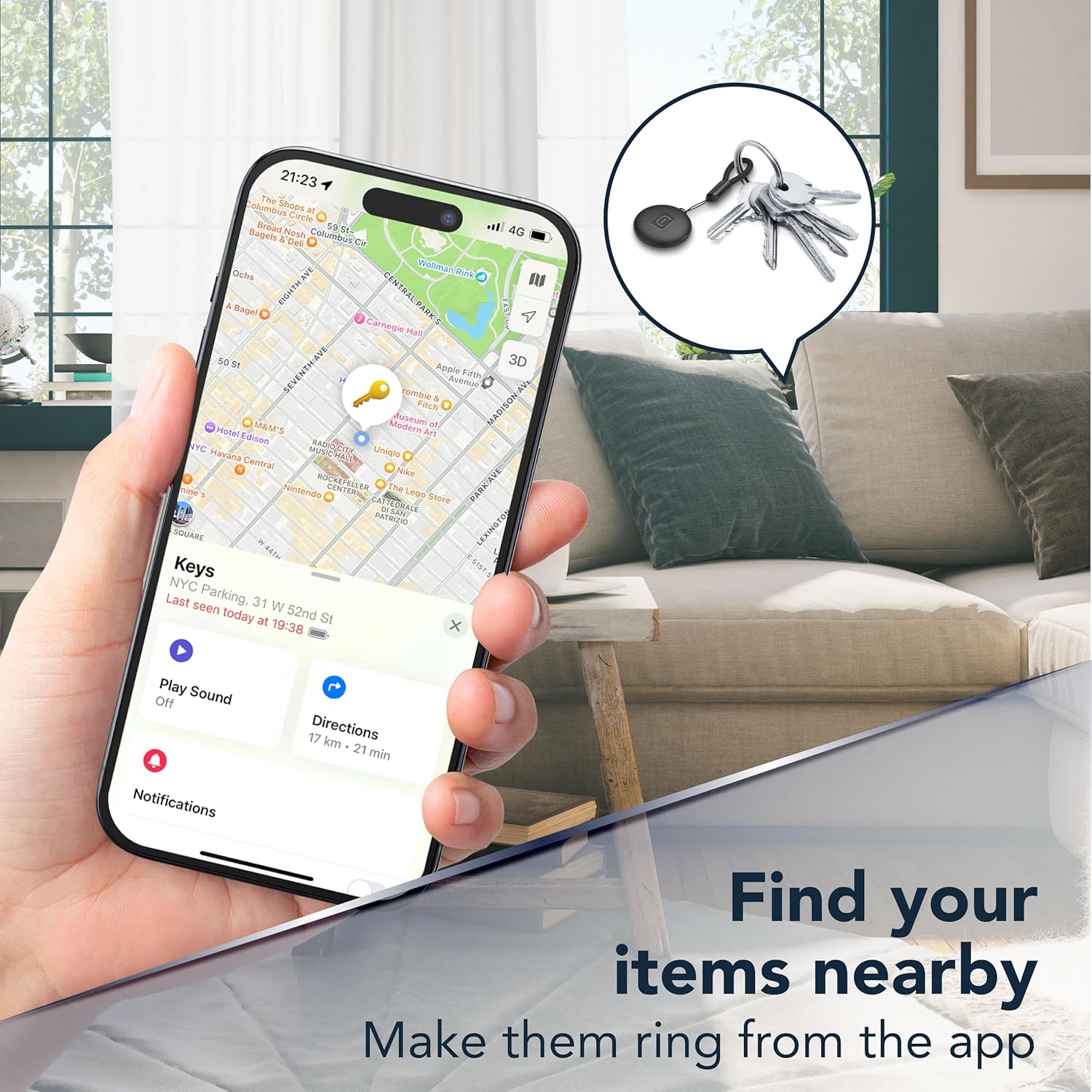
Figure 4.1: A smartphone displaying the Find My app, illustrating the "Play Sound" feature to locate a Tracy Tag attached to keys when nearby.
4.2 Finding Distant Items
If your Tracy Tag is outside of Bluetooth range, the Apple Find My network can help you locate it. The network uses other Apple devices to anonymously detect your Tracy Tag's location and report it to you.
- Open the "Find My" app.
- Go to the "Items" tab and select your Tracy Tag.
- The app will display the last known location of your Tracy Tag on a map.
- You can get directions to this location directly from the app.

Figure 4.2: The Find My app on a smartphone, showing the map view to locate a Tracy Tag from a distance.
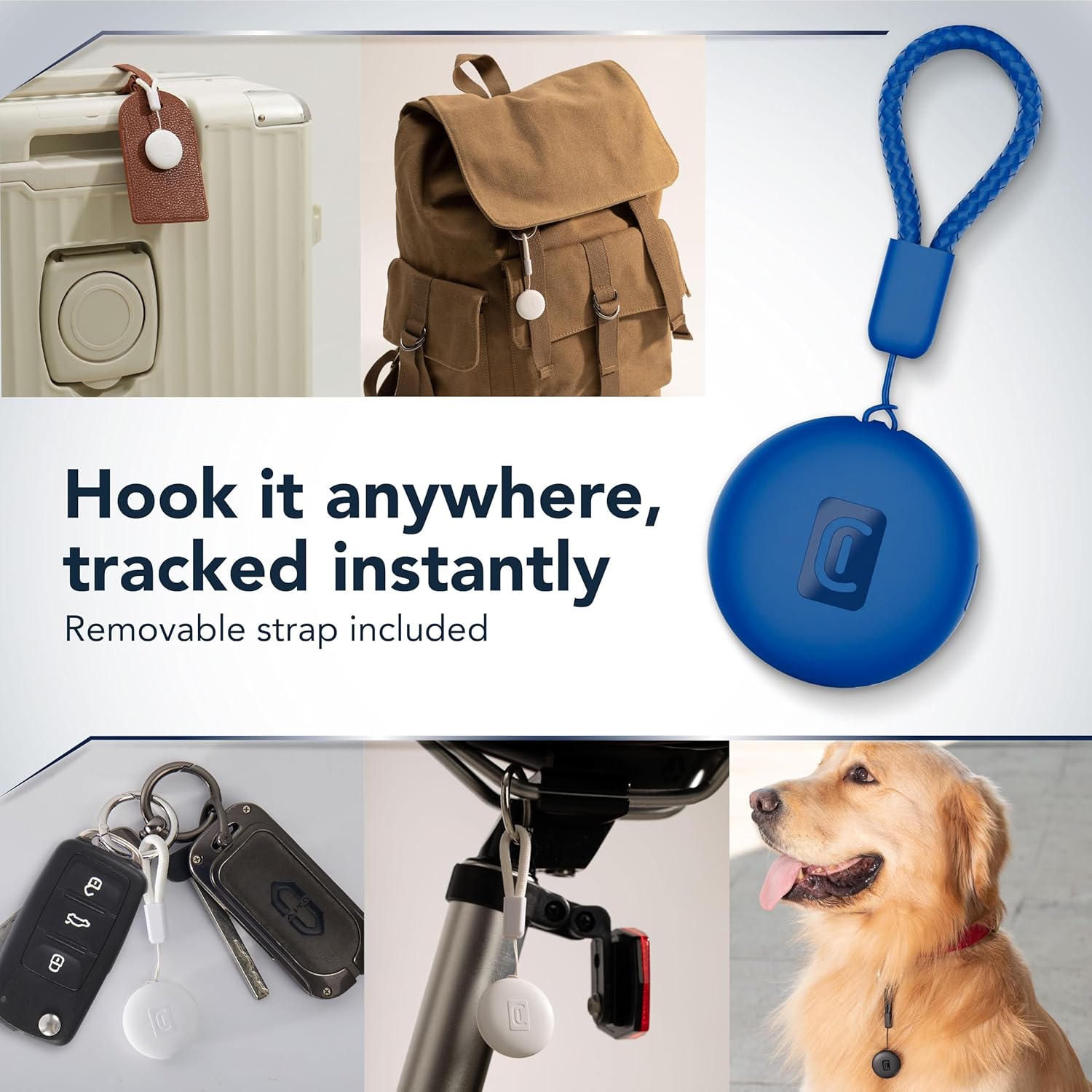
Figure 4.3: Examples of how the Tracy Tag can be attached to different items like luggage, backpacks, keys, bicycles, and pet collars for tracking.
5. Maintenance
5.1 Battery Replacement
The Tracy Tag uses a CR2032 coin cell battery, which typically lasts about one year. You can check the battery status in the Apple Find My app. To replace the battery:
- Locate the battery compartment on the Tracy Tag. This usually involves twisting or prying open a cover.
- Carefully remove the old CR2032 battery.
- Insert a new CR2032 battery with the positive (+) side facing up.
- Securely close the battery compartment cover.
Note: Dispose of used batteries responsibly according to local regulations.
5.2 Cleaning
The Tracy Tag is IP67 rated, making it resistant to dust and water. To clean the device, wipe it with a soft, damp cloth. Avoid using harsh chemicals or abrasive materials.
6. Troubleshooting
- Device not connecting to Find My: Ensure Bluetooth is enabled on your Apple device. Try restarting your Apple device and the Tracy Tag (by temporarily removing and reinserting the battery). Make sure the Tracy Tag is within range during pairing.
- Sound not playing: Check the battery level in the Find My app. If the battery is low, replace it. Ensure your Apple device's volume is up.
- Inaccurate location: Location accuracy can be affected by environmental factors. Ensure your Apple device has a stable internet connection for updated location data.
- Battery draining quickly: Verify that you are using a new, genuine CR2032 battery. Extreme temperatures can also affect battery life.
7. Specifications
| Feature | Detail |
|---|---|
| Brand | Cellularline |
| Model | Tracy Tag |
| Compatible Devices | Apple iOS devices (iPhone, iPad, Mac) with Find My app, AirTag accessories |
| Battery Type | CR2032 (replaceable) |
| Battery Life | Approximately 1 year |
| Water Resistance | IP67 (Dust and waterproof up to 1 meter for 30 minutes) |
| Material | Polycarbonate |
| Item Weight | 0.03 Kilograms |
| Package Dimensions | 13.2 x 9.1 x 2.3 cm |
8. Warranty and Support
For warranty information and customer support, please refer to the documentation included with your purchase or visit the official Cellularline website. Specific warranty terms and conditions may vary by region.


