
1. Introduction
The RadioMaster 4in1 Multiprotocol Module is a versatile external module designed to expand the compatibility of your radio transmitter. It integrates four different RF chips (CC2500, NRF24L01, A7105, and CYRF6936) to support a wide range of radio protocols, making it compatible with over 70 RF protocols. This module is ideal for use with OpenTX and EdgeTX systems, allowing your radio to connect with most mainstream protocols available in the market.
What's in the Box
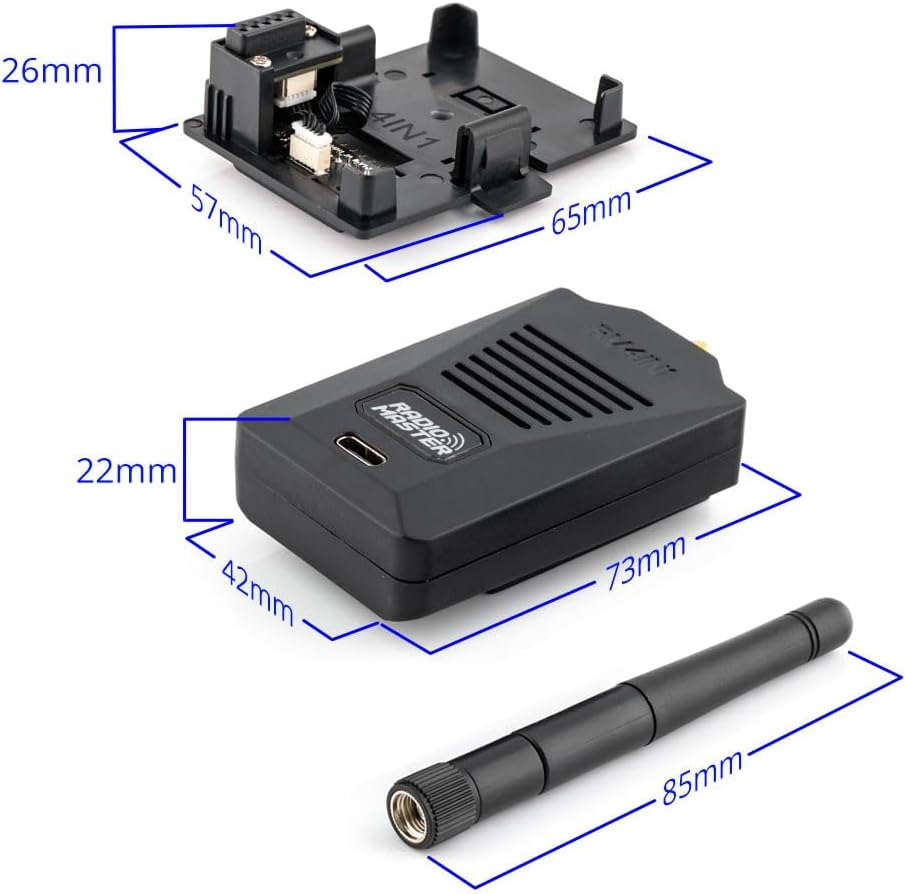
- 1 * Radiomaster 4IN1 Module
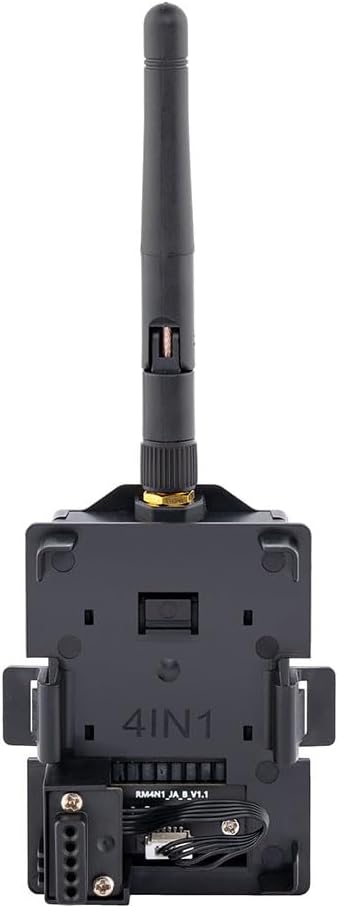
- 1 * JR Adapter
- 1 * Stick Antenna
Safety Information
Please refer to this instruction manual before use to ensure proper and safe operation of the RadioMaster 4in1 Multiprotocol Module. Always handle electronic components with care and ensure your radio transmitter is powered off before installing or removing the module.
2. Product Overview
The RadioMaster 4in1 module is engineered for broad compatibility and ease of use. Its compact design allows for seamless integration with compatible radio transmitters, while the included JR adapter ensures versatility across various models.



Key Features:
- Multi-Protocol Support: Integrates CC2500, NRF24L01, A7105, and CYRF6936 RF chips, supporting over 70 RF protocols including DSMX, Frsky, Flysky, HiTec, HoTT, OMP, Radiolin, and more.
- OpenTX and EdgeTX Compatibility: Designed for seamless operation with OpenTX and EdgeTX radio systems.
- NANO and JR Adapter: Comes as a Nano module by default, with a standard JR adapter included for broader compatibility with radios like Boxer, TX16S MKII, and TX12 MKII.
- Wireless Trainer Function: When paired with a suitable EdgeTX or OpenTX compatible radio (e.g., TX16s, TX12), the module can facilitate a wireless trainer link to another student radio capable of transmitting DSMX, Frsky, or Flysky protocols.
3. Setup
This section outlines the steps for installing and preparing your RadioMaster 4in1 Multiprotocol Module for use with your compatible radio transmitter.
Module Installation:
- Identify Module Bay: Locate the external module bay on the back of your radio transmitter. This is typically a JR-style bay.
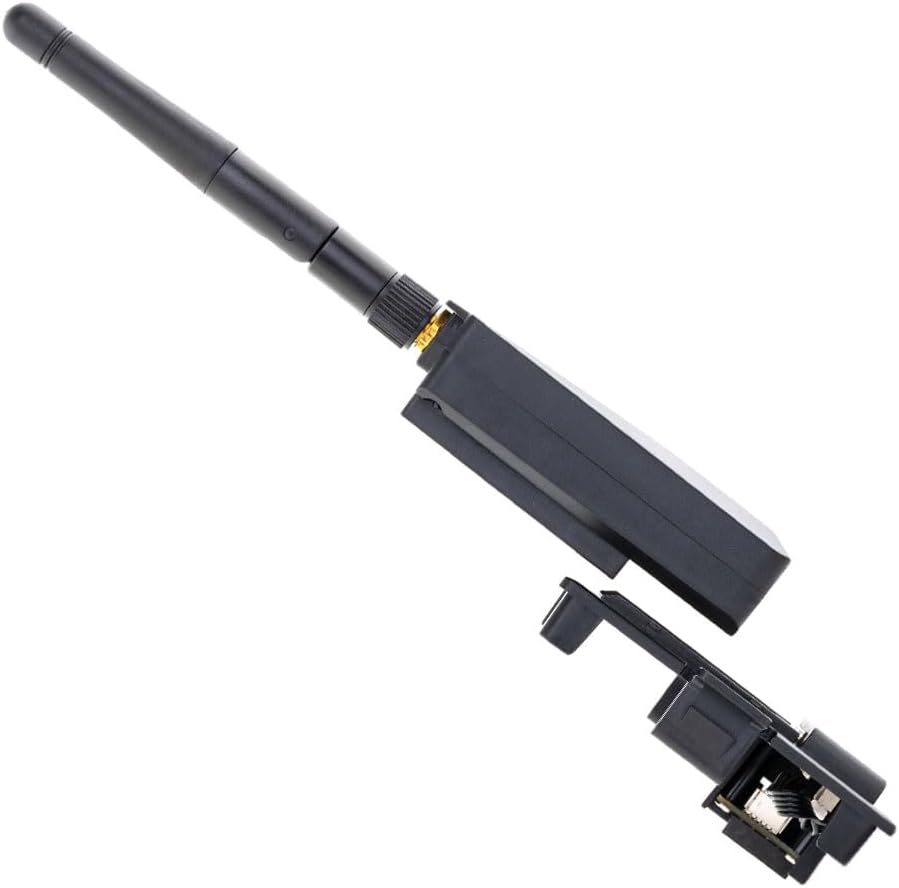
- Attach JR Adapter (if needed): If your radio uses a standard JR module bay, ensure the provided JR adapter is securely attached to the Nano 4in1 module. The Nano module slides into the adapter.
- Insert Module: Carefully slide the assembled 4in1 module (with or without the JR adapter, depending on your radio's bay type) into the module bay of your radio transmitter. Ensure it clicks securely into place.
- Attach Antenna: Screw the included stick antenna onto the antenna connector on the top of the 4in1 module. Hand-tighten only; do not overtighten.

Radio Configuration:
After physical installation, you will need to configure your radio's firmware (OpenTX or EdgeTX) to recognize and utilize the external module. Refer to your radio's specific user manual for detailed steps on external module setup and protocol selection. Generally, this involves:
- Navigating to the Model Setup menu.
- Selecting 'External RF' mode.
- Choosing 'Multi' as the module type.
- Selecting the specific protocol (e.g., Frsky, DSMX, Flysky) and sub-protocol for your receiver/model.
- Initiating the binding process from your radio.
4. Operating Instructions
The RadioMaster 4in1 module significantly expands your radio's capabilities. Here's how to operate its key functions:
Protocol Selection and Binding:
The primary function of the 4in1 module is to allow your radio to communicate with various receivers using different protocols. The protocol selection is done through your radio's firmware (OpenTX/EdgeTX).
- Power On Radio: Turn on your radio transmitter with the 4in1 module installed.
- Access Model Setup: Navigate to the model setup screen for the model you wish to use.
- Configure External RF: Set the 'External RF' mode to 'Multi'.
- Select Protocol: Choose the desired protocol from the list (e.g., Frsky D8, DSMX, Flysky AFHDS 2A). Some protocols may have sub-options (e.g., D16, LBT).
- Bind: Initiate the binding process from your radio's menu. Simultaneously, put your receiver into binding mode (refer to your receiver's manual for specific steps). The radio and receiver should then bind.
Wireless Trainer Function:
The 4in1 module supports a wireless trainer function, enabling a master radio to wirelessly control a student radio. This is particularly useful for flight training.
- Master Radio Setup: On the master radio (with the 4in1 module), configure the trainer port settings to 'Wireless' or 'Master'.
- Student Radio Setup: On the student radio, ensure it is capable of transmitting one of the supported protocols (DSMX, Frsky, or Flysky) and set it to 'Slave' or 'Trainer' mode.
- Link Radios: Follow the specific linking procedure for wireless trainer mode in your radio's manual. The 4in1 module on the master radio will receive signals from the student radio.
5. Maintenance
Proper maintenance ensures the longevity and reliable performance of your RadioMaster 4in1 Multiprotocol Module.
- Cleaning: Use a soft, dry cloth to clean the module. Avoid using liquids or solvents, which can damage the electronics.
- Storage: Store the module in a cool, dry place away from direct sunlight and extreme temperatures. When not in use for extended periods, it's advisable to remove it from the radio.
- Antenna Care: Always ensure the antenna is securely attached during operation. Avoid bending or stressing the antenna excessively, as this can damage the connector.
- Firmware Updates: Periodically check the RadioMaster website or the OpenTX/EdgeTX project websites for firmware updates for the 4in1 module. Updating the firmware can improve performance, add new protocols, or fix bugs. Refer to the specific update instructions provided with the firmware.
6. Troubleshooting
If you encounter issues with your RadioMaster 4in1 Multiprotocol Module, consider the following troubleshooting steps:
- Module Not Recognized by Radio:
- Ensure the module is fully seated in the module bay.
- Check your radio's firmware settings to ensure 'External RF' is enabled and set to 'Multi'.
- Verify that your radio's firmware is up-to-date and supports external modules.
- Cannot Bind to Receiver:
- Confirm that you have selected the correct protocol and sub-protocol for your receiver in the radio's settings.
- Ensure both the radio (with module) and receiver are in binding mode simultaneously.
- Check the distance between the radio and receiver during binding; sometimes being too close can prevent binding.
- Verify the receiver is powered correctly.
- Poor Range or Intermittent Connection:
- Ensure the antenna on the 4in1 module is securely attached and oriented correctly (typically vertical).
- Check for physical obstructions or sources of interference in your operating environment.
- Verify that the module's firmware is up-to-date.
- Module LED Indicators: Refer to your radio's or module's specific documentation for the meaning of any LED indicators on the module, as they can provide diagnostic information.
If issues persist, consult online forums, community groups, or the official RadioMaster support channels for further assistance.
7. Specifications
| Feature | Specification |
|---|---|
| Product Dimensions | 3 x 2 x 1 inches (approximate module size) |
| Item Weight | 0.64 ounces (approx. 18 grams) |
| RF Chips Integrated | CC2500, NRF24L01, A7105, CYRF6936 |
| Supported Protocols | Over 70 (including DSMX, Frsky, Flysky, HiTec, HoTT, OMP, Radiolin) |
| Compatibility | OpenTX, EdgeTX systems (e.g., Boxer, TX16S MKII, TX12 MKII) |
| Module Type | Nano (with included JR Adapter) |
| Manufacturer Recommended Age | 18 years and up |
8. Warranty Information
Warranty coverage for the RadioMaster 4in1 Multiprotocol Module is typically provided by the manufacturer, RADIOMASTER, or the authorized seller from whom the product was purchased. Please retain your proof of purchase (receipt or order confirmation) as it will be required for any warranty claims.
For specific details regarding warranty duration, terms, and conditions, please refer to the documentation included with your product or visit the official RADIOMASTER website. In most cases, warranty covers manufacturing defects but does not cover damage caused by misuse, accidents, unauthorized modifications, or normal wear and tear.
9. Support
For further assistance, technical support, or inquiries regarding your RadioMaster 4in1 Multiprotocol Module, please utilize the following resources:
- Official RADIOMASTER Website: Visit the official RADIOMASTER website for the latest firmware updates, FAQs, and support documentation.
- Online Forums and Communities: Engage with the OpenTX and EdgeTX communities, as well as RC hobby forums, where experienced users can offer valuable advice and troubleshooting tips.
- Seller Support: If you purchased the module from an authorized retailer, contact their customer service for product-specific support or return/exchange inquiries.
- RADIOMASTER Store on Amazon: You can also visit the RADIOMASTER Store for product information and support resources.


