
1. Introduction
The MINIX C1 Plus USB-C HDMI Wireless Extender is designed to provide a seamless wireless video transmission experience. It allows you to mirror or extend your screen from a USB-C enabled device to an HDMI display with resolutions up to 1080p at 60Hz. This device operates on a plug-and-play principle, eliminating the need for drivers, apps, or Wi-Fi logins, ensuring a direct and reliable connection.
2. Product Overview
The MINIX C1 Plus consists of a USB-C transmitter (Tx) and an HDMI receiver (Rx). Key features include:
- Effortless Setup: Plug-and-play design requires no drivers or apps.
- Crystal Clear 1080P 60Hz: Supports ultra-high-definition resolution at 60Hz for sharp and vibrant visuals.
- 5GHz Connection: Ensures swift and lag-free transmission, suitable for high-bandwidth activities.
- Flexible Display Options: Supports both mirror and extend modes to suit various needs.
- Extended Range: Transmits video signals up to 50 meters (164 ft).
- Instant Swap and Share: Facilitates easy switching between devices for teaching, entertainment, or collaboration.

Image: The MINIX C1 Plus transmitter connected to a laptop, highlighting its plug-and-play functionality, no login requirement, and no app installation needed.
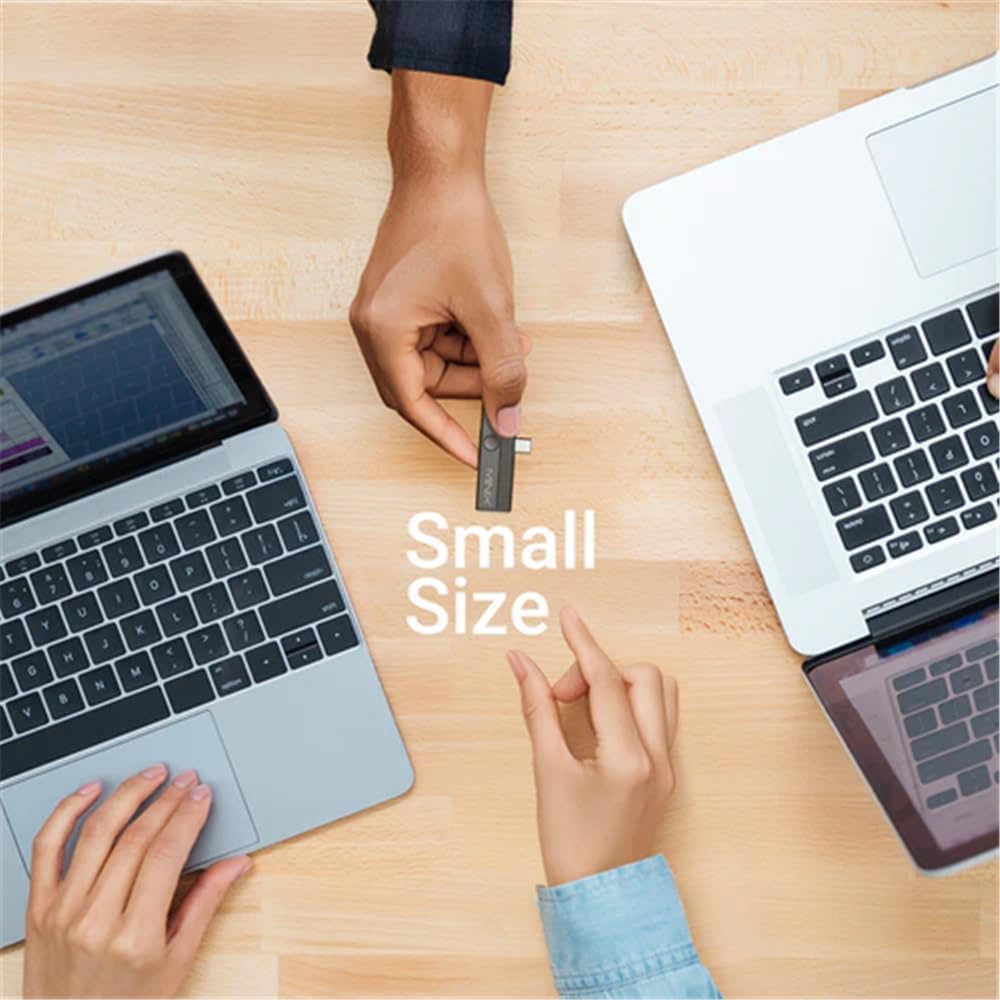
Image: The compact size of the MINIX C1 Plus transmitter, shown being held between two hands, emphasizing its portability.

Image: A visual representation of the MINIX C1 Plus's 50-meter (164 ft) wireless transmission range, depicted in a city landscape.
3. Setup Instructions
Follow these steps to set up your MINIX C1 Plus wireless extender:
-
Step 1: Connect Receiver to Display
Connect the wireless HDMI display receiver (RX) to an available HDMI port on your TV or monitor. Then, power on the receiver by plugging its USB male port into an external USB-A power source. A minimum of 5V/0.5A output is required for the receiver to function correctly. -
Step 2: Connect Transmitter to Source Device
Plug the C1 Plus transmitter into the USB-C port of your laptop, smartphone, or tablet. Ensure that your device's USB-C port supports DisplayPort Alternate Mode (DP-Alt) for video output. The screen mirroring or extension will establish automatically within approximately 12 seconds.
Image: The MINIX C1 Plus transmitter connected to a laptop's USB-C port, indicating support for DisplayPort Alt Mode.
-
Step 3: Stop and Restart Transmission
To stop screen mirroring or extension, simply unplug the C1 Plus transmitter from the USB-C port of your source device. To restart, plug the C1 Plus transmitter back into the USB-C port.
Important Note: Ensure that the USB-C port on your computer, smartphone, laptop, or tablet is full-featured (DP-Alt), supporting display, data transfer, and Power Delivery (PD).
4. Operating Instructions
Once the setup is complete, the MINIX C1 Plus will automatically begin transmitting your screen. You can choose between two display modes based on your needs:
- Mirror Mode: Duplicates your device's screen onto the external display. This is ideal for presentations or sharing content directly.
- Extend Mode: Expands your desktop across both your device's screen and the external display, providing more workspace for enhanced productivity. This mode is typically managed through your operating system's display settings.
The device is designed for instant swap and share, allowing you to quickly connect and disconnect the transmitter from different source devices as needed.
5. Maintenance
To ensure the longevity and optimal performance of your MINIX C1 Plus, please follow these maintenance guidelines:
- Cleaning: Use a soft, dry cloth to clean the device. Avoid using liquid cleaners or aerosols, which may damage the plastic enclosure.
- Storage: Store the device in a cool, dry place away from direct sunlight and extreme temperatures. Recommended storage conditions are -20°C to 80°C (-4°F to 176°F) with 5% to 95% relative humidity, within 2km above sea level.
- Handling: Handle the device with care. Avoid dropping it or subjecting it to strong impacts.
- Power: Always use a compatible power source for the receiver (minimum 5V/0.5A).
6. Troubleshooting
If you encounter issues with your MINIX C1 Plus, refer to the following common problems and solutions:
-
No Display on TV/Monitor:
- Ensure the receiver is properly connected to the HDMI port of your display.
- Verify that the receiver is receiving adequate power from a 5V/0.5A (minimum) USB-A power source.
- Confirm that the transmitter is securely plugged into your source device's USB-C port.
- Check if your source device's USB-C port supports DisplayPort Alternate Mode (DP-Alt). Not all USB-C ports support video output.
- Try restarting the transmission by unplugging and replugging the transmitter.
-
Poor Signal Quality or Intermittent Connection:
- Reduce the distance between the transmitter and receiver. The maximum range is 50 meters (164 ft) under ideal conditions.
- Ensure there are no significant obstructions (e.g., thick walls, large metal objects) between the transmitter and receiver.
- Avoid placing the devices near sources of strong electromagnetic interference.
-
No Audio:
- Check the audio settings on your TV/monitor and source device to ensure the correct audio output is selected.
- Ensure the HDMI cable connection to the display is secure.
7. Specifications

Image: Detailed diagram showing the dimensions and port configurations of the MINIX C1 Plus transmitter and receiver components.
| Connection | USB-C Transmitter (Tx) + HDMI Receiver (Rx) |
| Display Resolution | Up to 1080p @ 60Hz |
| Item Weight | 35 Grams |
| Transmitter Charging Port Input | 5V⎓2A |
| Receiver Power Requirement | External USB-A power source with minimum 5V/0.5A output |
| Compatible Devices | Laptops, Smartphones, Tablets that support DP-Alt video output |
| Connectivity Technology | Wireless (5GHz) |
| Special Feature | Plug and Play |
| Material | Plastic |
| Color | Black |
| Storage Condition | -20°C~80°C, 5%~95% RH, within 2km above sea level |
| Manufacturer | MINIX |
8. Warranty Information
The MINIX C1 Plus USB-C HDMI Wireless Extender is covered by a 1-year manufacturer's warranty. This warranty covers defects in materials and workmanship under normal use. Please retain your proof of purchase (receipt or invoice) as it will be required for any warranty claims. For specific terms and conditions, please refer to the official MINIX warranty policy or contact customer support.
9. Support
For further assistance, technical support, or inquiries regarding your MINIX C1 Plus, please visit the official MINIX website or contact their customer service department. You can find more information and support resources at the MINIX Store on Amazon.


