Introduction
The Redragon K524RGB-PRO is a versatile 75% mini gaming keyboard designed for multi-device compatibility and customizable performance. It offers three connection modes, dynamic RGB backlighting, programmable macro keys, and a durable design for extended use across various platforms.

Image: Redragon K524RGB-PRO keyboard displaying its RGB backlighting.
Setup
Connection Modes
The K524RGB-PRO keyboard supports three connection types: Bluetooth 5.0, 2.4GHz wireless, and USB-C wired. It can connect to up to 5 devices simultaneously, including PC, Mac, tablets, phones, PS, and Xbox.
- USB-C Wired Mode: Connect the keyboard directly to your device using the provided USB-A to USB-C cable.
- 2.4GHz Wireless Mode:
- Locate the 2.4GHz USB dongle stored in the compartment on the underside of the keyboard.
- Switch the mode selector on the side of the keyboard to '2.4G'.
- Press and hold the FN key + 4 key for 3 seconds.
- Plug the USB receiver into your PC's USB port. The keyboard will connect automatically.
- Bluetooth 5.0 Mode:
- Switch the mode selector on the side of the keyboard to 'BT'.
- Press and hold the FN key + 1, 2, or 3 key for 3 seconds to select a Bluetooth profile (BT1, BT2, or BT3).
- On your device, search for 'BT3.0/Keyboard' or 'BT5.0/Keyboard' in the Bluetooth settings and connect.

Image: The keyboard connected to a laptop and tablet, illustrating its tri-mode connectivity options.
Battery and Charging
The keyboard is equipped with a 4,000mAh rechargeable battery, providing over 30 days of standby time or 50 hours of RGB runtime. Connect the USB-C cable to the keyboard and a power source to charge. The battery indicator lights will show charging status.
Operating System Switch
Use the dedicated switch on the side of the keyboard to toggle between Windows and Mac operating system layouts for optimal key functionality.
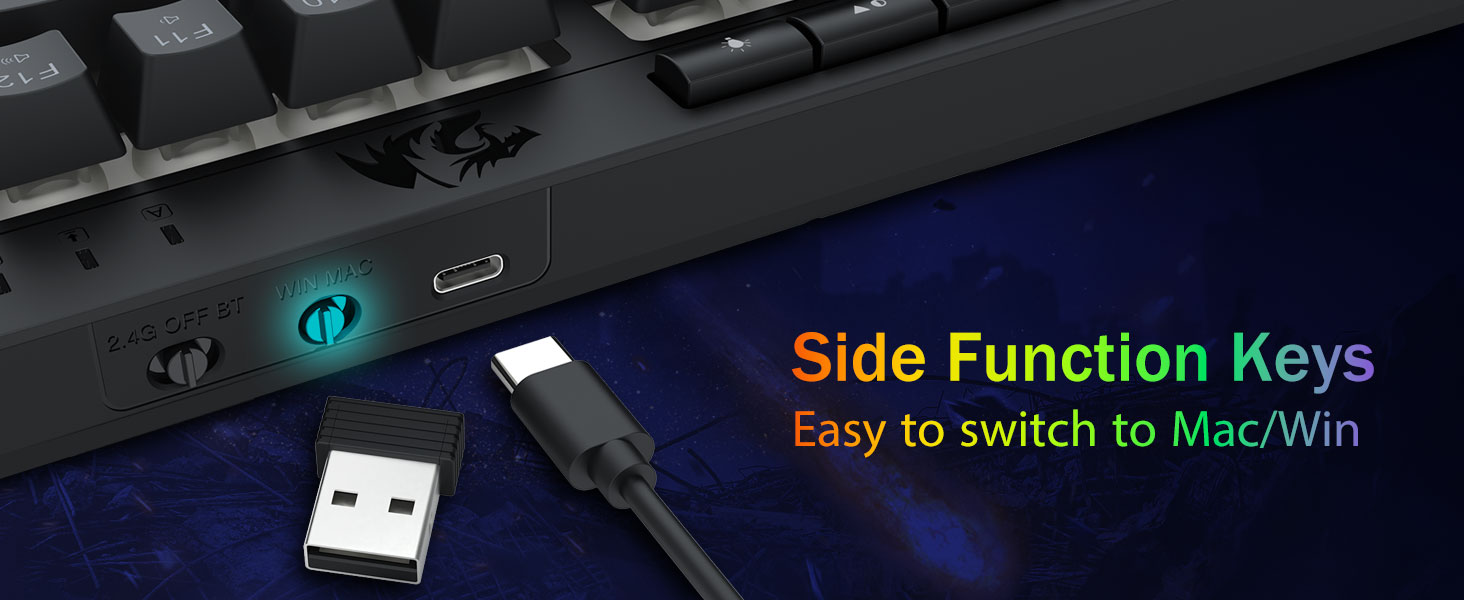
Image: Close-up of the keyboard's side, highlighting the USB-C port and the switch for Windows/Mac compatibility.
Operating Instructions
RGB Lighting Customization
The keyboard features 16.8 million RGB colors with 8 preset modes (e.g., Rainbow Wave, Reactive Typing) and 6 DIY profiles. Dedicated quick access buttons allow for easy adjustment.
- Switch Lighting Modes: Use the 'M' button (Mode) to cycle through 8 preset RGB lighting modes.
- Adjust Brightness: Use the brightness control buttons (sun icon) to increase or decrease the backlight intensity.
- Change Colors: Use the 'C' button (Color) to switch between different solid colors or color patterns within certain modes.
- Adjust Speed: Use the speed control buttons (arrows) to increase or decrease the animation speed of dynamic lighting modes.
- Turn Backlight On/Off: Use the light bulb icon button to toggle the backlight on or off.

Image: The keyboard displaying different RGB lighting effects and the dedicated control buttons for customization.
Macro Key Programming
The keyboard features 4 onboard macro keys (G1-G4) that can be programmed without software. Macros are supported in 2.4G mode, but not in Bluetooth mode.
- Press the 'Rec' button to start macro recording.
- Press G1-G4 to select a profile to record the macro. The LED indicator will flash quickly.
- Type the keys you want to record into the macro (up to 25 keys supported).
- Press 'Rec' again to save the macro.
To delete macro settings:
- Delete all macro settings: Press & hold [FN] + [Rec] for 5 seconds. The LED indicator will flash once, confirming all macro settings are deleted.
- Delete partial macro setting: Press [Rec], the LED indicator will flash slowly. Press the [G] key (G1-G4) of the macro you want to delete. The LED indicator will flash quickly. Press [Rec] again to confirm deletion.
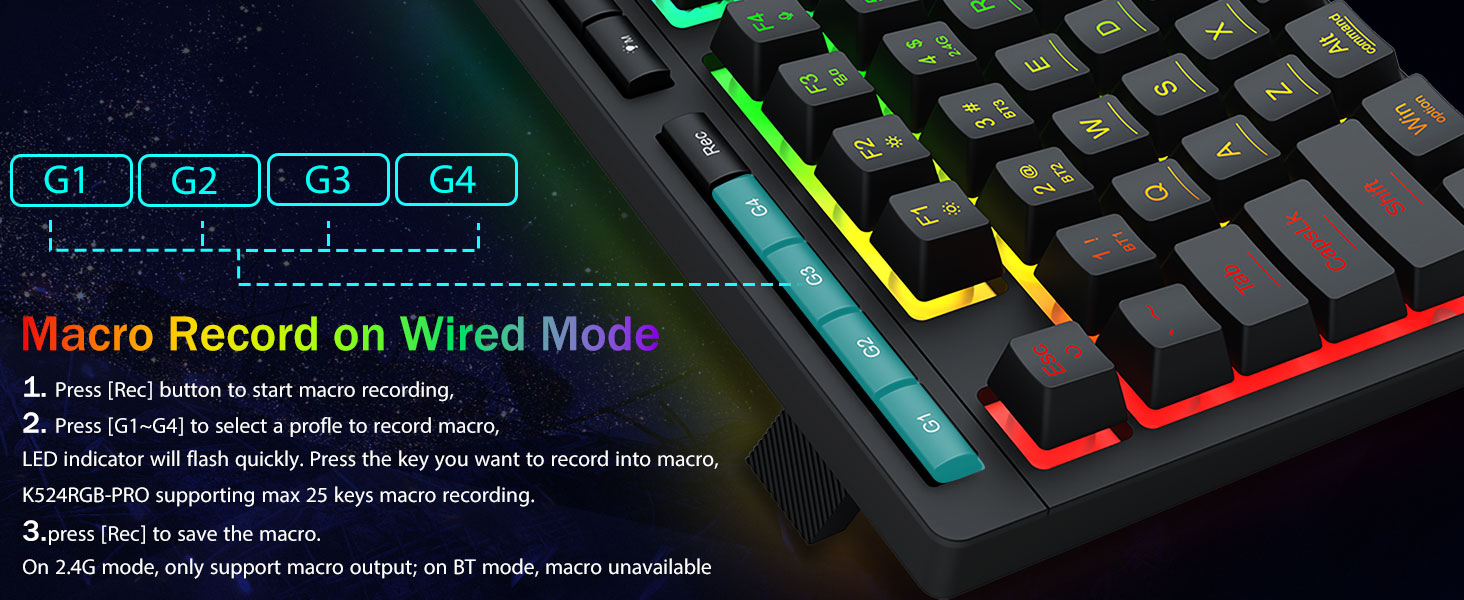
Image: Detailed instructions on how to record macros using the G1-G4 keys and the 'Rec' button.
Anti-Ghosting Keys
The keyboard features anti-ghosting for 26 keys, allowing for simultaneous key presses to ensure fast and accurate responses, particularly useful in gaming scenarios.

Image: The keyboard with highlighted keys demonstrating the 26 anti-ghosting capability for complex commands.
FN Multimedia Shortcuts
Utilize the FN key in combination with other keys for various multimedia and system shortcuts. The functions may vary slightly between Windows and Mac modes.
| Function | Windows Shortcut | Mac Shortcut |
|---|---|---|
| Screen Brightness - | FN+F1 | FN+F1 |
| Screen Brightness + | FN+F2 | FN+F2 |
| Multiple Windows / Multiple Task | FN+F3 | FN+F3 |
| Speech Recognition (Win 10+) / Siri | FN+F4 | FN+F4 |
| Desktop | FN+F5 | FN+F5 |
| Search | FN+F6 | FN+F6 |
| Pre Track | FN+F7 | FN+F7 |
| Play/Pause | FN+F8 | FN+F8 |
| Next Track | FN+F9 | FN+F9 |
| Mute | FN+F10 | FN+F10 |
| Volume - | FN+F11 | FN+F11 |
| Volume + | FN+F12 | FN+F12 |
| Lock/Unlock Win Key | FN+WIN | N/A |
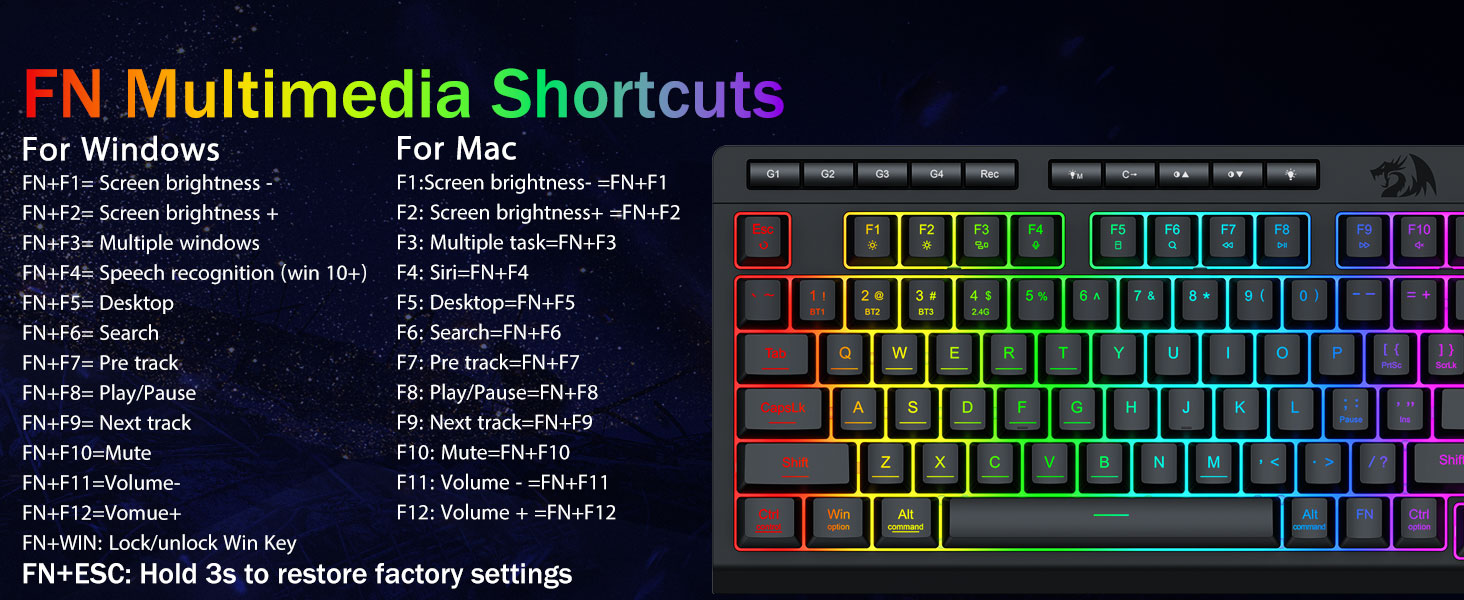
Image: A visual guide to the FN key combinations for various multimedia and system functions on both Windows and Mac.
Auto Power Saving
After 3 minutes of inactivity in wireless mode, the keyboard backlight will automatically turn off to conserve battery. Press any key to wake up the keyboard.
Maintenance
The Redragon K524RGB-PRO keyboard is designed for durability with a classic volcano switch structure, ensuring a lifespan of 50 million keystrokes. The floating keycaps are designed for easy cleaning and maintenance.
- Cleaning: Use a soft, dry cloth to wipe down the keyboard. For deeper cleaning, keycaps can be carefully removed.
- Storage: Store the keyboard in a dry, cool place away from direct sunlight and extreme temperatures.

Image: A close-up view of the keyboard's floating keycaps, illustrating their design for easy cleaning and maintenance.
Troubleshooting
- Connectivity Issues: If experiencing issues with Bluetooth or 2.4GHz connection, ensure the keyboard is in the correct mode and fully charged. Re-pairing may be necessary. For 2.4GHz, ensure the dongle is securely inserted.
- Low Battery Indicator: If the low battery light blinks constantly even after charging, this may indicate a sensor issue. Ensure the keyboard has been charged for a sufficient period (several hours).
- Driver/Software Issues: For advanced customization, macros, and RGB adjustments, download the official software from the provided link: bit.ly/K524RGB-PRODriver. Ensure your operating system is compatible.
- Factory Reset: To restore the keyboard to factory settings, hold down the FN key + ESC key for 3 seconds.
Specifications
| Feature | Detail |
|---|---|
| Model Number | K524RGB-PRO |
| Product Dimensions | 13 x 1.3 x 6.1 inches |
| Item Weight | 1.13 pounds |
| Connectivity Technology | 2.4Ghz, Bluetooth, USB-C |
| Compatible Devices | Gaming Console, Laptop, PC, Smartphone, Tablet |
| Keyboard Description | Gaming (Membrane Keyboard) |
| Special Features | Backlit, Ergonomic, Hotkeys and Media Keys, Integrated Stand, Spill Proof |
| Keyboard Backlighting | RGB |
| Battery | 4000mAh Nonstandard Battery (included) |
| Keystroke Lifespan | 50 million keystrokes |
Support
For further assistance, driver downloads, or product information, please visit the official Redragon website or contact customer support.
Driver Download Link: bit.ly/K524RGB-PRODriver
Video: Official Redragon K524RGB-PRO Tri-Mode RGB Keyboard overview, demonstrating its features and functionality.


