
Introduction
This manual provides detailed instructions for the installation, use, and maintenance of your BoxWave ClearTouch Anti-Glare Screen Protector, designed specifically for the Eonon Q98PRO device. This product is engineered to reduce glare, resist fingerprints, and protect your device's screen from scratches.
Each package contains two (2) ClearTouch Anti-Glare screen protectors and essential installation accessories.

Image: Packaging for the BoxWave ClearTouch Anti-Glare Screen Protector, showing the product name and key features.
Setup: Installation Guide
Follow these steps carefully for optimal screen protector application:
- Prepare Your Workspace: Ensure you are in a clean, dust-free environment. Wash your hands thoroughly to avoid transferring oils or dirt to the screen.
- Clean the Device Screen: Use the included microfiber cleaning cloth to thoroughly wipe down the Eonon Q98PRO screen. Ensure all dust, smudges, and fingerprints are removed. For stubborn marks, a screen cleaner (not included) can be used sparingly.
- Remove Dust: Use the dust-removing sticker (if included) to lift any remaining dust particles from the screen surface. Lightly dab the sticker across the screen.
- Align the Screen Protector: Carefully peel back a small portion of the protective layer (usually marked '1') from one end of the screen protector. Align the exposed edge of the screen protector with the corresponding edge of your Eonon Q98PRO screen. Pay close attention to cut-outs for cameras or sensors.
- Apply and Smooth: Slowly peel off the rest of the protective layer '1' while simultaneously applying the screen protector to the device screen. Use the applicator card (if included) or a soft, flat object to gently push out any air bubbles towards the edges as you apply.
- Remove Remaining Bubbles: If small bubbles remain, gently push them towards the nearest edge using the applicator card. For persistent bubbles, you may carefully lift the nearest edge of the screen protector slightly and reapply, smoothing it down.
- Remove Top Protective Layer: Once the screen protector is fully applied and free of major bubbles, carefully peel off the top protective layer (usually marked '2').

Image: Included accessories for screen protector installation, featuring an applicator card, a microfiber cleaning cloth, and a dust-removing sticker.
Operating: Key Features
Anti-Glare Properties
The ClearTouch Anti-Glare screen protector features a matte surface designed to disperse light, significantly reducing reflections and glare. This improves screen visibility in various lighting conditions, including bright sunlight or under overhead indoor lights. It also helps reduce 90% of UV rays, contributing to eye comfort.
Anti-Smudge and Anti-Fingerprint Surface
The matte finish of the screen protector is engineered to repel smudges, oils, and fingerprints. This oleophobic layer helps keep your Eonon Q98PRO screen cleaner for longer, maintaining a smooth touch response and clear display throughout daily use.

Image: Visual demonstration of the anti-smudge feature, illustrating how the screen protector resists fingerprints compared to an unprotected screen.
Paper-like Feel
The unique surface texture provides a tactile experience similar to writing or drawing on paper. This can enhance precision and comfort when using a stylus or your finger on the Eonon Q98PRO screen.
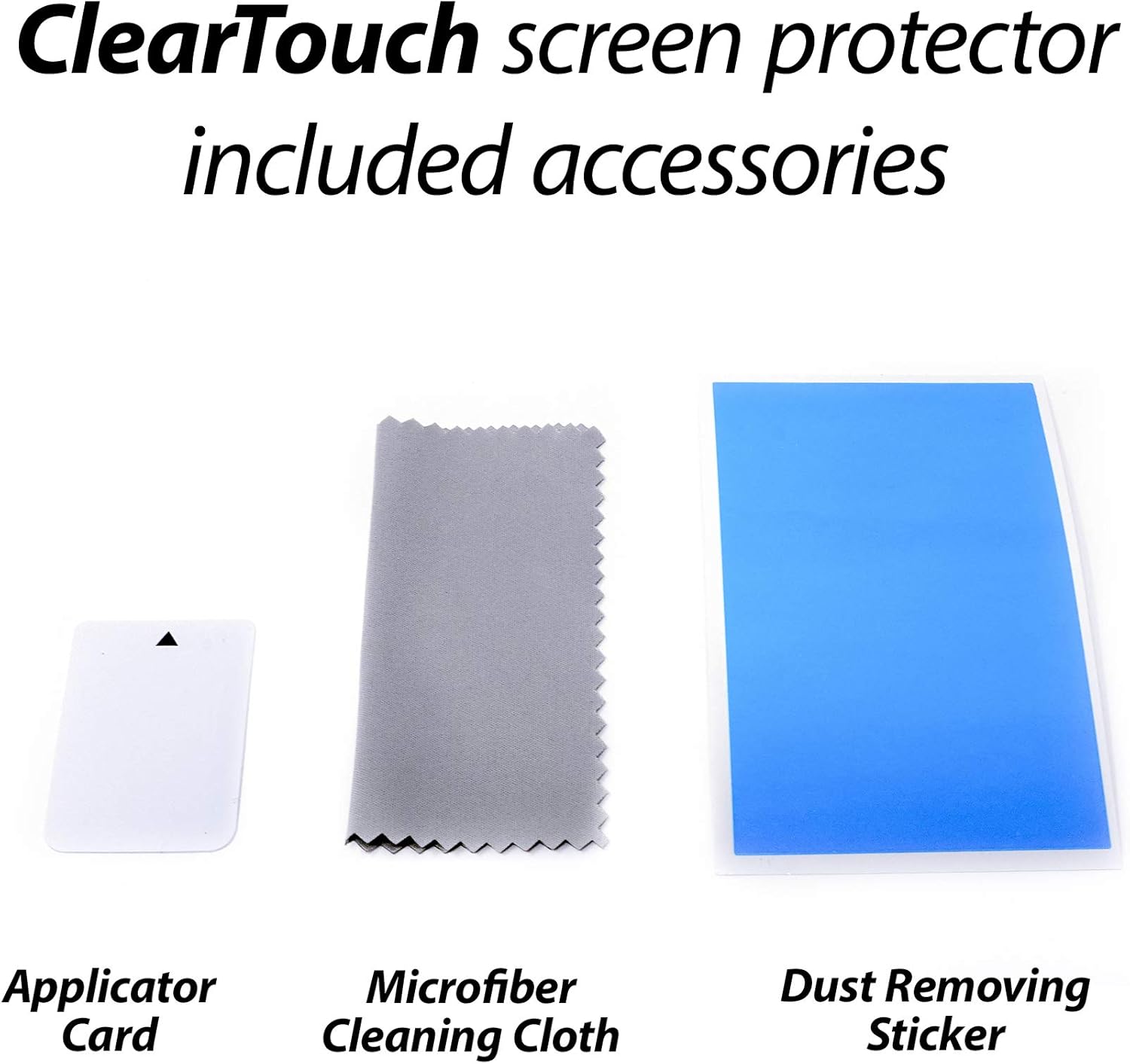
Image: A stylus interacting with a tablet screen, illustrating the 'paper-like feel' for writing and drawing.
Maintenance
To maintain the clarity and effectiveness of your screen protector:
- Regular Cleaning: Use a soft, lint-free microfiber cloth to gently wipe the screen protector. Avoid abrasive materials that could scratch the surface.
- Avoid Harsh Chemicals: Do not use harsh chemical cleaners, alcohol, or ammonia-based solutions, as these can damage the screen protector's coating. A small amount of water or a specialized screen cleaner designed for electronics can be used if necessary.
- Reusability: The ClearTouch screen protector is designed for reusability. If you need to remove and reinstall it, ensure both the screen and the adhesive side of the protector are clean and free of dust.
Troubleshooting
- Bubbles After Installation: Small bubbles can often be pushed out to the edges using the applicator card. For larger bubbles, gently lift the nearest edge of the screen protector and slowly reapply, smoothing it down as you go.
- Dust Under the Protector: If dust particles are trapped, carefully lift the screen protector from the nearest edge. Use a dust-removing sticker or a piece of tape to gently lift the dust from both the device screen and the adhesive side of the protector. Reapply slowly.
- Screen Protector Not Sticking: Ensure the screen is completely clean and dry before application. If the adhesive side of the protector has become dirty, it may affect adhesion. In such cases, you may need to use the second protector provided in the pack.
Specifications
| Feature | Detail |
|---|---|
| Brand | BoxWave |
| Model Compatibility | Eonon Q98PRO |
| Material | Polyethylene Terephthalate (PET) |
| Screen Surface Description | Matte, Anti-Glare, Anti-Fingerprint |
| Package Contents | 2x Screen Protectors, Installation Accessories |
| Item Weight | 1.6 ounces |
Warranty and Support
BoxWave products are manufactured with quality in mind. For any questions, concerns, or support regarding your ClearTouch Anti-Glare Screen Protector, please refer to the contact information provided on your product packaging or visit the official BoxWave website for customer service details.
Please retain your proof of purchase for any warranty claims.