Introduction
This manual provides comprehensive instructions for the OuuOee Mini PC Stick, a compact and powerful micro computer designed for various applications including business, office, industrial IoT, and media entertainment. It features a Pentium N4200 processor, 4GB RAM, 64GB eMMC storage, and supports 4K 60Hz video output.
Please read this manual carefully before using your Mini PC Stick to ensure proper setup, operation, and maintenance.

Image: The OuuOee Mini PC Stick, showcasing its sleek, fanless design and compact form factor. The image highlights the device's small size, making it highly portable.
Product Features
- Compact and Portable Design: Small form factor allows for easy portability and discreet placement.
- Fanless Operation: Features a special cooling system for efficient heat dissipation without a fan, ensuring quiet and stable performance.
- Processor: Equipped with a Pentium N4200 (1.1 GHz) processor for reliable performance.
- Memory and Storage: 4GB LPDDR4 RAM and 64GB eMMC storage, suitable for Windows 10 and HD video playback.
- Operating System Compatibility: Supports Windows 10 Pro, Linux, and Ubuntu.
- High-Resolution Output: HDMI 2.0 port with UHD 600 graphics supports 4K @ 60Hz output.
- Connectivity: Dual-band 2.4/5GHz Wi-Fi, Bluetooth 5.0, Gigabit LAN Port, 2x USB 3.0 ports, TF Card reader, 3.5mm Audio jack.
- Power Delivery: Supports USB PD 3.0 charging (>24W).

Image: The Mini PC Stick's compact dimensions (5.04 in / 128 mm length, 2.01 in / 51 mm width, 0.51 in / 13 mm thickness) are shown in comparison to a typical smartphone, highlighting its pocket-sized portability.
Setup
1. Connecting Peripherals
The Mini PC Stick offers versatile connections for various devices. Connect your monitor, keyboard, mouse, and other peripherals as needed.
- Monitor/Display: Connect via the HDMI 2.0 port. Ensure your display supports 4K resolution for optimal experience.
- Keyboard & Mouse: Use the USB 3.0 ports for wired devices or connect Bluetooth peripherals after initial setup.
- Network: Use the Gigabit LAN port for a wired internet connection or connect via Wi-Fi.
- Audio: Connect headphones or speakers to the 3.5mm Audio jack.
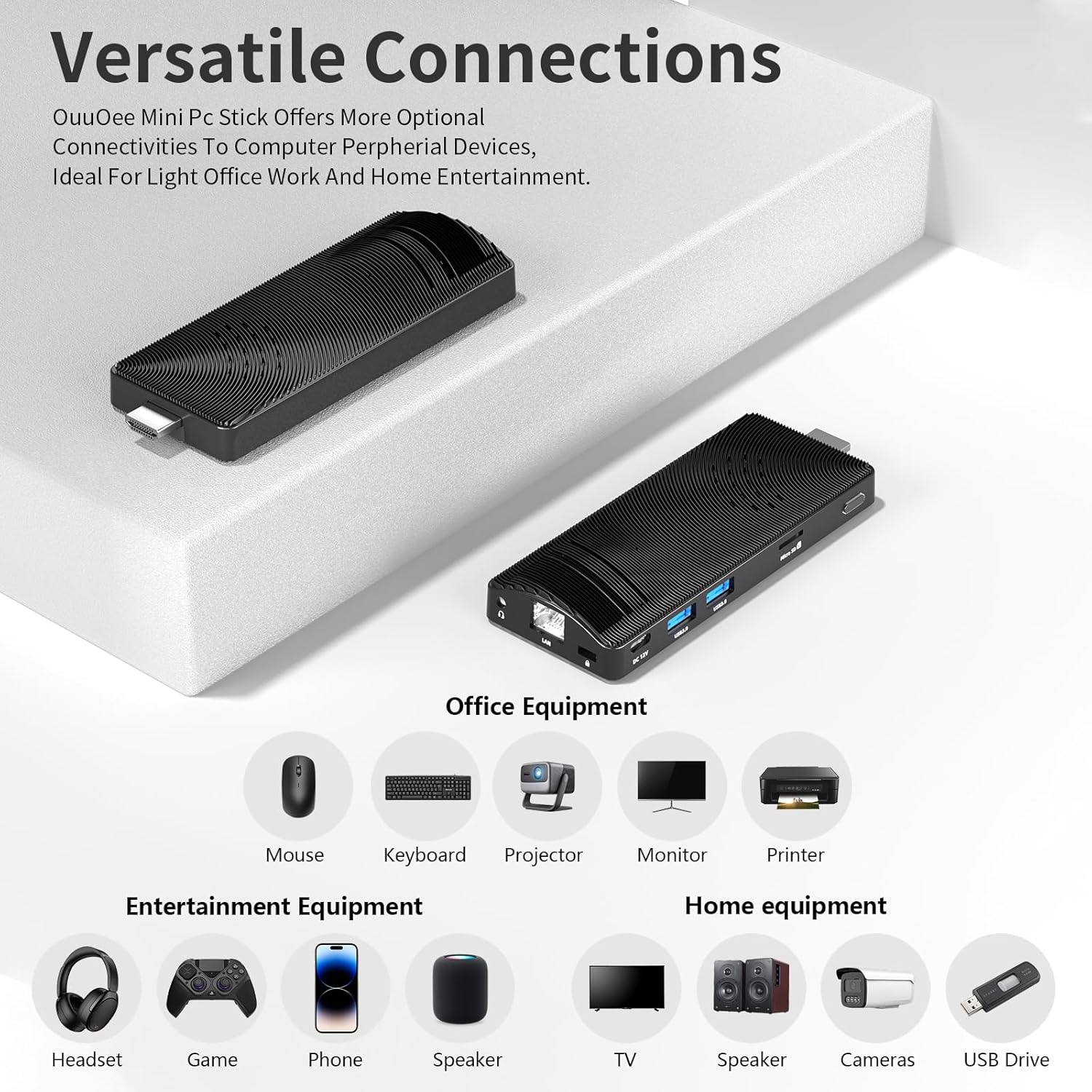
Image: Diagram illustrating the Mini PC Stick's versatile connections to devices such as a mouse, keyboard, projector, monitor, printer, headset, game controller, phone, speaker, TV, cameras, and USB drives.
2. Powering On and BIOS Access
To power on the device and access the BIOS settings:
- Connect the power supply to the DC 12V port on the Mini PC Stick.
- Press the power button. The indicator light will display blue.
- Immediately press the F7 key on your connected keyboard to enter the BIOS setup.
- In the BIOS menu, navigate to "Enter Setup".
- Go to "Chipset" and then select "South Cluster Configuration".
- Under "Miscellaneous Configuration", find "State After G3".
- Select "S0 State" if you want the device to start immediately upon connecting the power supply. Choose "S5 State" if you prefer to activate it by pressing the power button after power is supplied.
- Return to the main menu and select "Save & Exit" to confirm changes and restart.
Video: This video demonstrates how to access the BIOS settings and configure the power-on state (S0 or S5) for the Mini PC Stick. It shows the steps for pressing F7 to enter BIOS, navigating through the Chipset and Miscellaneous Configuration menus, and saving the changes.
3. Charging and Power Delivery
The Mini PC Stick supports USB PD 3.0 charging. Ensure your charger provides at least 24W for optimal performance.
- Use a common 12V charger.
- Connect the charger to the fully functional Type-C interface on the Mini PC Stick.
Video: This video explains how to use a common 12V charger and connect it to the fully functional Type-C interface for charging the Mini PC Stick. It highlights the importance of using a compatible charger for proper power delivery.
Operating Instructions
Operating System
The Mini PC Stick comes pre-installed with Windows 10 Pro and is also compatible with Linux and Ubuntu operating systems. This flexibility makes it suitable for a wide range of uses, from business and office tasks to entertainment and industrial applications.

Image: The Mini PC Stick demonstrating its multi-system compatibility, showing Windows 10, Ubuntu, and Linux operating systems running on connected displays.
Connectivity
- Wi-Fi: Built-in 2.4/5GHz dual-band Wi-Fi provides stable wireless internet access.
- Bluetooth 5.0: Connect wireless peripherals such as keyboards, mice, and headphones.
- Gigabit Ethernet: For a stable and fast wired network connection.
- USB 3.0 Ports: Two USB 3.0 ports for high-speed data transfer with external devices.

Image: A close-up side view of the Mini PC Stick, emphasizing its built-in Dual Band WiFi 5.0, Bluetooth 5.0 support, and compatibility with 10/100/1000Mbps Ethernet.
4K Video Output
The Mini PC Stick supports 4K UHD graphics output at 60Hz via its HDMI 2.0 port, providing vivid and clear visuals for media consumption or presentations.

Image: The Mini PC Stick connected to a monitor, showcasing its HDMI 2.0 and Gigabit Network capabilities, with a visual representation of 4K Ultra HD (3840x2160) output.
Storage Expansion
Expand the internal 64GB eMMC storage using the built-in TF Card reader, allowing for more space for documents, media, and applications.

Image: A detailed view of the Mini PC Stick's Micro SD card slot, demonstrating how to expand its storage capacity.
Maintenance
The OuuOee Mini PC Stick features a fanless design, which significantly reduces maintenance needs by preventing dust accumulation and eliminating fan noise. This design ensures a quiet and stable computing environment and supports 24/7 operation.
- Keep the device in a clean, dry environment.
- Avoid blocking the ventilation grilles on the sides of the device to ensure proper heat dissipation.
- Clean the exterior with a soft, dry cloth as needed. Do not use liquid cleaners.

Image: The Mini PC Stick positioned quietly on a nightstand, emphasizing its fanless design that results in no dust and no noise, ideal for a peaceful environment.
Troubleshooting
If you encounter issues with your OuuOee Mini PC Stick, please refer to the following common troubleshooting steps:
- No Power/No Boot:
- Ensure the power adapter is securely connected to both the device and a working power outlet.
- Verify that the power adapter meets the required 12V and >24W output.
- If "S5 State" is selected in BIOS, press the power button to turn on the device.
- No Display:
- Check the HDMI cable connection between the Mini PC Stick and the monitor.
- Ensure the monitor is powered on and set to the correct input source (HDMI).
- Try a different HDMI cable or monitor if available.
- No Wi-Fi/Bluetooth:
- Check if Wi-Fi/Bluetooth is enabled in the operating system settings.
- Ensure you are within range of your Wi-Fi network or Bluetooth device.
- Restart the Mini PC Stick and your router/Bluetooth device.
- Slow Performance:
- Close unnecessary applications running in the background.
- Ensure there is sufficient free space on the eMMC storage.
- Check for and install any available operating system updates.
If the issue persists, please contact OuuOee customer support for further assistance.
Specifications
| Feature | Detail |
|---|---|
| Processor | Pentium N4200 (1.1 GHz) |
| RAM | 4 GB LPDDR4 |
| Storage | 64 GB eMMC |
| Graphics Coprocessor | Intel UHD Graphics 600 |
| Video Output | HDMI 2.0 (4K @ 60Hz) |
| USB Ports | 2 x USB 3.0, 1 x Type-C (fully functional) |
| Network | Gigabit LAN, Dual Band Wi-Fi (2.4/5GHz) |
| Bluetooth | Bluetooth 5.0 |
| Card Reader | TF Card Reader |
| Audio | 3.5mm Audio Jack |
| Operating System | Windows 10 Pro (supports Linux, Ubuntu) |
| Dimensions (LxWxH) | 5.03 x 2.02 x 0.57 inches |
| Item Weight | 1 pounds |
Warranty and Support
OuuOee is committed to providing excellent customer service and support for your Mini PC Stick.
- 24 Hours Reply: Expect a response to your inquiries within 24 hours.
- 3 Month Free Replacement: Enjoy a three-month free replacement period for eligible issues.
- Lifetime Technical Support: Benefit from lifetime technical support for your product.
For any questions or assistance, please feel free to contact us. Your satisfaction is our priority.

Image: OuuOee's commitment to customer satisfaction, highlighting 24-hour reply, 3-month free replacement, and lifetime technical support.


