
HyperX AJ0T1AA
HyperX Cloud Jet - Wireless Gaming Headset
User Manual
Introduction
The HyperX Cloud Jet is a versatile dual wireless gaming headset designed for seamless compatibility across multiple platforms. Featuring 2.4GHz and Bluetooth 5.2 connectivity, it delivers rich audio through 40mm drivers and ensures clear communication with its swivel-to-mute boom mic. This manual provides detailed instructions to help you set up, operate, and maintain your HyperX Cloud Jet headset, ensuring an optimal gaming and audio experience.

Image: The HyperX Cloud Jet Wireless Gaming Headset in black, showcasing its sleek design and integrated microphone.
What's in the Box
- HyperX Cloud Jet Headset
- 2.4GHz USB Type-A Wireless Dongle
- USB Charging Cable (USB-C to USB-A)
- Quick Start Guide
Setup
1. Charging the Headset
Before first use, fully charge your HyperX Cloud Jet headset. Connect the included USB charging cable to the USB-C port on the headset and the USB-A end to a powered USB port (e.g., computer, wall adapter). The LED indicator on the headset will show charging status.
2. Connecting via 2.4GHz Wireless (PC/Console)
- Insert the 2.4GHz USB Type-A Wireless Dongle into an available USB port on your PC or compatible console (PS4, PS5).
- Power on your HyperX Cloud Jet headset by pressing and holding the Power button until the LED indicator lights up.
- The headset and dongle should automatically pair. The LED on the dongle will turn solid when connected.
- On your device, ensure the HyperX Cloud Jet is selected as the audio output and input device.

Image: The HyperX Cloud Jet headset positioned next to a laptop and smartphone, illustrating its dual wireless compatibility with both Bluetooth and 2.4GHz connections.
3. Connecting via Bluetooth 5.2 (Mobile/Other Devices)
- With the headset powered on, press and hold the Wireless Connections Switch button until the LED indicator on the headset begins to blink rapidly, indicating pairing mode.
- On your mobile device or other Bluetooth-enabled device, go to Bluetooth settings and search for available devices.
- Select "HyperX Cloud Jet" from the list of found devices to pair.
- Once connected, the headset's LED indicator will turn solid.
Operating Instructions
Power On/Off
- To power on: Press and hold the Power button for 2 seconds.
- To power off: Press and hold the Power button for 3 seconds.
Volume Control
Adjust the audio volume using the Volume Wheel located on the left earcup. Roll it up to increase volume and down to decrease volume.

Image: A detailed view of the HyperX Cloud Jet's left earcup, highlighting the Multifunction Button, USB-C Charge Port, Volume Wheel, and Wireless Connections Switch.
Microphone Mute/Unmute (Swivel-to-Mute)
The HyperX Cloud Jet features a convenient swivel-to-mute boom mic. To mute the microphone, simply swivel the boom mic upwards until it clicks into the vertical position. To unmute, swivel the mic back down towards your mouth.
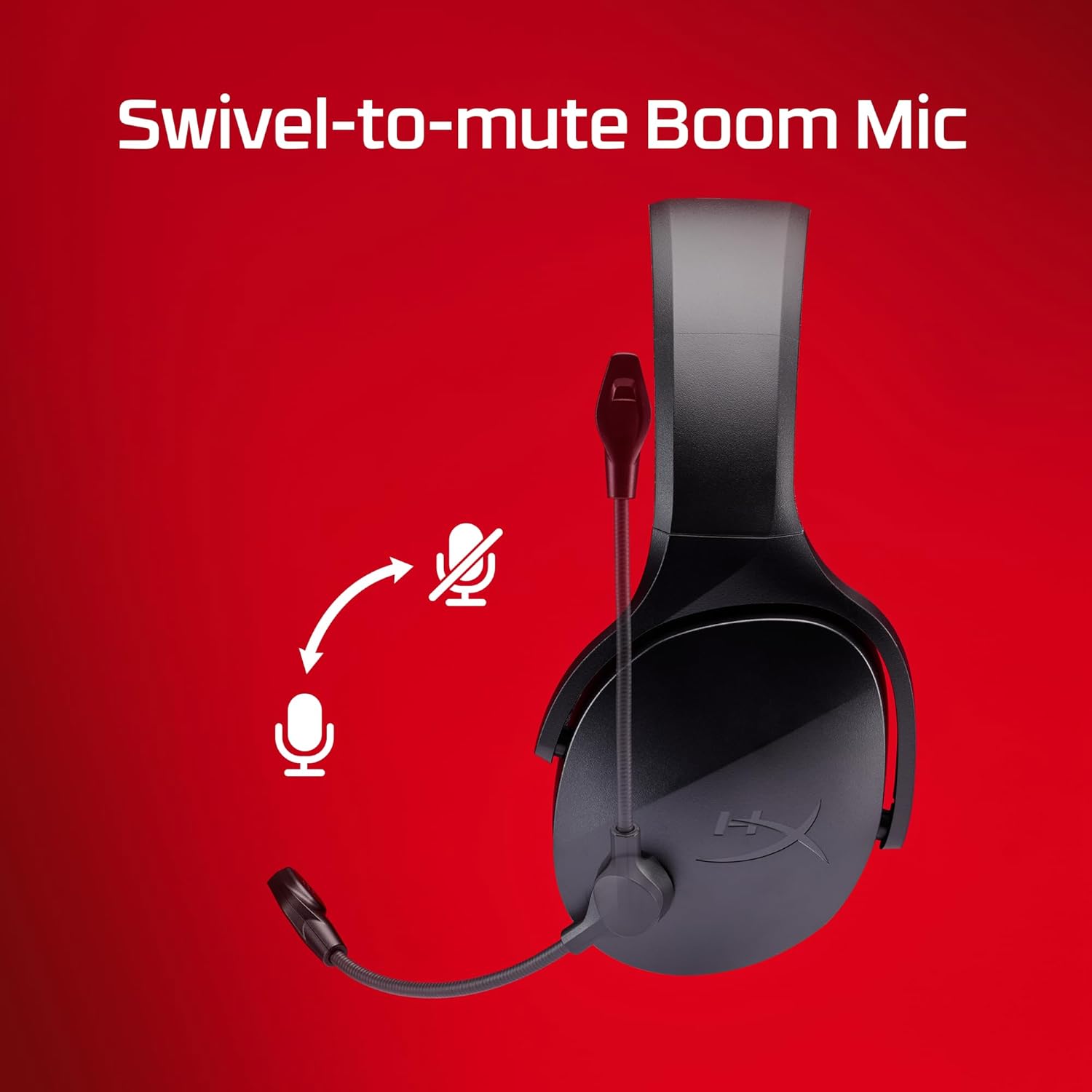
Image: The HyperX Cloud Jet headset with an arrow indicating the upward swivel motion to mute the microphone and a downward motion to unmute.
Switching Wireless Connections
To switch between 2.4GHz and Bluetooth connections, briefly press the Wireless Connections Switch button on the headset. The headset will automatically attempt to connect to the last paired device on the selected mode.
Battery Life
The HyperX Cloud Jet provides up to 25 hours of playtime on a single charge, allowing for extended gaming sessions. Battery life may vary based on usage and volume levels.

Image: A person wearing the HyperX Cloud Jet headset while gaming, with an overlay indicating "Up to 25 hours of Playtime" and a battery icon.
Comfort Features
The headset is designed for all-day comfort with a lightweight build, breathable mesh earpads, and an elastic suspension headband.

Image: A woman wearing the HyperX Cloud Jet headset, with callouts pointing to the lightweight design, elastic suspension headband, and breathable mesh earpads, emphasizing comfort.
Signature HyperX Sound
Experience deep, balanced audio with the headset's 40mm drivers and closed-cup design, which helps block out external noise for an immersive experience.

Image: A man wearing the HyperX Cloud Jet headset, with visual effects representing sound waves and callouts for the 40mm drivers and closed-cup design, highlighting audio quality.
Maintenance
- Cleaning: Use a soft, dry cloth to clean the headset. Avoid using harsh chemicals or abrasive materials.
- Storage: Store the headset in a cool, dry place away from direct sunlight and extreme temperatures.
- Battery Care: To prolong battery life, avoid fully discharging the headset frequently. Charge it regularly, even if not in use for extended periods.
Troubleshooting
| Problem | Solution |
|---|---|
| No audio/mic not working | Ensure the headset is powered on and properly connected (2.4GHz dongle inserted, Bluetooth paired). Check device audio settings to ensure HyperX Cloud Jet is selected as output/input. Ensure microphone is not muted (swivel down). |
| Headset not pairing | For 2.4GHz, ensure dongle is inserted and headset is powered on. For Bluetooth, ensure headset is in pairing mode (blinking LED) and your device's Bluetooth is enabled. Try restarting both devices. |
| Poor audio quality/disconnections | Ensure you are within the wireless range (15 meters for Bluetooth). Reduce interference by moving away from other wireless devices. Ensure headset is fully charged. |
| Battery not charging | Ensure the USB charging cable is securely connected to both the headset and a powered USB port. Try a different USB port or cable. |
Specifications
| Feature | Detail |
|---|---|
| Model Name | HyperX Cloud Jet - Wireless Gaming Headset (Black) |
| Model Number | AJ0T1AA |
| Connectivity Technology | Bluetooth 5.3, 2.4 GHz Wireless |
| Drivers | 40mm Dynamic |
| Frequency Response | 20 Hz - 20,000 Hz |
| Impedance | 32 Ohm |
| Sensitivity | 103 dB |
| Microphone | Swivel-to-mute Boom Mic |
| Battery Life | Up to 25 hours (Bluetooth), 20 hours (2.4GHz) |
| Charging Port | USB-C |
| Weight | 1.2 pounds (approx. 544g) |
| Material | Magnesium Alloy & ABS |
| UPC | 198701202189 |
Warranty and Support
HyperX products are backed by a limited warranty. For detailed warranty information, technical support, and customer service, please visit the official HyperX support website or refer to the warranty card included with your product. Keep your proof of purchase for warranty claims.
For the latest drivers, firmware updates, and additional support resources, please visit: www.hyperx.com/support
Related documentsAJ0T1AA


Ask a question about this manual
Ask about setup, troubleshooting, compatibility, parts, safety, or missing instructions. Manuals+ will review the question and use this page’s manual context to help answer it.