
1. Introduction
This manual provides detailed instructions for the installation, operation, and maintenance of your dehateo Android 14 Car Stereo Radio. This unit is designed for 2009-2020 Isuzu N Series (NNR/NPR/NPS/NQR) trucks, offering a 7-inch HD touchscreen with advanced features like wireless CarPlay, Android Auto, Bluetooth, GPS navigation, and WiFi connectivity. Please read this manual thoroughly before use to ensure proper functionality and safety.
2. Product Overview
Key Features:
- Vehicle Compatibility: Specifically designed for 2009-2020 Isuzu N Series (NNR/NPR/NPS/NQR) Truck models.
- High-Quality Audio: Features factory integration, Bluetooth, and Digital Sound Processor (DSP) for clear, high-fidelity audio output.
- 7-inch HD IPS Touchscreen: Offers a sharp 1080P display with Android 14 operating system, quad-core processor, 4GB RAM, and 64GB internal storage. Dual USB ports support up to 256GB each.
- Built-in GPS & WiFi: Supports offline maps and real-time navigation via Google Maps when connected to WiFi. Connect to mobile hotspots for internet access.
- Wireless CarPlay & Android Auto: Enables hands-free calls, navigation, and music streaming with both wired and wireless connectivity.
- Mirror Link: Supports screen mirroring for both iOS and Android devices.
- Rear Camera Input: Compatible with AHD rear view cameras for enhanced parking safety.
Package Contents:
The product package includes the following items:
- dehateo Android 14 Car Stereo Unit (7-inch)
- Power Cables (various types for vehicle compatibility)
- RCA Input/Output Cables
- Fixed Brackets
- Instruction Manual
- Camera Input Cable
- USB Cables (2)
- Canbus Box (if applicable for vehicle model)
- GPS Antenna
- External Microphone
- Backup Camera

Image: Contents of the dehateo car stereo package, including the main unit, various cables, GPS antenna, microphone, and backup camera.
3. Setup and Installation
Proper installation is crucial for the optimal performance and safety of your car stereo. It is highly recommended to have this unit installed by a qualified professional to avoid damage to the product or your vehicle's electrical system.
Pre-Installation Checks:
- Verify vehicle compatibility with your 2009-2020 Isuzu N Series truck.
- Ensure all components listed in the 'Package Contents' section are present.
- Disconnect the vehicle's battery before starting any electrical work.
General Installation Steps (Consult a professional for detailed vehicle-specific instructions):
- Remove the existing car stereo unit and trim from the dashboard.
- Connect the appropriate power cables, RCA cables, and other wiring harnesses to the new dehateo unit.
- Install the GPS antenna in a location with a clear view of the sky, typically on the dashboard or under the windshield.
- Route the backup camera cable and install the camera at the rear of the vehicle, ensuring proper alignment and waterproofing.
- Connect the external microphone for improved call quality.
- Secure the dehateo unit into the dashboard using the provided fixed brackets.
- Reinstall the dashboard trim.
- Reconnect the vehicle's battery and test all functions.

Image: The dehateo car stereo unit integrated into the dashboard of an Isuzu N Series truck, showing its fit and appearance.
4. Operating Instructions
4.1 Power On/Off and Basic Navigation
Press the power button on the unit or use the vehicle's ignition to turn the stereo on or off. The 7-inch HD IPS touchscreen allows for intuitive navigation through the Android 14 interface. Swipe, tap, and use on-screen buttons to access various applications and settings.

Image: The dehateo Android 14 Car Stereo display, showing the main interface with a truck in the background.
4.2 Wireless CarPlay & Android Auto
Connect your compatible iPhone or Android smartphone wirelessly to access CarPlay or Android Auto. This feature allows you to use navigation, make calls, send messages, and listen to music directly from your phone's interface displayed on the car stereo screen.
- Ensure Bluetooth and Wi-Fi are enabled on your smartphone.
- On the car stereo, navigate to the CarPlay or Android Auto application.
- Follow the on-screen prompts to pair your device.
- Once connected, your phone's compatible apps will appear on the stereo display.

Image: The car stereo displaying both Wireless CarPlay and Android Auto interfaces, showing navigation, music, and communication apps.
4.3 GPS Navigation
The unit comes with built-in GPS and supports both online and offline navigation. You can use pre-installed offline maps or connect to a Wi-Fi hotspot to use real-time navigation applications like Google Maps.
- To use offline maps, ensure they are downloaded to the unit's storage.
- For online navigation, connect the stereo to a Wi-Fi network (e.g., via your phone's hotspot).
- Open the desired navigation application (e.g., Google Maps) from the main menu.
- Enter your destination and follow the voice and visual prompts.

Image: The car stereo screen showing both online and offline navigation maps, demonstrating route planning and real-time traffic information.
4.4 Bluetooth Connectivity
Pair your smartphone via Bluetooth for hands-free calling and audio streaming.
- Go to the Bluetooth settings on the car stereo.
- Enable Bluetooth on your smartphone and search for available devices.
- Select the car stereo's Bluetooth name (e.g., 'dehateo Car Stereo') from your phone's list.
- Confirm the pairing code on both devices.
- Once paired, you can make/receive calls and play music through the car's speakers.

Image: A multi-panel view showing the Bluetooth 5.0 interface for calls and music, alongside DSP settings, WiFi/Hotspot, and Rear Camera Input features.
4.5 FM/RDS Radio
Access local radio stations with the built-in FM/RDS tuner.
- Select the 'Radio' application from the main menu.
- Use the on-screen controls to scan for stations, manually tune, or select presets.
- RDS (Radio Data System) provides additional information like station name and song title where available.

Image: The car stereo display showing the FM/RDS radio tuning interface and the Bluetooth music playback screen.
4.6 Steering Wheel Control
The unit supports integration with your vehicle's existing steering wheel controls, allowing you to manage audio and calls without taking your hands off the wheel.
- Access the 'Steering Wheel Control' settings in the stereo's system menu.
- Follow the on-screen instructions to program each button on your steering wheel to the desired function (e.g., volume up/down, track skip, answer call).

Image: The car stereo displaying the steering wheel control learning interface, showing options to assign functions to physical buttons.
4.7 Digital Sound Processor (DSP)
The built-in DSP allows for advanced audio customization, including equalization and sound field adjustments, to optimize your listening experience.
- Navigate to the 'DSP' or 'Sound Settings' menu.
- Adjust equalizer bands, balance, fader, and other audio parameters to your preference.

Image: The car stereo displaying the DSP interface with a 36-band equalizer and sound customization options.
4.8 Rear View Camera
When the vehicle is shifted into reverse, the stereo automatically displays the feed from the connected rear view camera, providing a clear view of the area behind your truck.

Image: The car stereo screen showing the AHD rear view camera feed with parking guidelines, and an inset image of the camera itself.
4.9 Mirror Link
Mirror Link allows you to display your smartphone's screen directly onto the car stereo, enabling access to apps not natively supported by CarPlay or Android Auto.
- Open the 'Mirror Link' application on the car stereo.
- Follow the specific instructions for connecting your iOS or Android device, which may involve a USB cable or Wi-Fi connection.
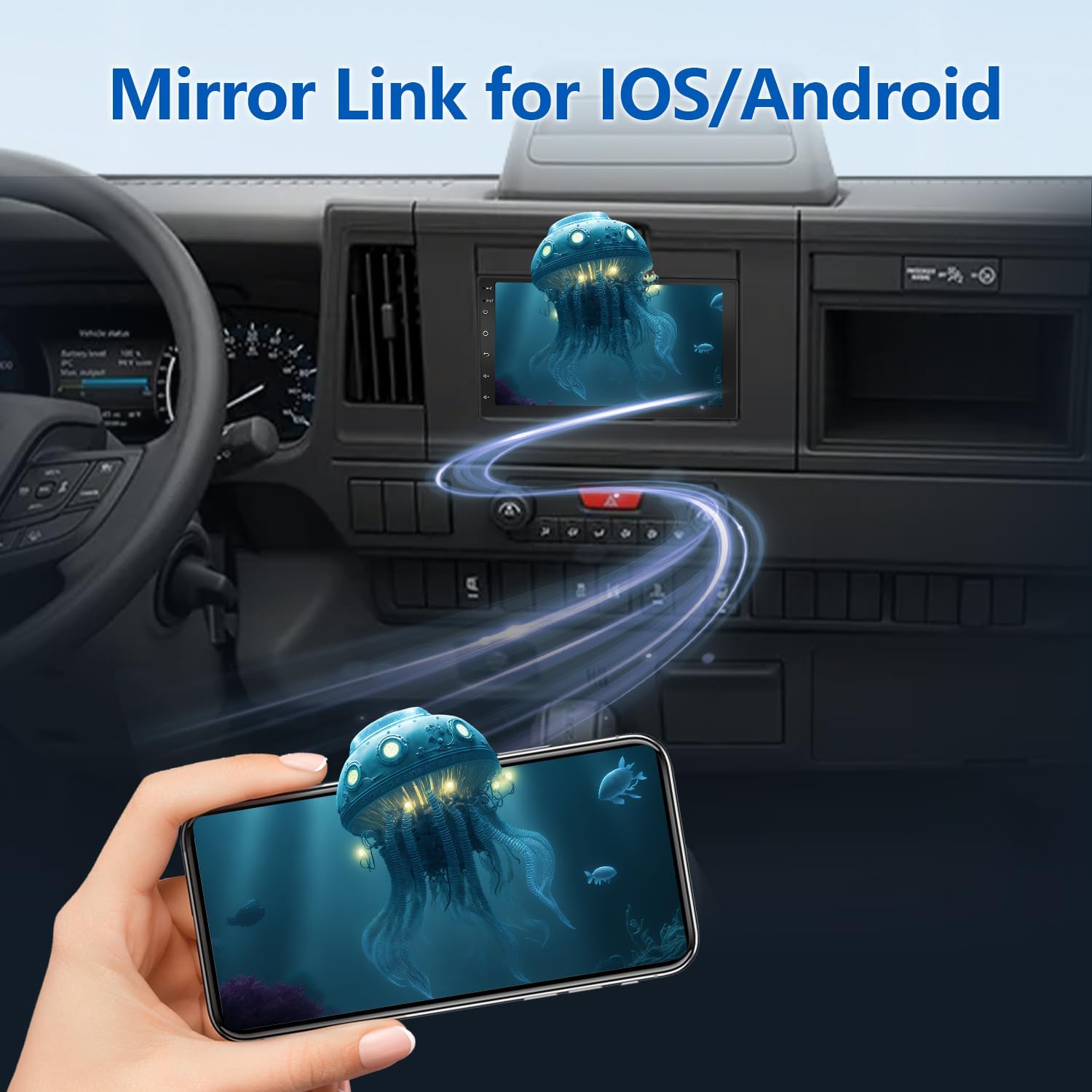
Image: A smartphone screen being mirrored onto the dehateo car stereo display, showing a dynamic wallpaper.
5. Maintenance
To ensure the longevity and optimal performance of your dehateo car stereo, follow these maintenance guidelines:
- Cleaning: Use a soft, dry cloth to clean the touchscreen and unit exterior. Avoid abrasive cleaners or solvents that could damage the screen or finish.
- Software Updates: Periodically check for software updates provided by dehateo to ensure you have the latest features and bug fixes. Updates can typically be found on the manufacturer's website or through the unit's system settings if an internet connection is available.
- Environmental Conditions: Avoid exposing the unit to extreme temperatures, direct sunlight for prolonged periods, or excessive moisture.
- Cable Connections: Ensure all cables are securely connected. Loose connections can lead to intermittent issues.
6. Troubleshooting
If you encounter issues with your dehateo car stereo, refer to the following common problems and solutions:
| Problem | Possible Cause | Solution |
|---|---|---|
| Unit does not power on | Loose power connection, blown fuse, vehicle battery issue | Check power cables and fuses. Ensure vehicle battery is charged. Consult an installer if necessary. |
| No sound output | Speaker wires disconnected, volume too low, incorrect audio source selected | Check speaker connections. Increase volume. Select the correct audio source (e.g., FM, Bluetooth, CarPlay). |
| Bluetooth not connecting | Bluetooth off on phone/stereo, device not in pairing mode, interference | Ensure Bluetooth is enabled on both devices. Put stereo in pairing mode. Try restarting both devices. |
| GPS signal lost or inaccurate | GPS antenna obstructed or disconnected, poor satellite coverage | Ensure GPS antenna has a clear view of the sky. Check antenna connection. Move to an open area. |
| Touchscreen unresponsive | Software glitch, screen damage | Restart the unit. If issue persists, contact customer support. |
| CarPlay/Android Auto not launching | Phone not compatible, incorrect connection method, app issues | Ensure phone is compatible and updated. Check Wi-Fi/Bluetooth connection. Restart phone and stereo. |
If the problem persists after attempting these solutions, please contact dehateo customer support for further assistance.
7. Specifications
| Feature | Detail |
|---|---|
| Model Number | USNZUGO1X-1022 |
| Operating System | Android 14 |
| Screen Size | 7 inches (18 cm) |
| Display Type | HD IPS Touchscreen |
| Processor | Quad-core |
| RAM | 4GB |
| Internal Storage | 64GB |
| Connectivity | USB, RCA, Bluetooth 5.0, WiFi |
| Special Features | Wireless CarPlay, Android Auto, Built-in GPS, DSP, FM/RDS Radio, Mirror Link, Rear Camera Input, Steering Wheel Control |
| Compatible Devices | Smartphone, Tablet, Personal Computer |
| Audio Output Mode | Stereo |
| Video Encoding | H.264, H.265/HEVC |
| Product Dimensions | 8.66 x 5.91 x 4.72 inches |
| Item Weight | 2.53 pounds (1146 Grams) |
| Color | Black |
8. Warranty and Support
Your dehateo Android 14 Car Stereo Radio is covered by a manufacturer's warranty. Please refer to the warranty card included in your package or visit the official dehateo website for detailed warranty terms and conditions.
For technical support, troubleshooting assistance, or inquiries regarding your product, please contact dehateo customer service through the contact information provided on their official website or your purchase platform.