
1. Introduction
This manual provides detailed instructions for the JINSHANGZI DW100 S10 Ultra 3 Smartwatch. This device combines advanced smartwatch functionalities with smartphone capabilities, featuring a 2.29-inch AMOLED display, 4G independent calling, GPS, Wi-Fi, and facial unlock. Please read this manual thoroughly to ensure proper use and optimal performance of your smartwatch.
2. Package Contents
Verify that all items listed below are present in your package:
- DW100 Smartwatch x1
- Original Strap x1
- Instruction Manual x1
- Original Box x1
3. Setup
3.1 SIM Card Installation
The DW100 S10 Ultra 3 Smartwatch supports independent 4G calling via a Nano SIM card. Follow these steps to install the SIM card:
- Locate the SIM card slot on the side of the smartwatch.
- Carefully open the SIM card tray using the provided tool (if applicable) or your fingernail.
- Insert a Nano SIM card into the tray with the gold contacts facing down, ensuring it is correctly oriented.
- Gently push the tray back into the slot until it clicks into place.

Figure 3.1: SIM card insertion into the smartwatch. The image displays the smartwatch with a SIM card partially inserted into its side slot, alongside a numeric dial pad on the screen, indicating call functionality.
3.2 Initial Power On
To power on your smartwatch for the first time:
- Press and hold the power button (usually located on the side) until the screen illuminates.
- Follow the on-screen prompts to select your language, region, and complete the initial setup process.
3.3 Network Configuration
To connect your smartwatch to the internet:
- Wi-Fi: Navigate to Settings > Network & Internet > WLAN. Select your desired Wi-Fi network and enter the password.
- Mobile Data (4G): Ensure your SIM card is correctly installed and has an active data plan. Mobile data will activate automatically. You can manage data usage in Settings > Network & Internet > Data Usage.
- Hotspot & Tethering: Your smartwatch can also act as a Wi-Fi hotspot. Access this feature in Settings > Network & Internet > Hotspot & Tethering.
4. Operating Instructions
4.1 Basic Navigation
The smartwatch features a 2.29-inch AMOLED touchscreen. Use swipe gestures and taps to navigate the interface:
- Swipe Up/Down: Scroll through menus or notifications.
- Swipe Left/Right: Switch between different screens or widgets.
- Tap: Select an item or open an application.
- Press and Hold: Access context-sensitive menus or customize watch faces.
4.2 App Download and Management
The smartwatch runs on Android 10.0, allowing you to download and install various applications:
- Ensure your smartwatch is connected to Wi-Fi or has an active 4G data connection.
- Open the app store application on your smartwatch.
- Browse or search for desired applications.
- Tap to install.
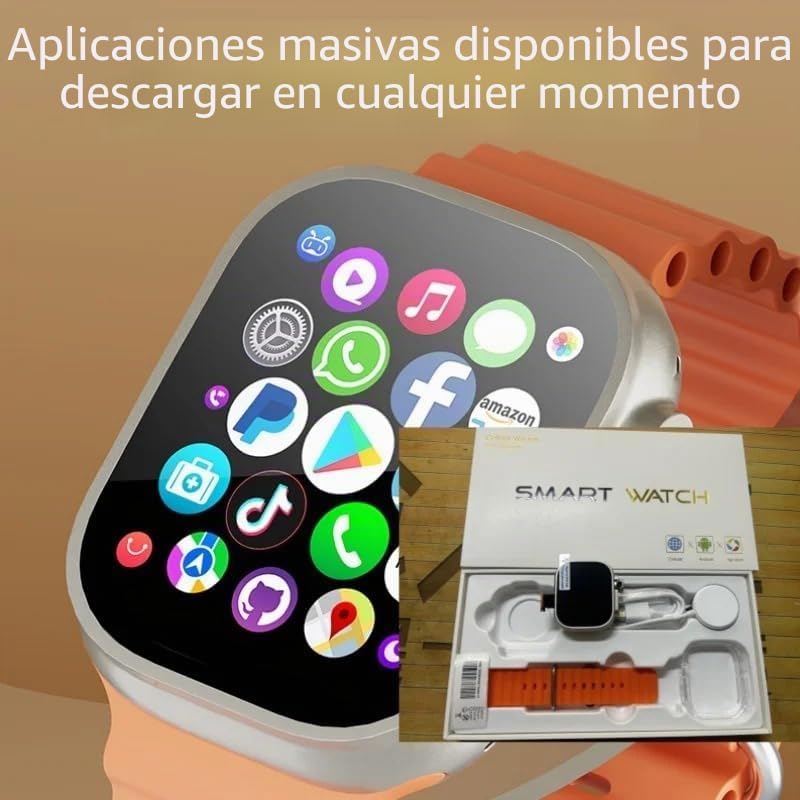
Figure 4.1: Smartwatch display showing various applications available for download. The screen is populated with icons for popular apps, highlighting the device's app ecosystem.
4.3 Making Calls
With a Nano SIM card installed, your smartwatch can make and receive calls independently:
- Open the Phone application.
- Dial the number using the on-screen keypad or select a contact from your address book.
- Tap the call icon to initiate the call.
4.4 Health Monitoring
The smartwatch includes features for monitoring your health:
- Heart Rate Monitoring: Access the Heart Rate app to measure your pulse. Ensure the watch is snug on your wrist for accurate readings.
- Step Counter: The Pedometer or Activity app tracks your daily steps.
4.5 Using Tools
The smartwatch comes with several built-in tools:
- Recording: Use the Recorder app for voice memos.
- Alarm: Set alarms via the Clock app.
- Calendar: Manage your schedule with the Calendar app.
- Calculator: Perform calculations using the Calculator app.
- Stopwatch: Access the Stopwatch function within the Clock app.
- Weather: View local weather conditions (requires network connection).
4.6 Customizing Watch Faces
Personalize your smartwatch with various watch faces:
- Press and hold the current watch face on the home screen.
- Swipe left or right to browse available watch faces.
- Tap to select a new watch face or customize existing ones.
4.7 Software Updates (OTA)
The smartwatch supports Over-The-Air (OTA) software updates to improve performance and add new features:
- Ensure your smartwatch has sufficient battery life and is connected to Wi-Fi.
- Navigate to Settings > System > Software Update.
- Follow the on-screen instructions to check for and install updates.
4.8 Facial Unlock
The smartwatch features facial recognition for secure unlocking:
- Go to Settings > Security & Privacy > Facial Unlock.
- Follow the prompts to register your face.
- Once registered, you can unlock your smartwatch by looking at the screen.
5. Maintenance
To ensure the longevity and optimal performance of your JINSHANGZI DW100 S10 Ultra 3 Smartwatch, follow these maintenance guidelines:
- Cleaning: Regularly wipe the screen and body with a soft, dry, lint-free cloth. For stubborn smudges, slightly dampen the cloth with water. Avoid using harsh chemicals or abrasive materials.
- Water Resistance: While the device may offer some resistance to splashes, avoid submerging it in water or exposing it to high-pressure water jets. Refer to specific water resistance ratings if available.
- Charging: Use only the original charging cable and adapter. Avoid charging in extreme temperatures.
- Storage: When not in use for extended periods, store the smartwatch in a cool, dry place away from direct sunlight.
- Strap Care: Clean the strap regularly according to its material. Avoid prolonged exposure to sweat and moisture for non-waterproof straps.
6. Troubleshooting
This section addresses common issues you might encounter with your smartwatch.
6.1 Device Not Powering On
- Check Battery: Ensure the smartwatch is sufficiently charged. Connect it to the charger for at least 30 minutes.
- Hard Reset: Press and hold the power button for 10-15 seconds to perform a hard reset.
6.2 Poor Network Connectivity (4G/Wi-Fi)
- SIM Card: Verify the Nano SIM card is correctly inserted and active. Check if your SIM card supports the smartwatch's frequency bands (2G: B2, B3, B5, B8; 3G: B1, B2, B5, B8; 4G FDD: B1, B2, B3, B4(66), B5, B7, B8, B12, B17, B20, B28F; 4G TDD: B34, B38, B39, B40, B41).
- Wi-Fi: Ensure you are within range of a known Wi-Fi network and have entered the correct password. Try forgetting and re-connecting to the network.
- Airplane Mode: Check if Airplane Mode is enabled in Settings > Network & Internet. Disable it if active.
6.3 Apps Not Downloading/Updating
- Internet Connection: Confirm a stable internet connection (Wi-Fi or 4G).
- Storage: Check available storage space in Settings > Storage. Free up space if necessary.
- App Permissions: Ensure the app store has necessary permissions in Settings > Apps & Notifications > App Permissions.
6.4 Inaccurate Health Monitoring
- Fit: Ensure the smartwatch is worn snugly on your wrist, not too loose or too tight.
- Clean Sensors: Keep the sensors on the back of the watch clean and free from debris.
7. Specifications
| Feature | Description |
|---|---|
| CPU | Spreadtrum SC8541E 10-core 1.4 GHz Processor |
| Memory | 4GB RAM + 64GB Storage (Variant: 4GB+32GB / 8GB+128GB also available) |
| SIM Card | 4G Independent Call, Nano SIM |
| Display | 2.29-inch AMOLED Touch Screen, HD Resolution 490*580 |
| Size | 49mm 1:1 Case |
| Camera | 8 MP Detachable Camera |
| Connectivity | Bluetooth, Wi-Fi, GPS |
| Health Monitoring | Heart Rate Monitoring, Step Counter |
| Battery | 1500 mAh |
| Operating System | Android 10.0 |
| Software Features | OTA Update, Integrated & Customizable Watch Faces |
| Security | Facial Unlock |
7.1 Supported Languages
- English, Arabic, German, Spanish, Persian, Finnish, French, Italian, Japanese, Hebrew, Malay, Dutch, Polish, Portuguese, Russian, Thai, Turkish, Vietnamese, Korean, Filipino, Hindi.
7.2 Supported Network Bands (Global Version)
- 2G: B2, B3, B5, B8
- 3G: B1, B2, B5, B8
- 4G FDD: B1, B2, B3, B4(66), B5, B7, B8, B12, B17, B20, B28F
- 4G TDD: B34, B38, B39, B40, B41
Note: Ensure your SIM card is compatible with the above frequency bands for optimal network performance.
8. Warranty and Support
For warranty information and technical support, please refer to the documentation provided with your purchase or contact the retailer/manufacturer directly. Specific warranty terms and support channels may vary by region and point of purchase.